
How to Use a Color Contrast Checker to Save Your Design
How to Use a Color Contrast Checker to Save Your Design
Why a WCAG Contrast Checker Belongs in Every Web Project
A wcag contrast checker is a tool that measures the color contrast ratio between text (or other elements) and its background, then tells you whether that ratio meets the Web Content Accessibility Guidelines set by the W3C.
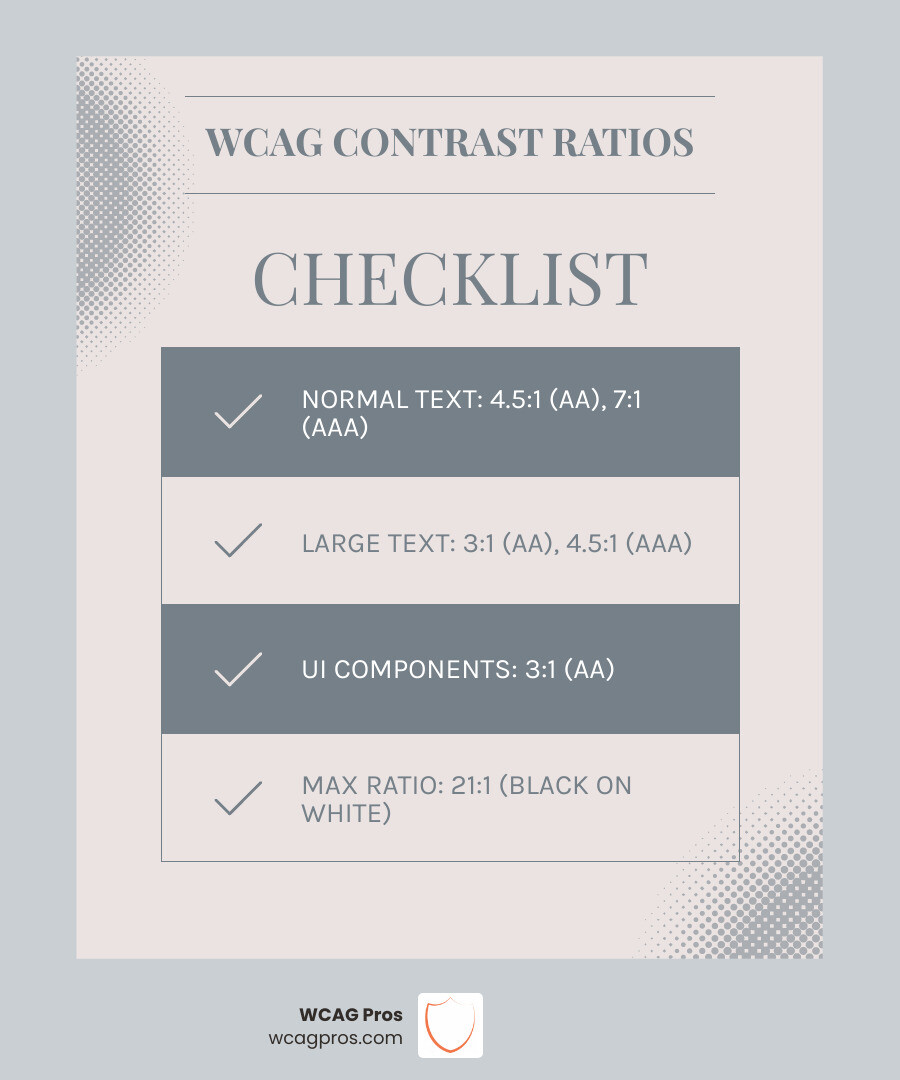
Here is a quick reference for the most important compliance thresholds:
| Element | WCAG AA | WCAG AAA |
|---|---|---|
| Normal text | 4.5:1 | 7:1 |
| Large text (18pt+ or 14pt+ bold) | 3:1 | 4.5:1 |
| UI components and graphics | 3:1 | N/A |
The highest possible contrast ratio is 21:1, achieved with pure black on pure white. A ratio of 1:1 means no contrast at all.
Poor color contrast is one of the most common accessibility failures on the web today. It creates real barriers for people with low vision, color blindness, or other visual impairments. It also creates real legal risk. In 2019 alone, 2,256 digital accessibility lawsuits were filed in US federal courts, a 177% increase from 2017, averaging seven cases every single day.
The good news is that fixing contrast issues is one of the fastest and most cost-effective ways to improve your site’s accessibility and protect your business from litigation.
I’m Matthew Post, a web developer and accessibility specialist with nearly three decades of experience, and as co-founder of WCAG Pros I’ve personally used WCAG contrast checker tools on hundreds of audits and remediation projects. In this guide I’ll walk you through exactly how to use these tools to verify compliance, fix failures, and keep your design intact.
Understanding the Science of the WCAG Contrast Checker
To use a wcag contrast checker effectively, we first need to look at the math behind the curtain. The guidelines use a specific formula to determine how much one color stands out against another. This is known as the contrast ratio.
The calculation is based on something called relative luminance. This is the perceived brightness of any point in a color space, normalized to 0 for the darkest black and 1 for the lightest white. When we use a checker tool, it looks at the relative luminance of the foreground color (L1) and the background color (L2).
The WCAG 2.0 Glossary – Contrast Ratio defines the formula as (L1 + 0.05) / (L2 + 0.05). The 0.05 is added to account for ambient light and to prevent division by zero errors when dealing with pure black. You can see a more technical breakdown in the WCAG 2.0 MathML version of the relative luminance definition.
The resulting ratio ranges from 1 to 1 up to 21 to 1. A 1 to 1 ratio occurs when the foreground and background are the same color, making the text invisible. A 21 to 1 ratio is the maximum contrast possible, which you get with black and white. Most design schemes fall somewhere in the middle. Our goal is to ensure that the ratio stays high enough that users with various visual abilities can still read the content without strain.
Minimum Requirements for AA and AAA Compliance
When we talk about web accessibility, we refer to different levels of conformance. These are Level A, Level AA, and Level AAA. For most businesses and government entities, Level AA is the gold standard for legal compliance.
Here is how the requirements break down for different elements:
- Normal Text: This includes the majority of your body copy. Under WCAG Success Criterion 1.4.3, Level AA requires a minimum ratio of 4.5 to 1. For Level AAA, that requirement jumps to 7 to 1.
- Large Text: Because larger letters are easier to see, the requirements are slightly lower. Level AA requires 3 to 1, while Level AAA requires 4.5 to 1.
- UI Components and Graphical Objects: This covers things like button borders, form input fields, and icons. WCAG Success Criterion 1.4.11 requires a 3 to 1 ratio for these elements at the AA level.
- Non-Text Contrast: This ensures that active interface components and meaningful graphics are distinguishable from their adjacent colors.
It is important to note that decorative elements, brand logos, and text that is part of an inactive user interface component are generally exempt from these requirements. However, we always recommend aiming for high contrast even in these areas to improve general usability.
Defining Large Text in a WCAG Contrast Checker
A common point of confusion when using a wcag contrast checker is what actually counts as large text. We cannot just decide that a font looks big enough. The guidelines provide very specific definitions based on print points.
Large text is defined as text that is at least 18 point regular or 14 point bold. When we translate these print points into digital pixels, 18 point is roughly equivalent to 24 pixels. For bold text, 14 point is roughly equivalent to 18.66 pixels.
If your text meets these size requirements, you can use the lower 3 to 1 ratio for AA compliance. If your text is smaller than these thresholds, you must stick to the 4.5 to 1 ratio. You can find the official definition of large-scale text from WCAG in the W3C documentation.
Differences Between WCAG 2.0 2.1 and 2.2 Standards
The world of web accessibility is always evolving. While the core contrast requirements for text have remained consistent, newer versions of the guidelines have expanded the scope of what needs to be checked.
- WCAG 2.0: This version established the 4.5 to 1 and 3 to 1 ratios for text that we still use today.
- WCAG 2.1: This update introduced Success Criterion 1.4.11, which added requirements for non-text contrast. This meant we had to start checking button borders and infographics, not just the text itself.
- WCAG 2.2: The latest version, WCAG 2.2, builds on the previous standards with nine new success criteria. While it does not change the basic contrast ratios, it places a heavier emphasis on touch targets and cognitive disabilities. It ensures that interactive elements are easy to find and use for everyone.
By staying up to date with the latest version, we ensure that our designs are truly inclusive and future proof.
Why Color Contrast is Essential for User Experience and SEO
We often think about accessibility as something we do just for people with disabilities. While that is a primary goal, good color contrast actually benefits every single user.
Think about a person trying to read your website on their phone while standing in bright sunlight. Or a user with tired eyes at the end of a long workday. High contrast makes the content easier to scan and digest for everyone. For users with visual impairments like cataracts, glaucoma, or macular degeneration, high contrast is not just a convenience. It is a necessity for access.
Color blindness is another major factor. Millions of people have trouble distinguishing between certain colors, such as red and green. If we rely on color alone to convey information, these users will miss out. A wcag contrast checker helps us ensure that the brightness difference is strong enough that the specific hue does not matter as much.
From a business perspective, accessibility is great for SEO. Search engines like Google prioritize websites that provide a good user experience. Accessible sites tend to have better structure and readability, which can lead to higher rankings. Plus, following an ADA website compliance 2025 accessibility checklist helps you avoid the legal headaches we mentioned earlier. You can learn more about this in our guide on 5 common accessibility issues on small business websites and how to fix them.
How to Use a WCAG Contrast Checker Effectively
Using a wcag contrast checker is a straightforward process, but there are a few tips to make sure you get accurate results. Most tools require two inputs: the Hex code for your foreground color and the Hex code for your background color.
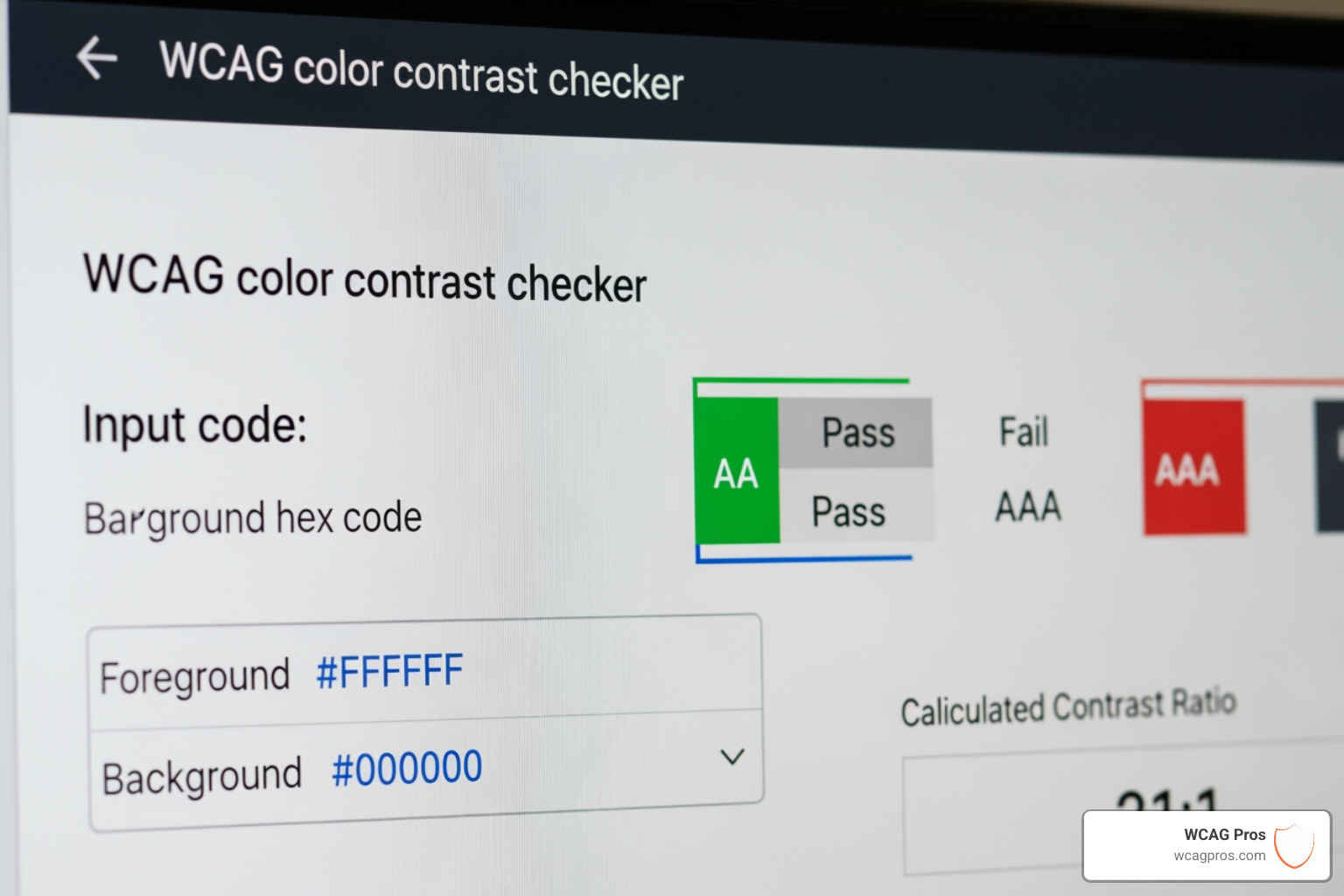
Here is a simple workflow we follow:
- Identify the Colors: Use a browser inspector or a design tool like Figma to find the Hex codes or RGB values of the elements you want to test.
- Input the Values: Enter these codes into a reliable online tool to verify the ratio.
- Check Multiple States: Do not just check the static text. You also need to test how the colors change during hover or focus states. A button might pass when it is sitting still but fail when a user mouses over it.
- Use an Eyedropper: Many tools include an eyedropper feature that lets you pick colors directly from your screen. This is incredibly helpful for checking colors in images or complex gradients.
- Run a Full Page Audit: Tools like WAVE can analyze an entire page at once, highlighting every contrast failure in one go.
By making this part of your regular design and development process, you can catch issues before they ever reach the live site.
Fixing Design Failures with a WCAG Contrast Checker
What happens when your favorite brand color fails the test? This is where many designers get nervous, but we do not have to throw away the brand identity. We just need to make some smart adjustments.
One of the best ways to fix a failure is to use HSL (Hue, Saturation, Lightness) sliders. By keeping the Hue and Saturation the same but slightly adjusting the Lightness, we can often find a color that looks almost identical to the original but passes the contrast requirements.
Many modern checkers also provide automated color suggestions. They will show you the closest compliant color to the one you currently have. This allows us to maintain the visual feel of the brand while meeting legal standards. For more tips on quick fixes, check out our article on Quick fixes to improve your website’s accessibility today.
Best Tools and Extensions for Contrast Testing
There is no shortage of great tools to help us stay compliant. Depending on your role, some might be more useful than others.
- For Developers: Browser extensions like the WAVE evaluation tool or standard developer consoles are great for real time analysis. You can also use Automated tools audit software to scan entire sites.
- For Designers: Figma has several built-in plugins that allow you to check contrast as you build your mockups.
- For Quick Checks: Online tools like Contrast Finder are perfect for testing a single pair of colors.
- For Advanced Users: Some tools offer APIs and bookmarklets that can be integrated into your existing workflow for even faster testing.
We recommend using a combination of these tools to ensure nothing slips through the cracks.
Beyond Color Contrast Holistic Web Accessibility
While a wcag contrast checker is an essential tool, it is only one piece of the puzzle. A website with perfect color contrast can still be completely inaccessible if it lacks proper structure.
To create a truly inclusive experience, we also need to focus on:
- Heading Structure: Using H1 through H6 tags correctly so screen readers can navigate the content.
- Alt Text for Images: Providing descriptive text for every meaningful image so users who cannot see them still understand the context.
- Keyboard Navigation: Ensuring that every part of the site can be reached and used without a mouse.
- Accessible Forms: Making sure labels are clear and error messages are easy to understand.
We often combine automated tools with manual testing to get the full picture. You can read more about this in our guide on Automated web accessibility testing made easy. We also highly recommend How to test your website’s accessibility using real users to see how people actually interact with your design.
Frequently Asked Questions about Contrast Compliance
Is meeting color contrast requirements enough for full accessibility?
No, it is not. While color contrast is a huge factor, accessibility is a holistic discipline. You also need to consider screen reader compatibility, logical navigation, and interaction design. Think of color contrast as the paint on a house. It makes the house look good and readable, but you still need a solid foundation and a clear floor plan for the house to be functional.
What are some examples of good and poor color combinations?
- Good Pairs: Black text on a white background (21 to 1) is the gold standard. Dark blue on white or white on a dark forest green also typically pass with flying colors.
- Poor Pairs: Light gray text on a white background is one of the most common failures. Yellow text on a white background is almost always unreadable. We also see many failures with light blue text on a white background or red text on a black background.
How does insufficient contrast impact legal standing?
In the United States, the Americans with Disabilities Act (ADA) has been interpreted by courts to apply to websites. If your site has significant accessibility barriers like poor color contrast, you could be vulnerable to lawsuits. This is also true under the European Accessibility Act and various international regulations. Beyond the legal risk, poor accessibility can lead to reputational damage and a loss of potential customers who simply cannot use your site.
Conclusion
Creating an accessible website is not just about checking boxes. It is about making sure that everyone, regardless of their physical or cognitive abilities, has equal access to information and services. Using a wcag contrast checker is one of the easiest and most effective ways to start that journey.
By taking the time to verify your contrast ratios, you are not just protecting your business from legal risk. You are building a better, more usable product for every single person who visits your site.
If you are not sure where to start or if you want a professional eye on your project, we are here to help. At WCAG Pros, we offer comprehensive, page by page audits and code fixes to ensure your site is fully compliant. We even provide free re-audits for our compliance badges. Contact us today for a professional WCAG audit and let us help you build a web that works for everyone.
Read more website accessibility articles
Get Help With Your Website
We'll follow up with info about:
- The process
- Cost
- Timeline
We promise to respect your privacy, and never abuse the information you provide. We will not sell or rent your information to any third party.
By submitting this form, you consent to receive SMS messages and/or emails from SEM Dynamics LLC, dba WCAG Pros. To unsubscribe, follow the instructions provided in our communications. Msg & data rates may apply for SMS. Your information is secure and will not be sold to third parties.