Mastering the Art of Decorative Alt Text for Web Accessibility
Why Images Decorative Alt Text Can Make or Break Your Accessibility Compliance
Images decorative alt text is one of the most misunderstood — and most audited — areas of WCAG compliance. Get it wrong, and screen reader users are bombarded with useless noise. Get it right, and your site becomes genuinely easier to use for everyone.
Here is the quick answer:
Situation
What to do
Image adds no useful information
Use alt="" (empty alt attribute)
Image content is already described in nearby text
Use alt="" to avoid repetition
Image is inside a link with descriptive text
Use alt="" so the link text does the work
Image conveys meaning not found elsewhere
Write descriptive alt text
Image is a decorative SVG
Use aria-hidden="true"
Image is a CSS background
No alt needed — it is already hidden from screen readers
The rule of thumb: when in doubt, provide more information rather than less. But for truly decorative images, silence is the most accessible choice.
This is not just a best-practice issue. Under WCAG Success Criterion 1.1.1, failing to handle decorative images correctly is a real compliance violation — and it shows up in accessibility audits constantly.
I’m Matthew Post, a web developer and accessibility specialist with nearly three decades of experience, and I’ve personally reviewed hundreds of sites where improper handling of images decorative alt text was quietly creating both ADA liability and a poor screen reader experience. In the sections below, I’ll walk you through exactly how to identify, code, and test decorative images so your site stays compliant and usable.
Defining Images: Decorative Alt Text vs. Informative Content
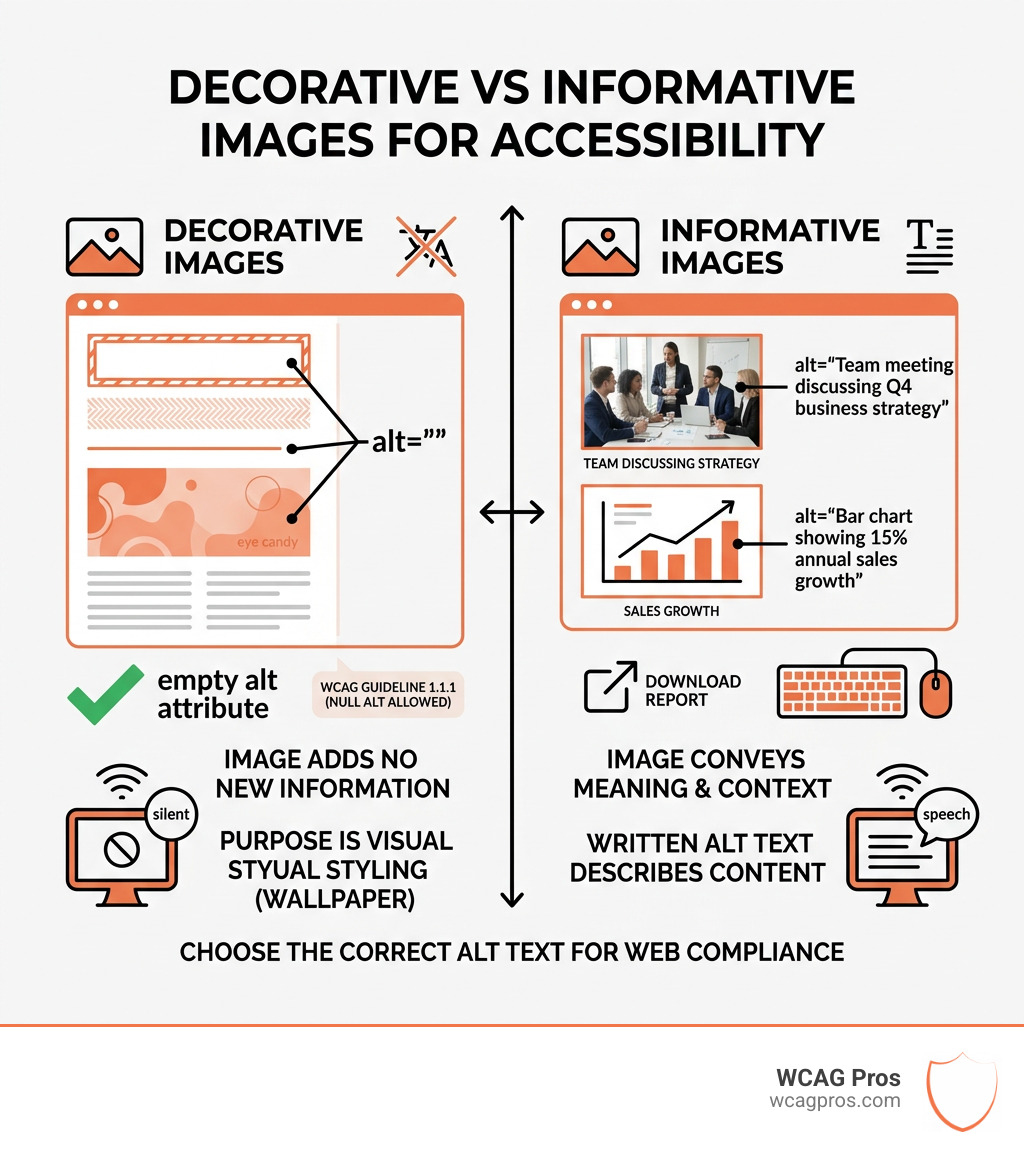
At WCAG Pros, we often see developers get paralyzed by a simple question: “Is this image important?” To answer that, we look to Guideline 1.1.1 Non-text Content , which requires that all non-text content has a text alternative. However, the guideline specifically allows for “null” alt text when an image is purely for visual styling or “eye candy.”
A decorative image is a visual element that doesn’t add additional context or information that allows the user to better understand the page’s content. Think of it as the wallpaper in a room—it makes the room look nice, but you don’t need to describe the floral pattern to understand what’s happening in the meeting taking place there.
To help our clients, we often refer them to the W3C Image Decision Tree , a fantastic tool for determining an image’s purpose.
Image Type
Purpose
Screen Reader Requirement
Decorative Visual flair, ambiance, or redundancy.
Must be ignored (null alt).
Informative Conveys a concept, emotion, or data.
Needs descriptive text.
Functional Initiates an action (like a button or link).
Must describe the destination or action.
When to use images decorative alt text
There are three primary situations where we recommend using images decorative alt text (specifically, the null attribute):
Redundant Information: If the image is a Source of decorative image like a “Social Media” icon placed right next to a heading that says “Social Media,” describing the icon is redundant.Adjacent Text: When the image is fully described by the text immediately surrounding it. For example, a photo of a sleeping dog next to a paragraph titled “Why Dogs Sleep So Much.”Visual Ambiance: Abstract shapes, gradients, or stock photos used simply to break up text or add “vibe” to a landing page without contributing to the narrative.
Identifying functional vs. decorative icons
This is where it gets tricky. An icon can be decorative in one context and functional in another.
Take a “Home” icon (the little house). If that icon is inside a navigation link that also contains the word “Home,” the icon is decorative. The link text handles the accessibility. However, if the icon is the only thing inside the link, it is now a functional image. It must have alt text like alt="Home" so the user knows where the link goes.
Always check if the clickable area or the button labels already provide the necessary information. If they do, mark that icon as decorative to avoid cluttering the screen reader’s output.
Technical Implementation: How to Code Null Alt Text
When we perform Quick Fixes to Improve Your Website’s Accessibility Today , the most common HTML correction we make is adding the null alt attribute.
In HTML, the must have an alt attribute to be valid. For decorative images, we use an empty or “null” value: alt="".
When a screen reader encounters alt="", it understands that the image is intentionally hidden. It will skip over the element entirely. If you omit the attribute entirely, the screen reader may try to be “helpful” by reading the filename (e.g., “IMG9842 final_v2.jpg”), which is a major source of screen reader fatigue.
Using ARIA for images decorative alt text
While alt="" is the gold standard for standard images, modern web design uses SVGs and complex components that require ARIA attributes.
role="presentation"aria-hidden="true"
For inline SVGs—which don’t support the alt attribute—we recommend using aria-hidden="true". To dive deeper into the nuances, you can check out this guide on the difference between role=”presentation” and aria-hidden=”true” .
Common mistakes to avoid in HTML
Even with the best intentions, we see these three mistakes during our audits:
Missing Alt: As mentioned, this leads to the dreaded filename announcement.Keyword Stuffing: Never put SEO keywords like “best plumber in Norco CA” into the alt text of a decorative divider. This is a violation of ACT Rules: Image not in the accessibility tree .The “Image of” Prefix: Screen readers already announce “Graphic” or “Image.” Writing alt="Image of a decorative swirl" results in the user hearing “Graphic, Image of a decorative swirl.” Just use alt="" if it’s decorative, or describe the subject directly if it’s informative.
Real-World Examples of Decorative Images
Let’s look at some visuals you likely use every day. Stock photos that “catch the eye” at the top of a blog post are often purely decorative. Similarly, page borders or horizontal floral dividers are classic candidates for null alt text.
Another common example is the Source of the quick brown fox jumps over the lazy dog image . If this image is used to demonstrate a font style, and the text is already written in the caption, the image itself becomes decorative.
Handling Decorative SVGs and CSS Backgrounds
Vector graphics (SVGs) are popular because they are crisp at any size. If you use an SVG as a decorative icon next to a text label, SVGs are ignored by some screen readers by default, but others might try to read the </code> tag inside the SVG code. To be safe, always apply <code>aria-hidden="true"</code> to decorative SVGs.</p>
<p>For CSS background images, you’re in luck! Assistive technology generally ignores images loaded via the <code>background-image</code> property. If an image is truly decorative, moving it to CSS is a clean way to handle it. If you are using CSS pseudo-elements like <code>::before</code> to add icons, you can use the syntax <code>content: "" / "";</code> to provide a null alternative within the stylesheet itself, as noted in the <a href="https://www.w3.org/WAI/tutorials/images/decorative/" target="_blank">Decorative Images | Web Accessibility Initiative (WAI)</a> tutorials.</p>
<h3 class="wp-block-heading" id="contextual-examples-when-the-same-image-changes-roles">Contextual examples: When the same image changes roles</h3>
<p>Context is everything in accessibility. Consider the <a href="https://upload.wikimedia.org/wikipedia/commons/c/c7/Hans_Holbein,_the_Younger,_Around_1497-1543_-_Portrait_of_Henry_VIII_of_England_-_Google_Art_Project.jpg" target="_blank">Source of King Henry VIII of England Image</a>.</p>
<ul class="wp-block-list">
<li><strong>Scenario A:</strong> On a history blog post about Tudor fashion, this image is <strong>informative</strong>. The alt text should describe his ornate clothing and stern expression.</li>
<li><strong>Scenario B:</strong> On a page about “Famous Kings,” where his name “King Henry VIII” is written in a large heading right below the picture, the image is <strong>decorative</strong>. The text has already identified him; the image is just visual flair.</li>
</ul>
<h2 class="wp-block-heading" id="platform-specific-considerations-for-decorative-visuals">Platform-Specific Considerations for Decorative Visuals</h2>
<p>Accessibility isn’t just for websites; it’s for documents, too. If you’re creating reports or presentations, you need to handle visuals correctly in those formats.</p>
<h3 class="wp-block-heading" id="marking-images-as-decorative-in-microsoft-365">Marking images as decorative in Microsoft 365</h3>
<p>Microsoft has made this surprisingly easy. In apps like Word, Excel, and PowerPoint, you don’t need to write code. </p>
<ol class="wp-block-list">
<li>Right-click the image.</li>
<li>Select “View Alt Text.”</li>
<li>Check the box that says <strong>“Mark as decorative.”</strong></li>
</ol>
<p>This grays out the text box and tells screen readers to skip the object. We recommend checking <a href="https://support.office.com/" target="_blank">Microsoft Office Help & Training</a> for the latest updates on these features. Be wary of AI-generated descriptions; Microsoft often suggests them automatically, but if the image is decorative, you should ignore the AI and just check the “decorative” box. You can find more tips at <a href="https://support.office.com/" target="_blank">Microsoft 365 help & learning</a>.</p>
<h3 class="wp-block-heading" id="handling-decorative-elements-in-pdfs-and-epubs">Handling decorative elements in PDFs and ePubs</h3>
<p>For PDFs, decorative images must be “Artifacted.” This is a technical term in PDF tagging that tells the reading order to skip the element. In professional tools like Adobe Acrobat, you can right-click a tag and change it to an “Artifact.”</p>
<p>In ePub files (used for e-books), the rules are similar to HTML. According to the <a href="http://kb.daisy.org/publishing/docs/html/images.html" target="_blank">Accessible Publishing Knowledge Base: HTML: Images</a>, decorative images should use <code>alt=""</code> and, for maximum compatibility, <code>role="presentation"</code>.</p>
<h2 class="wp-block-heading" id="frequently-asked-questions-about-decorative-alt-text">Frequently Asked Questions about Decorative Alt Text</h2>
<h3 class="wp-block-heading" id="what-happens-if-i-omit-the-alt-attribute-entirely">What happens if I omit the alt attribute entirely?</h3>
<p>This is one of the <a href="https://wcagpros.com/wcag-articles/5-common-accessibility-issues-on-small-business-websites-and-how-to-fix-them/">5 Common Accessibility Issues on Small Business Websites</a>. When the attribute is missing, the screen reader doesn’t know if you forgot it or if it’s decorative. Most will announce the filename, which is a poor user experience and a technical WCAG violation.</p>
<h3 class="wp-block-heading" id="can-i-use-decorative-as-the-alt-text-string">Can I use “decorative” as the alt text string?</h3>
<p>Please don’t! We see <code>alt="decorative image"</code> or <code>alt="spacer"</code> all the time. This actually makes the experience worse because the screen reader will say “Graphic, decorative image.” The user still has to listen to it. Use an empty string <code>alt=""</code> to ensure total silence.</p>
<h3 class="wp-block-heading" id="how-do-i-test-if-an-image-is-truly-decorative">How do I test if an image is truly decorative?</h3>
<p>Our favorite trick at WCAG Pros is the “Text-Only Test.” Imagine your website has no images at all. Does the page still make sense? Does it lose any meaning? If the answer is “no,” the image is likely decorative. For a full breakdown of testing methods, see <a href="https://wcagpros.com/wcag-articles/the-ultimate-website-accessibility-testing-checklist-for-2026/">The Ultimate Website Accessibility Testing Checklist for 2026</a>.</p>
<h2 class="wp-block-heading" id="conclusion">Conclusion</h2>
<p>Mastering <strong>images decorative alt text</strong> is about respect for the user’s time and attention. By correctly identifying and coding decorative images, you remove the “noise” of the internet for those using assistive technology.</p>
<p>At WCAG Pros, we specialize in helping businesses in Norco, CA, and beyond achieve full ADA compliance. Whether you need a comprehensive page-by-page audit of all 54 WCAG points or help with remediation and code fixes, we’re here to ensure your digital presence is inclusive for everyone.</p>
<p>Ready to ensure your site is fully accessible? <a href="https://wcagpros.com/">More info about WCAG Pros services</a> is just a click away. Let’s make the web better, one <code>alt=""</code> at a time.</p>
</div>
</div>
<div class="fl-module fl-module-separator fl-node-606f650cd49f3" data-node="606f650cd49f3">
<div class="fl-module-content fl-node-content">
<div class="fl-separator"></div>
</div>
</div>
<div class="fl-module fl-module-rich-text fl-node-60a80f3dd6e66" data-node="60a80f3dd6e66">
<div class="fl-module-content fl-node-content">
<div class="fl-rich-text">
<p>Read more <a href="https://wcagpros.com/articles/">website accessibility articles</a></p>
</div>
</div>
</div>
<div class="fl-module fl-module-separator fl-node-606f650cd49f6" data-node="606f650cd49f6">
<div class="fl-module-content fl-node-content">
<div class="fl-separator"></div>
</div>
</div>
<div class="fl-module fl-module-fl-post-navigation fl-node-606f650cd49f5" data-node="606f650cd49f5">
<div class="fl-module-content fl-node-content">
<nav class="navigation post-navigation" aria-label="Posts">
<h2 class="screen-reader-text">Posts navigation</h2>
<div class="nav-links"><div class="nav-previous"><a href="https://wcagpros.com/wcag-articles/the-ultimate-website-accessibility-testing-checklist-for-2026/" rel="prev">← The Ultimate Website Accessibility Testing Checklist for 2026</a></div><div class="nav-next"><a href="https://wcagpros.com/wcag-articles/automated-web-accessibility-testing-made-easy/" rel="next">Automated Web Accessibility Testing Made Easy →</a></div></div>
</nav> </div>
</div>
</div>
</div>
<div class="fl-col fl-node-606f65b748bcd fl-col-bg-color fl-col-small" data-node="606f65b748bcd">
<div class="fl-col-content fl-node-content"><div class="fl-module fl-module-heading fl-node-61665e85516bd" data-node="61665e85516bd">
<div class="fl-module-content fl-node-content">
<h2 class="fl-heading">
<span class="fl-heading-text">Get Help With Your Website</span>
</h2>
</div>
</div>
<div class="fl-module fl-module-rich-text fl-node-61665f15ae7b6" data-node="61665f15ae7b6">
<div class="fl-module-content fl-node-content">
<div class="fl-rich-text">
<p>We'll follow up with info about:</p>
<ul>
<li>The process</li>
<li>Cost</li>
<li>Timeline</li>
</ul>
</div>
</div>
</div>
<div class="fl-module fl-module-pp-gravity-form fl-node-61665da88c41d" data-node="61665da88c41d">
<div class="fl-module-content fl-node-content">
<div class="pp-gf-content">
<div class="pp-gf-inner">
<div class='gf_browser_unknown gform_wrapper gform_legacy_markup_wrapper gform-theme--no-framework' data-form-theme='legacy' data-form-index='0' id='gform_wrapper_1' ><div id='gf_1' class='gform_anchor' tabindex='-1'></div><form method='post' enctype='multipart/form-data' target='gform_ajax_frame_1' id='gform_1' action='/wcag-articles/mastering-the-art-of-decorative-alt-text-for-web-accessibility/#gf_1' data-formid='1' novalidate>
<div class='gform-body gform_body'><ul id='gform_fields_1' class='gform_fields top_label form_sublabel_below description_below validation_below'><li id="field_1_10" class="gfield gfield--type-honeypot gform_validation_container field_sublabel_below gfield--has-description field_description_below field_validation_below gfield_visibility_visible" ><label class='gfield_label gform-field-label' for='input_1_10'>Name</label><div class='ginput_container'><input name='input_10' id='input_1_10' type='text' value='' autocomplete='new-password'/></div><div class='gfield_description' id='gfield_description_1_10'>This field is for validation purposes and should be left unchanged.</div></li><li id="field_1_2" class="gfield gfield--type-text gfield_contains_required field_sublabel_below gfield--no-description field_description_below field_validation_below gfield_visibility_visible" ><label class='gfield_label gform-field-label' for='input_1_2'>Full Name<span class="gfield_required"><span class="gfield_required gfield_required_asterisk">*</span></span></label><div class='ginput_container ginput_container_text'><input name='input_2' id='input_1_2' type='text' value='' class='large' placeholder='Full Name*' aria-required="true" aria-invalid="false" /></div></li><li id="field_1_3" class="gfield gfield--type-email gfield_contains_required field_sublabel_below gfield--no-description field_description_below field_validation_below gfield_visibility_visible" ><label class='gfield_label gform-field-label' for='input_1_3'>Email<span class="gfield_required"><span class="gfield_required gfield_required_asterisk">*</span></span></label><div class='ginput_container ginput_container_email'>
<input name='input_3' id='input_1_3' type='email' value='' class='large' placeholder='Email Address*' aria-required="true" aria-invalid="false" />
</div></li><li id="field_1_6" class="gfield gfield--type-text gfield_contains_required field_sublabel_below gfield--no-description field_description_below field_validation_below gfield_visibility_visible" ><label class='gfield_label gform-field-label' for='input_1_6'>Phone<span class="gfield_required"><span class="gfield_required gfield_required_asterisk">*</span></span></label><div class='ginput_container ginput_container_text'><input name='input_6' id='input_1_6' type='text' value='' class='large' placeholder='Phone*' aria-required="true" aria-invalid="false" /></div></li><li id="field_1_7" class="gfield gfield--type-website field_sublabel_below gfield--no-description field_description_below field_validation_below gfield_visibility_visible" ><label class='gfield_label gform-field-label' for='input_1_7'>Website (optional)</label><div class='ginput_container ginput_container_website'>
<input name='input_7' id='input_1_7' type='url' value='' class='large' placeholder='https:// (optional)' aria-invalid="false" />
</div></li><li id="field_1_8" class="gfield gfield--type-textarea field_sublabel_below gfield--no-description field_description_below field_validation_below gfield_visibility_visible" ><label class='gfield_label gform-field-label' for='input_1_8'>Anything we should be aware of? (optional)</label><div class='ginput_container ginput_container_textarea'><textarea name='input_8' id='input_1_8' class='textarea small' placeholder='Anything we should be aware of? (optional)' aria-invalid="false" rows='10' cols='50'></textarea></div></li><li id="field_1_9" class="gfield gfield--type-hidden gform_hidden field_sublabel_below gfield--no-description field_description_below field_validation_below gfield_visibility_visible" ><div class='ginput_container ginput_container_text'><input name='input_9' id='input_1_9' type='hidden' class='gform_hidden' aria-invalid="false" value='' /></div></li></ul></div>
<div class='gform-footer gform_footer top_label'> <input type='submit' id='gform_submit_button_1' class='gform_button button' onclick='gform.submission.handleButtonClick(this);' data-submission-type='submit' value='Get Started Now' /> <input type='hidden' name='gform_ajax' value='form_id=1&title=&description=&tabindex=0&theme=legacy&styles=[]&hash=660e12debb2a16c526cd1c4df99fb98f' />
<input type='hidden' class='gform_hidden' name='gform_submission_method' data-js='gform_submission_method_1' value='iframe' />
<input type='hidden' class='gform_hidden' name='gform_theme' data-js='gform_theme_1' id='gform_theme_1' value='legacy' />
<input type='hidden' class='gform_hidden' name='gform_style_settings' data-js='gform_style_settings_1' id='gform_style_settings_1' value='[]' />
<input type='hidden' class='gform_hidden' name='is_submit_1' value='1' />
<input type='hidden' class='gform_hidden' name='gform_submit' value='1' />
<input type='hidden' class='gform_hidden' name='gform_currency' data-currency='USD' value='O8EhJpUnH+nxLxEyjVDYi07dUJaaiKFaLYokR9hNoBB3Vgj0RrzRpcNYgBZdp7v56yDoh1I/Zvv7kjsZBhrjtKs2sAATAFqiEK0Q+MLDj8uJI+Q=' />
<input type='hidden' class='gform_hidden' name='gform_unique_id' value='' />
<input type='hidden' class='gform_hidden' name='state_1' value='WyJbXSIsIjI2NGI4ODU0MTVjNWY4NTg3NzI4NWMxZmNjYmQxZjZjIl0=' />
<input type='hidden' autocomplete='off' class='gform_hidden' name='gform_target_page_number_1' id='gform_target_page_number_1' value='0' />
<input type='hidden' autocomplete='off' class='gform_hidden' name='gform_source_page_number_1' id='gform_source_page_number_1' value='1' />
<input type='hidden' name='gform_field_values' value='' />
</div>
<p style="display: none !important;" class="akismet-fields-container" data-prefix="ak_"><label>Δ<textarea name="ak_hp_textarea" cols="45" rows="8" maxlength="100"></textarea></label><input type="hidden" id="ak_js_1" name="ak_js" value="166"/><script>document.getElementById( "ak_js_1" ).setAttribute( "value", ( new Date() ).getTime() );</script></p></form>
</div>
<iframe style='display:none;width:0px;height:0px;' src='about:blank' name='gform_ajax_frame_1' id='gform_ajax_frame_1' title='This iframe contains the logic required to handle Ajax powered Gravity Forms.'></iframe>
<script>
gform.initializeOnLoaded( function() {gformInitSpinner( 1, 'https://wcagpros.com/wp-content/plugins/gravityforms/images/spinner.svg', true );jQuery('#gform_ajax_frame_1').on('load',function(){var contents = jQuery(this).contents().find('*').html();var is_postback = contents.indexOf('GF_AJAX_POSTBACK') >= 0;if(!is_postback){return;}var form_content = jQuery(this).contents().find('#gform_wrapper_1');var is_confirmation = jQuery(this).contents().find('#gform_confirmation_wrapper_1').length > 0;var is_redirect = contents.indexOf('gformRedirect(){') >= 0;var is_form = form_content.length > 0 && ! is_redirect && ! is_confirmation;var mt = parseInt(jQuery('html').css('margin-top'), 10) + parseInt(jQuery('body').css('margin-top'), 10) + 100;if(is_form){jQuery('#gform_wrapper_1').html(form_content.html());if(form_content.hasClass('gform_validation_error')){jQuery('#gform_wrapper_1').addClass('gform_validation_error');} else {jQuery('#gform_wrapper_1').removeClass('gform_validation_error');}setTimeout( function() { /* delay the scroll by 50 milliseconds to fix a bug in chrome */ jQuery(document).scrollTop(jQuery('#gform_wrapper_1').offset().top - mt); }, 50 );if(window['gformInitDatepicker']) {gformInitDatepicker();}if(window['gformInitPriceFields']) {gformInitPriceFields();}var current_page = jQuery('#gform_source_page_number_1').val();gformInitSpinner( 1, 'https://wcagpros.com/wp-content/plugins/gravityforms/images/spinner.svg', true );jQuery(document).trigger('gform_page_loaded', [1, current_page]);window['gf_submitting_1'] = false;}else if(!is_redirect){var confirmation_content = jQuery(this).contents().find('.GF_AJAX_POSTBACK').html();if(!confirmation_content){confirmation_content = contents;}jQuery('#gform_wrapper_1').replaceWith(confirmation_content);jQuery(document).scrollTop(jQuery('#gf_1').offset().top - mt);jQuery(document).trigger('gform_confirmation_loaded', [1]);window['gf_submitting_1'] = false;wp.a11y.speak(jQuery('#gform_confirmation_message_1').text());}else{jQuery('#gform_1').append(contents);if(window['gformRedirect']) {gformRedirect();}}jQuery(document).trigger("gform_pre_post_render", [{ formId: "1", currentPage: "current_page", abort: function() { this.preventDefault(); } }]); if (event && event.defaultPrevented) { return; } const gformWrapperDiv = document.getElementById( "gform_wrapper_1" ); if ( gformWrapperDiv ) { const visibilitySpan = document.createElement( "span" ); visibilitySpan.id = "gform_visibility_test_1"; gformWrapperDiv.insertAdjacentElement( "afterend", visibilitySpan ); } const visibilityTestDiv = document.getElementById( "gform_visibility_test_1" ); let postRenderFired = false; function triggerPostRender() { if ( postRenderFired ) { return; } postRenderFired = true; gform.core.triggerPostRenderEvents( 1, current_page ); if ( visibilityTestDiv ) { visibilityTestDiv.parentNode.removeChild( visibilityTestDiv ); } } function debounce( func, wait, immediate ) { var timeout; return function() { var context = this, args = arguments; var later = function() { timeout = null; if ( !immediate ) func.apply( context, args ); }; var callNow = immediate && !timeout; clearTimeout( timeout ); timeout = setTimeout( later, wait ); if ( callNow ) func.apply( context, args ); }; } const debouncedTriggerPostRender = debounce( function() { triggerPostRender(); }, 200 ); if ( visibilityTestDiv && visibilityTestDiv.offsetParent === null ) { const observer = new MutationObserver( ( mutations ) => { mutations.forEach( ( mutation ) => { if ( mutation.type === 'attributes' && visibilityTestDiv.offsetParent !== null ) { debouncedTriggerPostRender(); observer.disconnect(); } }); }); observer.observe( document.body, { attributes: true, childList: false, subtree: true, attributeFilter: [ 'style', 'class' ], }); } else { triggerPostRender(); } } );} );
</script>
</div>
</div>
</div>
</div>
<div class="fl-module fl-module-rich-text fl-node-6166605b98f54" data-node="6166605b98f54">
<div class="fl-module-content fl-node-content">
<div class="fl-rich-text">
<p>We promise to respect your privacy, and never abuse the information you provide. We will not sell or rent your information to any third party.</p>
</div>
</div>
</div>
<div class="fl-module fl-module-rich-text fl-node-nayixgv03t8r" data-node="nayixgv03t8r">
<div class="fl-module-content fl-node-content">
<div class="fl-rich-text">
<p>By submitting this form, you consent to receive SMS messages and/or emails from SEM Dynamics LLC, dba WCAG Pros. To unsubscribe, follow the instructions provided in our communications. Msg & data rates may apply for SMS. Your information is secure and will not be sold to third parties.</p>
</div>
</div>
</div>
</div>
</div>
</div>
</div>
</div>
</article>
</div>
</div><!-- .fl-page-content -->
<footer data-rocket-location-hash="f5e1bbb633bc1d51443035ad591e0d73" class="fl-builder-content fl-builder-content-20 fl-builder-global-templates-locked" data-post-id="20" data-type="footer" itemscope="itemscope" itemtype="http://schema.org/WPFooter"><div data-rocket-location-hash="13aeaea3d9d149ab3fa0ef3f685dd131" class="fl-row fl-row-full-width fl-row-bg-color fl-node-603f145dcc2cb fl-row-default-height fl-row-align-center" data-node="603f145dcc2cb">
<div class="fl-row-content-wrap">
<div class="fl-row-content fl-row-fixed-width fl-node-content">
<div class="fl-col-group fl-node-603f145dcc2cc" data-node="603f145dcc2cc">
<div class="fl-col fl-node-603f145dcc2cf fl-col-bg-color fl-col-small" data-node="603f145dcc2cf">
<div class="fl-col-content fl-node-content"><div class="fl-module fl-module-heading fl-node-603f145dcc2db" data-node="603f145dcc2db">
<div class="fl-module-content fl-node-content">
<h3 class="fl-heading">
<span class="fl-heading-text">Get In Touch!</span>
</h3>
</div>
</div>
<div class="fl-module fl-module-icon fl-node-603f145dcc2d5" data-node="603f145dcc2d5">
<div class="fl-module-content fl-node-content">
<div class="fl-icon-wrap">
<span class="fl-icon">
<i class="fas fa-phone" aria-hidden="true"></i>
</span>
<div id="fl-icon-text-603f145dcc2d5" class="fl-icon-text fl-icon-text-wrap">
<p>(866) 868-5486</p> </div>
</div>
</div>
</div>
<div class="fl-module fl-module-icon fl-node-603f145dcc2d3" data-node="603f145dcc2d3">
<div class="fl-module-content fl-node-content">
<div class="fl-icon-wrap">
<span class="fl-icon">
<i class="far fa-map" aria-hidden="true"></i>
</span>
<div id="fl-icon-text-603f145dcc2d3" class="fl-icon-text fl-icon-text-wrap">
<p>PO Box 5840 Norco, CA 92860</p> </div>
</div>
</div>
</div>
<div class="fl-module fl-module-icon fl-node-603f145dcc2d4" data-node="603f145dcc2d4">
<div class="fl-module-content fl-node-content">
<div class="fl-icon-wrap">
<span class="fl-icon">
<a href="mailto:help@wcagpros.com" target="_self" tabindex="-1" aria-hidden="true" aria-labelledby="fl-icon-text-603f145dcc2d4">
<i class="far fa-envelope" aria-hidden="true"></i>
</a>
</span>
<div id="fl-icon-text-603f145dcc2d4" class="fl-icon-text">
<a href="mailto:help@wcagpros.com" target="_self" class="fl-icon-text-link fl-icon-text-wrap">
<p>help@wcagpros.com</p> </a>
</div>
</div>
</div>
</div>
</div>
</div>
<div class="fl-col fl-node-603f145dcc2ce fl-col-bg-color fl-col-small" data-node="603f145dcc2ce">
<div class="fl-col-content fl-node-content"><div class="fl-module fl-module-heading fl-node-603f145dcc2d6" data-node="603f145dcc2d6">
<div class="fl-module-content fl-node-content">
<h3 class="fl-heading">
<span class="fl-heading-text">Additional Resources</span>
</h3>
</div>
</div>
<div class="fl-module fl-module-menu fl-node-6040f03a6f59a" data-node="6040f03a6f59a">
<div class="fl-module-content fl-node-content">
<div class="fl-menu">
<div class="fl-clear"></div>
<nav role="navigation" aria-label="Navigation Menu" itemscope="itemscope" itemtype="https://schema.org/SiteNavigationElement"><ul id="menu-footer-menu" class="menu fl-menu-vertical fl-toggle-none"><li id="menu-item-383" class="menu-item menu-item-type-post_type menu-item-object-page"><a role="menuitem" href="https://wcagpros.com/articles/">Accessibility Articles</a></li><li id="menu-item-76" class="menu-item menu-item-type-custom menu-item-object-custom"><a role="menuitem" href="/privacy-policy/">Privacy</a></li><li id="menu-item-77" class="menu-item menu-item-type-custom menu-item-object-custom"><a role="menuitem" href="/terms/">Terms</a></li><li id="menu-item-78" class="menu-item menu-item-type-custom menu-item-object-custom"><a role="menuitem" href="/accessibility-statement/">Accessibility Statement</a></li></ul></nav></div>
</div>
</div>
</div>
</div>
<div class="fl-col fl-node-603f145dcc2cd fl-col-bg-color fl-col-small" data-node="603f145dcc2cd">
<div class="fl-col-content fl-node-content"><div class="fl-module fl-module-heading fl-node-603f145dcc2da" data-node="603f145dcc2da">
<div class="fl-module-content fl-node-content">
<h3 class="fl-heading">
<span class="fl-heading-text">About Us</span>
</h3>
</div>
</div>
<div class="fl-module fl-module-rich-text fl-node-603f145dcc2d0" data-node="603f145dcc2d0">
<div class="fl-module-content fl-node-content">
<div class="fl-rich-text">
<p>WCAG Pros helps businesses find and remediate ADA compliance issues on websites by utilizing highly trained programmers who visit and fix every page of that website.</p>
</div>
</div>
</div>
<div class="fl-module fl-module-photo fl-node-608f7eda4cd68" data-node="608f7eda4cd68">
<div class="fl-module-content fl-node-content">
<div role="figure" class="fl-photo fl-photo-align-center" itemscope itemtype="https://schema.org/ImageObject">
<div class="fl-photo-content fl-photo-img-jpg">
<picture decoding="async" class="fl-photo-img wp-image-346 size-full" title="IAAP_Organ_Member_Horiz_595959" itemprop="image">
<source type="image/webp" data-lazy-srcset="https://wcagpros.com/wp-content/uploads/2021/03/IAAP_Organ_Member_Horiz_595959.jpg.webp"/>
<img decoding="async" src="data:image/svg+xml,%3Csvg%20xmlns='http://www.w3.org/2000/svg'%20viewBox='0%200%20300%2054'%3E%3C/svg%3E" alt="IAAP Organizational Member" height="54" width="300" itemprop="image" data-lazy-src="https://wcagpros.com/wp-content/uploads/2021/03/IAAP_Organ_Member_Horiz_595959.jpg"/><noscript><img decoding="async" src="https://wcagpros.com/wp-content/uploads/2021/03/IAAP_Organ_Member_Horiz_595959.jpg" alt="IAAP Organizational Member" height="54" width="300" itemprop="image"/></noscript>
</picture>
</div>
</div>
</div>
</div>
</div>
</div>
</div>
<div class="fl-col-group fl-node-603f148f6a882" data-node="603f148f6a882">
<div class="fl-col fl-node-603f148f6a998 fl-col-bg-color" data-node="603f148f6a998">
<div class="fl-col-content fl-node-content"><div class="fl-module fl-module-rich-text fl-node-603f145dcc2ca" data-node="603f145dcc2ca">
<div class="fl-module-content fl-node-content">
<div class="fl-rich-text">
<p style="text-align: center;">© 2026 WCAG Pros. All Rights Reserved.</p>
</div>
</div>
</div>
</div>
</div>
</div>
</div>
</div>
</div>
</footer> </div><!-- .fl-page -->
<script type="speculationrules">
{"prefetch":[{"source":"document","where":{"and":[{"href_matches":"/*"},{"not":{"href_matches":["/wp-*.php","/wp-admin/*","/wp-content/uploads/*","/wp-content/*","/wp-content/plugins/*","/wp-content/themes/bb-theme-child/*","/wp-content/themes/bb-theme/*","/*\\?(.+)"]}},{"not":{"selector_matches":"a[rel~=\"nofollow\"]"}},{"not":{"selector_matches":".no-prefetch, .no-prefetch a"}}]},"eagerness":"conservative"}]}
</script>
<script src="https://wcagpros.com/wp-content/plugins/bb-plugin/js/libs/jquery.imagesloaded.min.js?ver=2.10.1.1" id="imagesloaded-js"></script>
<script src="https://wcagpros.com/wp-content/plugins/bb-plugin/js/libs/jquery.ba-throttle-debounce.min.js?ver=2.10.1.1" id="jquery-throttle-js"></script>
<script src="https://wcagpros.com/wp-content/plugins/bb-plugin/js/libs/jquery.fitvids.min.js?ver=1.2" id="jquery-fitvids-js"></script>
<script src="https://wcagpros.com/wp-content/uploads/bb-plugin/cache/811db93050a3aad4e99745d11820c41a-layout-bundle.js?ver=2.10.1.1-1.5.2.2" id="fl-builder-layout-bundle-811db93050a3aad4e99745d11820c41a-js"></script>
<script id="rocket-browser-checker-js-after">
"use strict";var _createClass=function(){function defineProperties(target,props){for(var i=0;i<props.length;i++){var descriptor=props[i];descriptor.enumerable=descriptor.enumerable||!1,descriptor.configurable=!0,"value"in descriptor&&(descriptor.writable=!0),Object.defineProperty(target,descriptor.key,descriptor)}}return function(Constructor,protoProps,staticProps){return protoProps&&defineProperties(Constructor.prototype,protoProps),staticProps&&defineProperties(Constructor,staticProps),Constructor}}();function _classCallCheck(instance,Constructor){if(!(instance instanceof Constructor))throw new TypeError("Cannot call a class as a function")}var RocketBrowserCompatibilityChecker=function(){function RocketBrowserCompatibilityChecker(options){_classCallCheck(this,RocketBrowserCompatibilityChecker),this.passiveSupported=!1,this._checkPassiveOption(this),this.options=!!this.passiveSupported&&options}return _createClass(RocketBrowserCompatibilityChecker,[{key:"_checkPassiveOption",value:function(self){try{var options={get passive(){return!(self.passiveSupported=!0)}};window.addEventListener("test",null,options),window.removeEventListener("test",null,options)}catch(err){self.passiveSupported=!1}}},{key:"initRequestIdleCallback",value:function(){!1 in window&&(window.requestIdleCallback=function(cb){var start=Date.now();return setTimeout(function(){cb({didTimeout:!1,timeRemaining:function(){return Math.max(0,50-(Date.now()-start))}})},1)}),!1 in window&&(window.cancelIdleCallback=function(id){return clearTimeout(id)})}},{key:"isDataSaverModeOn",value:function(){return"connection"in navigator&&!0===navigator.connection.saveData}},{key:"supportsLinkPrefetch",value:function(){var elem=document.createElement("link");return elem.relList&&elem.relList.supports&&elem.relList.supports("prefetch")&&window.IntersectionObserver&&"isIntersecting"in IntersectionObserverEntry.prototype}},{key:"isSlowConnection",value:function(){return"connection"in navigator&&"effectiveType"in navigator.connection&&("2g"===navigator.connection.effectiveType||"slow-2g"===navigator.connection.effectiveType)}}]),RocketBrowserCompatibilityChecker}();
//# sourceURL=rocket-browser-checker-js-after
</script>
<script id="rocket-preload-links-js-extra">
var RocketPreloadLinksConfig = {"excludeUris":"/.htaccess|/robots.txt|/(?:.+/)?feed(?:/(?:.+/?)?)?$|/(?:.+/)?embed/|/(index.php/)?(.*)wp-json(/.*|$)|/refer/|/go/|/recommend/|/recommends/","usesTrailingSlash":"1","imageExt":"jpg|jpeg|gif|png|tiff|bmp|webp|avif|pdf|doc|docx|xls|xlsx|php","fileExt":"jpg|jpeg|gif|png|tiff|bmp|webp|avif|pdf|doc|docx|xls|xlsx|php|html|htm","siteUrl":"https://wcagpros.com","onHoverDelay":"100","rateThrottle":"3"};
//# sourceURL=rocket-preload-links-js-extra
</script>
<script id="rocket-preload-links-js-after">
(function() {
"use strict";var r="function"==typeof Symbol&&"symbol"==typeof Symbol.iterator?function(e){return typeof e}:function(e){return e&&"function"==typeof Symbol&&e.constructor===Symbol&&e!==Symbol.prototype?"symbol":typeof e},e=function(){function i(e,t){for(var n=0;n<t.length;n++){var i=t[n];i.enumerable=i.enumerable||!1,i.configurable=!0,"value"in i&&(i.writable=!0),Object.defineProperty(e,i.key,i)}}return function(e,t,n){return t&&i(e.prototype,t),n&&i(e,n),e}}();function i(e,t){if(!(e instanceof t))throw new TypeError("Cannot call a class as a function")}var t=function(){function n(e,t){i(this,n),this.browser=e,this.config=t,this.options=this.browser.options,this.prefetched=new Set,this.eventTime=null,this.threshold=1111,this.numOnHover=0}return e(n,[{key:"init",value:function(){!this.browser.supportsLinkPrefetch()||this.browser.isDataSaverModeOn()||this.browser.isSlowConnection()||(this.regex={excludeUris:RegExp(this.config.excludeUris,"i"),images:RegExp(".("+this.config.imageExt+")$","i"),fileExt:RegExp(".("+this.config.fileExt+")$","i")},this._initListeners(this))}},{key:"_initListeners",value:function(e){-1<this.config.onHoverDelay&&document.addEventListener("mouseover",e.listener.bind(e),e.listenerOptions),document.addEventListener("mousedown",e.listener.bind(e),e.listenerOptions),document.addEventListener("touchstart",e.listener.bind(e),e.listenerOptions)}},{key:"listener",value:function(e){var t=e.target.closest("a"),n=this._prepareUrl(t);if(null!==n)switch(e.type){case"mousedown":case"touchstart":this._addPrefetchLink(n);break;case"mouseover":this._earlyPrefetch(t,n,"mouseout")}}},{key:"_earlyPrefetch",value:function(t,e,n){var i=this,r=setTimeout(function(){if(r=null,0===i.numOnHover)setTimeout(function(){return i.numOnHover=0},1e3);else if(i.numOnHover>i.config.rateThrottle)return;i.numOnHover++,i._addPrefetchLink(e)},this.config.onHoverDelay);t.addEventListener(n,function e(){t.removeEventListener(n,e,{passive:!0}),null!==r&&(clearTimeout(r),r=null)},{passive:!0})}},{key:"_addPrefetchLink",value:function(i){return this.prefetched.add(i.href),new Promise(function(e,t){var n=document.createElement("link");n.rel="prefetch",n.href=i.href,n.onload=e,n.onerror=t,document.head.appendChild(n)}).catch(function(){})}},{key:"_prepareUrl",value:function(e){if(null===e||"object"!==(void 0===e?"undefined":r(e))||!1 in e||-1===["http:","https:"].indexOf(e.protocol))return null;var t=e.href.substring(0,this.config.siteUrl.length),n=this._getPathname(e.href,t),i={original:e.href,protocol:e.protocol,origin:t,pathname:n,href:t+n};return this._isLinkOk(i)?i:null}},{key:"_getPathname",value:function(e,t){var n=t?e.substring(this.config.siteUrl.length):e;return n.startsWith("/")||(n="/"+n),this._shouldAddTrailingSlash(n)?n+"/":n}},{key:"_shouldAddTrailingSlash",value:function(e){return this.config.usesTrailingSlash&&!e.endsWith("/")&&!this.regex.fileExt.test(e)}},{key:"_isLinkOk",value:function(e){return null!==e&&"object"===(void 0===e?"undefined":r(e))&&(!this.prefetched.has(e.href)&&e.origin===this.config.siteUrl&&-1===e.href.indexOf("?")&&-1===e.href.indexOf("#")&&!this.regex.excludeUris.test(e.href)&&!this.regex.images.test(e.href))}}],[{key:"run",value:function(){"undefined"!=typeof RocketPreloadLinksConfig&&new n(new RocketBrowserCompatibilityChecker({capture:!0,passive:!0}),RocketPreloadLinksConfig).init()}}]),n}();t.run();
}());
//# sourceURL=rocket-preload-links-js-after
</script>
<script src="https://wcagpros.com/wp-content/plugins/bb-plugin/js/libs/jquery.magnificpopup.min.js?ver=2.10.1.1" id="jquery-magnificpopup-js"></script>
<script id="fl-automator-js-extra">
var themeopts = {"medium_breakpoint":"992","mobile_breakpoint":"768","lightbox":"enabled","scrollTopPosition":"800"};
//# sourceURL=fl-automator-js-extra
</script>
<script src="https://wcagpros.com/wp-content/themes/bb-theme/js/theme.min.js?ver=1.7.19.2" id="fl-automator-js"></script>
<script src="https://wcagpros.com/wp-includes/js/dist/dom-ready.min.js?ver=f77871ff7694fffea381" id="wp-dom-ready-js"></script>
<script src="https://wcagpros.com/wp-includes/js/dist/hooks.min.js?ver=dd5603f07f9220ed27f1" id="wp-hooks-js"></script>
<script src="https://wcagpros.com/wp-includes/js/dist/i18n.min.js?ver=c26c3dc7bed366793375" id="wp-i18n-js"></script>
<script id="wp-i18n-js-after">
wp.i18n.setLocaleData( { 'text direction\u0004ltr': [ 'ltr' ] } );
//# sourceURL=wp-i18n-js-after
</script>
<script src="https://wcagpros.com/wp-includes/js/dist/a11y.min.js?ver=cb460b4676c94bd228ed" id="wp-a11y-js"></script>
<script defer='defer' src="https://wcagpros.com/wp-content/plugins/gravityforms/js/jquery.json.min.js?ver=2.9.28" id="gform_json-js"></script>
<script id="gform_gravityforms-js-extra">
var gform_i18n = {"datepicker":{"days":{"monday":"Mo","tuesday":"Tu","wednesday":"We","thursday":"Th","friday":"Fr","saturday":"Sa","sunday":"Su"},"months":{"january":"January","february":"February","march":"March","april":"April","may":"May","june":"June","july":"July","august":"August","september":"September","october":"October","november":"November","december":"December"},"firstDay":1,"iconText":"Select date"}};
var gf_legacy_multi = [];
var gform_gravityforms = {"strings":{"invalid_file_extension":"This type of file is not allowed. Must be one of the following:","delete_file":"Delete this file","in_progress":"in progress","file_exceeds_limit":"File exceeds size limit","illegal_extension":"This type of file is not allowed.","max_reached":"Maximum number of files reached","unknown_error":"There was a problem while saving the file on the server","currently_uploading":"Please wait for the uploading to complete","cancel":"Cancel","cancel_upload":"Cancel this upload","cancelled":"Cancelled","error":"Error","message":"Message"},"vars":{"images_url":"https://wcagpros.com/wp-content/plugins/gravityforms/images"}};
var gf_global = {"gf_currency_config":{"name":"U.S. Dollar","symbol_left":"$","symbol_right":"","symbol_padding":"","thousand_separator":",","decimal_separator":".","decimals":2,"code":"USD"},"base_url":"https://wcagpros.com/wp-content/plugins/gravityforms","number_formats":[],"spinnerUrl":"https://wcagpros.com/wp-content/plugins/gravityforms/images/spinner.svg","version_hash":"c98361be3a6f375cfae4eab75ff8a9ab","strings":{"newRowAdded":"New row added.","rowRemoved":"Row removed","formSaved":"The form has been saved. The content contains the link to return and complete the form."}};
//# sourceURL=gform_gravityforms-js-extra
</script>
<script defer='defer' src="https://wcagpros.com/wp-content/plugins/gravityforms/js/gravityforms.min.js?ver=2.9.28" id="gform_gravityforms-js"></script>
<script defer='defer' src="https://wcagpros.com/wp-content/plugins/gravityforms/js/jquery.maskedinput.min.js?ver=2.9.28" id="gform_masked_input-js"></script>
<script defer='defer' src="https://wcagpros.com/wp-content/plugins/gravityforms/js/placeholders.jquery.min.js?ver=2.9.28" id="gform_placeholder-js"></script>
<script defer='defer' src="https://wcagpros.com/wp-content/plugins/gravityforms/assets/js/dist/utils.min.js?ver=48a3755090e76a154853db28fc254681" id="gform_gravityforms_utils-js"></script>
<script defer='defer' src="https://wcagpros.com/wp-content/plugins/gravityforms/assets/js/dist/vendor-theme.min.js?ver=4f8b3915c1c1e1a6800825abd64b03cb" id="gform_gravityforms_theme_vendors-js"></script>
<script id="gform_gravityforms_theme-js-extra">
var gform_theme_config = {"common":{"form":{"honeypot":{"version_hash":"c98361be3a6f375cfae4eab75ff8a9ab"},"ajax":{"ajaxurl":"https://wcagpros.com/wp-admin/admin-ajax.php","ajax_submission_nonce":"7707665849","i18n":{"step_announcement":"Step %1$s of %2$s, %3$s","unknown_error":"There was an unknown error processing your request. Please try again."}}}},"hmr_dev":"","public_path":"https://wcagpros.com/wp-content/plugins/gravityforms/assets/js/dist/","config_nonce":"7107f7a987"};
//# sourceURL=gform_gravityforms_theme-js-extra
</script>
<script defer='defer' src="https://wcagpros.com/wp-content/plugins/gravityforms/assets/js/dist/scripts-theme.min.js?ver=f5bd645c6a32e28f79908d2601a4d932" id="gform_gravityforms_theme-js"></script>
<script defer src="https://wcagpros.com/wp-content/plugins/akismet/_inc/akismet-frontend.js?ver=1764801979" id="akismet-frontend-js"></script>
<script>
gform.initializeOnLoaded( function() { jQuery(document).on('gform_post_render', function(event, formId, currentPage){if(formId == 1) {jQuery('#input_1_6').mask('(999) 999-9999? x99999').bind('keypress', function(e){if(e.which == 13){jQuery(this).blur();} } );if(typeof Placeholders != 'undefined'){
Placeholders.enable();
}} } );jQuery(document).on('gform_post_conditional_logic', function(event, formId, fields, isInit){} ) } );
</script>
<script>
gform.initializeOnLoaded( function() {jQuery(document).trigger("gform_pre_post_render", [{ formId: "1", currentPage: "1", abort: function() { this.preventDefault(); } }]); if (event && event.defaultPrevented) { return; } const gformWrapperDiv = document.getElementById( "gform_wrapper_1" ); if ( gformWrapperDiv ) { const visibilitySpan = document.createElement( "span" ); visibilitySpan.id = "gform_visibility_test_1"; gformWrapperDiv.insertAdjacentElement( "afterend", visibilitySpan ); } const visibilityTestDiv = document.getElementById( "gform_visibility_test_1" ); let postRenderFired = false; function triggerPostRender() { if ( postRenderFired ) { return; } postRenderFired = true; gform.core.triggerPostRenderEvents( 1, 1 ); if ( visibilityTestDiv ) { visibilityTestDiv.parentNode.removeChild( visibilityTestDiv ); } } function debounce( func, wait, immediate ) { var timeout; return function() { var context = this, args = arguments; var later = function() { timeout = null; if ( !immediate ) func.apply( context, args ); }; var callNow = immediate && !timeout; clearTimeout( timeout ); timeout = setTimeout( later, wait ); if ( callNow ) func.apply( context, args ); }; } const debouncedTriggerPostRender = debounce( function() { triggerPostRender(); }, 200 ); if ( visibilityTestDiv && visibilityTestDiv.offsetParent === null ) { const observer = new MutationObserver( ( mutations ) => { mutations.forEach( ( mutation ) => { if ( mutation.type === 'attributes' && visibilityTestDiv.offsetParent !== null ) { debouncedTriggerPostRender(); observer.disconnect(); } }); }); observer.observe( document.body, { attributes: true, childList: false, subtree: true, attributeFilter: [ 'style', 'class' ], }); } else { triggerPostRender(); } } );
</script>
<script>window.lazyLoadOptions=[{elements_selector:"img[data-lazy-src],.rocket-lazyload",data_src:"lazy-src",data_srcset:"lazy-srcset",data_sizes:"lazy-sizes",class_loading:"lazyloading",class_loaded:"lazyloaded",threshold:300,callback_loaded:function(element){if(element.tagName==="IFRAME"&&element.dataset.rocketLazyload=="fitvidscompatible"){if(element.classList.contains("lazyloaded")){if(typeof window.jQuery!="undefined"){if(jQuery.fn.fitVids){jQuery(element).parent().fitVids()}}}}}},{elements_selector:".rocket-lazyload",data_src:"lazy-src",data_srcset:"lazy-srcset",data_sizes:"lazy-sizes",class_loading:"lazyloading",class_loaded:"lazyloaded",threshold:300,}];window.addEventListener('LazyLoad::Initialized',function(e){var lazyLoadInstance=e.detail.instance;if(window.MutationObserver){var observer=new MutationObserver(function(mutations){var image_count=0;var iframe_count=0;var rocketlazy_count=0;mutations.forEach(function(mutation){for(var i=0;i<mutation.addedNodes.length;i++){if(typeof mutation.addedNodes[i].getElementsByTagName!=='function'){continue}
if(typeof mutation.addedNodes[i].getElementsByClassName!=='function'){continue}
images=mutation.addedNodes[i].getElementsByTagName('img');is_image=mutation.addedNodes[i].tagName=="IMG";iframes=mutation.addedNodes[i].getElementsByTagName('iframe');is_iframe=mutation.addedNodes[i].tagName=="IFRAME";rocket_lazy=mutation.addedNodes[i].getElementsByClassName('rocket-lazyload');image_count+=images.length;iframe_count+=iframes.length;rocketlazy_count+=rocket_lazy.length;if(is_image){image_count+=1}
if(is_iframe){iframe_count+=1}}});if(image_count>0||iframe_count>0||rocketlazy_count>0){lazyLoadInstance.update()}});var b=document.getElementsByTagName("body")[0];var config={childList:!0,subtree:!0};observer.observe(b,config)}},!1)</script><script data-no-minify="1" async src="https://wcagpros.com/wp-content/plugins/wp-rocket/assets/js/lazyload/17.8.3/lazyload.min.js"></script><script>var rocket_beacon_data = {"ajax_url":"https:\/\/wcagpros.com\/wp-admin\/admin-ajax.php","nonce":"dd2a42501e","url":"https:\/\/wcagpros.com\/wcag-articles\/mastering-the-art-of-decorative-alt-text-for-web-accessibility","is_mobile":false,"width_threshold":1600,"height_threshold":700,"delay":500,"debug":null,"status":{"atf":true,"lrc":true,"preconnect_external_domain":true},"elements":"img, video, picture, p, main, div, li, svg, section, header, span","lrc_threshold":1800,"preconnect_external_domain_elements":["link","script","iframe"],"preconnect_external_domain_exclusions":["static.cloudflareinsights.com","rel=\"profile\"","rel=\"preconnect\"","rel=\"dns-prefetch\"","rel=\"icon\""]}</script><script data-name="wpr-wpr-beacon" src='https://wcagpros.com/wp-content/plugins/wp-rocket/assets/js/wpr-beacon.min.js' async></script></body>
</html>
<!-- This website is like a Rocket, isn't it? Performance optimized by WP Rocket. Learn more: https://wp-rocket.me -->