
The Ultimate WCAG Checklist PDF: Excel and Print-Ready Versions
The Ultimate WCAG Checklist PDF: Excel and Print-Ready Versions
Understanding the WCAG Checklist PDF Structure
A wcag checklist pdf gives you a ready-to-use document that maps every WCAG success criterion so you can audit your site, track fixes, and prove compliance. Here are the most useful formats available:
- WCAG 2.2 Level AA Checklist PDF from Deque Systems (covers all A and AA criteria with pass/fail columns)
- WebAIM’s WCAG 2 Checklist PDF (simplified, printable, organized by POUR principles)
- Government-issued PDF Accessibility Checklist (27 criteria focused on PDF documents specifically)
- Level Access WCAG Checklist (interactive format with 2.2 new criteria flagged)
- Excel/spreadsheet versions (same criteria, sortable for team audits and remediation tracking)
Any of these will give you a structured starting point for an accessibility audit.
Web accessibility lawsuits are rising fast. In 2023 alone, thousands of ADA-related cases targeted business websites. The core issue in nearly every case is the same: the site fails to meet WCAG (Web Content Accessibility Guidelines) standards.
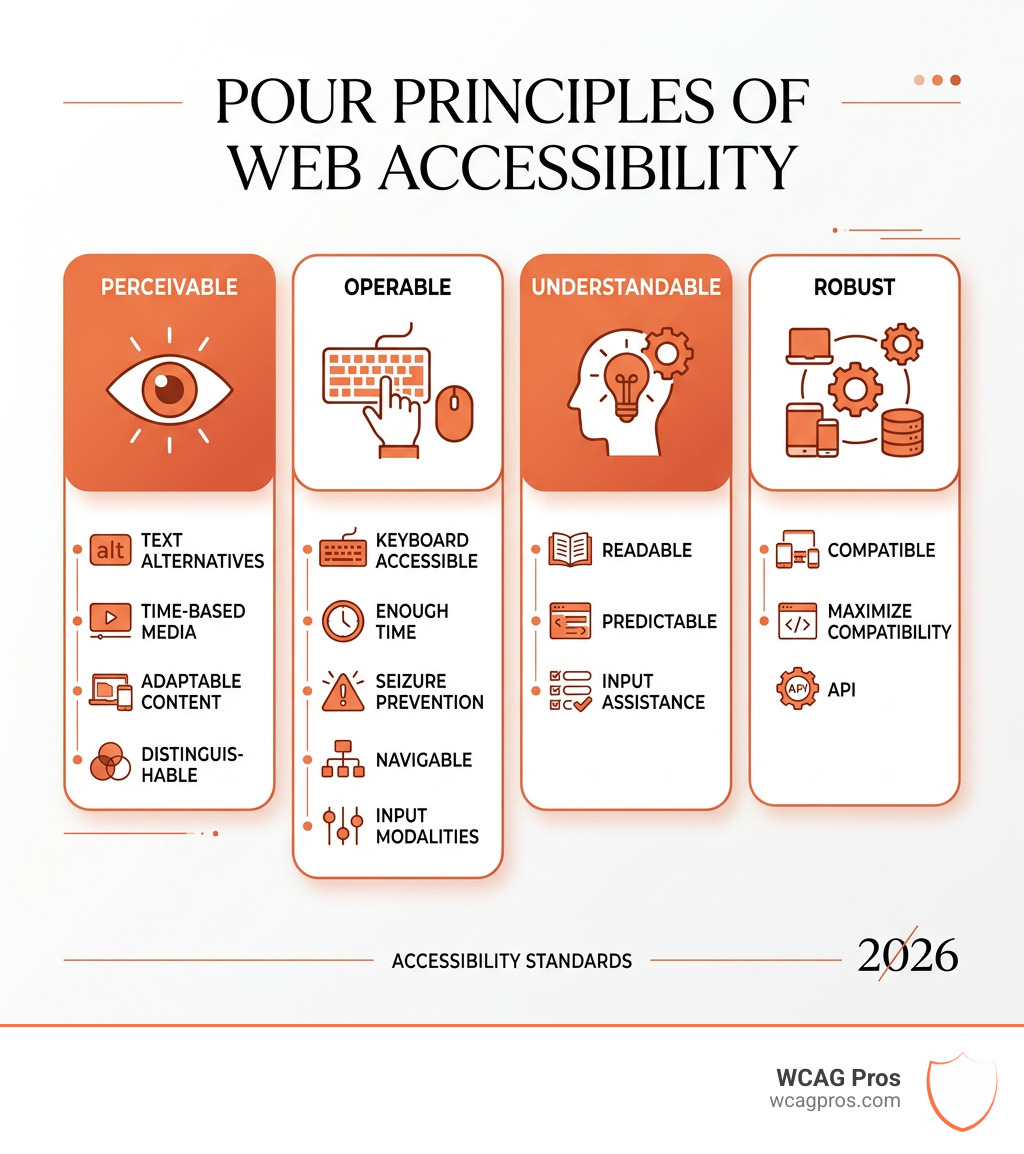
WCAG is published by the W3C and organized around four principles, known as POUR:
- Perceivable (users can see or hear the content)
- Operable (users can navigate and interact)
- Understandable (content and controls make sense)
- Robust (content works with assistive technologies)
WCAG 2.2 currently contains 86 success criteria spread across three conformance levels: A, AA, and AAA. Most legal requirements target Level AA.
A checklist PDF turns those 86 criteria into a practical audit tool. You can print it, share it with your dev team, or use it row by row during a site review.
I’m Matthew Post, co-founder of WCAG Pros and a web developer with nearly 30 years of experience building and auditing websites. I have used every major WCAG checklist pdf format available and built our own process around the criteria that matter most for real legal risk.
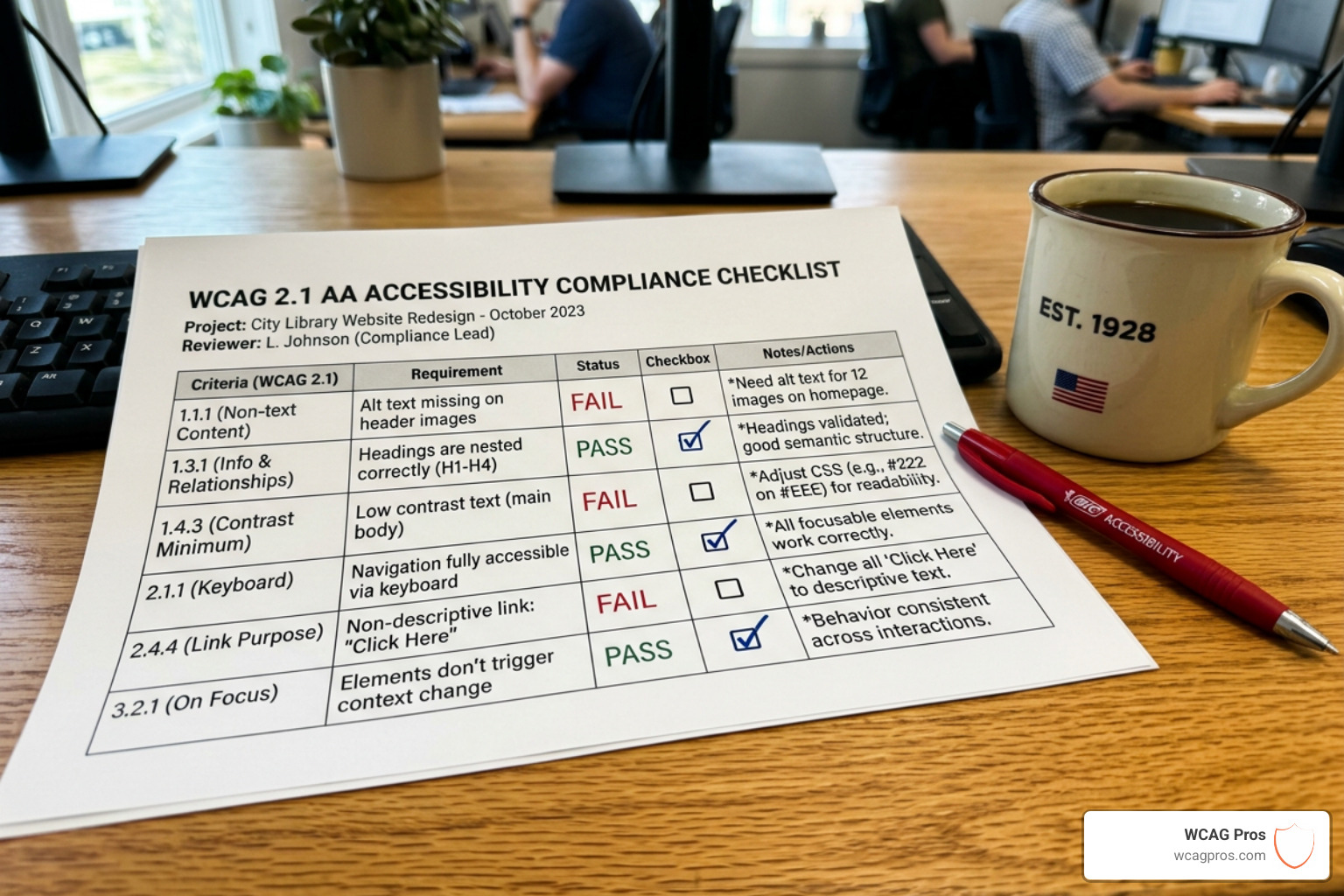
When you first open a WCAG checklist pdf, the sheer number of rows can feel overwhelming. We often see clients in Norco CA look at these documents and wonder where to start. The secret is understanding that every item on that list is a “Success Criterion.” These are the specific rules that your website must follow to be considered accessible.
The official WCAG 2.2 specification is the source of truth for these rules. However, the official text is written in very technical language that can be hard for designers or business owners to understand. That is why a simplified checklist is so valuable. It translates technical jargon into actionable steps.
Most checklists are organized by conformance levels. You will see Level A, Level AA, and Level AAA. Think of these like a ladder. Level A is the bare minimum. If you fail Level A, your site has major barriers that prevent people with disabilities from using it at all. Level AA is the standard that most laws and businesses aim for. It covers the most common barriers. Level AAA is the gold standard. While it provides the best experience, it is often not required by law because it can be very difficult to achieve for all types of content.
To see how these levels apply to modern legal standards, you can review our ADA Website Compliance 2025 Accessibility Checklist. This helps bridge the gap between the technical rules and your legal obligations.
Core Principles of the WCAG Checklist PDF
Every checklist is built on the foundation of the POUR principles. These principles ensure that your website is usable by everyone, regardless of how they interact with the digital world.
Perceivable content means that information cannot be invisible to all of a user’s senses. For example, if you have an image that conveys important information, you must provide a text alternative. This allows someone who is blind to hear a description of the image through a screen reader. This is a primary requirement in Guideline 1.1.1 Non-text Content.
Operable interfaces mean that users can actually use the site. Can someone navigate your entire page using only a keyboard? Many people with motor disabilities cannot use a mouse. If your site requires a mouse to click a “Submit” button, it is not operable.
Understandable information ensures that users can comprehend the content and the user interface. If a user fills out a form and makes a mistake, the site should clearly explain what went wrong and how to fix it.
Robust compatibility means that your site works with current and future tools. It should play nice with different browsers and various types of assistive technology like screen readers or magnification software.
Comparing WCAG Versions 2.0 2.1 and 2.2
One question we get all the time at WCAG Pros is which version of the guidelines matters most. The short answer is that WCAG is backward compatible. If you meet the criteria for WCAG 2.2, you automatically meet the criteria for 2.1 and 2.0.
WCAG 2.0 was released in 2008 and contains 61 success criteria. It focused on the desktop web. As mobile phones became our primary way to browse, the W3C released WCAG 2.1 in 2018. This version added 17 new criteria specifically for mobile accessibility, low vision, and cognitive disabilities. For example, it introduced rules about screen orientation and how small a touch target can be.
WCAG 2.2 is the latest version, finalized in late 2023. It builds on the previous versions by adding 9 more criteria. These focus on even better support for people with low vision and cognitive disabilities. One major change in 2.2 is the removal of Success Criterion 4.1.1 (Parsing). Modern browsers now handle code errors so well that this specific rule became obsolete.
If you are planning your accessibility strategy for the coming years, check out The Ultimate Website Accessibility Testing Checklist for 2026. It highlights the evolving standards you need to watch.
How to Use a WCAG Checklist PDF for Auditing
Using a WCAG checklist pdf effectively requires a mix of two testing methods: automated and manual. We see many people make the mistake of relying only on software. While automated tools are fast, they are not perfect.
Automated testing tools can only catch about 30 percent of WCAG 2.0 issues. When it comes to the newer WCAG 2.1 and 2.2 criteria, automated tools often catch almost nothing. Software can tell you if an image is missing alt text, but it cannot tell you if the alt text actually makes sense. It takes a human to determine if “Image 123” is a good description for a photo of a sunset.
Manual evaluation is where the real work happens. This involves a person going through the checklist and testing the site line by row. They might use a screen reader to hear how the page sounds or use only a keyboard to see if they get stuck in a “keyboard trap.”
Functional testing is the final step. This is when we test the site with real users who have disabilities. This provides insights that no checklist or software can match. You can learn more about this in our guide on How to Test Your Website’s Accessibility Using Real Users.
For those just starting, we suggest reading Automated Web Accessibility Testing Made Easy to understand what software can and cannot do for you.
Manual Testing Steps in your WCAG Checklist PDF
When you sit down with your checklist, we recommend focusing on these high impact manual tests first:
- Keyboard Navigation: Put your mouse away. Can you reach every link and button using only the Tab key? Does a visible box appear around the item currently in focus?
- Screen Reader Testing: Turn on a screen reader like NVDA or VoiceOver. Does the reading order make sense? Does the reader announce headings and form labels correctly?
- Color Contrast: Use a contrast analyzer tool. Your text must have a ratio of at least 4.5 to 1 against its background. For large text, the ratio can be 3 to 1.
- Reflow and Zoom: Zoom your browser to 400 percent. The content should “reflow” into a single column. If you have to scroll horizontally to read a sentence, you have failed this test.
If you find issues during these steps, don’t panic. Many of them have simple solutions. We have compiled a list of Quick Fixes to Improve Your Website’s Accessibility Today to help you get moving.
Legal Compliance and PDF Accessibility Standards
It is important to remember that WCAG is a technical standard, not a law itself. However, laws like the ADA (Americans with Disabilities Act) use WCAG as the benchmark for what “accessible” means. In the United States, the Department of Justice has made it clear that web content must be accessible to people with disabilities.
Compliance does not stop at your website code. It also applies to the documents you host, like PDFs. A standard PDF is often just an image of a document, which is completely invisible to a screen reader. To be accessible, a PDF must be “tagged.” Tags provide the underlying structure that tells assistive technology where the headings, lists, and tables are.
The PDF-UA (Universal Accessibility) standard is the specific set of rules for document accessibility. If you have many documents on your site, you should use a specialized PDF Accessibility Checklist to ensure they meet these requirements.
To understand the broader picture of legal risk, read our article on How to Tell Your Website is ADA Compliant. This will help you understand the “destination” while the WCAG checklist serves as your “map.”
Which version of the WCAG checklist PDF should I follow?
We always recommend following the latest version, which is WCAG 2.2. Even if some older laws still reference version 2.0, the newer standards offer better protection for your users and your business. By meeting 2.2 standards, you are essentially future proofing your website against new regulations.
Can automated tools guarantee 100 percent compliance?
No. No automated tool can guarantee 100 percent compliance. As we mentioned earlier, software can only catch a small fraction of potential issues. A “clean” scan from an automated tool does not mean your site is accessible. It only means the tool didn’t find the specific errors it was programmed to look for. Comprehensive manual testing is always required.
Is Level AA enough for ADA compliance?
For most businesses, Level AA is the target. The Department of Justice and most legal settlements point to WCAG Level AA as the standard for digital accessibility. While Level AAA is great for user experience, it is rarely a legal requirement for private businesses.
Conclusion
A WCAG checklist pdf is an essential tool for any business owner or developer who wants to take accessibility seriously. It provides the structure you need to identify barriers and track your progress toward a more inclusive digital experience.
At WCAG Pros, we specialize in helping businesses navigate this complex landscape. We provide comprehensive page by page audits of all 54 WCAG A and AA points. We don’t just give you a list of problems. We provide the actual code fixes your developers need. Once the fixes are implemented, we offer free re-audits to ensure everything is perfect and provide you with compliance badges to show your commitment to accessibility.
If you are ready to move beyond a simple checklist and get your site certified, we invite you to learn more about our WCAG Audit services. Let us help you make the web a better place for everyone.
Read more website accessibility articles
Get Help With Your Website
We'll follow up with info about:
- The process
- Cost
- Timeline
We promise to respect your privacy, and never abuse the information you provide. We will not sell or rent your information to any third party.
By submitting this form, you consent to receive SMS messages and/or emails from SEM Dynamics LLC, dba WCAG Pros. To unsubscribe, follow the instructions provided in our communications. Msg & data rates may apply for SMS. Your information is secure and will not be sold to third parties.