
How to Ensure Your Text Reflows Without a Technical Meltdown
How to Ensure Your Text Reflows Without a Technical Meltdown
Why a Reflow Responsive Text Check Can Save You from an ADA Lawsuit
A reflow responsive text check verifies that your web content adapts to narrow viewports without requiring users to scroll in two directions. Here is what you need to know right away:
Quick Answer: How to do a reflow responsive text check
- Open your browser and set the viewport to 1280px wide
- Zoom in to 400% using Ctrl/Cmd and the plus key
- Check that all content fits in a single column with no horizontal scrollbar
- Confirm no content is hidden, clipped, or overlapping
- Repeat for any interactive elements like menus, dialogs, and accordions
This test maps to WCAG Success Criterion 1.4.10 (Reflow), a Level AA requirement. Failing it means users with low vision or cognitive disabilities may be locked out of your content entirely.
And that matters for your business. ADA-related website lawsuits have grown steadily, and reflow failures are the kind of concrete, documentable issue that shows up in legal complaints.
Think about what happens when someone zooms in to read your page. If they have to scroll left and right just to finish a single sentence, they lose their place every time. For many users, that is not just frustrating. It makes your site unusable.
I’m Matthew Post, co-founder of WCAG Pros and a web developer with over 20 years of experience auditing sites for issues exactly like a failing reflow responsive text check. Let’s walk through everything you need to know to get this right.
Understanding WCAG 1.4.10 and the Reflow Responsive Text Check
To understand why we perform a reflow responsive text check, we have to look at the WCAG Success Criterion 1.4.10 – Reflow. This is a Level AA requirement under the “Perceivable” principle. The goal is simple: ensure that people who need to enlarge text can read it in a single column.
When a user zooms in to 400 percent, they are essentially viewing your site on a very small screen. If your site is not built with responsive web design best practices, the text will just keep going off the right side of the screen. This forces the user to scroll horizontally to read the end of a sentence and then scroll all the way back to find the start of the next one. This is known as two-dimensional scrolling, and it is a major accessibility barrier.

At WCAG Pros, during a WCAG Audit, we often see sites that look great at 100 percent zoom but fall apart at 400 percent. The intent of the reflow criterion is to support people with low vision who need to enlarge text without losing their place. It is also highly beneficial for users with cognitive disabilities who may find it difficult to track lines of text when they have to move the screen back and forth.
While the user agent (the browser) is responsible for the actual zooming, it is our responsibility as developers and site owners to ensure the content is flexible enough to wrap and stack correctly. If a menu disappears or a button overlaps a paragraph when zoomed, that is a failure we need to fix.
Technical Requirements and Content Exceptions
The technical side of a reflow responsive text check involves specific measurements. For vertical scrolling content (which is most of the web), the content must reflow without requiring horizontal scrolling at a width equivalent to 320 CSS pixels. For content that scrolls horizontally (like some specialized applications), it must reflow at a height of 256 CSS pixels.
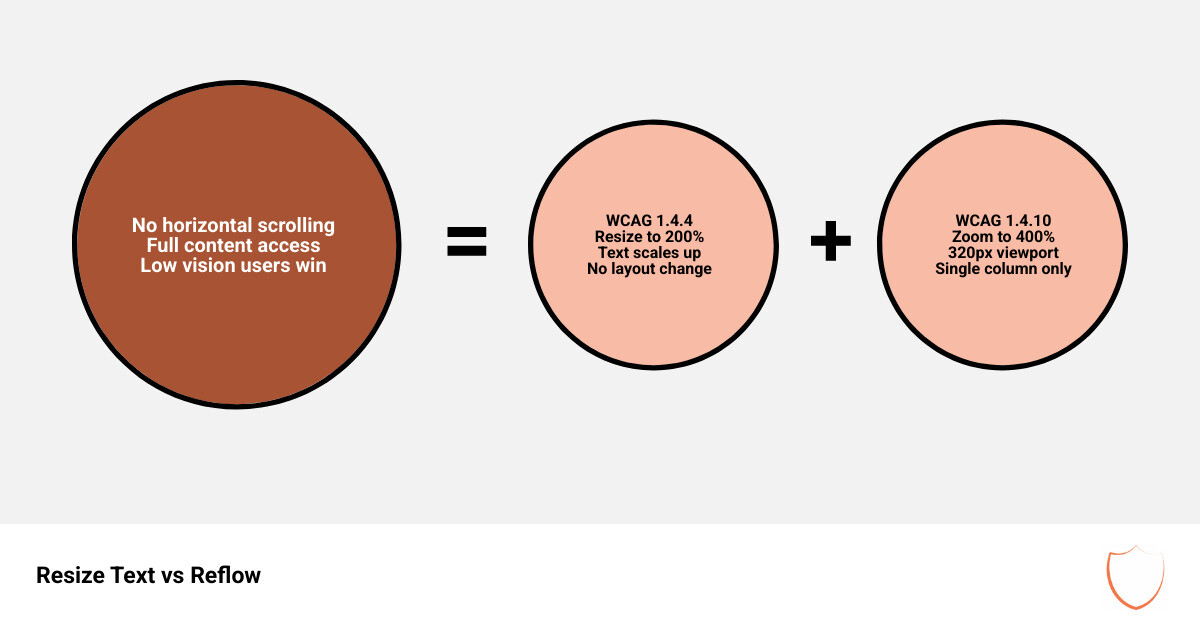
| Feature | 1.4.4 Resize Text | 1.4.10 Reflow |
|---|---|---|
| Level | AA | AA |
| Primary Goal | Text can be enlarged | No two-dimensional scrolling |
| Testing Threshold | 200 percent magnification | 400 percent magnification |
| Viewport Target | N/A | 320 CSS pixels wide |
| Focus | Font size and clipping | Layout and wrapping |
These numbers were not chosen at random. 320 CSS pixels is the width of a small mobile device, like an iPhone 5. By testing at this width, we ensure the site works for mobile users and desktop zoom users alike. Research in Reading with Low Vision in a Digital Setting shows that horizontal scrolling significantly increases the “operational overhead” for readers, making it much harder to comprehend the text. If your site fails this, you may need WCAG Remediation to restructure your CSS.
The 400 Percent Zoom Rule for Reflow Responsive Text Check
The easiest way to simulate a 320px wide screen on a standard laptop is to use a 1280px wide browser window and zoom to 400 percent. Why? Because 1280 divided by 4 (400 percent) equals 320.
A CSS pixel is an angular measurement based on the visual angle. It is meant to provide a consistent experience across different devices and viewing distances. When we talk about Operational Overhead Caused by Horizontal Scrolling Text, we are talking about the physical and mental effort required to navigate a page. If a user has to scroll 100 times to read a single blog post, they will likely give up.
Permitted Exceptions for Two-Dimensional Layouts
Not every single piece of content can be forced into a single column. WCAG provides exceptions for content that requires a two-dimensional layout to be understood. These include:
- Data Tables: Complex tables often need to keep their rows and columns to maintain meaning. However, you should still wrap the table in a scrollable container so it does not force the entire page to scroll horizontally.
- Maps and Diagrams: A geographical map or a complex flow chart would be useless if the parts were stacked on top of each other.
- Video Players and Games: These require fixed aspect ratios to function.
- Electronic Program Guides: As noted in the definition of an electronic program guide, these grids are essential for displaying schedules and cannot easily be reflowed into a single list without losing context.
- Toolbars: Interfaces with persistent editing toolbars (like a photo editor) may need to keep those tools in a specific layout.
When you use The Ultimate Website Accessibility Testing Checklist for 2026, make sure you are identifying these exceptions correctly so you don’t spend time trying to “fix” something that is legally allowed to stay as is.
Best Methods to Verify Compliance
Testing is where the rubber meets the road. To perform an accurate reflow responsive text check, you need to use a variety of methods. The most common is using browser developer tools.
One famous example of a failure is an archived NASA article. At 400 percent zoom, the page required horizontal scrolling, and a “MORE” link on the left actually overlapped the main content. This is a classic “loss of functionality” failure.
We recommend these steps for testing:
- Manual Browser Zoom: This is the most reliable method for checking 1.4.10 because it mimics exactly what a low vision user does.
- Device Emulation: Use the “Responsive” mode in Chrome or Firefox to set the width to exactly 320px. Note: set the device type to “Desktop” to avoid mobile specific behaviors that might hide certain elements.
- Real Device Testing: While not strictly required for the zoom check, it helps identify 5 Common Accessibility Issues on Small Business Websites and How to Fix Them, such as touch targets that become too small or overlapping.
Combining Automated and AI Tools for a Reflow Responsive Text Check
While manual testing is king, you can speed up the process with an Automated Tools Audit. Tools like the ARC Toolkit or axe DevTools can flag potential issues, such as containers with overflow: hidden that might clip text.
However, be careful. Automated tools often miss the “loss of functionality” aspect. They might not realize that a menu button has moved behind a logo. A hybrid strategy is best: use AI and automation to find the obvious layout breaks, then use manual verification to ensure the site is actually usable at 400 percent zoom.
CSS Strategies to Prevent Reflow Failures
To pass a reflow responsive text check, your CSS needs to be fluid. This means moving away from fixed widths (like width: 1200px) and toward relative units and flexible layouts.
Key techniques include:
- Flexbox and CSS Grid: These are the gold standard for responsive design. They allow elements to wrap automatically when the screen gets narrow.
- Media Queries: Use these to change your layout at specific breakpoints. For example, a three column layout should switch to a single column at 600px or 800px.
- Viewport Meta Tag: Ensure you have
in your header. Crucially, never useuser-scalable=no, as this prevents users from zooming at all. - Handling Fixed Elements: Sticky headers and footers are a common source of failures. At 400 percent zoom, a sticky header might take up half the screen. Use media queries to “unfix” these elements at small viewports.
For more on this, check out Responsive web design basics and our guide on Quick Fixes to Improve Your Website’s Accessibility Today.
Sufficient Techniques for a Reflow Responsive Text Check
The W3C provides “Sufficient Techniques” that are known to meet the requirement. These include:
- G206: Making sure that users can perform all functions even when zoomed.
- C31 and C32: Using CSS media queries and grid/flexbox to reflow content.
- Relative Units: Using
em,rem, or percentages instead ofpxfor widths and font sizes.
By following these Responsive design resources, you can ensure that your breakpoint management is robust enough to handle any level of magnification.
Frequently Asked Questions about Reflow
What is the difference between Resize Text and Reflow?
Resize Text (1.4.4) only requires that the text can be enlarged to 200 percent without breaking. Reflow (1.4.10) requires the entire layout to adapt to 400 percent zoom (or a 320px width) without requiring horizontal scrolling. Think of Resize Text as checking the font, and Reflow as checking the container.
Does Reflow apply to mobile browsers and native apps?
Technically, WCAG 1.4.10 applies to web content. On mobile browsers, zooming often behaves differently (pinch zoom), which can be a “user agent” issue rather than an author failure. However, since a 320px viewport is the testing standard, a site that is fully responsive for mobile will almost always pass the desktop reflow check.
How do I handle complex data tables that require horizontal scrolling?
As mentioned, data tables are an exception. The best practice is to allow the table itself to scroll horizontally within its own container while the rest of the page (headers, text, navigation) remains reflowed and vertically oriented. This prevents the user from having to scroll the entire page.
Conclusion
Passing a reflow responsive text check is about more than just checking a box for Level AA compliance. It is about ensuring that your content is available to everyone, regardless of how they choose to view it. Whether it is a user on an older smartphone or someone with low vision using 400 percent zoom on a desktop, a reflow-friendly site provides a professional, accessible experience.
At WCAG Pros, we specialize in helping businesses navigate these technical requirements. From Norco, CA, we provide comprehensive page-by-page audits and remediation services to ensure your site is fully ADA compliant. If you are worried about your site’s responsiveness or need a professional eye on your accessibility strategy, visit us at https://wcagpros.com/ to learn how we can help you achieve a compliant, user-friendly digital presence.
Read more website accessibility articles
Get Help With Your Website
We'll follow up with info about:
- The process
- Cost
- Timeline
We promise to respect your privacy, and never abuse the information you provide. We will not sell or rent your information to any third party.
By submitting this form, you consent to receive SMS messages and/or emails from SEM Dynamics LLC, dba WCAG Pros. To unsubscribe, follow the instructions provided in our communications. Msg & data rates may apply for SMS. Your information is secure and will not be sold to third parties.