
How to Audit JavaScript for WCAG Without Losing Your Mind
How to Audit JavaScript for WCAG Without Losing Your Mind
Why a JavaScript WCAG Compliance Audit Is Critical for Your Website
A javascript wcag compliance audit is the process of testing your website’s JavaScript-powered features against the Web Content Accessibility Guidelines (WCAG) to ensure all users, including those with disabilities, can access and use your content.
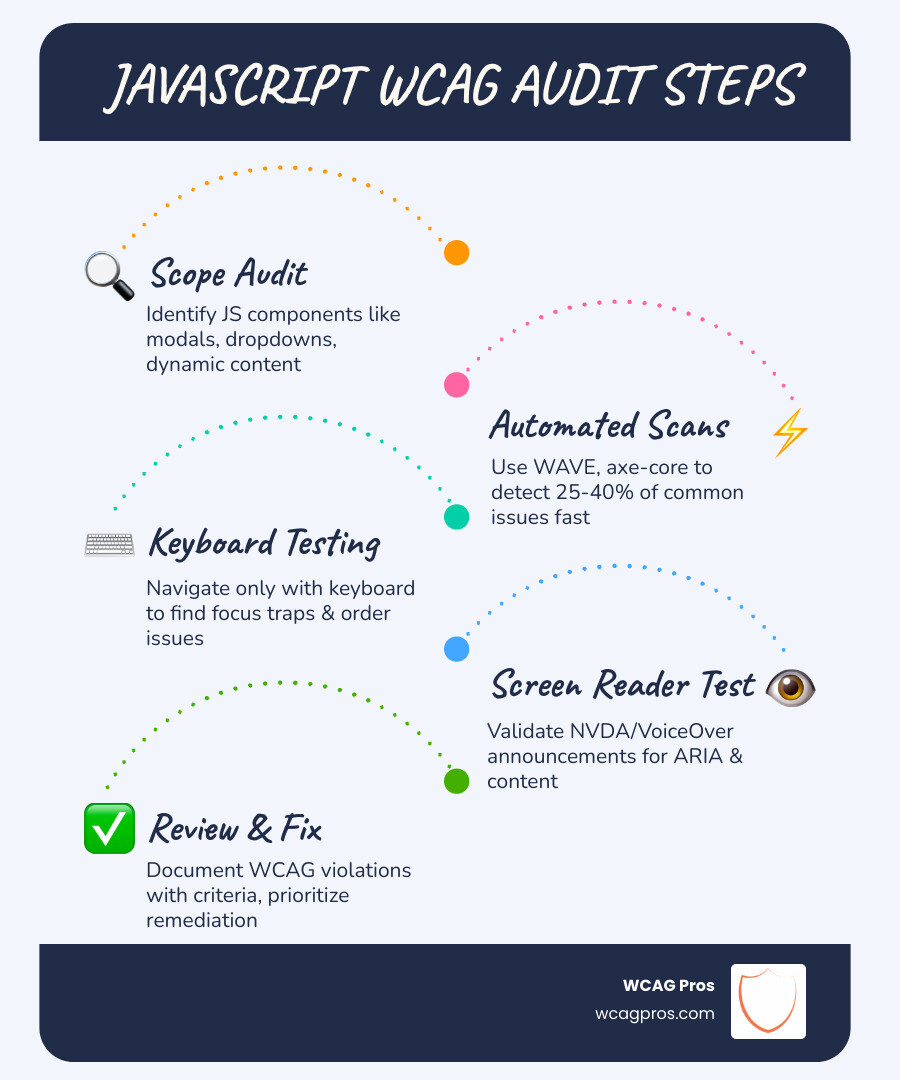
Here is a quick overview of what the process involves:
| Step | What It Means |
|---|---|
| 1. Scope your audit | Identify all JavaScript-driven components like modals, dropdowns, and dynamic content |
| 2. Run automated scans | Use tools like WAVE or axe-core to catch common errors fast |
| 3. Manual keyboard testing | Navigate your site using only a keyboard to find traps and focus issues |
| 4. Screen reader testing | Test with NVDA or VoiceOver to check what assistive technology actually announces |
| 5. Review ARIA usage | Confirm roles, states, and live regions are correctly implemented |
| 6. Document and fix | Log every issue with its WCAG criterion and priority level |
JavaScript makes modern websites fast and interactive. But it also introduces some of the hardest-to-catch accessibility problems. Dynamic content updates, keyboard traps, and broken focus management are invisible to the naked eye but deeply disruptive for users who rely on screen readers or keyboard navigation.
The scale of the problem is significant. Over 96% of websites are currently failing WCAG standards. Automated testing tools, despite being widely used, can only catch around 25 to 40% of potential issues. That gap is where real legal and usability risk lives.
I’m Matthew Post, co-founder of WCAG Pros and a programmer with over 20 years of experience in web development, including extensive work conducting javascript wcag compliance audits and overseeing remediation projects for businesses of all sizes. In this guide, I’ll walk you through exactly how to audit your JavaScript for WCAG compliance without the confusion.
Common Accessibility Barriers in Modern JavaScript
Modern web applications rely heavily on JavaScript to create seamless user experiences. However, when we build these high-tech interfaces, we often inadvertently create walls for users with disabilities. During a javascript wcag compliance audit, we look for specific patterns that break the browsing experience.
One of the most frequent offenders is poor focus management. If your JavaScript opens a modal or updates a section of the page but does not move the user’s focus to that new content, a keyboard user is left stranded. This directly impacts WCAG success criterion 2.4.3 Focus Order (Level A), which requires that navigation follows a logical and intuitive sequence.
Another major hurdle involves device-dependent event handlers. If a developer only uses “onmouseover” or “onclick” without providing a keyboard equivalent, they are violating WCAG success criterion 2.1.1 Keyboard (Level A). This criterion mandates that all site functionality must be operable through a keyboard interface. If a user cannot trigger a dropdown or a tooltip using the Tab or Enter keys, the site is effectively broken for them.
We also see many “screen reader conflicts” where complex JavaScript implementations fail to communicate what an element actually is or what it is doing. This ties into WCAG success criterion 4.1.2 Name, Role, Value (Level A). For example, if you use a div to create a custom button but don’t give it a “button” role via ARIA, a screen reader user might hear “clickable” or nothing at all, leaving them unsure of how to interact with the element.
How to Conduct a JavaScript WCAG Compliance Audit
Performing a thorough audit requires a balanced approach. We cannot rely on robots alone. Research shows that automated tools are inherently limited, detecting only about 25 to 30% of potential WCAG issues. To get the full picture, we must use a combination of automated scanning and rigorous manual testing.
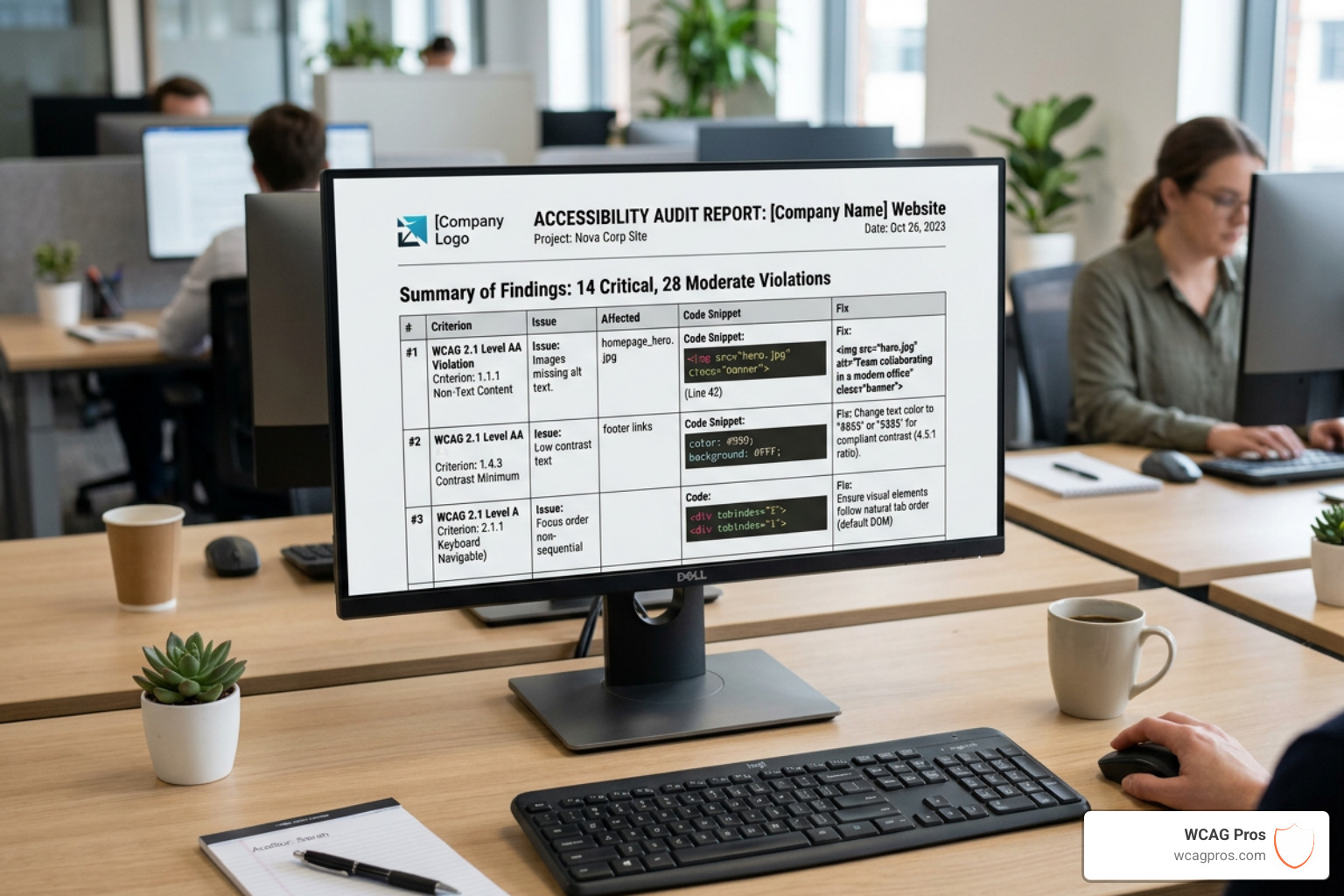
When we perform a WCAG Audit, we follow a methodology that respects the two primary types of WCAG audits: automated and manual. Automated tools are great for catching low-hanging fruit like missing alt text or poor color contrast. However, only a human can tell you if a complex JavaScript widget is actually “usable.”
Scoping Your JavaScript WCAG Compliance Audit
Before you start clicking buttons, you need to define the boundaries of your audit. For modern sites, this often means looking beyond static pages. If you are running a Single Page Application (SPA), your audit needs to focus on how the “view” changes without a page reload.
We recommend identifying primary page layouts and reusable components. If your site uses a specific JavaScript-driven navigation menu on every page, auditing that component once can solve dozens of violations across the entire domain. To help organize this process, you can refer to The Ultimate Website Accessibility Testing Checklist for 2026, which provides a roadmap for modern testing environments.
Evaluating Interactive Elements for JavaScript WCAG Compliance Audit
Once the scope is set, it is time to dig into the interactive elements. This is where we test every button, slider, and form field. A major red flag we look for is the “keyboard trap.” This happens when a user can navigate into a component, like a calendar picker or a modal, but cannot get back out using the keyboard. Ensuring there is No keyboard trap is essential for basic operability.
We also look at how event handlers are coded. Are you using “onmousedown” instead of “onclick”? While they might seem similar, “onclick” is often more accessible because it responds to both mouse clicks and the Enter key. Using tools to find these issues is a great first step, and you can learn more about streamlining this in our guide on how Automated Web Accessibility Testing Made Easy can support your manual efforts.
Managing Focus and ARIA in Dynamic Applications
In a dynamic JavaScript environment, content changes constantly. If a user submits a form and an error message appears, or if they click “load more” and new items pop up, how do they know? This is where ARIA (Accessible Rich Internet Applications) and focus management become your best friends.
For dynamic updates, we use “aria-live” regions. These tell screen readers to announce changes as they happen. However, you have to be careful with how “loud” these announcements are. Using the wrong type of live region can be just as disorienting as having none at all. This is a core part of meeting SC 4.1.3: Status Messages (Level AA).
| ARIA Attribute | When to Use It | User Experience |
|---|---|---|
| aria-live=”polite” | For non-urgent updates like a “Searching…” status or a notification toast. | The screen reader waits until the user finishes their current task before announcing the update. |
| aria-live=”assertive” | For critical information like session timeouts or immediate errors. | The screen reader interrupts whatever it is saying to announce the update immediately. |
Beyond announcements, we must manage the “focus trap” for modals. When a modal opens, the focus should move inside it. While the modal is open, the user should not be able to “tab out” into the background content. When the modal closes, the focus must return to the element that triggered it. For deep dives into these patterns, the WAI-ARIA Authoring Practices guide is the gold standard for developers.
Essential Tools for Testing JavaScript Accessibility
You don’t have to do this alone. There are several powerful tools available to help you visualize what is happening under the hood of your JavaScript code.
First, get familiar with your browser’s built-in tools. The Firefox Accessibility Inspector and the Accessibility Tree in Chrome are invaluable. They show you exactly how the browser is translating your JavaScript and HTML into something a screen reader can understand. If you see an empty name or a generic “div” role where a button should be, you’ve found a bug.
For a broader view, the WAVE Evaluation Tool is a fantastic browser extension. It provides visual feedback directly on the page, highlighting things like missing labels or broken ARIA references.
Finally, you must test with a real screen reader. We recommend NVDA (free) for Windows users. It gives you a look at the user experience. If your JavaScript-powered menu doesn’t announce its state (like “expanded” or “collapsed”), NVDA will let you know immediately. For more on the specific software we use, check out our breakdown of the Automated Tools Audit process.
Conclusion and Frequently Asked Questions
A javascript wcag compliance audit is not just a checkbox for legal safety; it is a commitment to providing a better experience for every human who visits your site. At WCAG Pros, we believe that the web should be inclusive by design. Our team provides comprehensive, page-by-page audits that cover all 54 WCAG A through AAA points, complete with the exact code fixes your developers need.
If your audit uncovers a mountain of issues, don’t panic. We specialize in WCAG Remediation to help you fix those bugs efficiently. Once your site is compliant, we can even provide certification and a compliance badge to show your users you care about accessibility.
Ready to make your site accessible to everyone? Visit us at https://wcagpros.com/ to get started.
Why is manual testing necessary for JavaScript?
Manual testing is non-negotiable because automated tools have significant limitations. A tool might see that a button has an “onclick” handler, but it cannot tell you if that handler works for a keyboard user. It can’t tell you if the focus order makes sense or if a screen reader’s announcement of a dynamic update is confusing. Manual testing provides the contextual accuracy needed to ensure a truly inclusive user experience.
What are the most common JavaScript accessibility pitfalls?
The “Big Three” pitfalls we see are keyboard traps, missing accessible labels, and poor focus management. Keyboard traps occur when a user gets stuck in a modal or widget. Missing labels happen when JavaScript-driven icons or buttons have no text equivalent for screen readers. Poor focus management refers to the “lost” feeling a user gets when a page update happens and their cursor stays in the wrong place.
How much does a professional WCAG audit cost?
The cost of a professional audit varies based on the size and complexity of your site. A typical WordPress site might fall in the $10,000 to $15,000 range, while a complex e-commerce site or SaaS platform could range from $20,000 to $25,000 or more. Factors that influence the price include the number of unique page templates, the complexity of your JavaScript components, and whether you require ongoing remediation support and validation.
Read more website accessibility articles
Get Help With Your Website
We'll follow up with info about:
- The process
- Cost
- Timeline
We promise to respect your privacy, and never abuse the information you provide. We will not sell or rent your information to any third party.
By submitting this form, you consent to receive SMS messages and/or emails from SEM Dynamics LLC, dba WCAG Pros. To unsubscribe, follow the instructions provided in our communications. Msg & data rates may apply for SMS. Your information is secure and will not be sold to third parties.