
How to Fix Your Website One Page at a Time
How to Fix Your Website One Page at a Time
Why Page Specific WCAG Fixes Are the Fastest Path to Accessibility Compliance
Page specific WCAG fixes are targeted repairs made to individual web pages to resolve accessibility errors that block users with disabilities from accessing your content.
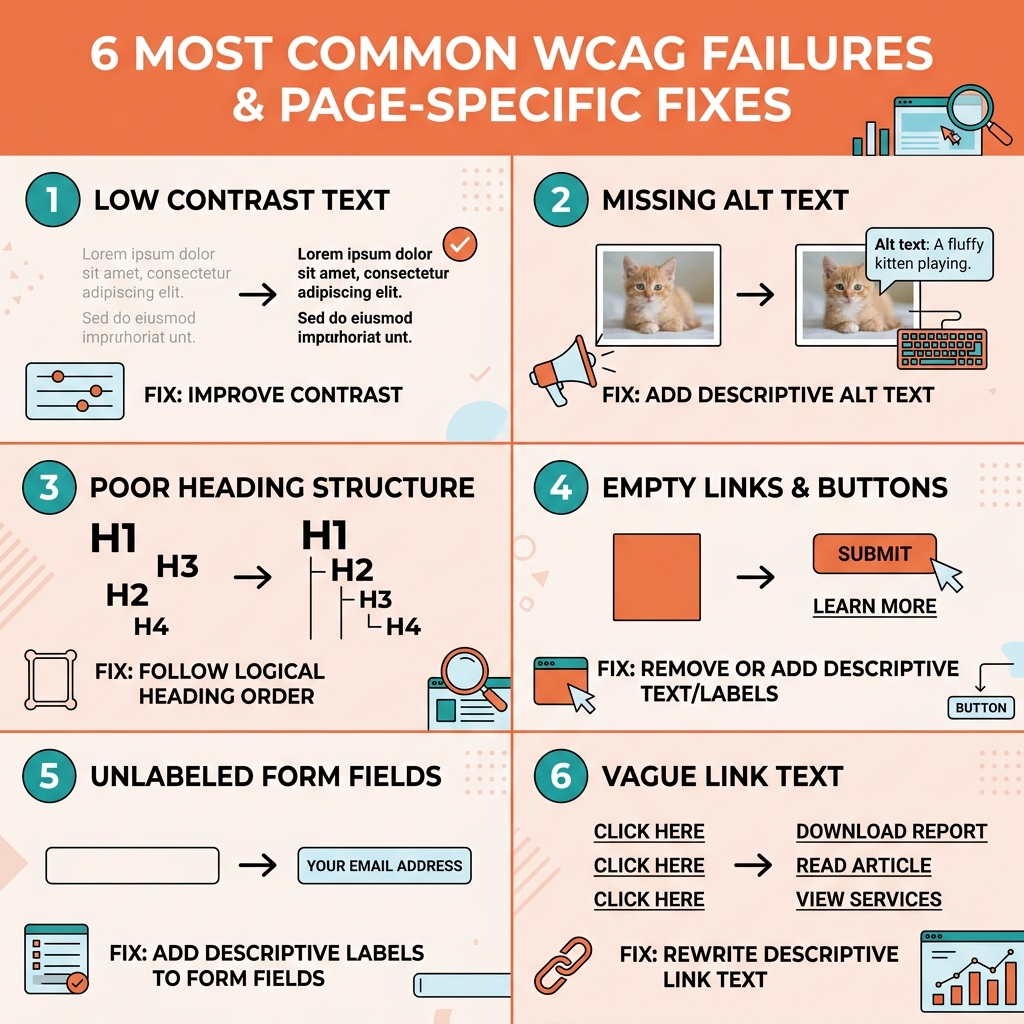
Here are the most common fixes you can make on a single page:
- Add alt text to images so screen readers can describe them
- Fix heading structure so H1 through H6 follow a logical order
- Rewrite vague link text like “click here” to something descriptive
- Improve color contrast so text is readable for low-vision users
- Add labels to form fields so assistive technology can identify them
- Remove empty links and buttons that confuse screen readers
- Add a language attribute to the HTML element (
)
This matters more than you might think. According to a 2024 WebAim study, 96.4% of all WCAG errors fall into just six categories. That means most pages fail for the same small set of reasons, and fixing them does not require rebuilding your entire site.
The legal stakes are real too. ADA lawsuits targeting websites have surged, and WCAG non-compliance is the most cited reason. You do not need to fix everything at once. Starting page by page is a practical, proven approach.
I’m Matthew Post, co-founder of WCAG Pros and a web developer with over 20 years of experience auditing and remediating sites for page specific WCAG fixes. I personally oversee every project at WCAG Pros, so the guidance in this article comes from hands-on remediation work across hundreds of real commercial websites.
Identifying Page Specific WCAG Fixes with Free Tools
Before we can fix anything, we have to know what is broken. Many website owners feel overwhelmed by the technical jargon of the Web Content Accessibility Guidelines, but you do not need a computer science degree to find the most glaring errors.
We recommend starting with free browser extensions that do the heavy lifting for you. The WAVE tool and axe DevTools are two of the most reliable options available today. When you run these tools on a specific page, they highlight errors directly on your screen. They will flag things like missing alt text or low contrast text with little red icons.
However, automated tools are not perfect. Research shows that automated scanners typically only catch about 30 to 40 percent of WCAG failures. This means that while they are great for finding “low hanging fruit,” they cannot tell you if your alt text actually makes sense or if your keyboard navigation is logical.
To get a full picture of your page health, you should perform WCAG Initial Accessibility Checks — a11ychecks. This involves a mix of automated scanning and manual testing. For example, try navigating your page using only the Tab key on your keyboard. Can you see where the “focus” is at all times? If you get stuck in a menu and cannot get out, that is a major keyboard trap that an automated tool might miss.
Another great resource for a quick audit is the Quick Fixes to Improve Your Website’s Accessibility Today guide. It helps you focus on the visual inspection of your page. You should look for things like text that overlaps images or videos which makes it hard to read. Checking your page with Lighthouse audits in the Chrome browser is another excellent way to get a baseline score for your accessibility efforts.
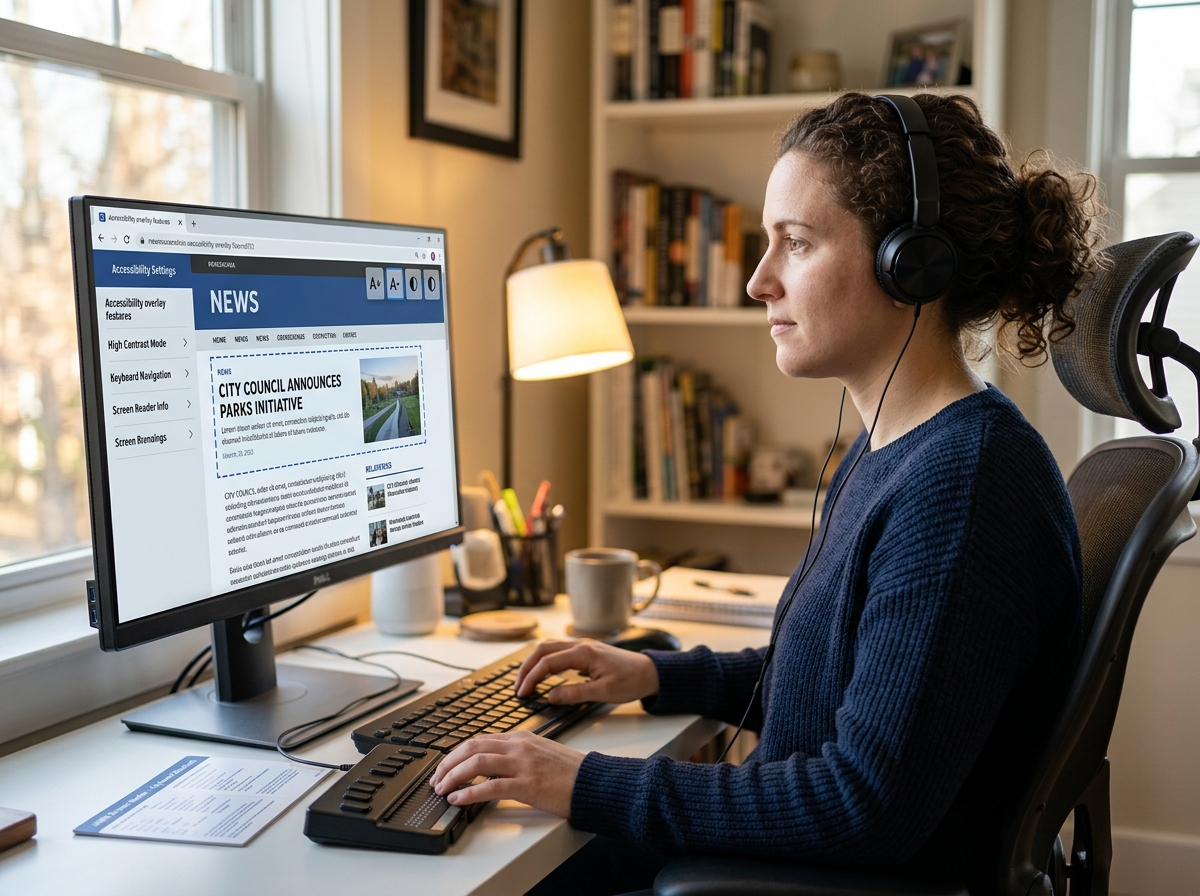
Step by Step Guide to Content Based Remediation
The good news for many site owners is that a large portion of page specific WCAG fixes can be handled right inside your Content Management System like WordPress or Shopify. You do not always need to call a developer to make your site more inclusive.
Content based remediation focuses on the information you provide and how it is organized. A logical structure is the backbone of an accessible page. When a screen reader user lands on your site, they often navigate by jumping from heading to heading or link to link. If those elements are missing or poorly labeled, the user is effectively lost in the dark.
One of the first things we look at is the document language. Every page should have a language attribute in the code. This tells the screen reader which language library to use so it does not try to read English text with a French accent. This is a simple fix that provides a much better user experience.
You should also consult the Checklist – The A11Y Project to ensure you are covering the basics of plain language and unique element content. Writing at an 8th grade reading level ensures that your content is understandable for people with cognitive disabilities or those who are not native speakers of your language.
Fixing Missing Alt Text and Page Specific WCAG Fixes
Missing alternative text is the most common error on the web. It affects roughly 54.5 percent of all homepages. When an image lacks alt text, a screen reader might just say “image” or read out a cryptic file name like “DCIM_1234.jpg.”
To fix this, you need to provide a text description for every informative image. If the image shows a person typing on a laptop, your alt text should say exactly that. However, not every image needs a long description. Some images are purely decorative, such as a swirl or a background pattern.
For these, you should use what we call a “null attribute” which looks like alt="" in the code. This tells the screen reader to skip the image entirely so the user is not interrupted by irrelevant details. You can learn more about this in our guide on Mastering the Art of Decorative Alt Text for Web Accessibility.
Correcting Heading Structures and Page Specific WCAG Fixes
Headings are more than just big, bold text. They create a document outline that helps everyone understand the hierarchy of your information. A common mistake is using headings for visual styling rather than structural organization.
The golden rule is to use only one H1 per page. This H1 should represent the main topic of that specific page. From there, you should use H2 for main sections and H3 for sub-sections. You should never skip levels. For example, do not jump from an H2 to an H4 just because you like the font size of the H4 better.
If you want a specific look, use CSS to style your text while keeping the HTML tags in the correct sequential order. This ensures that assistive technology can build an accurate map of your content. For more details on these structural improvements, check out Detailed Accessibility Fixes for a More Inclusive Web.
Technical Fixes for Forms and Interactive Elements
Forms are often the most frustrating part of a website for users with disabilities. If you cannot fill out a contact form or complete a checkout process, the website is essentially useless to you. Many small business sites suffer from missing form input labels, which occurs on nearly 48.6 percent of homepages.
A common error is relying on “placeholder” text inside the field. This is a problem because the text disappears as soon as a user starts typing. If they get distracted and look away, they might forget what the field was for. The correct way to fix this is using the element with a proper for attribute that matches the id of the input field. This creates a programmatic bond that screen readers can recognize.
We discuss these challenges in 5 Common Accessibility Issues on Small Business Websites and How to Fix Them. Beyond labels, you need to ensure that your interactive elements have clear focus states. When a user tabs through your page, there should be a visible border or highlight around the button or link they are currently on. Without this, a keyboard user has no idea where they are.
Empty links and buttons are another major hurdle. This often happens when a developer uses an icon for a button, like a magnifying glass for search, but forgets to include text that a screen reader can announce. You can fix this by adding an aria-label to the button that says “Search.” This ensures the function is clear to everyone.
Lastly, make sure your page is flexible. Users should be able to zoom in up to 200 percent without text overlapping or disappearing off the side of the screen. This is known as reflow. You can read our advice on How to Ensure Your Text Reflows Without a Technical Meltdown to keep your layout intact while remaining accessible.
Improving Visual Accessibility and Color Contrast
Color contrast is a critical part of page specific WCAG fixes because it impacts such a wide range of users, including those with low vision, color blindness, or even people using their phones in bright sunlight. Shockingly, 81 percent of homepages have low contrast text.
The WCAG standard for normal text is a contrast ratio of at least 4.5 to 1. For larger text, which is usually defined as 18 point or 14 point bold, the ratio can be 3 to 1. These numbers might sound technical, but tools like the WebAIM Contrast Checker make it easy. You just plug in your foreground color and your background color, and the tool gives you a pass or fail grade.
| Text Type | Minimum Ratio (AA) | Enhanced Ratio (AAA) |
|---|---|---|
| Normal Text (under 18pt) | 4.5:1 | 7:1 |
| Large Text (18pt+ or 14pt+ bold) | 3:1 | 4.5:1 |
| UI Components & Graphics | 3:1 | N/A |
If your colors fail, you do not have to abandon your brand identity. Often, just darkening a shade of gray or lightening a background slightly is enough to meet the requirement. This is one of the Remediation with Fixes That Won’t Break the Bank because it only requires a quick CSS update.
Color should never be the only way you convey information. If you have a form where required fields are marked in red, you should also include the word “required” or an asterisk. This ensures that users who cannot see red can still understand the instructions. For more tips on using these tools, see How to Use a Color Contrast Checker to Save Your Design.
Frequently Asked Questions about Page Level Compliance
Can I fix all WCAG issues without a developer?
You can fix many common issues like alt text, heading hierarchy, and link text through your CMS editor. However, more complex problems like keyboard traps, ARIA implementation for dynamic widgets, or fixing code parsing errors usually require a developer. If the fix involves changing how the site behaves or how the underlying code is structured, it is time to bring in a professional.
How do I prioritize which pages to fix first?
We always recommend starting with your highest traffic pages and your most critical paths. Your homepage is the front door to your business, so it should be a priority. After that, look at pages that involve transactions or user input, such as your checkout flow, contact page, or login screen. Fixing a typo on a blog post from five years ago is less important than ensuring a user can actually buy your product today.
Are automated accessibility scans enough for compliance?
No, automated scans are only a starting point. They are excellent for catching technical errors but they lack the human context needed for full compliance. A tool can tell you if an image has alt text, but it cannot tell you if that text is accurate or helpful. Manual testing with screen readers and keyboard navigation is essential to ensure a truly inclusive experience.
Conclusion
Making your website accessible does not have to be a monumental task that happens all at once. By focusing on page specific WCAG fixes, you can make steady progress toward a more inclusive digital presence. Each image you describe and each heading you correct makes your site easier to use for everyone.
At WCAG Pros, we specialize in helping businesses navigate this journey. We provide comprehensive page by page audits that cover all 54 WCAG points. We don’t just tell you what is wrong; we provide the actual code fixes you need to get compliant. Plus, we offer free re-audits to ensure your fixes are working correctly so you can earn your compliance badge with confidence.
If you are ready to protect your business from legal risks and open your doors to all users, we invite you to explore our The No-Lawsuit Guide to Website Remediation. Whether you need a full WCAG Remediation or a detailed WCAG Audit, our team in Norco, CA is here to help you every step of the way.
Read more website accessibility articles
Get Help With Your Website
We'll follow up with info about:
- The process
- Cost
- Timeline
We promise to respect your privacy, and never abuse the information you provide. We will not sell or rent your information to any third party.
By submitting this form, you consent to receive SMS messages and/or emails from SEM Dynamics LLC, dba WCAG Pros. To unsubscribe, follow the instructions provided in our communications. Msg & data rates may apply for SMS. Your information is secure and will not be sold to third parties.