
Contrast Test Website: Making Your Content Pop for Everyone
Contrast Test Website: Making Your Content Pop for Everyone
What Is the WebAIM Contrast Check and Why Does It Matter?
The webaim contrast check is a free online tool that measures the color contrast ratio between text and its background, then tells you instantly whether your website passes or fails WCAG accessibility standards.
Quick answer for busy website owners:
| What you want to know | The short answer |
|---|---|
| What does it do? | Measures contrast ratio between foreground and background colors |
| Where do you find it? | webaim.org/resources/contrastchecker |
| What ratio do you need? | 4.5:1 for normal text (WCAG AA minimum) |
| What standards does it check? | WCAG 2.0 and 2.1 at both Level AA and Level AAA |
| Is it free? | Yes, completely free to use |
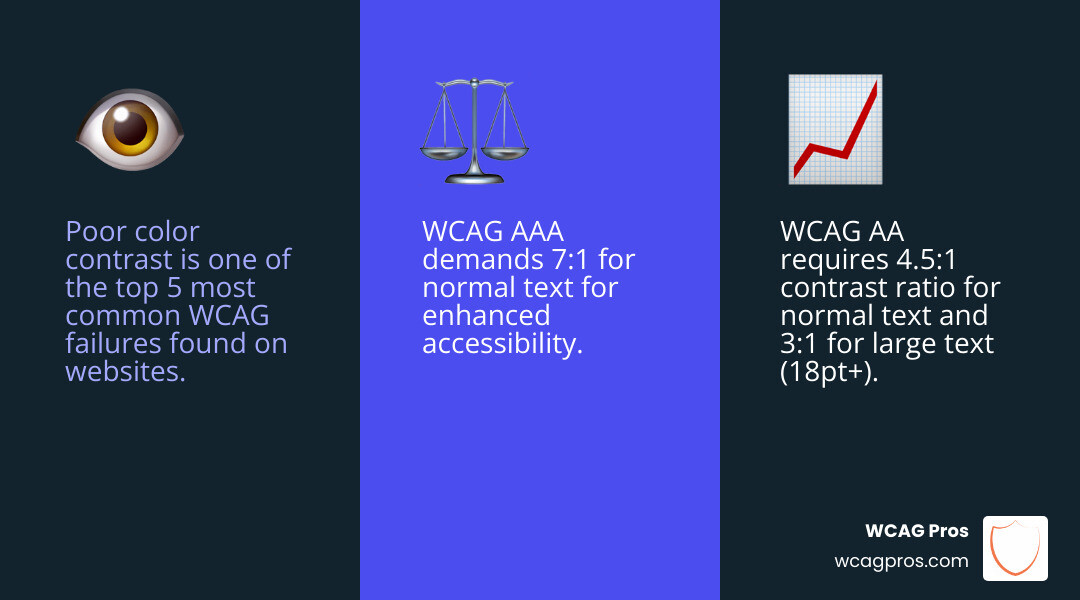
Poor color contrast is one of the most common accessibility failures on the web. It affects users with low vision, color blindness, and other visual impairments. It also puts your business at real legal risk. In 2019 alone, 2,256 digital accessibility lawsuits were filed in US federal courts. That is a 177% increase from 2017, averaging 7 cases every single day.
The good news? Fixing contrast issues is one of the easiest accessibility wins available. You just need to know how to test for them.
I’m Matthew Post, co-founder of WCAG Pros and a web developer with over 20 years of experience auditing sites for WCAG compliance. I’ve used the webaim contrast check tool on hundreds of remediation projects to pinpoint exactly where color choices fail accessibility standards and put businesses at risk.
Why You Need a WebAIM Contrast Check for ADA Compliance
When we talk about web accessibility in places like Norco, CA, we aren’t just talking about being nice to users. We are talking about meeting legal obligations under the ADA. The Web Content Accessibility Guidelines (WCAG) are the gold standard used by federal courts to determine if a website is truly accessible.
If your website has light gray text on a white background, you might think it looks “minimalist” or “modern.” However, to a user with low contrast sensitivity or someone viewing their phone in bright sunlight, that text is invisible. This lack of readability is a primary driver behind the surge in digital accessibility lawsuits. As mentioned, the 177% increase in federal court cases between 2017 and 2019 shows that plaintiffs are actively looking for these easy to spot failures.
Using a webaim contrast check helps you stay ahead of these risks. By ensuring your site meets WCAG 2.0 and 2.1 standards, you create a defensive wall against litigation while simultaneously improving your user experience. To learn more about how this impacts your overall aesthetic, check out How to use a color contrast checker to save your design.
Comparing WCAG Level AA and Level AAA Requirements
It is important to understand which “grade” you are aiming for. Most businesses aim for Level AA, which is the standard typically required for ADA compliance. Level AAA is a higher, more stringent standard for specialized sites.
| Requirement Type | WCAG Level AA (Standard) | WCAG Level AAA (Enhanced) |
|---|---|---|
| Normal Text | 4.5:1 ratio | 7:1 ratio |
| Large Text | 3:1 ratio | 4.5:1 ratio |
| UI Components/Graphics | 3:1 ratio | N/A (Standard stays at 3:1) |
Understanding WCAG Contrast Ratio Requirements
To use the webaim contrast check effectively, we need to dive into the math just a little bit. Don’t worry, the tool does the heavy lifting, but you should know what the numbers mean. Contrast is calculated using a luminosity formula that compares the relative brightness of two colors. The scale goes from 1:1 (white text on a white background) to 21:1 (black text on a white background).
The requirements change based on the size and weight of the text. This is because larger or bolder letters are naturally easier to read, so they don’t require as much contrast as tiny, thin fonts. According to How to Use the WebAIM Contrast Checker – Section508.gov, these distinctions are vital for meeting federal accessibility mandates.
The WebAIM Contrast Check for Normal and Large Text
What exactly counts as “large” text? WCAG defines it as:
- 18pt regular weight (roughly 24px)
- 14pt bold weight (roughly 18.66px)
For everything smaller than that, you are dealing with “normal” text.
- Level AA Normal Text: You need a 4.5:1 ratio.
- Level AA Large Text: You only need a 3:1 ratio.
- Level AAA Normal Text: You need a whopping 7:1 ratio.
If you are looking for more options to test your site, browse The ultimate list of free online accessibility checkers.
Non-Text Contrast and Graphical Objects
In 2018, WCAG 2.1 introduced a new success criterion for “Non-Text Contrast.” This means it isn’t just about your words anymore. You must also ensure that user interface components (like the borders of a search box or the icons in your navigation) have at least a 3:1 contrast ratio against the adjacent background.
If a user can’t see where a button ends and the background begins, they can’t interact with your site. This is a common pitfall for designers who love “ghost buttons” or light gray input fields.
Step-by-Step Guide to Using the WebAIM Tool
Using the Contrast Checker – WebAIM is straightforward, but there are a few pro tips that can make your life easier. When we perform audits at WCAG Pros, we follow a specific workflow to ensure no color pair is missed. For more on selecting the right tools, see Pick the best web accessibility evaluation tool for your team.
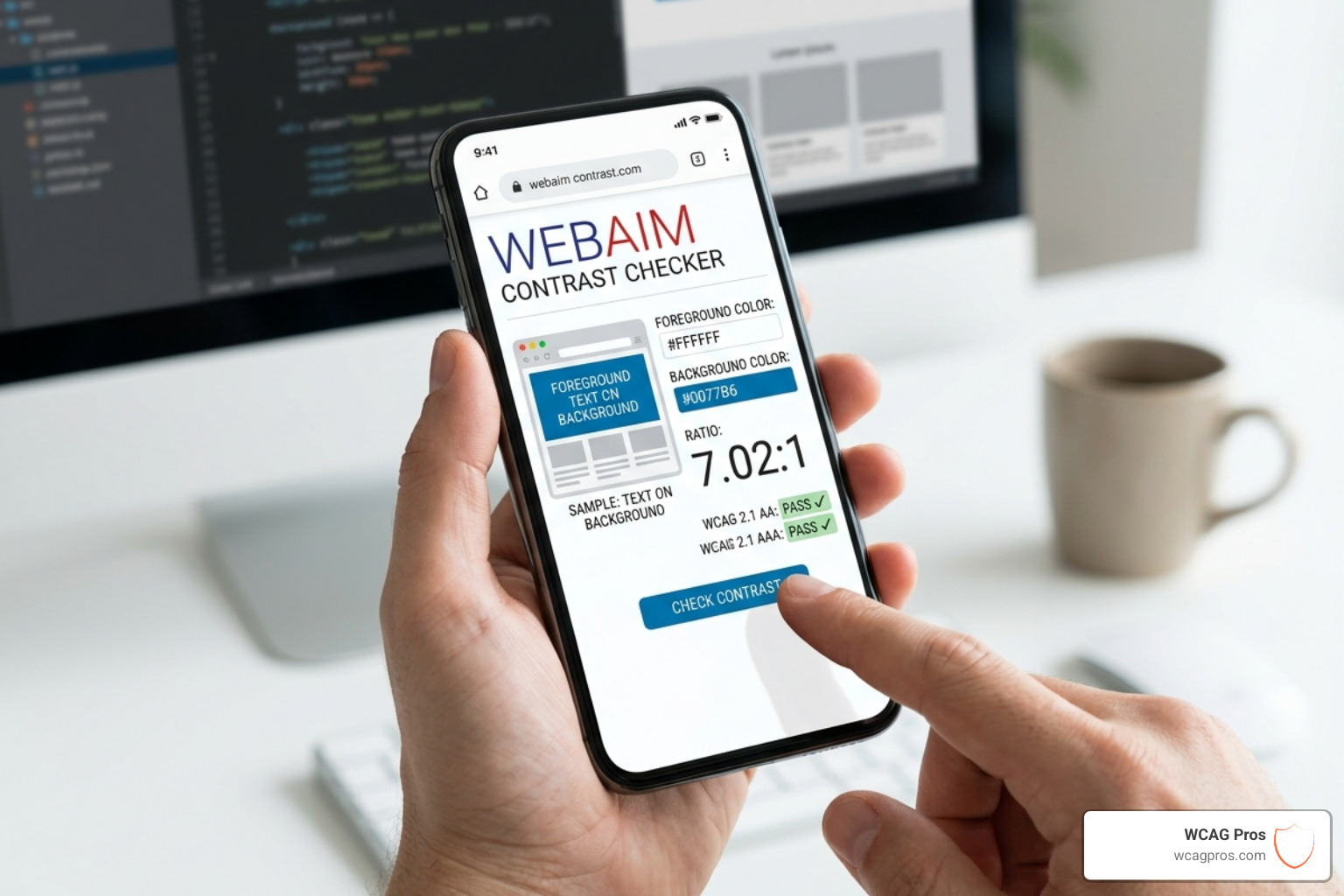
- Enter Hex Values: Locate the “Foreground Color” and “Background Color” boxes. Enter the six digit hex codes (e.g., #0000FF for blue).
- Check the Ratio: The tool will instantly calculate the ratio.
- Review Pass/Fail: Look at the bottom of the tool. It will show “Pass” or “Fail” for four categories: Normal Text (AA), Large Text (AA), Normal Text (AAA), and Large Text (AAA).
- Adjust if Necessary: If you see a red “Fail,” don’t panic. You can use the sliders to fix it in real time.
Mastering the Eyedropper and Lightness Sliders
The “Lightness” sliders are the secret weapon of the webaim contrast check. If your brand color is just slightly too light to pass the 4.5:1 requirement, you can drag the slider to the left to darken it. The tool updates the hex code and the pass/fail status live. This allows you to find the “minimum viable change” so you can stay true to your brand while becoming accessible.
The tool also features an eyedropper icon within the color picker. This allows you to sample colors directly from your browser window. This is incredibly helpful when you are trying to test colors in a complex document or a site you didn’t build yourself.
Advanced Features of the WebAIM Contrast Check Tool
The WebAIM tool isn’t just a simple calculator; it has some high tech features for power users:
- Alpha Transparency: You can adjust the “Alpha” slider to see how transparent colors affect contrast. This is vital for overlays or “glassmorphism” design trends.
- API Integration: By appending
&apito the URL of a permalink, you can get the results in JSON format. This is great for developers who want to automate their testing. - The Bookmarklet: You can install the Contrast Checker Bookmarklet – WebAIM in your browser. This lets you highlight any text on a live page and check its contrast without leaving the site.
Beyond the Basics: Links and Complex Backgrounds
Testing a single color pair is easy, but what about links? WCAG has a specific rule: if you don’t underline your links, they must have a 3:1 contrast ratio against the surrounding body text. This is in addition to the 4.5:1 ratio they need against the background.
WebAIM offers a specific Link Contrast Checker for this purpose. It tests three ratios simultaneously:
- Link text to background.
- Body text to background.
- Link text to body text.
If you find this manual process tedious, you might consider an Automated tools audit to scan your entire site at once.
Avoiding Common Pitfalls in Contrast Testing
Even with a great tool like the webaim contrast check, there are traps that can lead to false passes or missed failures. We see these often during our remediation work:
- Gradients: Automated tools often struggle with gradients. If your text sits on a gradient, you must test the contrast at the weakest point of the gradient (where the color is closest to the text color).
- Background Images: If text is placed over an image, you must ensure a consistent contrast. Often, adding a semi-transparent dark overlay between the image and the text is the only way to guarantee a pass.
- Hover and Focus States: Don’t just test the “static” version of your site. When a user hovers over a button or tabs through a form, the colors change. Those new color combinations must also pass the webaim contrast check.
- Text in Images: While WCAG allows logos to be exempt, “images of text” (like a banner that has text flattened into the JPG) still need to meet contrast requirements.
For a smoother experience in catching these issues, read more about how Automated web accessibility testing made easy can supplement your manual checks.
Frequently Asked Questions about WebAIM Contrast Checks
What is considered large text in WCAG?
As we discussed, WCAG defines large text as 18pt (24px) or larger for regular weight fonts, or 14pt (roughly 18.66px) or larger for bold fonts. If your font is thin or “light” weight, you should treat it as normal text regardless of size to be safe.
Can I use the WebAIM tool for mobile apps?
Yes. While the tool is a website, you can take the hex codes from your mobile app design (in Figma, Adobe XD, or Sketch) and plug them into the checker. The contrast requirements for mobile apps generally follow the same WCAG standards as websites.
How do I test contrast over a gradient?
Since the webaim contrast check only accepts two hex codes, you should find the color in your gradient that is most similar to your text color. Use that hex code as your background. If it passes there, it will pass across the entire gradient.
Conclusion
Ensuring your website is accessible isn’t just a checkbox for legal compliance; it is about making sure every user, regardless of their visual ability, can engage with your content. The webaim contrast check is your first line of defense in identifying and fixing one of the most common barriers on the web.
At WCAG Pros, we specialize in taking the guesswork out of accessibility. We offer comprehensive page-by-page audits that cover all 54 WCAG A/AAA points. We don’t just tell you what’s wrong; we provide the exact code fixes you need and offer free re-audits to ensure you earn your compliance badge.
If you are ready to protect your business and make your site more inclusive, Start your WCAG audit today. We are here to help you navigate the complexities of ADA compliance with ease.
Read more website accessibility articles
Get Help With Your Website
We'll follow up with info about:
- The process
- Cost
- Timeline
We promise to respect your privacy, and never abuse the information you provide. We will not sell or rent your information to any third party.
By submitting this form, you consent to receive SMS messages and/or emails from SEM Dynamics LLC, dba WCAG Pros. To unsubscribe, follow the instructions provided in our communications. Msg & data rates may apply for SMS. Your information is secure and will not be sold to third parties.