
Wix and Screen Readers: The Ultimate Guide to Perfect Compatibility
Wix and Screen Readers: The Ultimate Guide to Perfect Compatibility
Why Screen Reader Wix Compatibility Matters for Your Website in 2026
Screen reader Wix compatibility refers to how well Wix-built websites work with assistive technologies like JAWS, NVDA, and VoiceOver that blind and visually impaired users rely on to browse the web.
Here is a quick overview of where Wix stands:
| Area | Built-in Support | Requires Manual Action |
|---|---|---|
| Semantic HTML | Yes | No |
| ARIA attributes | Partial | Yes, for custom elements |
| Automatic DOM order | Yes | No |
| Alt text for images | No | Yes |
| Heading structure | Partial | Yes |
| Keyboard navigation | Yes | No |
| Form labels | No | Yes |
| Video captions | No | Yes |
Wix provides a solid accessibility foundation at the platform level. But most Wix sites still have gaps that break the screen reader experience for real users.
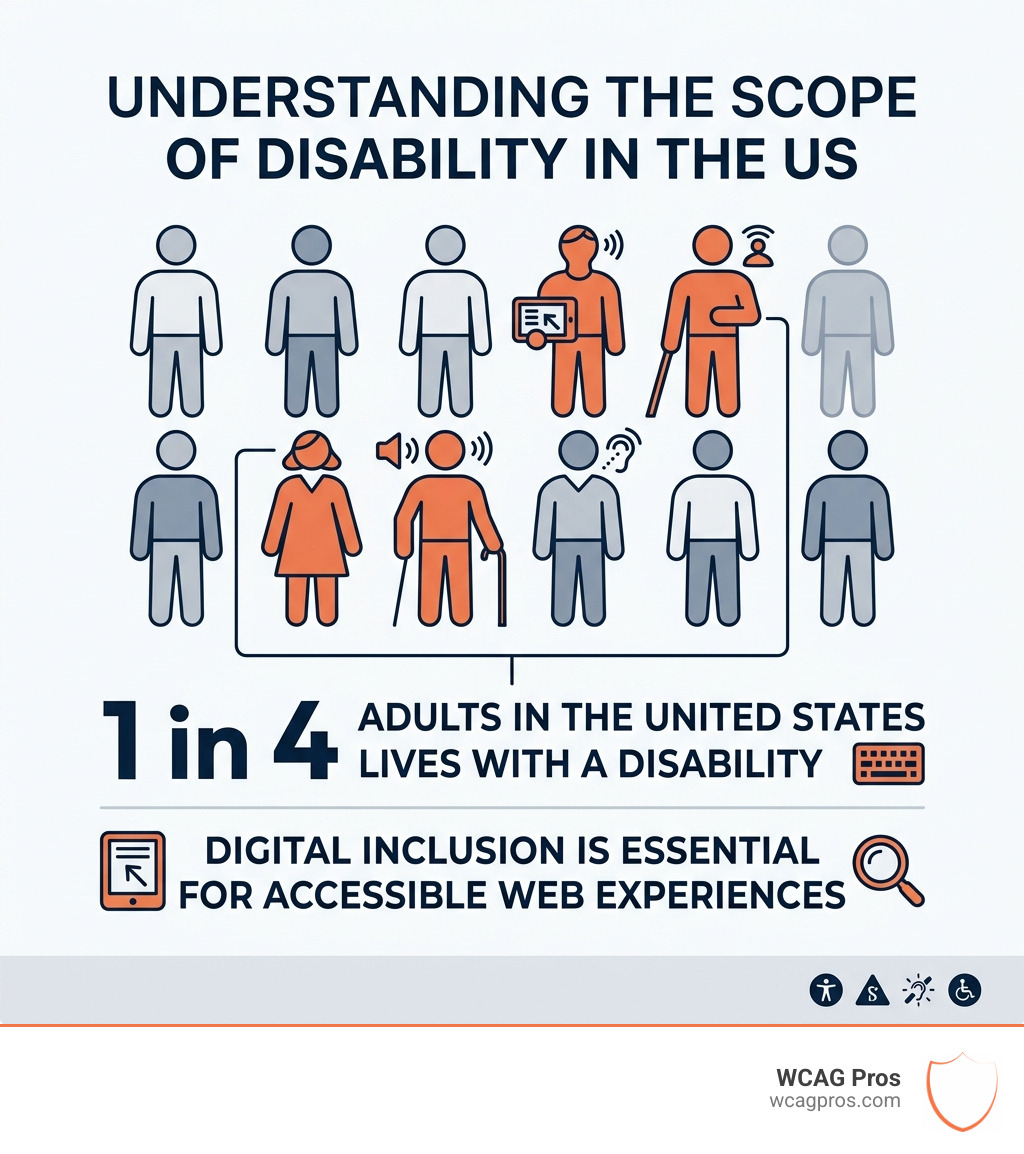
This matters more than ever. Around 1 billion people globally live with a disability that affects how they access the internet. In 2016, Domino’s Pizza was sued after a blind customer could not complete a pizza order using screen reader software. That kind of lawsuit is now far more common, and Wix site owners are not immune.
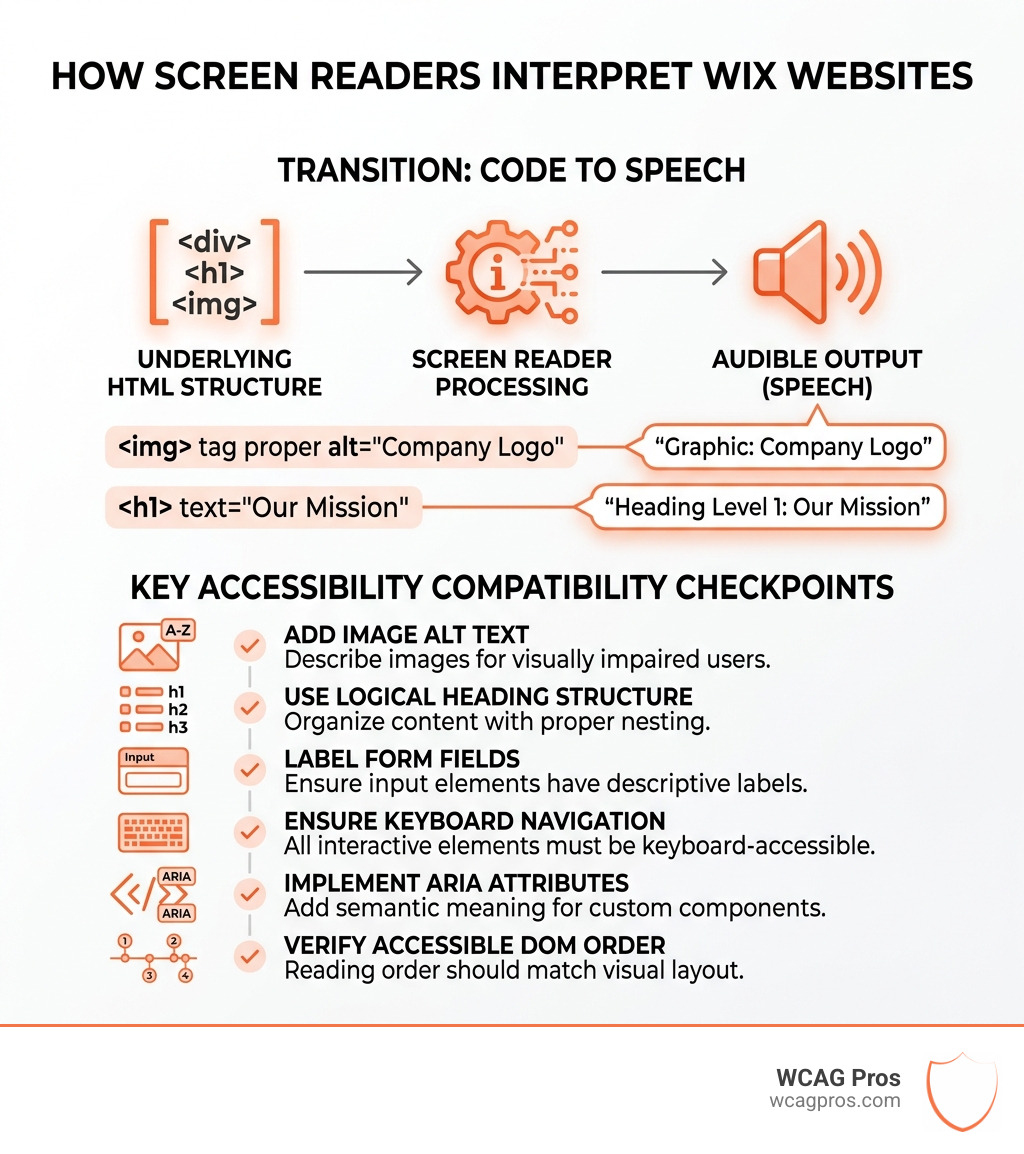
The core problem is straightforward. Wix handles the underlying code, but you are responsible for the content. Missing alt text, broken heading structures, and unlabeled form fields are all things Wix cannot fix for you automatically.
I’m Matthew Post, co-founder of WCAG Pros and a web developer with over 20 years of experience auditing and remediating websites for screen reader Wix compatibility and broader WCAG compliance. In this guide, I’ll walk you through exactly what Wix gets right, where it falls short, and what you need to do to protect your business from legal risk.
Understanding Screen Reader Wix Compatibility and Built-in Features
To understand screen reader Wix compatibility, we first need to look at how these assistive tools function. Screen readers like JAWS (Job Access With Speech), NVDA (NonVisual Desktop Access), and VoiceOver for Apple devices do not just “read” text. They parse the underlying code of a website to describe the layout, identify buttons, and announce the purpose of images.
In April 2026, the digital landscape is more inclusive than ever, yet 15% of the world population still faces barriers to information. Wix has spent years refining its infrastructure to meet these needs. The platform now includes several built-in features designed to facilitate a smoother experience for users with visual impairments.
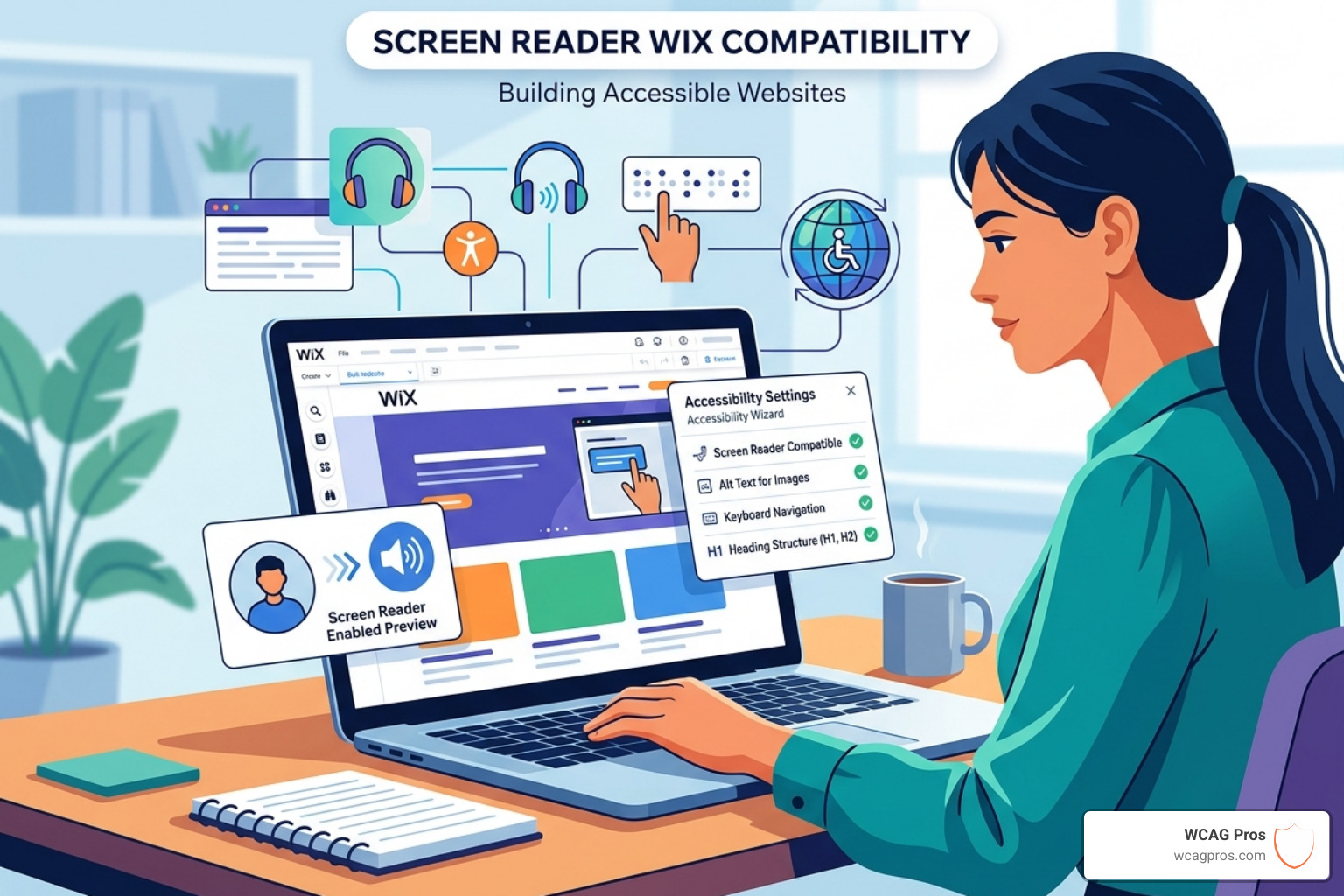
One of the strongest features Wix offers is Automatic DOM order. The Document Object Model (DOM) is the structural map of your website. In the past, drag-and-drop builders often created a messy DOM where a screen reader might jump from the header to the footer and then back to the middle of the page. Wix now automatically arranges the DOM in a logical left-to-right and top-to-bottom sequence. This ensures that when a user tabs through your site, the screen reader follows the visual flow of the design.
Wix also utilizes Semantic HTML. This means the platform uses specific code tags like for menus and for interactive elements, rather than generic boxes. This tells the screen reader exactly what an element is and how the user can interact with it. Furthermore, Wix includes built-in ARIA attributes (Accessible Rich Internet Applications). These are snippets of code that provide extra context to assistive technology, such as “expanded” or “collapsed” states for mobile menus.
To learn more about these native tools, you can visit Web Accessibility – Make Your Wix Website Accessible – Wix.com.
Optimizing Wix Templates for Screen Reader Wix Compatibility
While Wix offers “accessible templates,” we often find that these are only a starting point. A template might have the correct technical structure, but the moment you add your own images or change the text, you risk breaking that compliance.
A major component of screen reader Wix compatibility is the heading hierarchy. Screen reader users often navigate a page by jumping from one heading to the next. You must use a logical structure:
- H1: The main title of the page (only use one per page).
- H2: Major section headings.
- H3 to H6: Sub-sections within the H2 areas.
If you skip levels—for example, going from an H1 to an H4 because you like the font size of the H4—you confuse the screen reader user. They might think they have missed entire sections of content. For a deeper dive into making your specific site compliant, check out our guide on Wix ADA Compliant/.
Common Pitfalls in Screen Reader Wix Compatibility
Even with the best intentions, Wix users often fall into “keyboard navigation traps.” This happens when a user tabbing through the site gets stuck inside a pop-up or a gallery and cannot move back to the main content.
Another frequent issue is the misuse of images. We categorize images into two types:
- Meaningful Images: These convey information (like a “Sale” banner). These require descriptive alt text.
- Decorative Images: These are just for looks (like a background swirl). These should be marked as decorative so the screen reader ignores them entirely, preventing “audio clutter.”
Missing ARIA labels on custom buttons and lack of captions on videos are also major hurdles. If a screen reader lands on a button and only hears “button, unlabelled,” the user has no idea if that button submits a form or deletes their progress. These issues are central to Wcag Remediation/ efforts.
Leveraging the Wix Accessibility Wizard for WCAG Conformance
Wix has introduced a powerful tool called the Accessibility Wizard to help site owners bridge the gap between a standard site and a WCAG-compliant one. This tool is a game-changer for small business owners in Norco, CA, who may not have a background in web development.
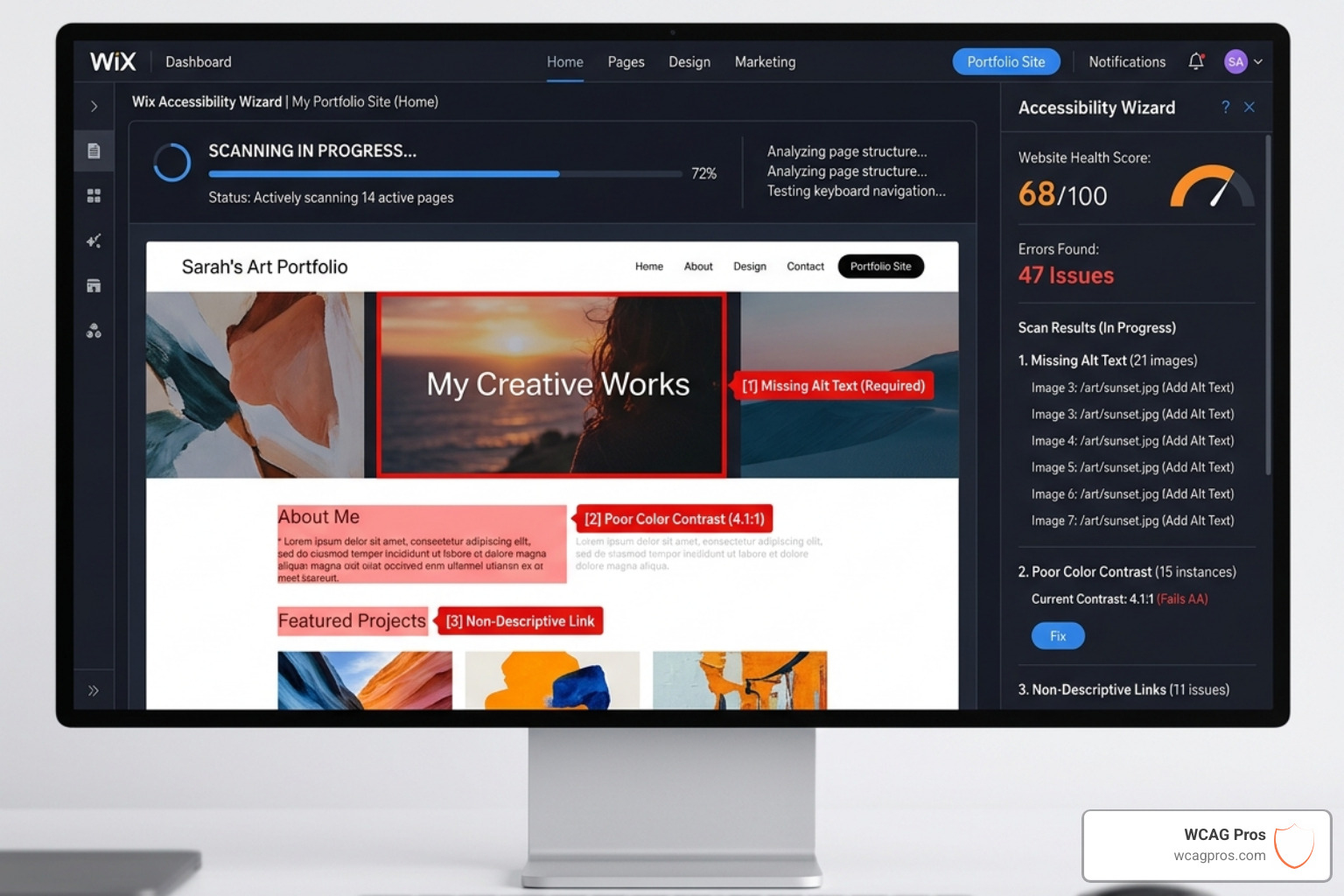
The Wizard works by scanning your site and identifying specific “low-hanging fruit” that hinders screen reader Wix compatibility. It looks for:
- Missing Alt Text: It flags every image that lacks a description.
- Color Contrast Ratios: It identifies text that is too light against its background. To meet WCAG 2.1 Level AA standards, you generally need a contrast ratio of at least 4.5:1 for normal text.
- Heading Structure: It alerts you if your headings are out of order.
By following the step-by-step instructions in the Wizard, you can fix these issues directly within the Wix Editor. This is a significant step toward Wix’s Accessibility Wizard: Pioneering the Pursuit of Internet for All.
Enhancing Interactive Elements and Wix Apps
Interactive elements like Wix Stores, Wix Bookings, and custom forms present unique challenges. For a screen reader user to successfully book an appointment or buy a product, every form field must have a clear, visible label. Placeholders (the grey text inside a box that disappears when you type) are not sufficient for accessibility.
Wix has also implemented Smart Focus Rings. These are high-contrast outlines that appear around an element when a user navigates via a keyboard. This allows users with low vision to see exactly where they are on the page. Additionally, Skip to Content links allow users to bypass the main navigation and jump straight to the unique content of the page, which is a huge time-saver for someone listening to the site.
Advanced Tools and Third-Party Integrations for ADA Compliance
Sometimes, the built-in Wix tools aren’t enough for complex sites. This is where third-party integrations and advanced testing tools come into play. Many site owners look toward accessibility widgets to provide an extra layer of support.
While widgets can offer features like font resizing or color inversion for users with low vision, they are not a “magic pill” for screen reader compatibility. In fact, some poorly designed widgets can actually interfere with how a screen reader parses the page. It is vital to evaluate these tools carefully. You can find more information on how widgets impact compliance at Widget Ada Compliant/.
Beyond widgets, we recommend using automated checkers like Google Lighthouse or the WAVE browser extension. These tools provide a technical report on your site’s health, though they cannot replace the nuance of a human audit.
Testing and Maintaining Your Wix Site for Ongoing Accessibility
The most important rule of web accessibility is that it is not a “one and done” task. Every time you add a new blog post, upload a product, or change a banner, you have the potential to introduce new barriers.
We recommend a two-pronged testing approach:
- Automated Testing: Run the Wix Accessibility Wizard and external tools like Lighthouse after every major update.
- Manual Testing: This is the gold standard. You should actually turn on a screen reader and try to navigate your site.
If you are on a Windows machine, download NVDA (it is free). If you are on a Mac or iPhone, use the built-in VoiceOver. Try to navigate your entire site using only the “Tab” and “Enter” keys with your eyes closed. Can you find the contact page? Can you understand what the images represent? If you get stuck, a screen reader user will too.
For businesses that need to ensure 100% compliance to avoid legal threats, a professional Wcag Audit/ is the best path forward. We provide page-by-page reviews that catch the 70% of issues that automated tools often miss.
Frequently Asked Questions about Wix Screen Reader Support
Are Wix templates fully compatible out of the box?
No. While many “Accessible Templates” provide a compliant framework, they are not a guarantee of ADA compliance. Once you add your own content, you must manually add alt text, verify heading levels, and ensure that any new apps or widgets you install do not break the keyboard navigation flow.
How do I add ARIA labels to custom Wix elements?
If you are using standard Wix elements, the platform handles most ARIA attributes automatically. However, if you are using Velo by Wix to create custom interactions or if you are embedding third-party code, you may need to add ARIA labels manually. This can be done through the element settings or the custom code section in the Wix dashboard. Always use descriptive names like “Close Mobile Menu” rather than just “Close.”
Why is screen reader compatibility vital for ADA compliance?
The Americans with Disabilities Act (ADA) requires businesses that offer public goods or services to be accessible to everyone. Since screen readers are the primary way visually impaired users access the web, a site that is incompatible with them is effectively “closed” to that community. With people with disabilities commanding over 6 trillion dollars in spending power, making your site accessible is not just a legal requirement—it is a smart business move.
Conclusion
Achieving perfect screen reader Wix compatibility is a journey, not a destination. Wix has done a lot of the heavy lifting by providing semantic HTML and logical DOM ordering, but the final responsibility for an inclusive experience lies with the site owner. By using the Accessibility Wizard, maintaining a strict heading hierarchy, and performing regular manual tests, you can create a site that welcomes every visitor.
At WCAG Pros, we specialize in taking the guesswork out of accessibility. We offer comprehensive audits and remediation services to ensure your Wix site meets WCAG 2.1/2.2 Level AA standards. If you want to ensure your site is truly accessible and protected from legal risk, contact us for a professional Wcag Remediation/ plan today.
Read more website accessibility articles
Get Help With Your Website
We'll follow up with info about:
- The process
- Cost
- Timeline
We promise to respect your privacy, and never abuse the information you provide. We will not sell or rent your information to any third party.
By submitting this form, you consent to receive SMS messages and/or emails from SEM Dynamics LLC, dba WCAG Pros. To unsubscribe, follow the instructions provided in our communications. Msg & data rates may apply for SMS. Your information is secure and will not be sold to third parties.