
Stop Failing Audits with These ADA Form and Status Message Fixes
Stop Failing Audits with These ADA Form and Status Message Fixes
Are Your Online Forms Failing ADA Compliance in 2026?
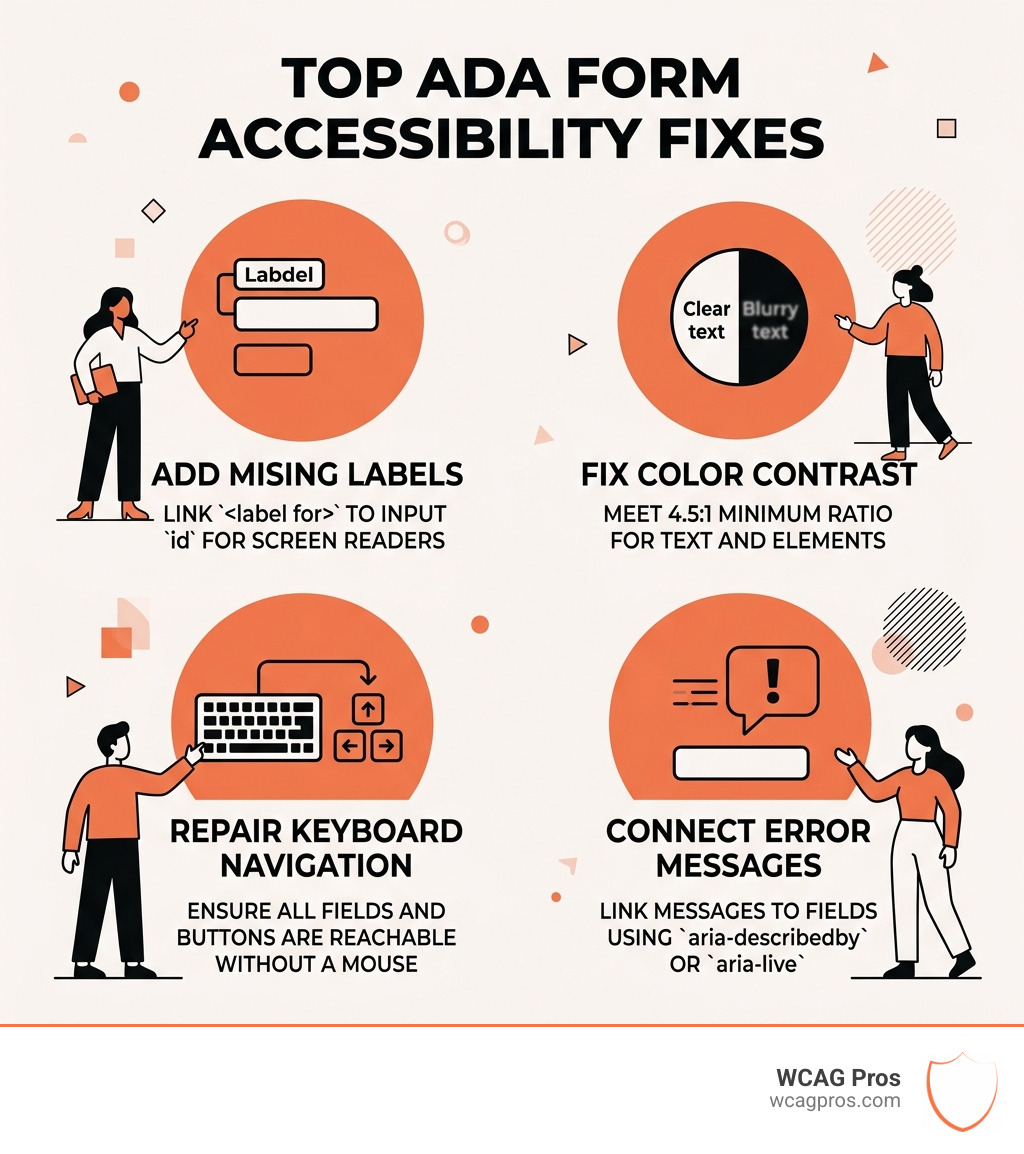
An ADA form accessibility fix is the process of correcting technical errors in web and PDF forms so that people with disabilities can use them independently. Here are the most common fixes you need to know:
- Add missing labels using the
element linked to each input’sid - Fix color contrast to meet the 4.5:1 minimum ratio for text and form elements
- Repair keyboard navigation so all fields and buttons are reachable without a mouse
- Connect error messages to their fields programmatically using
aria-describedbyoraria-live - Tag PDF form fields with tooltips and proper structure in Adobe Acrobat Pro
- Replace placeholder-only text with persistent, visible labels above each field
These fixes bring your forms into alignment with WCAG 2.2 Level AA, which is the accepted technical standard for ADA compliance.
Inaccessible forms are not a minor UX problem. They are a legal liability. Accessibility lawsuits rose 37% in 2025, and inaccessible digital forms are among the most cited barriers. For businesses covered under ADA Title II or Title III, that risk is real and growing.
When a user relying on a screen reader cannot complete your checkout form, or a keyboard-only user gets trapped inside a dropdown, your site is actively excluding people. That exclusion can lead directly to a complaint or lawsuit.
The good news is that most form accessibility errors follow predictable patterns and can be fixed systematically. This guide walks you through exactly how to do that.
I’m Matthew Post, co-founder of WCAG Pros and a web developer with over 20 years of experience, and I have personally audited and overseen remediation of hundreds of websites where an ADA form accessibility fix was the difference between compliance and legal exposure. The steps in this guide reflect what actually works in real-world remediation projects.
Why ADA Form Accessibility Fixes are Critical for Compliance
As we move through April 2026, the legal landscape for digital accessibility has never been more intense. Whether you are a local government agency in Norco CA or a private business serving the public, your online forms are the primary way you interact with your customers. If those forms are broken for people with disabilities, you are essentially closing your front door to a massive segment of the population.
Under Title II of the ADA, state and local governments must ensure their services are accessible. Under Title III, public accommodations like retail stores, banks, and healthcare providers must do the same. The Department of Justice has been very clear that web content is included in these requirements. We often see businesses struggle when they realize that a simple contact form is actually a legal barrier.
The statistics are sobering. Lawsuits regarding digital accessibility rose by 37 percent in 2025. Many of these cases focused on usability barriers like forms that cannot be submitted by someone using a screen reader. If a person cannot sign up for a service or buy a product because of a technical glitch in your form, they have the right to File a Complaint – ADA.gov .
Beyond avoiding legal trouble, fixing your forms is just good business. Accessible design is inclusive design. When you make a form easier for a screen reader user, you usually make it easier for everyone. This leads to better conversion rates and less frustration for all your visitors. If you are unsure where to start, we recommend checking out How To Fix Ada Website Issues In 5 Easy Steps to get a high-level view of the remediation process.
Step-by-Step ada form accessibility fix for Common Errors
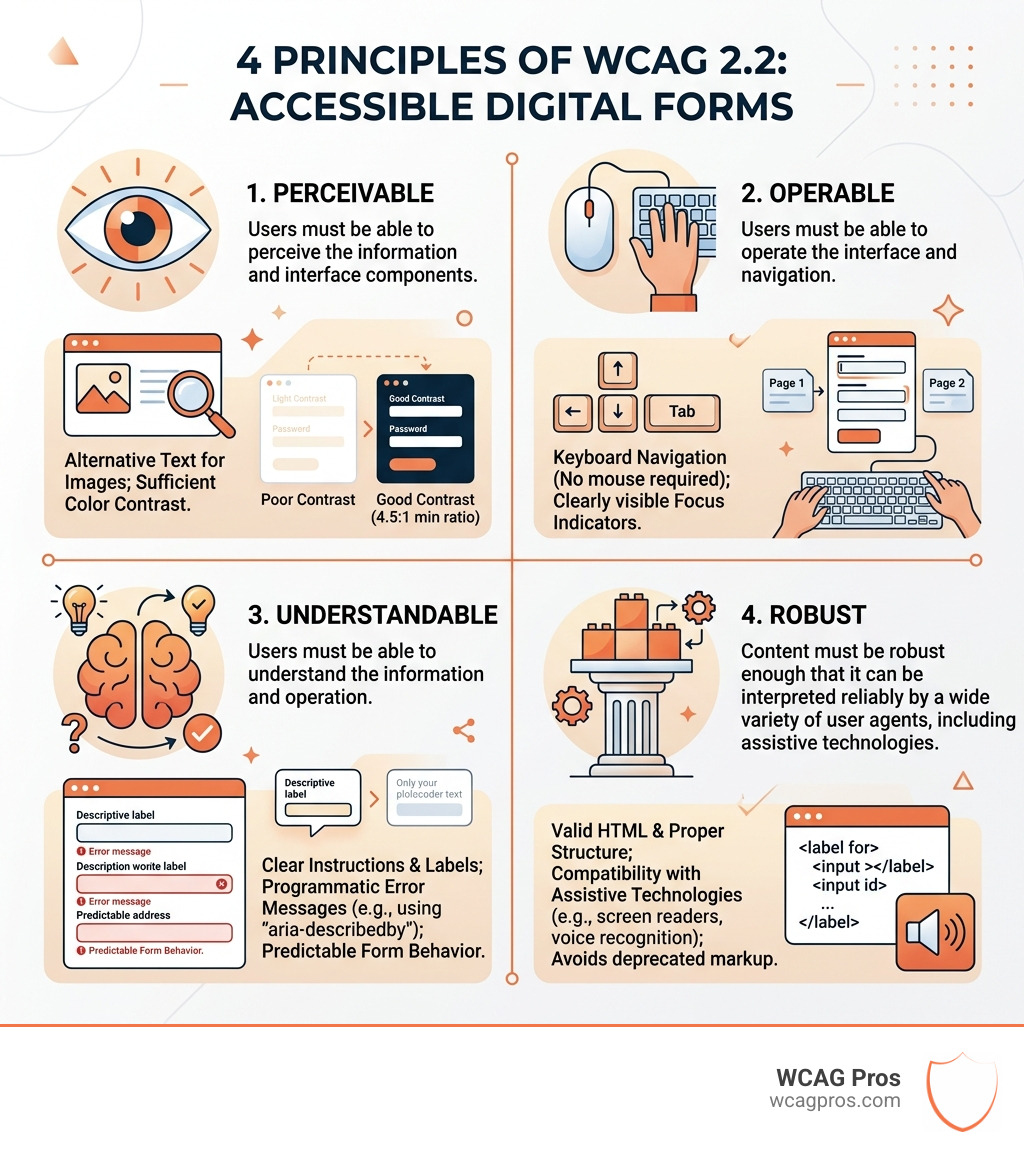
Remediating a form requires a mix of design tweaks and code updates. We have found that most issues fall into a few specific categories. To get your forms up to WCAG 2.2 standards, you need to look at everything from the HTML tags you use to the colors on the screen.
One of the most frequent issues we see in our audits is poor color contrast. For text to be readable by people with low vision, it must have a contrast ratio of at least 4.5 to 1 against its background. This applies to your labels, your input text, and even the borders of your form fields. If your form uses light gray text on a white background, you likely need an ada form accessibility fix immediately.
Another critical area is touch targets and focus indicators. For mobile users, buttons and fields must be large enough to tap easily. For keyboard users, there must be a visible “focus ring” that shows exactly which field is currently selected. Without this, a user navigating with the Tab key is essentially flying blind. For more granular details on these types of technical corrections, you can read about Detailed Accessibility Fixes For A More Inclusive Web.
Implementing the ada form accessibility fix for Missing Labels
Labels are the heart of an accessible form. They tell the user what information is required. A common mistake is using placeholder text (the faint text inside a box) instead of a real label. Placeholder text usually disappears as soon as the user starts typing, which is a nightmare for people with cognitive disabilities or those using screen readers.
To fix missing or broken labels, follow these steps:
- Use the
element for every single input field. - Link the label to the input using the
forattribute. The value of theforattribute must match theidof the input exactly. - If you have a complex field where a standard label is not enough, use
aria-labelledbyto associate multiple text elements with one field. - Ensure that instructions, like “Password must be 8 characters,” are persistent and visible, not hidden inside the field.
We often see these common labeling mistakes during our Form Accessibility Checklist: Making Forms ADA Compliant reviews:
- Using a or
to look like a label without the proper code association.- Only using an icon (like a magnifying glass) without a text label for screen readers.
- Hiding labels visually but forgetting to provide a text alternative for assistive technology.

Applying an ada form accessibility fix for Keyboard Navigation
Keyboard navigation is non-negotiable for ADA compliance. Many users with motor disabilities cannot use a mouse and rely entirely on the Tab key to move through a page. If your form has a “keyboard trap” where a user can get into a field but cannot get out, you are in violation of WCAG 2.2 Success Criterion 2.1.1.
A logical tab order is essential. The focus should move through the form in the same order that it appears visually. If a user tabs from the “First Name” field and suddenly jumps to the “Submit” button, skipping “Last Name” and “Email,” the form is broken.
Here is a quick comparison of why proper labels beat placeholder text every time:
Feature Placeholder Text Proper Label Element Visibility Disappears when typing Stays visible Screen Reader Often ignored or skipped Always announced Contrast Usually too light (low contrast) Can be styled for high contrast Cognitive Load High (user must remember field) Low (info is always present) To ensure your keyboard navigation works, unplug your mouse and try to fill out your own form. Can you reach every dropdown? Can you select a date from the calendar picker? Can you close a modal window using only the Escape key? If the answer is no, you need to implement a fix.
Fixing Status Messages and Validation Errors
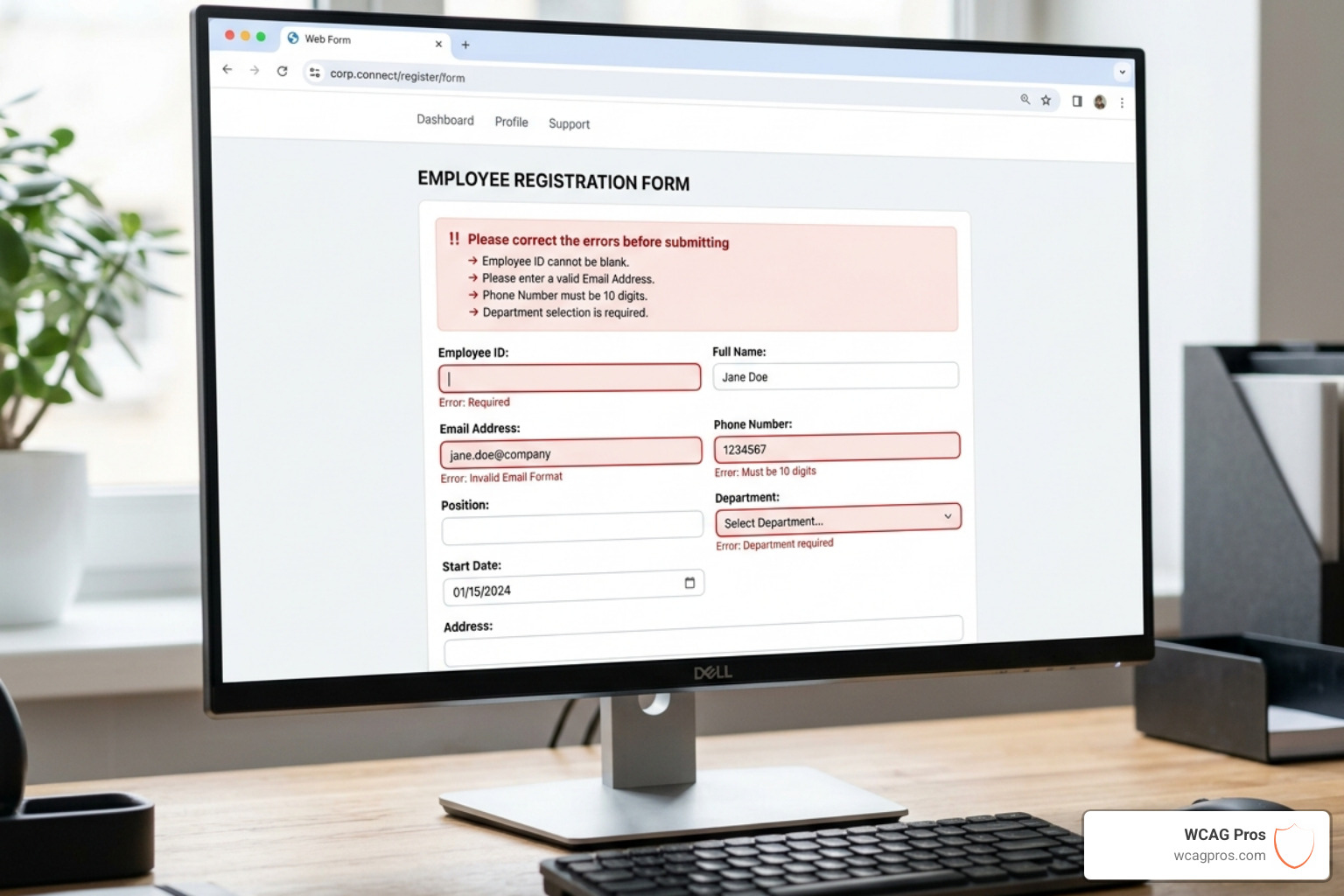
One of the most frustrating experiences for a user with a disability is submitting a form and being told there is an error, but not knowing where it is or how to fix it. WCAG 2.2 has strict requirements for error identification and status messages.
When an error occurs, the user must be notified in a way that is clear and accessible. Simply turning a box red is not enough because users who are colorblind will not see the change. You must provide a text-based description of the error.
We recommend using an error summary at the top of the form. This summary should list all the errors and provide links that jump the user directly to the field that needs fixing. Additionally, you should use
aria-liveregions. This allows a screen reader to announce the error message automatically as soon as it appears, without the user having to hunt for it.WCAG 2.2 also introduced Success Criterion 3.3.7 regarding Redundant Entry. This means that if a user has already entered their shipping address, you should not make them type the exact same information again for the billing address. You should provide a way to auto-populate that data. This reduces the physical and cognitive effort required to complete the form.
Another new requirement is Accessible Authentication (3.3.8). You should avoid “cognitive function tests” like complex puzzles or memorizing a password for logging in. Instead, allow for password managers, biometric login, or simple email links. If you want to see how these automated checks can help identify these issues, look at our guide on Automated Tools Audit.
Remediating PDF Form Accessibility Issues
Many organizations forget that PDF files are also covered under the ADA. If you have a downloadable application or a fillable PDF form on your website, it must be accessible. Unfortunately, a survey found that only 12.9 percent of respondents found PDF files to be accessible. This is a huge gap that needs to be filled.
Fixing a PDF form usually involves using Adobe Acrobat Pro and its Accessibility Tags panel. Every form field in a PDF must be “tagged” so that a screen reader knows it exists. Without tags, a screen reader will treat the PDF like a blank image.
Key steps for PDF form remediation include:
- Adding tooltips to every form field. The tooltip acts as the label for screen reader users.
- Setting a logical reading order. Use the “Reading Order” tool to make sure the fields are encountered in the correct sequence.
- Ensuring the document language is set to English (or the appropriate language).
- Tagging all non-interactive elements, like logos, as “artifacts” so they do not clutter the screen reader’s output.
Manual tag verification is often necessary because automated tools can miss subtle errors in PDF structure. We suggest using The Ultimate Website Accessibility Testing Checklist For 2026 to ensure you are not missing any critical steps in your PDF remediation process.
Frequently Asked Questions about ADA Form Compliance
What are the most common ADA violations in online forms?
The most frequent violations include missing labels, poor color contrast, and lack of keyboard accessibility. We also see many forms that use color alone to indicate an error, which is a major barrier for users with colorblindness. Another common issue is the “keyboard trap,” where a user gets stuck in a widget like a calendar picker and cannot escape back to the rest of the form.
How does WCAG 2.2 impact form authentication?
WCAG 2.2 introduced new rules to make logging in easier for people with cognitive disabilities. It discourages the use of cognitive function tests, such as solving math problems or identifying specific objects in a grid of photos, as the only way to authenticate. Instead, you should provide alternatives like copy-paste support, password managers, or email verification codes.
Can automated tools find all form accessibility issues?
No. While automated tools are great for catching things like missing alt text or low contrast, they cannot tell if your tab order is logical or if your error messages actually make sense. You must pair automated scans with manual testing, including navigating with a keyboard and listening to the form with a screen reader like NVDA or VoiceOver.
Conclusion
Achieving a full ada form accessibility fix is an ongoing process. It is not something you do once and then forget about. Every time you update your website or add a new field to a form, you need to re-verify that it remains accessible.
At WCAG Pros, we believe that digital inclusion is a journey. By implementing these fixes, you are not just checking a box for legal compliance. You are making sure that every person, regardless of their ability, can interact with your organization. This builds trust, improves your reputation, and protects you from the rising tide of accessibility lawsuits.
If you are overwhelmed by the technical requirements or simply do not have the time to audit every page yourself, we can help. We provide comprehensive page-by-page audits and specific code fixes to ensure your site is fully compliant. You can start by requesting a professional Wcag Audit to see exactly where your forms stand today. Let’s work together to make the web a more welcoming place for everyone.

Read more website accessibility articles
Get Help With Your Website
We'll follow up with info about:
- The process
- Cost
- Timeline
We promise to respect your privacy, and never abuse the information you provide. We will not sell or rent your information to any third party.
By submitting this form, you consent to receive SMS messages and/or emails from SEM Dynamics LLC, dba WCAG Pros. To unsubscribe, follow the instructions provided in our communications. Msg & data rates may apply for SMS. Your information is secure and will not be sold to third parties.