
The Ultimate Manual for Screen Reader WordPress Testing
The Ultimate Manual for Screen Reader WordPress Testing
What Is Screen Reader WordPress Testing and How Do You Do It?
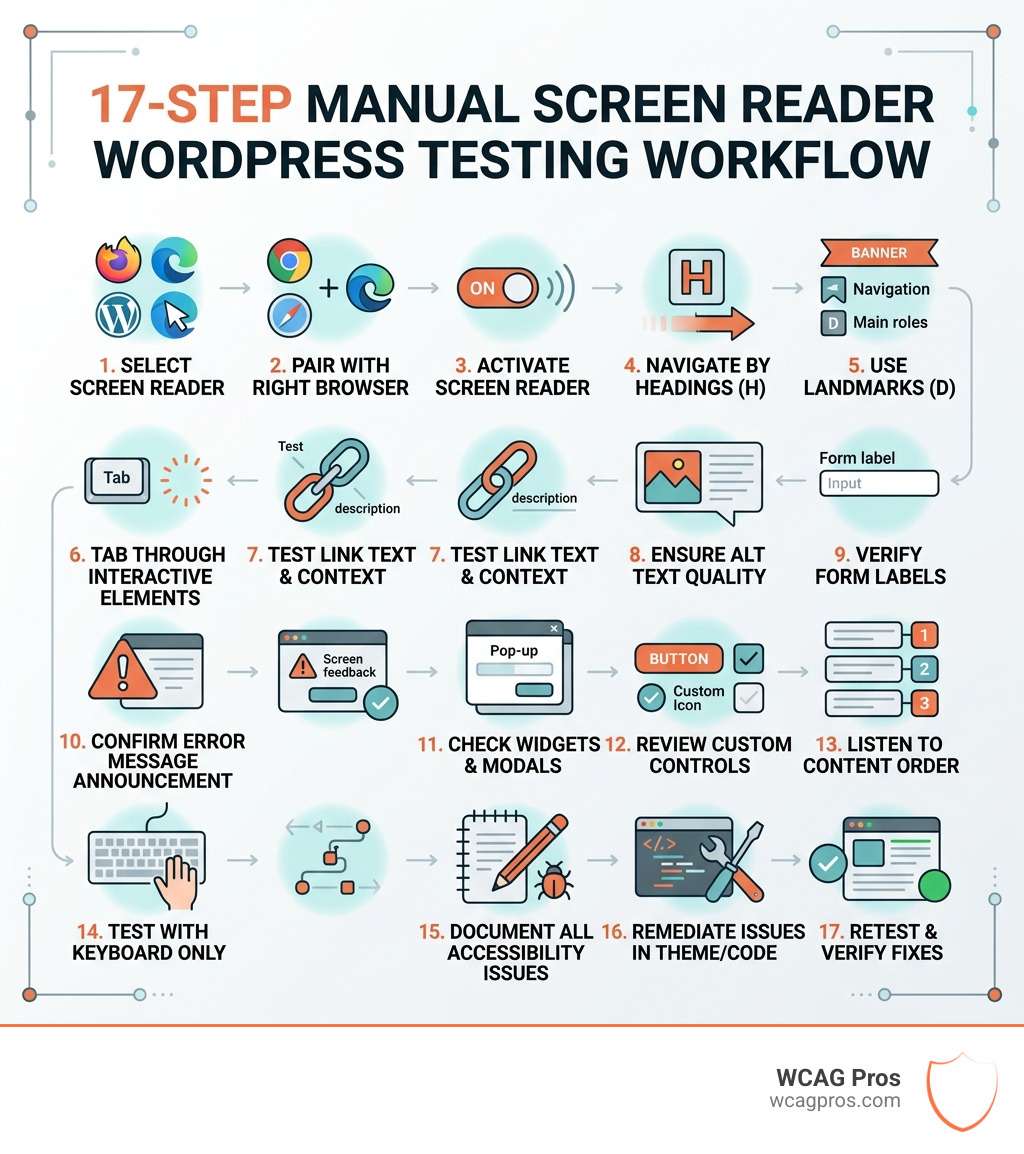
Screen reader WordPress testing is the process of using assistive technology software to navigate your WordPress site the way a visually impaired user would, checking that every element is announced correctly and usably.
Here is how to do it, step by step:
- Choose a screen reader — NVDA (free, Windows), VoiceOver (built-in, Mac/iOS), or TalkBack (built-in, Android)
- Pair it with the right browser — Firefox with NVDA, Safari with VoiceOver, Chrome with JAWS
- Navigate with keyboard only — use H for headings, D for landmarks, Tab to move between interactive elements
- Test forms and buttons — confirm labels, error messages, and button roles are announced correctly
- Check ARIA landmarks and structure — verify roles like banner, navigation, and main are present
- Document every issue — record what was announced versus what should have been announced
- Fix and retest — resolve issues in HTML or theme settings, then verify with the screen reader again
Most people assume running an automated scanner is enough. It is not. Automated tools catch only about 30% of accessibility issues. The rest only surface when a real screen reader actually reads your site out loud.
That gap is exactly where legal risk hides. About 1.3 billion people worldwide live with significant disability, yet only 2.6% of the top million websites are fully accessible. If your WordPress site is in that 97.4%, you are exposed to ADA complaints and WCAG violations that a scanner would never flag.
I’m Matthew Post, co-founder of WCAG Pros and a web developer with over 20 years of experience specializing in WCAG compliance and accessibility audits, including hands-on screen reader WordPress testing across dozens of commercial sites. In the guide below, I’ll walk you through exactly how to test your site the right way, what to look for, and how to fix what you find.
Why Screen Reader WordPress Testing is Essential in 2026
As we navigate the digital landscape of May 2026, the stakes for web accessibility have never been higher. With roughly 1.3 billion people experiencing significant disability globally, ignoring accessibility is no longer just a social oversight—it is a massive business and legal risk.
Many site owners rely solely on automated scanners, but research consistently shows that these tools only catch about 30 percent of accessibility barriers. A scanner might tell you if an image is missing alt text, but it cannot tell you if that alt text actually makes sense or if a complex WordPress checkout process is a nightmare to navigate with a keyboard. This is why manual screen reader WordPress testing is the gold standard for compliance.
Following the POUR principles (Perceivable, Operable, Understandable, and Robust) is the foundation of a WordPress ADA Compliant website. When your site is accessible, it is not just better for users with visual impairments; it is better for everyone. Clearer navigation and better structure often lead to SEO benefits because search engines like Google reward sites that are easy to crawl and understand.
Beyond the user experience, there are strict legal requirements. In the United States, the ADA requires digital content to be accessible, and the global standard is the WCAG 2.2. Failing to meet these standards can lead to costly litigation. Understanding ADA Compliance WordPress 101 is the first step toward protecting your business and serving your entire audience.
Choosing the Right Screen Reader for WordPress Testing
Not all screen readers are created equal, and users often have strong preferences based on their operating system. To ensure your WordPress site works for everyone, you should test with the most popular combinations.
| Screen Reader | Operating System | Cost | Best Browser Pairing |
|---|---|---|---|
| NVDA | Windows | Free | Firefox |
| JAWS | Windows | Paid | Chrome / Edge |
| VoiceOver | macOS / iOS | Built-in | Safari |
| TalkBack | Android | Built-in | Chrome |
NVDA is the most popular free screen reader for Windows and is widely used by the accessibility community. It is open-source and provides a very “raw” look at how code is interpreted. On the other hand, JAWS is the industry standard for many government and corporate environments. While it requires a license, it remains a critical tool for professional JAWS Screen Reader Accommodation testing.
If you are on a Mac, VoiceOver is already at your fingertips. It is exceptionally well-integrated with Safari. For mobile testing, you cannot ignore TalkBack on Android or VoiceOver on iPhone, as more than half of web traffic now happens on mobile devices. Testing across these various platforms ensures that your WordPress theme remains robust no matter how it is accessed.
Step-by-Step Guide to Screen Reader WordPress Testing
Before you start, we recommend a “screen curtain” practice. This means turning off your monitor or closing your eyes while testing. If you can navigate your site without seeing it, you have achieved true accessibility.
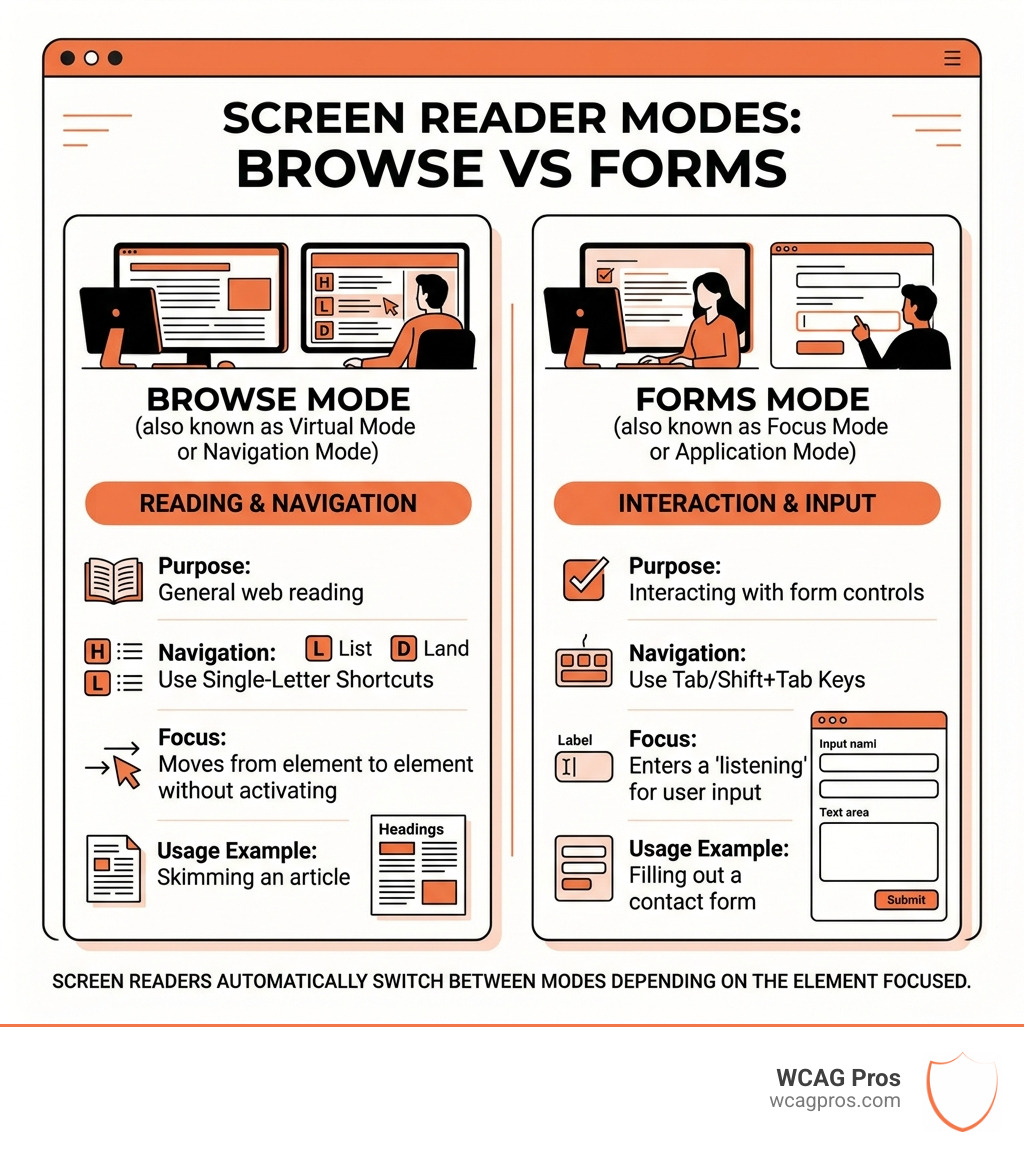
When you begin screen reader WordPress testing, you need to understand the two main modes of operation:
- Browse Mode: This is the default mode. It allows you to use single-letter shortcuts to jump between headings, links, and landmarks. It creates a “virtual buffer” or a text-based version of your site that the screen reader can scan.
- Forms/Focus Mode: When you land on an input field like a search bar or a contact form, the screen reader switches to this mode. This allows you to type characters into the field instead of triggering navigation shortcuts.
To get a realistic feel for the user journey, we suggest following the advice in our guide on How to Test Your Website’s Accessibility Using Real Users. However, for your internal manual audit, start by listening to the audio feedback as you move through the site. Does the screen reader announce the page title immediately? Does it tell you about the cookie notice before you get stuck in it?
For developers working on the block editor, the official WordPress documentation on Accessibility Testing provides excellent technical insights into how Gutenberg blocks should behave.
Essential Keyboard Shortcuts for Screen Reader WordPress Testing
You do not need to be a coding wizard to perform these tests, but you do need to master a few keys. These shortcuts allow you to “skim” a page just like a sighted user would.
- H: Jump to the next heading. This helps you verify if your content hierarchy is logical.
- D: Move to the next landmark (like the header, footer, or main content).
- Tab: Move to the next interactive element (links and buttons).
- Shift + Tab: Move backward to the previous element.
- Enter / Space: Activate a link or button.
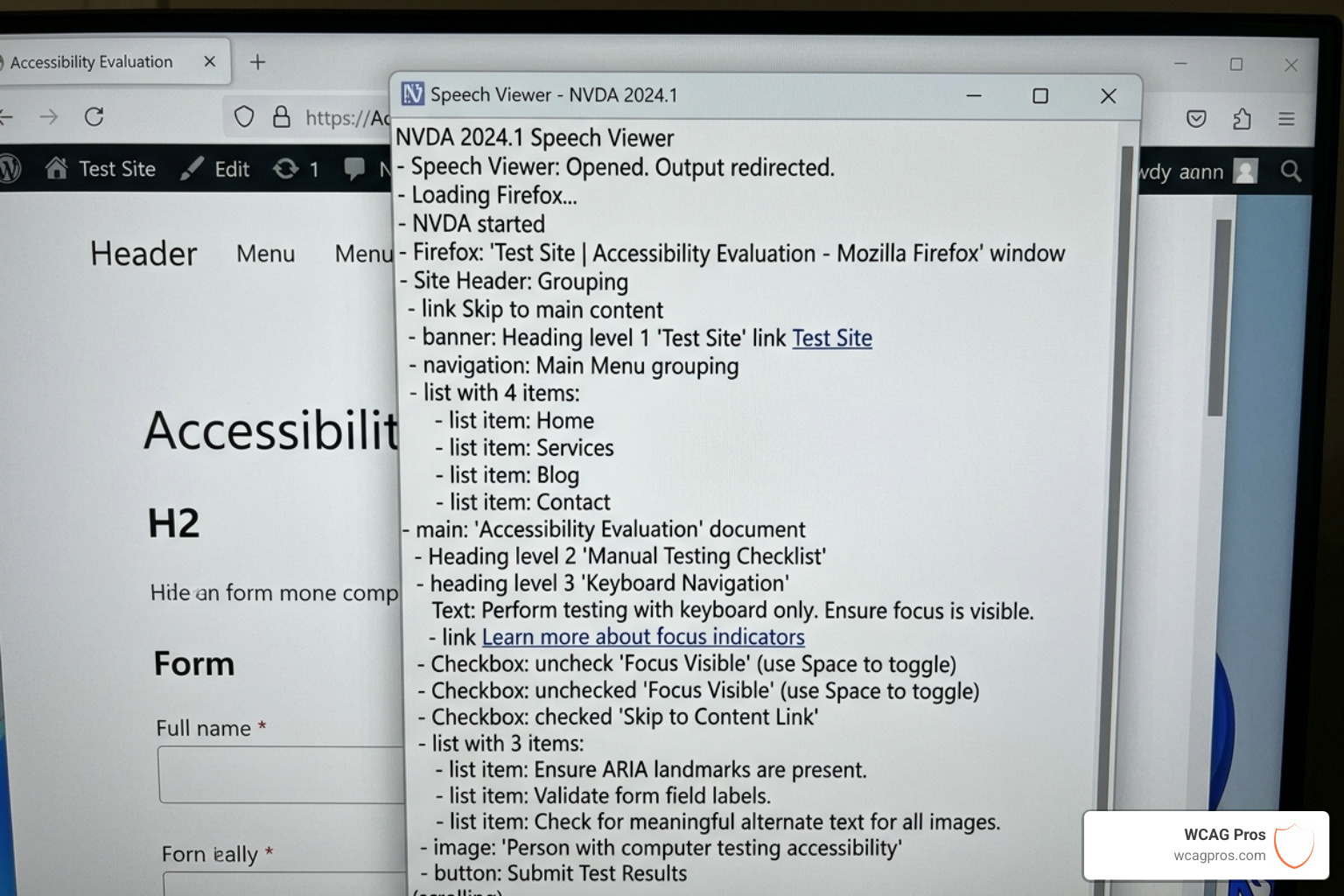
- NVDA + F7 (or Control + Option + U on Mac): Opens the Elements List or Rotor. This shows every link, heading, and landmark on the page in a single list.
If a link in this list says “Click here” or “Read more,” it is a failure. Every link should describe its destination, such as “Read more about our accessibility services.” For a deeper dive into what to look for, see our Beginner’s Guide to Website Accessibility Audit.
Advanced Form Verification for Screen Reader WordPress Testing
Forms are where many WordPress sites fail. If a screen reader user tabs into a field and hears “Edit text, blank,” they have no idea what to type.
During your screen reader wordpress testing, verify the following:
- Labels: Every input must have a
element. - Error Messages: If a user misses a required field, the error message must be announced automatically. This is often done using
aria-liveoraria-describedby. - Modal Traps: When a pop-up or mobile menu opens, the keyboard focus must stay inside that box. If the user can tab “behind” the modal into the main page, it is a major barrier.
- Button Roles: Ensure buttons are announced as “button” and not just “link” or “clickable div.”
Our The Ultimate Website Accessibility Testing Checklist for 2026 provides a comprehensive list of these interactive elements to check.
Verifying ARIA Roles and WordPress Theme Structure
ARIA (Accessible Rich Internet Applications) attributes are like invisible signposts for screen readers. While semantic HTML (using , and ) is always preferred, ARIA roles can fill the gaps in complex WordPress themes.
When conducting screen reader wordpress testing, check for these landmarks:
- role=”banner”: Identifies the site header.
- role=”navigation”: Points to the menus.
- role=”main”: Tells the user where the actual content begins.
A common fix for WordPress sites is adding a “Skip to Content” link. This allows users to bypass the 50 links in your header and jump straight to the article. If your theme lacks these features, you might consider tools like the Screen Reader Accessibility Plugin to help bridge the gap, though manual code fixes are always more reliable.
Don’t forget the Gutenberg blocks! Each block should be tested for focus management. If you use accordions or tabs, the screen reader should announce whether the section is “expanded” or “collapsed.”
Documenting and Reporting Accessibility Issues
Once you find an issue, how you report it is just as important as finding it. Developers need specific, actionable information to fix the code. Avoid vague statements like “the menu is broken.”
Instead, use user-centered language in your reports:
- Device/Software: “Tested with NVDA 2024.1 on Firefox.”
- Steps to Reproduce: “Tabbed to the contact form and pressed Enter on the submit button without filling fields.”
- Expected Result: “Screen reader should announce ‘Error: Email field is required’.”
- Actual Result: “Screen reader remained silent; focus stayed on the button.”
We often use The Ultimate WCAG Checklist PDF, Excel, and Print-Ready Versions to track these issues across large sites. While an Automated Tools Audit can provide a baseline, your manual screen reader notes will provide the “why” behind the errors.
Frequently Asked Questions about Screen Reader WordPress Testing
Do I need coding skills to perform screen reader testing?
No! You do not need to be a coder to use a screen reader. You just need to learn the keyboard shortcuts and understand what a “good” experience sounds like. However, knowing basic HTML will help you communicate better with developers when you find a bug.
How often should I conduct a screen reader audit on my site?
We recommend a full audit at least twice a year, or whenever you make major changes like switching themes, installing a new page builder, or adding complex plugins (like a new e-commerce checkout). Regular maintenance ensures that no “accessibility regressions” creep into your site.
Can WordPress plugins fix all screen reader accessibility issues?
While some plugins can fix common issues like missing alt text or contrast, they cannot fix everything. Accessibility is a process, not a “set it and forget it” plugin. Manual testing is the only way to ensure the user logic and flow are actually functional for a human being.
Conclusion
At WCAG Pros, we believe that the web should be a place where everyone can participate. Based in Norco, CA, our team specializes in helping businesses navigate the complexities of digital inclusion. Screen reader WordPress testing is a core part of our mission to eliminate barriers.
If you are overwhelmed by the technical requirements of WCAG 2.2, we are here to help. We provide a comprehensive WCAG Audit that looks at all 54 points of compliance, followed by expert WCAG Remediation to fix the issues we find.
Manual verification is the only path to true inclusive design. By taking the time to “hear” your website, you are opening your doors to millions of users who are often left behind. Start your testing today, and let’s build a more accessible WordPress community together.
Read more website accessibility articles
Get Help With Your Website
We'll follow up with info about:
- The process
- Cost
- Timeline
We promise to respect your privacy, and never abuse the information you provide. We will not sell or rent your information to any third party.
By submitting this form, you consent to receive SMS messages and/or emails from SEM Dynamics LLC, dba WCAG Pros. To unsubscribe, follow the instructions provided in our communications. Msg & data rates may apply for SMS. Your information is secure and will not be sold to third parties.