
X Effective Tips for Your A11y Accessibility Checklist
X Effective Tips for Your A11y Accessibility Checklist
Why Every Website Needs an A11y Accessibility Checklist
An a11y accessibility checklist is a structured list of tasks that helps you make your website usable for people with disabilities. Here is a quick overview of what a solid checklist covers:
- Global code: valid HTML, language attributes, page titles, landmark regions
- Keyboard access: tab order, focus styles, skip links, no keyboard traps
- Images: descriptive alt text, null alt for decorative images, text alternatives for complex visuals
- Headings and lists: logical hierarchy, one H1 per page, proper list elements
- Forms and controls: labels, fieldsets, error messages, autocomplete
- Color contrast: 4.5:1 for normal text, 3:1 for large text and icons
- Media: captions for video, transcripts for audio, no autoplay
- Animation: respects prefers reduced motion, no seizure triggering flashes
- Mobile and touch: touch targets, no horizontal scroll, orientation support
The stakes are real. Over 1 billion people worldwide live with some form of disability. And 71% of users with disabilities will simply leave a website they find hard to use. Meanwhile, 97.8% of home pages still fail basic WCAG standards. That is a massive gap between where most sites are and where they need to be.
For business owners, that gap is not just a user experience problem. It is a legal risk. ADA website lawsuits have been climbing steadily, and non compliance is no longer something courts overlook.
The good news: a clear, practical checklist makes the path to compliance far less overwhelming.
I’m Matthew Post, co founder of WCAG Pros and a web developer with over 20 years of experience auditing sites against a11y accessibility checklist standards and overseeing remediation projects. Below, I’ll walk you through the 10 most effective tips to put your checklist to work and meaningfully reduce your legal and usability risk.
Understanding the A11y Accessibility Checklist and WCAG 2.2
The term a11y is a common abbreviation for accessibility. The letter a is followed by eleven letters and then the letter y. When we talk about an a11y accessibility checklist we are talking about a practical translation of the Web Content Accessibility Guidelines. These guidelines are published by the World Wide Web Consortium, also known as the W3C. They serve as the global standard for digital inclusion.
The A11Y Project is a community driven effort that plays a massive role in making these technical standards understandable. It provides developers and designers with clear educational resources, self paced workshops, and curated tools to build better websites. By translating dense technical requirements into actionable tasks, it helps teams integrate accessibility into their daily workflows.
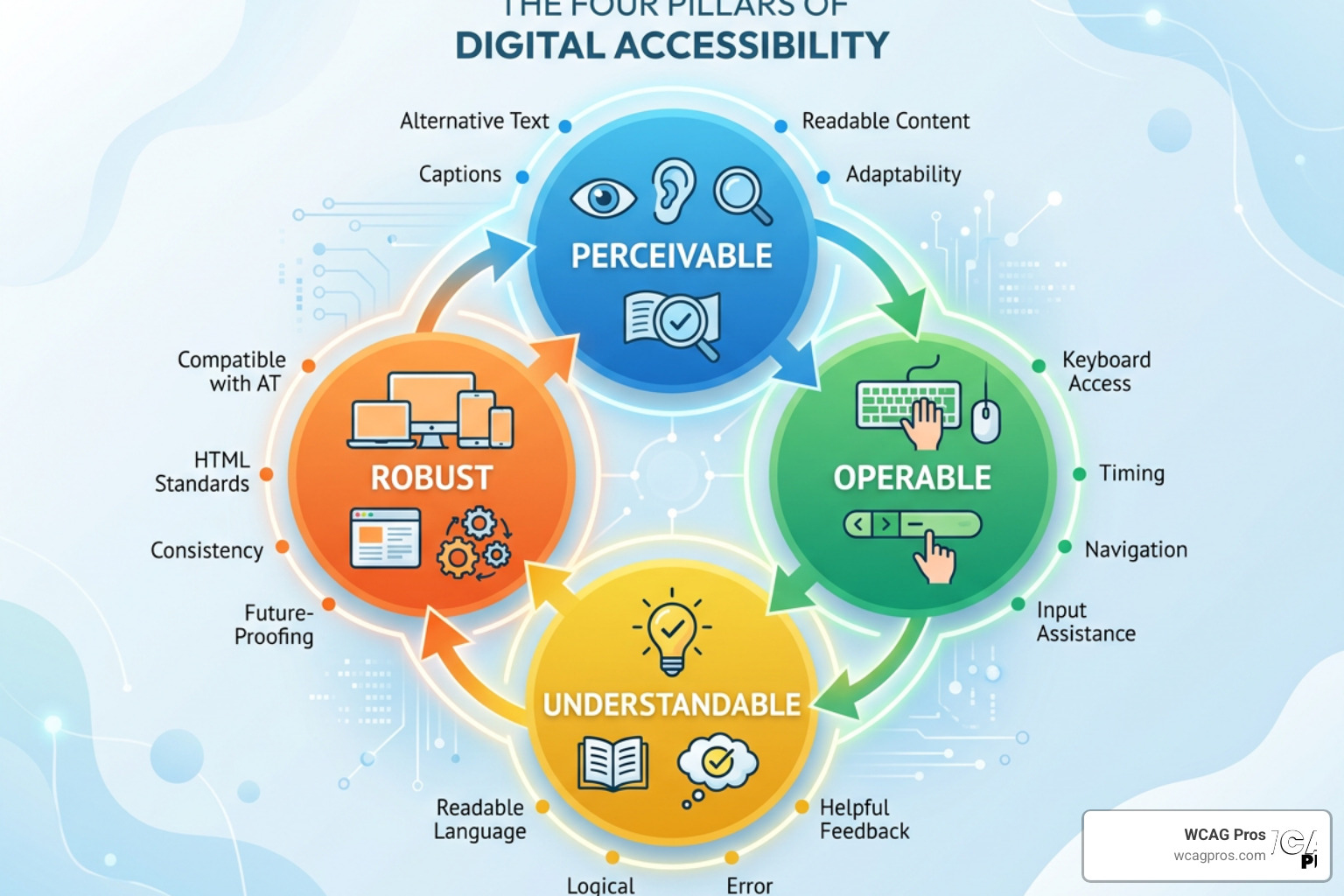
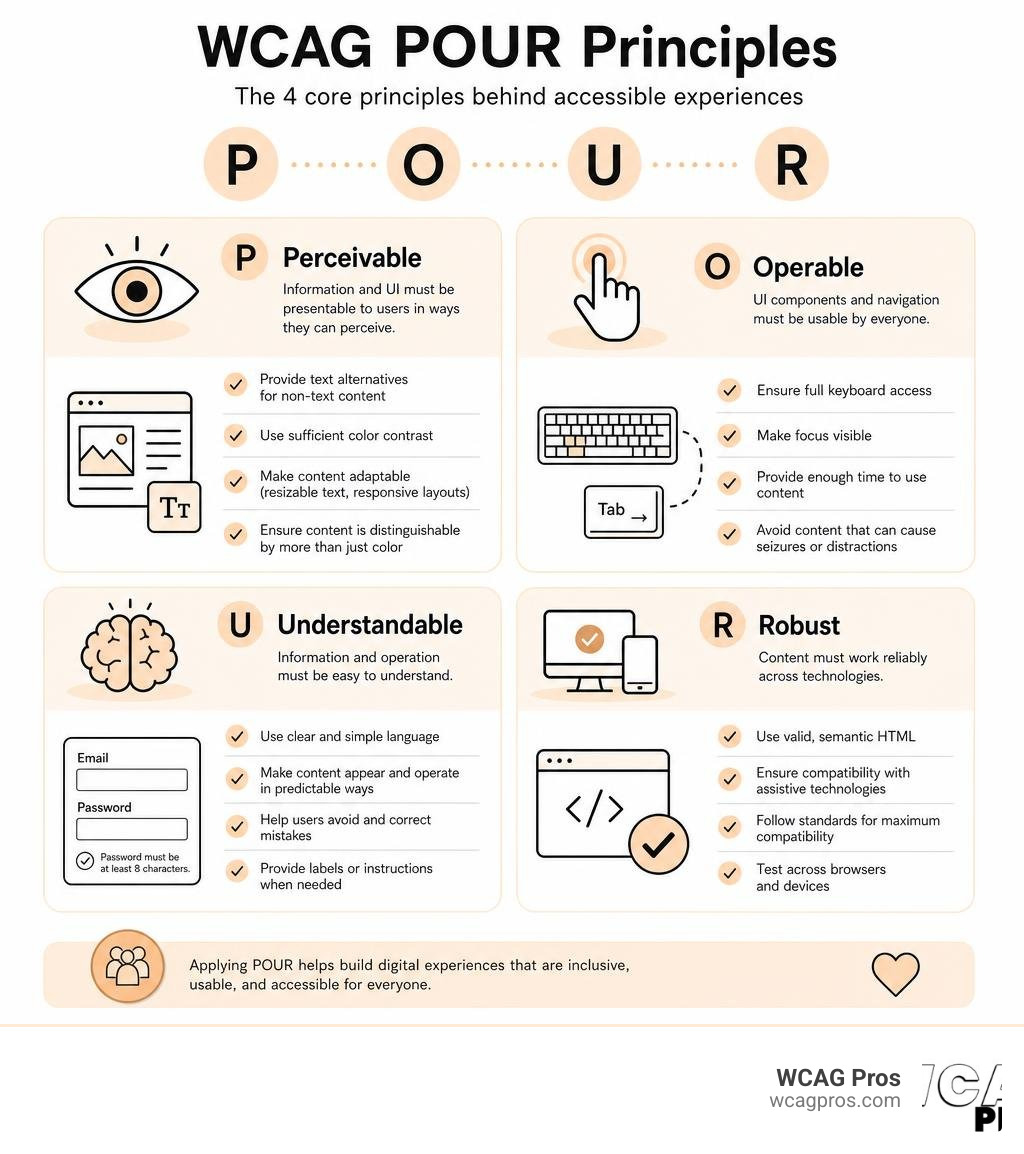
Every modern checklist aligns with WCAG 2.2. This standard is built on four core principles, often called the POUR principles:
- Perceivable: Users must be able to comprehend the information being presented. It cannot be invisible to all of their senses.
- Operable: Users must be able to navigate and interact with the interface. The website cannot require interactions that a user cannot perform.
- Understandable: Users must be able to understand the information as well as the operation of the user interface.
- Robust: Content must be robust enough that it can be interpreted reliably by a wide variety of user agents, including assistive technologies like screen readers.
To help organizations measure their progress, WCAG 2.2 features three distinct conformance levels. These levels build on top of each other. To meet Level AA, you must first satisfy all requirements of Level A.
- Level A: The absolute minimum level of web accessibility. Failing to meet this means your site is highly unusable for many people. This covers basic requirements, though it is rarely sufficient on its own for legal compliance.
- Level AA: The globally accepted standard for most websites, including businesses and government agencies. This is the standard referenced by the ADA, Section 508, and the European Accessibility Act.
- Level AAA: The highest and most specialized level of accessibility. This level includes advanced criteria that are not always achievable for every type of web content.
Using a structured guide is the best way to keep track of these criteria. For a comprehensive breakdown of these levels, you can check out The Ultimate WCAG Checklist PDF, Excel, and Print Ready Versions. You can also Learn more about the A11Y Project checklist to see how the community organizes these important tasks.
Why You Need an A11y Accessibility Checklist
Building an inclusive website is not just about writing clean code. It is a critical business strategy. The global market of people with disabilities controls over 13 trillion dollars in annual disposable income. When you ignore accessibility, you lock out a massive segment of consumers who are ready to spend money with your business.
Additionally, companies with accessible websites see a 75% higher likelihood of customers making repeat purchases. Accessibility improves search engine optimization, mobile usability, and overall customer satisfaction. It is a win for everyone involved.
On the legal side, compliance is essential. Under the Americans with Disabilities Act, websites are considered places of public accommodation. Failing to provide equal access can result in costly lawsuits, negative public relations, and expensive emergency remediation projects. Small businesses are especially vulnerable to these risks. To understand your obligations, you can read our ADA Compliance Checklist for Small Businesses in 2025: A Complete Guide.
How to Implement Your A11y Accessibility Checklist
Accessibility is not a final coat of paint that you slap on a website right before launch. It must be woven into every single phase of your product lifecycle.
- The Design Phase: Designers must select accessible color palettes, plan clear focus states, and design touch targets that are easy to tap.
- The Content Phase: Content creators must write in plain language, organize information with logical headings, and draft descriptive text alternatives for images.
- The Development Phase: Developers must write semantic HTML, manage keyboard focus, and implement proper ARIA attributes where standard HTML elements fall short.
- The Quality Assurance Phase: Testers must run automated scans, perform manual keyboard checks, and test the interface with actual screen readers.
By establishing accessibility checkpoints throughout your workflow, you prevent costly redesigns later. For a deep dive into setting up these checkpoints, explore our guide on the ADA Compliance Website Checklist: 10 Must Haves.
10 Essential Tips for Your Web Accessibility Checklist
To help you get started, we have compiled 10 of the most critical tips for your a11y accessibility checklist. These tips cover the most common issues that users encounter and provide clear guidance on how to fix them.

Many web projects fail to meet basic standards because teams overlook simple semantic structures. If you want a broad overview of how to structure your next launch, you can refer to this Comprehensive Accessibility Checklist for Web Projects. Let us dive into the specific tips.
1. Master Keyboard Navigation and Focus Styles
Many users with physical disabilities cannot use a mouse. They rely entirely on keyboards, mouth sticks, or switch devices to navigate the web. If a user cannot navigate your site with a keyboard, your site is completely broken for them.
- Visible Focus Indicators: When a user presses the Tab key, they need to see exactly where they are on the page. Never use CSS to remove the default outline unless you are replacing it with an even better, highly visible custom focus style.
- Logical Tab Order: The focus must move through the page in a logical sequence. This sequence should match the visual layout of the page, moving from top to bottom and left to right.
- No Keyboard Traps: A user must never get stuck inside an element. If they can tab into a dropdown menu or a modal window, they must be able to tab out of it or close it using the Escape key.
- Skip Links: Provide a skip to main content link at the very top of your pages. This allows keyboard users to bypass repetitive header navigation and jump straight to the primary content.
2. Write Descriptive Alternative Text for Images
Screen readers read alt text aloud to describe images for users with visual impairments. Writing great alt text is an art, but it is also a fundamental requirement of any a11y accessibility checklist.
- Informative Images: If an image conveys important information, write a concise description of what the image shows. Do not start with image of or picture of. Screen readers already announce that the element is an image.
- Decorative Images: If an image is purely decorative and does not add meaning to the page, use an empty alt attribute, written as
alt="". This tells the screen reader to skip the image entirely, saving the user time. - Complex Diagrams: For charts, graphs, or complex diagrams, provide a brief summary in the alt text and a detailed text description nearby on the page.
- Avoid Images of Text: Never use images to display text. If you must use an image of text, you must repeat that exact text word for word in the alt attribute.
3. Establish a Logical Heading Hierarchy
Headings are the skeleton of your web page. Screen reader users often navigate a page by jumping from heading to heading to get a quick overview of the content.
- Use One H1 Per Page: The H1 element should represent the main title of the page. Do not use more than one H1 on a single page.
- Do Not Skip Levels: Always nest your headings in a logical order. An H2 should be followed by an H3, which can be followed by an H4. Never jump from an H2 straight to an H4.
- Use Headings for Structure, Not Style: Never use a heading element just to make text look bigger. If you want to style text, use CSS instead of semantic heading tags.
- Keep Headings Concise: Write clear, descriptive headings that accurately summarize the section of content that follows.
4. Use Semantic Lists and Tables
Semantic HTML tells assistive technologies exactly what kind of content they are dealing with. This is especially important for lists of items and tables of data.
- Proper List Elements: If you are displaying a list of related items, use the proper list elements. Use unordered lists for bulleted items, ordered lists for numbered steps, and description lists for terms and definitions.
- Avoid Manual Styling: Do not create lists by manually inserting bullet characters or numbers into standard paragraph tags. This deprives screen reader users of helpful context, such as being told how many items are in the list.
- Data Tables: Use tables only for tabular data, never for visual layouts. Use table header elements to define rows and columns.
- Scope Attributes: Use scope attributes to associate table headers with their corresponding cells. This ensures that screen readers can read the correct header aloud as a user navigates through individual data cells.
5. Design Accessible Forms and Controls
Forms are where transactions happen. If your checkout page, contact form, or login panel is inaccessible, you are directly losing customers and revenue.
- Explicit Labels: Every form input must have a clear, visible label. Use the
forattribute on the label to programmatically link it to theidof the input field. - Group Related Fields: Use fieldset and legend tags to group related form controls, such as a shipping address section or a set of radio buttons.
- Autocomplete Attributes: Use appropriate autocomplete attributes on inputs. This helps users with cognitive or motor difficulties fill out forms quickly and accurately.
- Accessible Names: Every button and interactive control must have an accessible name. If a button only contains an icon, use an ARIA label to explain what the button does.
6. Provide Clear Error Handling and Feedback
When something goes wrong in a form, your website must help the user identify and correct the error easily.
- Descriptive Error Messages: Do not just highlight a field in red. Write a clear message explaining what went wrong and how to fix it.
- Color Independence: Never rely on color alone to convey an error state. Use icons, text, and borders alongside color to make errors obvious to everyone.
- Programmatic Association: Use the ARIA describedby attribute to link the error message directly to the input field. This ensures that screen readers read the error message aloud when the user focuses on the field.
- Error Prevention: For important transactions or legal data, allow users to review, correct, and confirm their information before submitting the form.
7. Meet Color Contrast Requirements
Low contrast makes text incredibly difficult to read for people with low vision, color blindness, or even someone trying to view your site on a mobile phone in direct sunlight.
- Normal Text: Maintain a minimum contrast ratio of 4.5:1 for standard body text against its background.
- Large Text: Large text, which is defined as 18pt or larger, or 14pt bold, requires a minimum contrast ratio of 3:1.
- Non Text Elements: Graphical objects, active user interface components, and input borders require a contrast ratio of at least 3:1.
- State Changes: Ensure that hover and focus states also meet contrast guidelines. To test your designs, Check out the interactive WCAG 2.2 checklist for resources on checking contrast ratios.
8. Control Animations and Motion
While subtle animations can make a website feel dynamic, excessive motion can cause severe physical reactions. Users with vestibular disorders can experience nausea, dizziness, and headaches from unexpected movement.
- Respect Reduced Motion: Use CSS media queries to detect if a user has enabled the prefers reduced motion setting on their device. If they have, disable all non essential animations.
- Provide Pause Controls: Any background video, slider, or carousel that plays automatically for more than five seconds must feature an easily accessible pause button.
- Avoid Seizure Triggers: Never design content that flashes more than three times in a single second. This can trigger seizures in users with photosensitive epilepsy.
- No Autoplay: Avoid playing audio or video automatically when a page loads. If media must play automatically, ensure it is muted by default.
9. Optimize Mobile and Touch Accessibility
Accessibility is not just for desktop screens. With more than half of all web traffic coming from mobile devices, touch accessibility is absolutely critical.
- Adequate Touch Targets: Ensure that all interactive targets, such as buttons and links, are at least 24 by 24 CSS pixels in size. Provide plenty of spacing around them to prevent accidental taps.
- Orientation Support: Do not lock your website to a single display orientation. Users must be able to view and use your site in both portrait and landscape modes.
- No Horizontal Scrolling: Ensure that content reflows vertically on smaller screens. Users should never have to scroll horizontally to read a line of text.
- Responsive Reflow: Test your site at 400% zoom on a desktop browser. The content should reflow into a single column without any loss of functionality or overlapping text.
10. Provide Captions and Transcripts for Media
Multimedia content must be accessible to users who are deaf, hard of hearing, blind, or visually impaired.
- Synchronized Captions: Provide accurate, synchronized captions for all prerecorded video content that includes spoken audio.
- Text Transcripts: Provide full text transcripts for audio only content, such as podcasts or voice recordings.
- Audio Descriptions: For videos that contain important visual information not mentioned in the audio track, provide a descriptive audio track or a descriptive transcript.
- Accessible Media Players: Ensure that your video and audio players are fully keyboard accessible and can be operated easily with screen readers.
Advanced Testing and Ongoing Compliance
Using an a11y accessibility checklist is an excellent starting point, but manual checklists alone are not enough to guarantee long term compliance. Websites are dynamic, and every new content update or code deployment can introduce fresh accessibility barriers.
To build a robust compliance program, you must combine automated testing with manual reviews and real world user testing. This multi layered approach ensures that you catch both technical syntax issues and complex usability barriers. To learn how to structure your testing workflow, you can refer to The Ultimate Website Accessibility Testing Checklist for 2026. You can also use this WCAG Checklist: A Simplified Guide to WCAG 2.2 AA from DigitalA11Y to guide your quality assurance team.
Combining Automated and Manual Audits
Automated scanning tools are incredibly efficient. They can scan thousands of pages in seconds and instantly flag issues like missing alt text, incorrect heading sequences, and poor color contrast. Popular tools include axe core, Lighthouse, and WAVE.
However, automated tools have a major limitation. They can only catch about 30% of all WCAG violations.
For example, an automated tool can tell you if an image has an alt attribute. It cannot tell you if the alt text actually makes sense or if it accurately describes the image. An automated tool can verify that a button is keyboard focusable, but it cannot tell you if the focus order is logical or if a keyboard trap exists.
That is why manual testing is so critical. Manual testing covers the remaining 70% of accessibility issues. A thorough audit must include:
- Full Keyboard Walks: Navigating every page using only the Tab, Enter, Spacebar, and Arrow keys.
- Screen Reader Testing: Testing core user flows using screen readers like NVDA on Firefox, JAWS on Chrome, or VoiceOver on Safari.
- Zoom and Reflow Testing: Manually zooming pages to 200% and 400% to ensure text remains readable and functional.
For a detailed look at how to execute a professional evaluation, check out The Ultimate Guide to WCAG Comprehensive Website Audit
Frequently Asked Questions about Web Accessibility
Does following an accessibility checklist guarantee full compliance?
No, a checklist is a guide, not a guarantee. There is no such thing as perfect or 100% accessibility because user needs vary wildly. A checklist helps you address the most common barriers, but you must pair it with regular manual testing and feedback from real users with disabilities to ensure a truly inclusive experience.
What is the difference between WCAG 2.2 Level A and Level AA?
Level A is the absolute minimum level of web accessibility, covering essential items like keyboard navigation and alt text. Level AA is the intermediate level and is the standard required by most global laws, including the ADA. Level AA includes stricter rules for color contrast, form error handling, and mobile reflow.
How often should we run an accessibility audit on our website?
We recommend running automated scans on every code deployment or content update. For comprehensive manual audits, you should schedule them at least once or twice a year, or whenever you make major design or structural changes to your website.
Conclusion
Making your website accessible is an ongoing journey of digital inclusion. By using a solid a11y accessibility checklist and building these practices into your daily design and development workflows, you can create a digital experience that welcomes every visitor, protects your business from legal risks, and expands your market reach.
At WCAG Pros, we believe that everyone deserves equal access to the web. Based in Norco, California, we provide comprehensive website compliance consulting, including detailed page by page WCAG audits, remediation support, and official compliance certifications. Our audits cover all 54 WCAG A and AA points with clear code fixes and free reaudits to help you earn your compliance badges.
If you are ready to make your website fully inclusive and legally compliant, we are here to help. Get a professional WCAG audit today and let our expert team guide you every step of the way.
Read more website accessibility articles
Get Help With Your Website
We'll follow up with info about:
- The process
- Cost
- Timeline
We promise to respect your privacy, and never abuse the information you provide. We will not sell or rent your information to any third party.
By submitting this form, you consent to receive SMS messages and/or emails from SEM Dynamics LLC, dba WCAG Pros. To unsubscribe, follow the instructions provided in our communications. Msg & data rates may apply for SMS. Your information is secure and will not be sold to third parties.