
A Practical Guide to Accessibility Testing
A Practical Guide to Accessibility Testing
What You Need to Know About Accessibility Testing Right Now
Accessibility testing is the process of evaluating a website or digital product to ensure it can be used by people with disabilities, including those with visual, auditory, motor, or cognitive impairments.
Here is a quick overview of what it involves:
- What it checks: Color contrast, keyboard navigation, screen reader compatibility, alt text, form labels, and more
- Who it protects: The roughly 15% of the global population living with some form of disability
- Key standards: WCAG 2.2, ADA Title III, Section 508, and the European Accessibility Act (EAA)
- Main methods: Automated scanning, manual testing, and hybrid testing combining both
- Why it matters legally: Non-compliance can trigger ADA lawsuits, Section 508 violations, or fines like those under AODA, which reach up to $100,000 per day for corporations
If your website is not accessible, you are not just excluding users. You are also exposed to serious and growing legal risk.
The good news is that testing does not have to be overwhelming. There are simple automated tools that can flag many common issues in minutes. But automated tools alone only catch around 30% of WCAG issues. Real screen reader failures, keyboard traps, and confusing user flows only surface through manual testing and real-user feedback.
This guide walks you through every layer of accessibility testing, from free automated scanners to screen reader testing, mobile testing, and integrating checks into your development pipeline.
I’m Matthew Post, co-founder of WCAG Pros and a web developer with over 20 years of experience, and I have spent years auditing websites and leading accessibility testing and remediation projects for businesses of all sizes. Everything in this guide comes from hands-on work helping organizations reduce legal risk and build genuinely inclusive digital experiences.
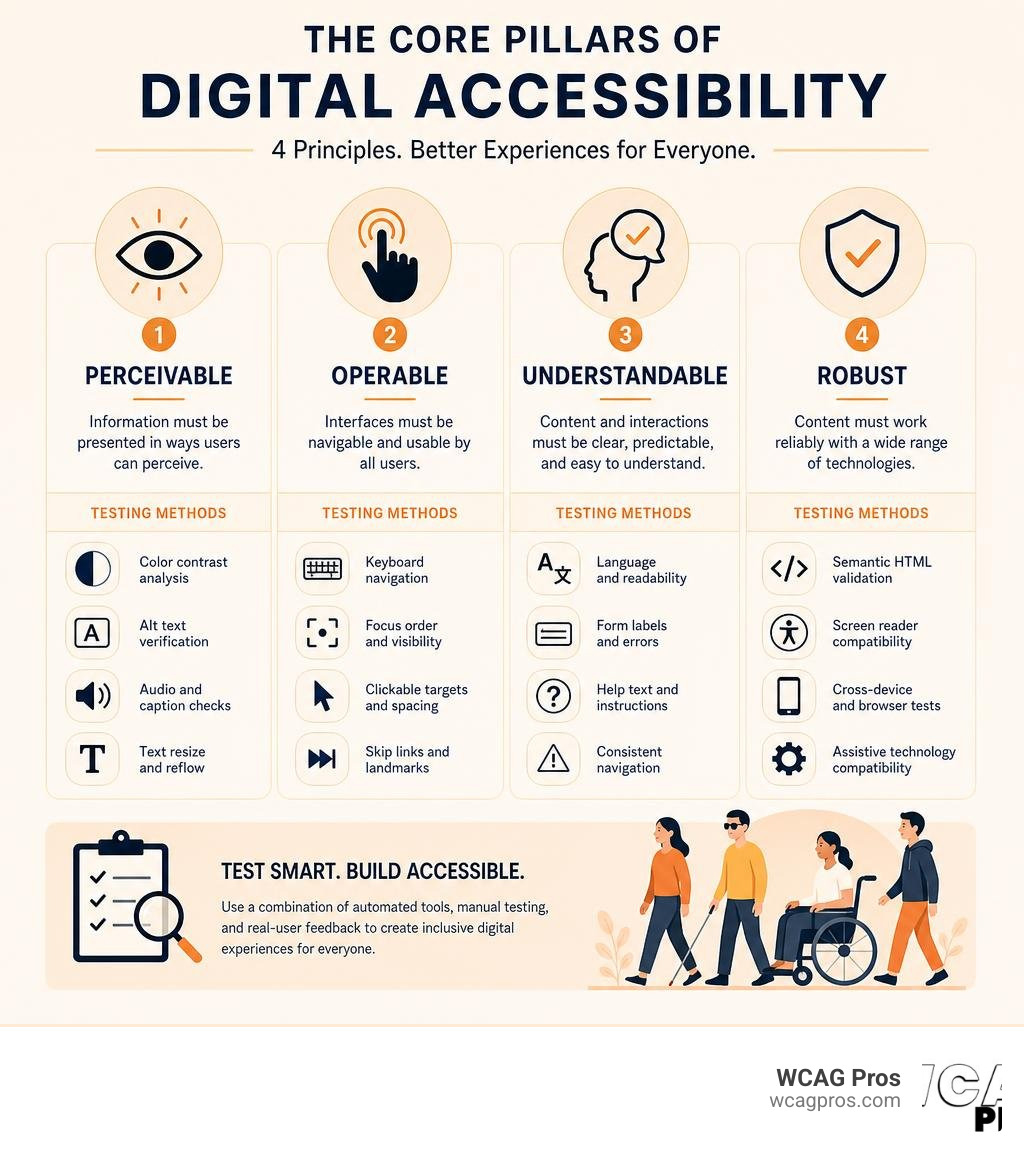
What is Accessibility Testing and Why Does It Matter
To understand digital accessibility, we have to look at how people actually interact with the web. Imagine trying to buy a product online when you cannot use a mouse, or trying to fill out a government form when your screen reader refuses to announce what the input fields are for. For millions of users, these are daily frustrations.
Around 15% of the global population lives with some form of disability. This includes visual impairments like blindness or color blindness, physical disabilities that limit motor control, hearing loss, and cognitive differences that affect processing speed or attention. When we perform accessibility testing, we are checking whether our digital products are built to accommodate these diverse needs.
Beyond the clear moral imperative of inclusion, digital accessibility is a strict legal requirement. In the United States, the Americans with Disabilities Act (ADA) Title III governs public accommodations, which courts have overwhelmingly ruled includes commercial websites. If your site is full of barriers, you could face expensive litigation. For public sector entities and organizations receiving federal funding, Section 508 sets the rules for information and communication technology.
The legal landscape is tightening globally. The European Accessibility Act (EAA) requires private European websites and digital services to comply with strict accessibility standards. In Canada, regional laws like the Accessibility for Ontarians with Disabilities Act (AODA) carry heavy penalties. Under the AODA, failing to comply can result in fines of up to $50,000 per day for individuals and up to $100,000 per day for corporations.
To make matters local, municipalities across the country are prioritizing these standards. For instance, the City of Norco Accessibility policies reflect a broader commitment to ensuring local government services and community portals remain open to everyone. Wherever your business is based, from Norco CA to international markets, compliance is no longer optional.
At the center of all these laws is the Web Content Accessibility Guidelines (WCAG) 2.2. Published by the World Wide Web Consortium (W3C), WCAG 2.2 is the global benchmark for digital accessibility. It is structured around three levels of conformance:
- Level A: The most basic, essential accessibility requirements
- Level AA: The global standard for most commercial and government websites
- Level AAA: The highest, most advanced level of accessibility
To learn how to structure your evaluation process and meet these standards, check out our guide on How to Test Web Accessibility and Succeed.

Core Methods of Evaluating Digital Accessibility
An effective testing strategy does not rely on a single tool or method. Instead, it uses a balanced approach that combines speed, depth, and real-world validation. To see how these methods compare, let us look at the three primary categories of evaluation.
| Testing Method | Primary Focus | Pros | Cons | Typical Coverage |
|---|---|---|---|---|
| Automated Testing | Code syntax, color contrast, basic ARIA attributes | Extremely fast, cheap, easy to scale across thousands of pages | Only catches about 30% of issues, misses context and usability | Roughly 30% of WCAG 2.2 criteria |
| Manual Testing | Keyboard navigation, screen reader flow, visual zoom, focus states | Identifies complex interaction barriers, verifies true keyboard support | Time consuming, requires specialized training and expertise | Up to 90% of WCAG 2.2 criteria |
| Hybrid Testing | Combining automated scans with expert human validation | Highly accurate, efficient, minimizes false positives | Requires coordination between tools and testers | 100% of WCAG 2.2 criteria |
While automated tools are fantastic for scanning large sites quickly, they cannot tell if a text description actually makes sense in context. For example, an automated scanner can verify that an image has an “alt” attribute. However, it cannot tell if the alt text says “image of a cat” when the photo is actually a checkout button.
This is why hybrid testing is the gold standard. By using automated tools to sweep for low-hanging fruit, manual testers can focus their energy on complex interactions like forms, menus, and dynamic content. For a deeper look into designing this workflow, explore The Ultimate Guide to Online Accessibility Testing and our In-Depth Guide to Test Web Accessibility.
Automated Accessibility Testing Tools
Automated testing tools are the first line of defense. They evaluate website code and content to flag obvious accessibility errors, helping developers catch issues early in the design and development phases.
The most popular automated testing tools are built on the axe-core engine, an industry-standard library developed by Deque Systems. Other excellent tools include WAVE (Web Accessibility Evaluation Tool), which is maintained by WebAIM. WAVE is highly visual, injecting icons directly onto your webpage to show where errors and alerts exist. It is a fantastic option for content creators because it facilitates human evaluation alongside automated detection.
Another powerful resource is the IBM Equal Access accessibility checker. This open-source suite provides browser extensions and CI/CD integrations that help teams monitor compliance throughout the development lifecycle. For a comprehensive index of available software, you can browse the Web Accessibility Evaluation Tools List maintained by the W3C.
If you are looking for free tools to start scanning your site today, we have compiled a resource listing The Ultimate List of Free Online Accessibility Checkers. You can also explore the Google Chrome Accessibility Developer Tools and the IBM Equal Access repository on GitHub to understand how these tools function under the hood.
Manual Accessibility Testing Techniques
Manual testing is where we roll up our sleeves and interact with the website just like a user with a disability would. It requires patience and a systematic approach.
First, put your mouse aside and try using your website with only your keyboard. You should be able to navigate to every interactive element using the Tab key, activate buttons with Enter or Spacebar, and navigate menus using arrow keys. As you tab through the page, keep a close eye on the focus indicator. A focus indicator is the visual outline that shows which element is currently selected. If the indicator disappears, or if you get stuck in a “keyboard trap” where you cannot tab away from an element, you have found a critical accessibility barrier.
Next, test your content with a screen reader. Screen readers are software programs that read the underlying code of a website and convert it into speech or Braille. For Windows users, NVDA is a free, highly popular option, while JAWS is widely used in corporate environments. Mac users have VoiceOver built directly into macOS.
When conducting screen reader testing, listen for the reading order. Does the screen reader present the content in a logical sequence? Are form fields properly announced with their corresponding labels? If you want to learn the basics of screen reader testing, the W3C and web.dev offer excellent guides on Assistive Technology testing.
Finally, perform a thorough content review. Read through your web pages to ensure your heading structure (H1, H2, H3) is nested logically, check that your link text is descriptive (avoiding vague phrases like “click here”), and verify that all decorative images are hidden from assistive technology using empty alt attributes or presentation roles.
Mobile Accessibility Testing and Assistive Technologies
With more than half of all web traffic coming from mobile devices, mobile accessibility is a critical frontier. Testing on a smartphone is different from desktop testing because mobile devices rely on touch gestures, smaller screens, and built-in screen readers.
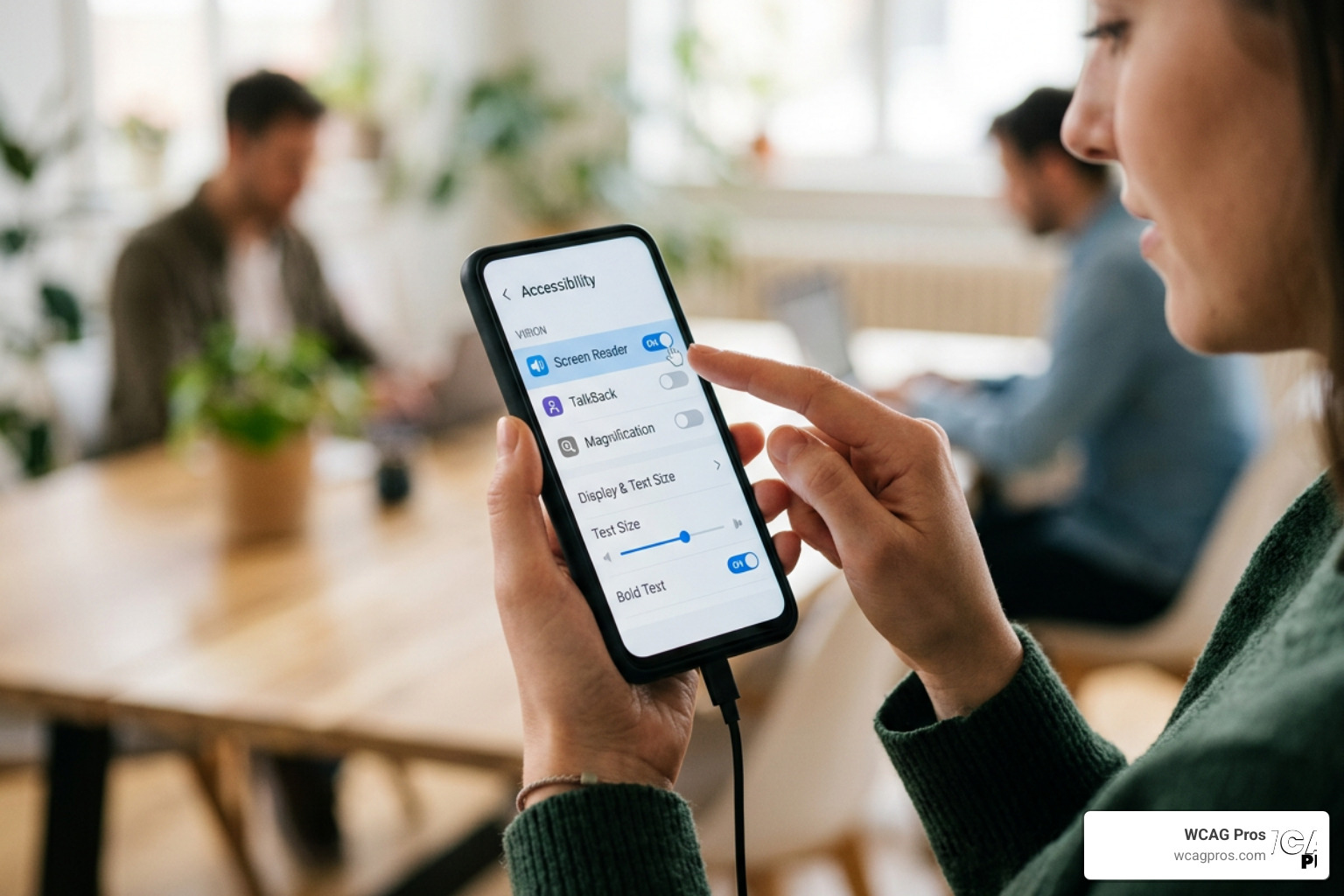
When testing on mobile, we use the device’s native screen readers. On Android, this is TalkBack. On iOS, it is VoiceOver. Both screen readers change how the touch screen behaves. Instead of tapping an item to click it, a user swipes left or right to move the focus frame from element to element, and double-taps anywhere on the screen to activate the selected item.
During your mobile testing, pay close attention to:
- Touch target sizes: Ensure buttons and links are large enough to be tapped easily, with plenty of spacing around them to prevent accidental clicks
- Responsive reflow: When a user zooms in or rotates their screen, the content must reflow vertically without requiring horizontal scrolling
- Viewport scaling: Never disable user scaling in your mobile metadata, as users with low vision must be able to pinch-to-zoom to read your text
To help debug these layouts, you can use Chrome DevTools to simulate different mobile viewports and inspect touch targets. For a detailed breakdown of these features, refer to the Accessibility features reference provided by Chrome for Developers.
Integrating Accessibility into Continuous Integration Pipelines
The most cost-effective way to handle accessibility is to catch bugs before they ever reach production. By integrating automated checks into your Continuous Integration and Continuous Deployment (CI/CD) pipelines, you can stop accessibility regressions in their tracks.
Modern testing frameworks like Playwright and Cypress make this integration incredibly smooth. Both frameworks allow you to run automated scans as part of your existing integration tests.
For example, in a Playwright setup, you can use the @axe-core/playwright library. Your test script can navigate to a page, run an analysis, and verify that no accessibility violations are returned. You can configure the scanner to check for specific WCAG 2.2 guidelines, ignore known issues that you are currently remediating, or only scan specific parts of a page, such as a newly updated navigation menu.
In Cypress, you can use similar plugins to run automated checks on every test step. To learn how to get started, you can read the official Accessibility Testing in Cypress documentation. For more tips on setting up these automated pipelines, check out our guide on Automated Web Accessibility Testing Made Easy.
Best Practices for Reporting and Remediating Accessibility Issues
Once your testing is complete, you will likely have a list of issues that need to be fixed. How you report and track these issues determines how quickly they get resolved.
When documenting accessibility issues, avoid vague descriptions. A good accessibility report should include:
- The exact location: The URL and the specific HTML code or CSS selector of the failing element
- The impact: How this issue affects users with disabilities (for example, “Screen reader users cannot submit the contact form”)
- The standard violated: The specific WCAG 2.2 success criteria that failed
- The fix: Clear, actionable code recommendations for your development team
To prioritize remediation, we recommend using a simple matrix based on user impact. Focus on critical blockers first, such as keyboard traps, missing form labels, and completely inaccessible navigation menus. Once those are resolved, move on to high-impact issues like poor color contrast, and finally, address minor issues like nesting order of headings.
If your organization sells to government agencies or large enterprise clients, you will likely need to provide a Voluntary Product Accessibility Template (VPAT). A VPAT is a formal document that states how accessible your digital product is. It is based on your testing results and shows exactly which WCAG 2.2 and Section 508 standards your site meets.
While professional audits are essential, nothing compares to testing your site with real users. Conducting usability testing with individuals who have disabilities provides invaluable insights that no automated tool or expert auditor can replicate. To learn how to set up these studies, read our guide on How to Test Your Website’s Accessibility Using Real Users.
Frequently Asked Questions about Accessibility Testing
What are the limitations of automated accessibility testing tools
Automated tools are incredibly helpful for speed, but they are limited by their inability to understand context. A scanner can easily check if an image has an alt attribute, but it cannot determine if the description is accurate or helpful. It can calculate color contrast ratios, but it cannot tell if a complex interactive map is usable for a blind user. Automated tools also generate false positives, requiring a human expert to review the results and make the final judgment call.
What is the difference between ADA Title III and Section 508
While both are US standards, they apply to different sectors. ADA Title III is a broad civil rights law that applies to the private sector, including businesses, non-profits, and websites open to the public. Section 508 is a specific federal procurement standard. It requires federal agencies, government departments, and any organizations receiving federal funding to make their information and communication technology accessible.
How does the European Accessibility Act affect digital products in 2026
The European Accessibility Act (EAA) is a major directive designed to harmonize accessibility requirements across the European Union. Private companies selling key digital products and services in the EU, including e-commerce websites, banking services, and mobile apps, must comply with its requirements. Enforcement began after the June 28, 2025 deadline, meaning that in 2026, businesses operating in European markets face strict compliance checks and potential legal penalties if their digital assets are not accessible.
Conclusion
Digital accessibility is not a one-time project. It is an ongoing journey of inclusive design, continuous testing, and regular maintenance. As you update your website, add new features, and publish fresh content, new accessibility issues can easily slip into your code.
By combining automated scanning, thorough manual testing, and real-user feedback, you can build a robust accessibility testing program that protects your business from legal risk and ensures your digital products are welcoming to everyone.
At WCAG Pros, we specialize in helping businesses navigate this journey. Based in Norco CA, we provide comprehensive ADA website compliance consulting, including page-by-page audits of all 54 WCAG A/AAA success criteria. We do not just hand you a list of errors. We provide exact code fixes, and we offer free re-audits to help you secure your compliance badges.
Ready to make your website fully compliant and accessible to all? Schedule a Professional WCAG Audit with our team today, and let us help you build a better, more inclusive digital experience.
Read more website accessibility articles
Get Help With Your Website
We'll follow up with info about:
- The process
- Cost
- Timeline
We promise to respect your privacy, and never abuse the information you provide. We will not sell or rent your information to any third party.
By submitting this form, you consent to receive SMS messages and/or emails from SEM Dynamics LLC, dba WCAG Pros. To unsubscribe, follow the instructions provided in our communications. Msg & data rates may apply for SMS. Your information is secure and will not be sold to third parties.