
In Depth Guide to Test Web Accessibility
In Depth Guide to Test Web Accessibility
Why You Need to Test Web Accessibility Right Now
Test web accessibility the right way and you protect your business, reach more customers, and stay on the right side of the law. Here is a quick overview of how to get started:
How to test web accessibility, quick steps:
- Run an automated scan using a tool like WAVE or axe to catch common WCAG 2.2 errors fast
- Check keyboard navigation by tabbing through your site without a mouse
- Test with a screen reader such as NVDA or VoiceOver to find reading order and label issues
- Review page structure including headings, landmarks, forms, and alt text
- Compare results against WCAG 2.2 Level AA to identify what must be fixed for legal compliance
- Document and prioritize findings by severity so your team knows what to fix first
- Retest after fixes to confirm issues are resolved and no regressions were introduced
About 20% of the world’s population has a disability that can make an inaccessible website completely unusable to them. In the United States alone, 56 million people live with a disability. And with ADA lawsuits against websites rising every year, ignoring accessibility is not just a user experience problem. It is a serious legal and business risk.
The good news? Testing your website for accessibility is more straightforward than most people think. You do not need to be a developer to start. And even a basic first scan can uncover dozens of fixable issues.
I’m Matthew Post, cofounder of WCAG Pros and a web developer with over 20 years of experience helping businesses test web accessibility and bring their sites into WCAG compliance. In the guide below, I will walk you through every layer of accessibility testing, from free automated tools to manual audits and real user testing.
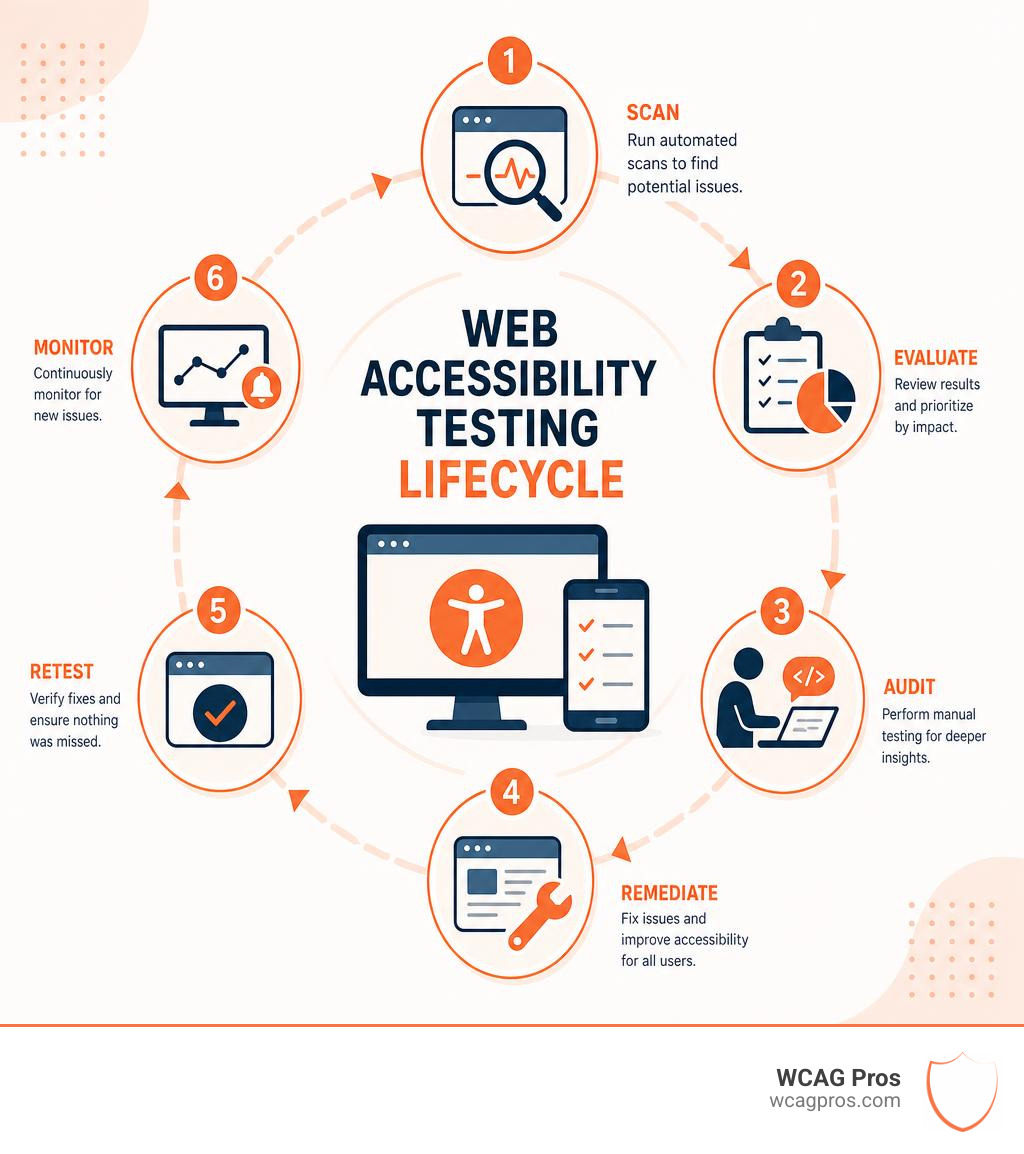
Complete Guide to Test Web Accessibility

Web accessibility testing is the process of checking whether people with disabilities can perceive, understand, navigate, and use your website or digital product.
That sounds formal, but the idea is simple. A website should work for people who:
- Use a keyboard instead of a mouse
- Listen to pages with a screen reader
- Zoom text to 200% or more
- Need captions or transcripts
- Have low vision or color blindness
- Use voice input
- Need clear instructions and predictable layouts
- Have temporary injuries, aging related limitations, or situational barriers
Accessibility testing matters because inaccessible websites block real people from doing real things. That could mean applying for a job, buying a product, booking an appointment, filling out a government form, or contacting your team.
It also matters for business. Research cited in accessibility and customer experience studies shows that 88% of consumers are less likely to return to a site after a bad experience. Accessibility problems are bad experiences with extra legal risk attached. Not exactly the kind of combo anyone wants in their analytics dashboard.
A strong accessibility test should answer three questions:
- Does the site meet WCAG 2.2 requirements?
- Can people with disabilities actually use it?
- Can the organization prove what was tested, what was fixed, and what still needs work?
For a practical starting point, see our related guide: How to Test Web Accessibility and Succeed.
Step by Step Process to Test Web Accessibility
A good accessibility audit is not one magic scan. It is a repeatable process. Here is the workflow we recommend.
Define the scope
Decide what you are testing. Include key pages, templates, forms, checkout flows, login areas, PDFs, embedded tools, and third party widgets. If a page helps users complete an important task, it belongs in the scope.
Run automated scans
Automated tools can quickly find common issues like missing form labels, low contrast, empty buttons, duplicate IDs, missing alt attributes, and some ARIA problems. Tools such as WAVE, axe based scanners, Siteimprove, AccessibilityChecker, and browser extensions can be useful here.
WAVE is especially helpful for visualizing issues directly on the page and supporting human review. Some tools also support APIs, browser extensions, PDF exports, issue severity, and bulk scans.
Test keyboard navigation
Unplug your mouse, or at least pretend it went on vacation. Then use:
- Tab to move forward
- Shift + Tab to move backward
- Enter or Space to activate controls
- Escape to close menus, popups, and dialogs
- Arrow keys for menus, sliders, tabs, and radio groups where appropriate
Check that every interactive element is reachable, usable, and visible. Watch for keyboard traps, missing focus indicators, illogical tab order, and controls that only work with a mouse.
Check visible focus indicators
Users need to know where they are on the page. The current button, link, field, or menu item should have a clear visual focus style. If your designer removed focus outlines because they looked “messy,” accessibility testing is where we politely put them back.
Review page structure
Check headings, landmarks, lists, tables, buttons, links, and page titles. Headings should form a meaningful outline. Landmarks such as header, nav, main, and footer should help screen reader users move around the page.
Review alternative text
Images that communicate information need useful alt text. Decorative images should usually have empty alt text. Complex graphics may need longer descriptions nearby.
Bad alt text: “image123.jpg”
Better alt text: “Customer support dashboard showing unresolved tickets by priority”
Test forms and error messages
Forms are where many accessibility audits get spicy. Check that every input has a programmatic label, instructions are clear, required fields are identified, errors are announced, and users can recover from mistakes.
Test responsive behavior and zoom
Check the site at 200% zoom and on small screens. Content should not overlap, disappear, or require horizontal scrolling for normal text based layouts.
Document each issue
A useful finding should include the page URL, issue description, WCAG 2.2 success criterion, severity, screenshot, affected code or selector, user impact, and recommended fix.
Fix, retest, and monitor
After remediation, test again. Accessibility is not “set it and forget it.” Websites change, plugins update, content teams publish new pages, and someone eventually uploads a PDF from 2009. Regular monitoring helps catch regressions before users or lawyers do.
For a simplified workflow, read How to WCAG Test in 5 Simple Steps and Test Site for Accessibility Without Breaking a Sweat.
Testing with Real Users and Assistive Technologies
Automated tools are useful, but they cannot tell you everything. They do not experience confusion, frustration, or “why on earth did that popup just steal my focus?”
That is why real user testing and assistive technology testing are so important.
Key manual and assistive technology tests include:
Screen reader testing
Use tools such as NVDA, JAWS, VoiceOver, Narrator, TalkBack, or other assistive technologies. Test whether:
- Page titles make sense
- Headings are logical
- Links are descriptive
- Buttons have accessible names
- Form fields are labeled
- Error messages are announced
- Dynamic content updates are communicated
- Reading order matches visual order
Keyboard only testing
This confirms that users can navigate without a mouse. It is one of the fastest ways to uncover serious barriers.
Screen magnification testing
Users with low vision may zoom the browser or use magnification software. Check that content remains readable and usable.
Voice input testing
Voice control users rely on visible labels and accessible names. If a button visually says “Search” but its accessible name says “Submit button 4,” that can cause problems.
User testing with people with disabilities
This is the gold standard for usability insight. Automated scans can tell you that an element fails a rule. Real users can tell you that your checkout process is technically compliant but still confusing.
To go deeper, see How to Test Your Websites Accessibility Using Real Users.
Global Accessibility Standards and Compliance Laws
Accessibility testing should be based on recognized standards. The most important standard is WCAG 2.2, created by the W3C Web Accessibility Initiative.
WCAG is not itself a law. Instead, it is the technical standard used by many laws, regulations, policies, settlements, procurement requirements, and internal compliance programs.
The main standards and laws to consider include:
WCAG 2.2
The global technical standard for web accessibility. Most organizations should aim for WCAG 2.2 Level AA.
ADA Title III
In the United States, ADA Title III applies to many private businesses that offer goods and services to the public. Courts and enforcement actions often look to WCAG as the practical benchmark for accessible websites.
Section 508
Section 508 applies to federal agencies and certain organizations that provide services or technology to federal entities. It is especially important for government contractors, federally funded programs, and public sector vendors.
European Accessibility Act
The European Accessibility Act deadline was June 28, 2025. As of May 2026, organizations that sell covered digital products or services in the EU should already be planning, testing, and remediating with accessibility in mind.
EN 301 549
This is the European standard often used for information and communication technology accessibility.
Internal accessibility policies
Many organizations now create internal accessibility policies for procurement, design systems, publishing workflows, and vendor onboarding.
For local organizations, public accessibility statements can also be helpful references. The Website Accessibility Information City of Norco Horsetown USA page is an example of how accessibility information may be presented by a local public entity.
Understanding WCAG 2.2 Conformance Levels
WCAG 2.2 is organized into success criteria across three conformance levels.
Level A
These are baseline requirements. If Level A issues exist, users with disabilities may be completely blocked from using the content.
Examples include keyboard access, text alternatives for images, captions for prerecorded audio in synchronized media, and avoiding keyboard traps.
Level AA
This is the most common legal and practical target. Level AA addresses major barriers that affect usability across many disability groups.
Examples include color contrast, visible focus, labels or instructions, consistent navigation, error identification, and text resizing.
Level AAA
This is the highest level. It is valuable for many contexts, but not always possible for every type of content. Some organizations use Level AAA for high impact areas, specialized services, or internal quality goals.
At WCAG Pros, we help organizations test against WCAG requirements through comprehensive page by page audits. Our process reviews 54 WCAG A through AAA checkpoints used in our audit framework, identifies code level issues, provides remediation guidance, and includes free reaudits for compliance badges.
Legal Risks and Compliance Deadlines in 2026
As of May 2026, accessibility is no longer a “nice to have.” It is a compliance, procurement, brand, and customer experience issue.
Common risks include:
ADA demand letters and lawsuits
Businesses with inaccessible websites may face legal claims, especially when users cannot complete core tasks.
Lost customers
If users cannot navigate, buy, book, read, or contact you, they leave. Often they do not complain first. They just disappear.
Failed procurement reviews
Buyers, government agencies, universities, and enterprise clients increasingly request accessibility documentation.
Contract delays
VPATs, audit reports, and remediation plans are often needed during sales, renewals, and vendor onboarding.
Reputational damage
Accessibility failures can signal that a company is not inclusive or user focused.
Testing helps reduce these risks by giving your team evidence. You can show what was tested, what standards were used, what issues were fixed, and what monitoring process is in place.
Automated Tools versus Manual Audits
Automated tools are excellent helpers. They are not full auditors. Think of them like spellcheck. Useful? Absolutely. Enough to write a legal contract, novel, or marriage proposal? Please do not test that theory.
Here is how automated scanning and manual testing compare.
Automated scans
What they do well: Find many code based issues fast.
What they miss: Context, usability, complex interactions, and some screen reader issues.
Best use: First pass testing, regression checks, and large site monitoring.
Browser extensions
What they do well: Test pages in the browser, including some logged in or dynamic pages.
What they miss: Full user journeys, subjective quality, and all assistive tech behavior.
Best use: Developer and QA spot checks.
Color contrast tools
What they do well: Measure text and background contrast.
What they miss: Text over images, gradients, state changes, and design intent.
Best use: Design review and content checks.
Keyboard testing
What it does well: Finds navigation barriers and keyboard traps.
What it misses: Screen reader announcement quality.
Best use: Manual audit and QA.
Screen reader testing
What it does well: Reveals labels, reading order, live regions, and semantic issues.
What it misses: Visual only issues.
Best use: Assistive technology validation.
User testing
What it does well: Shows real world usability.
What it misses: Full technical coverage unless paired with audit methods.
Best use: High value flows and product validation.
Expert manual audit
What it does well: Applies WCAG 2.2 with human judgment.
What it misses: Ongoing changes after audit unless monitored.
Best use: Compliance, remediation, and certification planning.
Automated accessibility tools generally work by loading a page, inspecting the DOM, checking CSS, reviewing accessible names, evaluating ARIA, comparing color values, and matching patterns against rule engines. Some advanced tools run in real browsers, test interactions, simulate keyboard input, export reports, track history, or integrate into CI/CD.
Their strengths include:
- Speed
- Repeatability
- Broad coverage across many pages
- Clear rule based findings
- Developer friendly selectors and exports
- Regression detection
Their limitations include:
- They cannot fully judge whether alt text is meaningful
- They cannot always confirm logical reading order
- They may miss keyboard traps in complex widgets
- They cannot reliably judge whether instructions are understandable
- They may produce false positives or incomplete findings
- They cannot replace testing with real assistive technology users
The best approach is hybrid testing. Use automated tools for scale, then use manual audits and user testing for accuracy.
Best Practices to Test Web Accessibility in Development
Accessibility is easiest to fix when it is built into the workflow. Waiting until launch is like checking whether the roof leaks after the furniture is soaked.
Here is how development teams can integrate accessibility testing:
Start in design
Check color contrast, focus states, heading structure, error patterns, and component behavior before development begins.
Use accessible components
Build buttons, modals, menus, accordions, tabs, alerts, and forms once. Test them deeply. Reuse them consistently.
Add automated checks in pull requests
Use accessibility testing tools with your component tests, end to end tests, or CI/CD pipelines. If a new issue appears, flag it before merge.
Set severity thresholds
For example, block deployment for critical issues such as keyboard traps, unlabeled checkout fields, or inaccessible navigation.
Test staging before release
Automated scans should be part of prerelease QA, especially after redesigns, new templates, and major content changes.
Track regressions
Run scheduled scans and compare results over time. Dashboards, issue counts, severity trends, and historical reports help teams see whether accessibility is improving.
Create clear tickets
Each accessibility issue should be actionable. Include the failure, expected behavior, WCAG 2.2 criterion, screenshot, code location, user impact, and recommended fix.
Retest after remediation
Do not close tickets based only on “the developer says it is fixed.” Trust is lovely. Retesting is better.
For more on workflow based testing, see Automated Web Accessibility Testing Made Easy.
Choosing Web Accessibility Evaluation Tools
There are many accessibility tools. The W3C maintains a large directory of evaluation tools, and the market includes browser extensions, online scanners, enterprise platforms, screen readers, code checkers, contrast tools, mobile testing tools, and monitoring systems.
Popular and trusted tool categories include:
Online checkers
These let you enter a URL and receive a report. Examples include WAVE style evaluators, AccessibilityChecker style scanners, and other free website accessibility checkers.
Browser extensions
These are useful for developers, QA testers, and content teams. WAVE, axe based extensions, Accessibility Insights, Siteimprove style checkers, and similar tools can inspect the current page directly in the browser.
Automated rule engines
These power many scanners, CI tools, and testing frameworks. They are useful for repeatable checks.
Screen readers
NVDA, JAWS, VoiceOver, Narrator, and TalkBack help validate how content is announced to users.
Color contrast tools
These test foreground and background combinations against WCAG 2.2 contrast requirements.
Keyboard testing
No special tool required. Your keyboard is the tool. It is free, brutally honest, and already on your desk.
Enterprise monitoring platforms
These help large organizations scan many pages, assign tasks, view dashboards, export reports, and monitor progress.
Manual audit workflows
Expert auditors use a mix of tools, assistive technologies, checklists, code inspection, and user flow testing.
When choosing a tool, ask:
- Does it support WCAG 2.2?
- Can it test authenticated or staging pages?
- Does it provide issue severity?
- Does it explain user impact?
- Does it give code level guidance?
- Can results be exported?
- Can it integrate with CI/CD?
- Can it track historical progress?
- Does it support manual review notes?
- Does it help your team fix issues, not just find them?
For more options, read The Ultimate List of Free Online Accessibility Checkers and Pick the Best Web Accessibility Evaluation Tool for Your Team.
Frequently Asked Questions about Web Accessibility Testing

What is the difference between ADA Title III and Section 508?
ADA Title III and Section 508 are both important, but they apply in different contexts.
ADA Title III applies to many private businesses that provide goods or services to the public. For websites, ADA compliance often means making digital experiences accessible so people with disabilities can use them effectively.
Section 508 applies to federal agencies and certain federally connected organizations, services, and technology vendors. If your organization works with federal entities or receives certain federal funding, Section 508 may be part of your compliance requirements.
In simple terms:
ADA Title III
Commonly applies to private sector public facing businesses.
Practical testing focus: Accessible customer experiences.
Section 508
Commonly applies to federal agencies and certain vendors.
Practical testing focus: Accessible technology and documentation.
WCAG 2.2
Commonly applies as a technical benchmark used broadly.
Practical testing focus: Testable accessibility criteria.
For more detail, see our AZ Guide to ADA Compliance Checkers.
Can automated tools catch all WCAG 2.2 violations?
No. Automated tools cannot catch every WCAG 2.2 issue.
They can detect many important problems, such as:
- Missing form labels
- Empty links
- Missing alt attributes
- Some color contrast failures
- Duplicate IDs
- Incorrect ARIA usage
- Missing page language
- Some heading and landmark issues
But they cannot fully determine:
- Whether alt text is meaningful
- Whether link text makes sense in context
- Whether reading order is logical
- Whether a form error is understandable
- Whether a modal behaves properly for screen reader users
- Whether keyboard focus moves in a predictable way across a complex journey
- Whether content is plain enough for the intended audience
- Whether the experience is actually usable
That is why professional testing combines automated scans, expert manual review, keyboard testing, screen reader testing, and user testing where possible.
For help choosing tools, visit Your Shortcut to the Best WCAG Checker Tool.
How often should we test our website for accessibility?
You should test accessibility regularly, not just once.
Recommended testing moments include:
- Before launching a new website
- Before major redesigns go live
- After adding new templates
- After changing navigation, forms, checkout, or login flows
- After installing new plugins or third party widgets
- After publishing major content updates
- During scheduled monthly or quarterly checks
- After remediation work
- Before procurement reviews or contract renewals
- Whenever users report accessibility barriers
For most organizations, we recommend a layered schedule:
Every pull request
Test automated checks for new code.
Every release
Test key templates and user flows.
Monthly
Run automated scans of priority pages.
Quarterly or semiannually
Run manual audit samples and regression review.
Annually
Complete a broader WCAG audit and policy review.
Tracking progress matters. Use dashboards, scores, issue counts, severity trends, and historical reports to answer:
- Are critical issues decreasing?
- Are new issues being introduced?
- Which templates create the most problems?
- Which teams need training?
- Are fixes staying fixed?
- Are we moving closer to WCAG 2.2 conformance?
For a practical planning resource, use The Ultimate Website Accessibility Testing Checklist for 2026.
Conclusion
To test web accessibility well, do not rely on a single scan or a single checklist. Use a complete process:
- Scan with automated tools
- Test keyboard access
- Review structure, labels, forms, and alt text
- Validate with screen readers and assistive technologies
- Compare findings against WCAG 2.2
- Prioritize issues by user impact and legal risk
- Fix the code
- Retest
- Monitor over time
Accessibility testing protects users, strengthens compliance, improves customer experience, and helps your team build better digital products. It also gives your organization a clear record of what was tested, what was fixed, and how accessibility is being maintained.
At WCAG Pros, we provide ADA website compliance consulting, WCAG audits, remediation support, and certification guidance. Our audits are page by page, practical, and focused on helping your team understand exactly what needs to change.
If you want expert help finding and fixing accessibility issues, start here: Get a Professional WCAG Audit
Read more website accessibility articles
Get Help With Your Website
We'll follow up with info about:
- The process
- Cost
- Timeline
We promise to respect your privacy, and never abuse the information you provide. We will not sell or rent your information to any third party.
By submitting this form, you consent to receive SMS messages and/or emails from SEM Dynamics LLC, dba WCAG Pros. To unsubscribe, follow the instructions provided in our communications. Msg & data rates may apply for SMS. Your information is secure and will not be sold to third parties.