
How to Find Accessibility Insights for Web Edge Extension
How to Find Accessibility Insights for Web Edge Extension
How to Get and Use the Accessibility Insights for Web Edge Extension
The Accessibility Insights for Web Edge extension is a free browser tool from Microsoft that helps developers and site owners find and fix accessibility issues directly in their browser. Here is how to get it and what it does:
- Find it: Go to the Microsoft Edge Addons store and search for “Accessibility Insights for Web.”
- Install it: Click “Get” to add it to Microsoft Edge. No account required.
- Launch it: Press Ctrl+Shift+K to open the extension on any webpage.
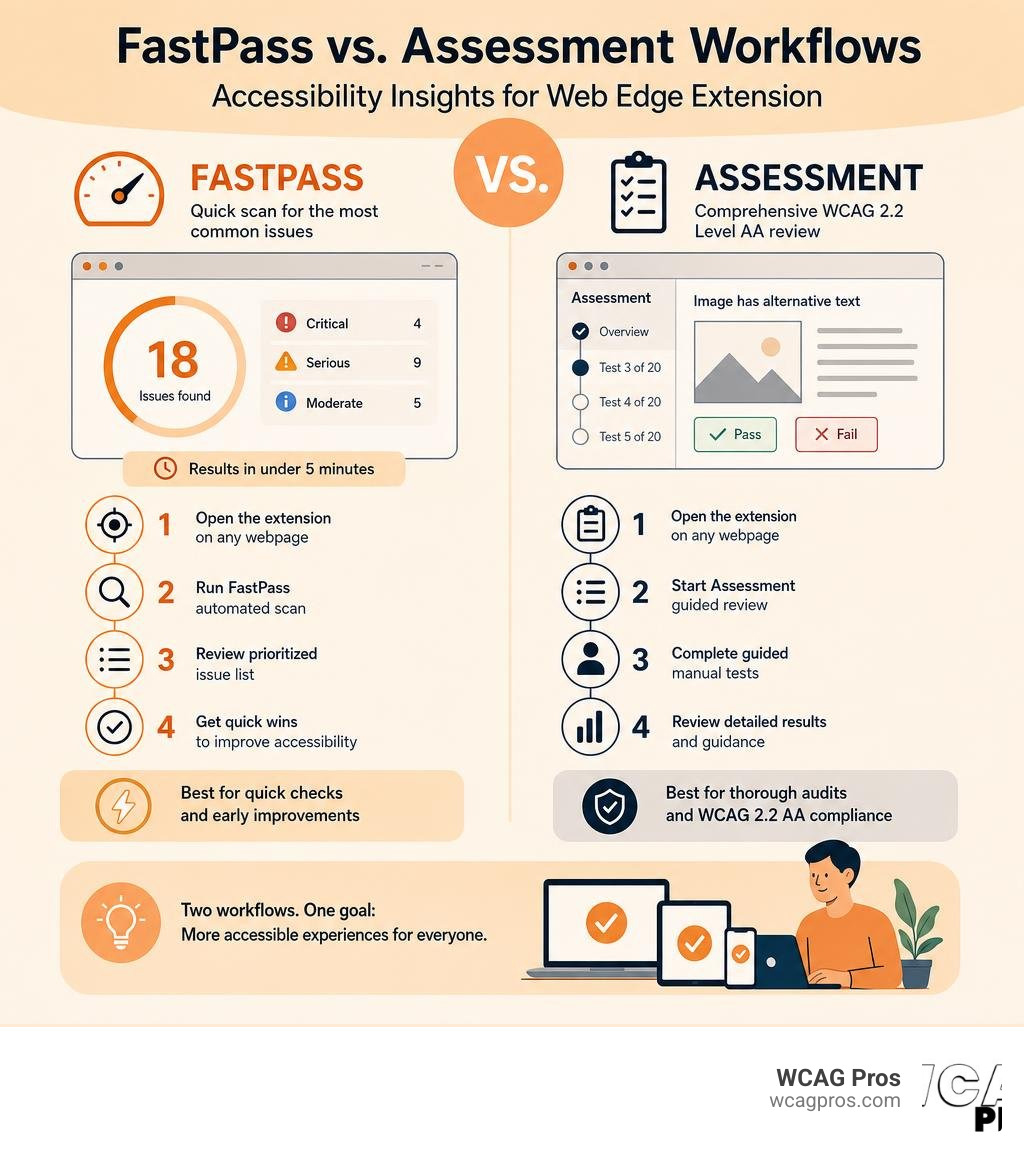
- Run FastPass: Get results on the most common accessibility issues in under 5 minutes.
- Run Assessment: Step through a full WCAG 2.2 Level AA review with guided manual tests.
It has over 100,000 users, a 4.7 out of 5 star rating from 540 reviews, and is currently on version 2.47.0 (updated May 14, 2026).
Many website owners don’t realize how many accessibility barriers their site has until a lawsuit arrives. Automated scanners catch some problems, but most auditors agree that no single tool catches everything. That’s exactly where a targeted extension like Accessibility Insights fits into a broader compliance strategy.
The extension covers roughly 50 automated checks and around 20 guided manual tests. Together, those two modes give developers a structured path toward WCAG 2.2 Level AA compliance without needing to leave the browser.
I’m Matthew Post, cofounder of WCAG Pros and a web developer with over 20 years of experience auditing sites for WCAG compliance. I’ve tested the Accessibility Insights for Web Edge extension alongside many other tools as part of full accessibility audits, and this guide walks you through everything you need to know to use it effectively.
Simple guide to accessibility insights for web edge extension terms:
What is the Accessibility Insights for Web Edge Extension
The accessibility insights for web edge extension is a highly specialized developer tool built to make digital accessibility testing practical and visual. Developed by Microsoft and released as an open source project, this extension is designed to fit directly into the daily coding workflows of web developers, usability designers, and QA engineers. Instead of relying purely on abstract reports, it overlays testing data directly onto your active browser tab, showing you exactly where problems exist.
With over 100,000 users and an impressive 4.7 out of 5 star rating from 540 ratings, the extension has become a staple in the web development community. The tool is lightweight, with a total extension size of only 3.64 MiB, meaning it will not slow down your browser or development environment. Microsoft regularly updates the tool, with version 2.47.0 released on May 14, 2026, to keep up with the latest web standards and browser updates.
At its core, this extension bridges the gap between automated scanning and human verification. While automated tools are excellent for catching obvious errors, they can only detect a fraction of actual accessibility issues. By combining automated rules with guided manual testing, the extension ensures that teams can build websites that are truly usable for people with disabilities.
You can easily get the extension for your preferred development browser by visiting the Download Accessibility Insights page. To understand how this extension fits into the wider ecosystem of testing software, you can also explore The Definitive Guide to Accessibility Testing Tools Online for a broader perspective on modern testing suites.
Core Features of the Accessibility Insights for Web Edge Extension
The power of the accessibility insights for web edge extension lies in its distinct testing pathways and strong visual presentation. It does not just tell you that an element is broken, it shows you where it is and explains why it fails.
The tool operates using three core testing scenarios:
- FastPass: A lightweight, two step verification process designed to help developers identify high impact accessibility issues in less than five minutes.
- Assessment: A comprehensive, step by step testing suite that guides users through both automated checks and manual evaluations to verify complete WCAG 2.2 Level AA compliance.
- Quick Info: A feature that allows you to hover over any element on a page to inspect its accessibility properties, such as its role, name, and contrast ratio.
One of the most praised features of the extension is its use of visual helpers. When you run a test, the extension draws clear visual borders, failure cards, and numbering overlays directly on top of your website. For example, if you are testing keyboard navigation, the extension will draw a numbered path showing the exact order in which elements receive focus. This makes it incredibly easy to spot tab order errors or elements that are skipped entirely by keyboard users.
To learn more about the overall goals of the project and access additional resources, you can visit the official homepage at Accessibility Insights.
FastPass versus Assessment Testing Scenarios
Understanding when to use FastPass and when to use Assessment is key to maximizing your productivity with the accessibility insights for web edge extension. These two modes serve very different purposes in the development lifecycle.
FastPass is designed for speed and agility. It is the perfect tool to run before committing code, submitting a pull request, or deploying a quick update. FastPass focuses on two critical areas:
- Automated Checks: The extension instantly evaluates your page against approximately 50 automated accessibility requirements. These checks cover common errors like missing alt text, poor color contrast, and invalid HTML structures.
- Tab Stops: A guided manual test that visualizes keyboard navigation. By turning this feature on and pressing the Tab key, you can quickly verify that a keyboard user can reach all interactive elements in a logical order without getting stuck in a keyboard trap.
Because FastPass takes less than five minutes to complete, it is easy to integrate into daily development habits. For teams looking to make this a regular practice, reviewing Automated Web Accessibility Testing Made Easy can provide helpful strategies for scaling automated checks.
Assessment, on the other hand, is a deep dive. It is designed for thorough compliance audits and prelaunch verifications. An Assessment includes the same automated checks as FastPass but adds approximately 20 manual tests. These manual tests cover complex WCAG 2.2 Level AA requirements that automated scanners cannot evaluate, such as:
- Verifying that page headings match the visual structure of the content.
- Checking that zoom and text scaling do not break the page layout.
- Ensuring that form input fields have clear, persistent instructions.
- Confirming that custom widgets have the correct ARIA roles and keyboard interactions.
The Assessment mode does not expect you to be an accessibility expert. It provides clear, step by step instructions, visual overlays, and examples of passing and failing implementations. It even allows you to export detailed HTML reports that you can share with your team or clients to track remediation progress.
Comparing Accessibility Insights to Other Browser Extensions
The browser extension market has several excellent tools for accessibility testing. Developers often wonder how the accessibility insights for web edge extension compares to popular alternatives like axe DevTools, WAVE, or the IBM Equal Access Accessibility Checker.
Each tool has its own strengths, and many professional auditors use a combination of them. Here is how these top extensions compare across key features:
- Accessibility Insights: Developed by Microsoft. Uses the axe core automated engine. Includes approximately 20 guided manual tests. Features excellent visual tab flow. It is 100% free and fully open source.
- axe DevTools: Developed by Deque Systems. Uses the axe core automated engine. Guided manual tests are available in the paid version only. Features visual tab flow. It uses a freemium model and is partially open source.
- WAVE: Developed by WebAIM. Uses a proprietary automated engine. Does not include guided manual tests or visual tab flow. It is 100% free and closed source.
- IBM Equal Access: Developed by IBM. Uses IBM Rulesets for its automated engine. Does not include guided manual tests. Features visual tab flow. It is 100% free and open source.
While axe DevTools and Accessibility Insights both use the trusted axe core engine for their automated scans, Accessibility Insights stands out because it offers its comprehensive, guided manual assessments completely for free. Other tools often lock advanced manual testing workflows behind a paid subscription.
WAVE is fantastic for quick visual summaries and is highly popular among non technical content creators, but it lacks the deep developer focused workflow features found in Microsoft’s tool. The IBM Equal Access Accessibility Checker is another excellent, fully free option that integrates well with enterprise CI/CD pipelines, though its manual testing guidance is not as structured or visual as Accessibility Insights.
To help you decide which tool fits your specific team structure and project goals, you can read our guide on how to Pick the Best Web Accessibility Evaluation Tool for Your Team. For a broader survival guide on navigating the crowded landscape of testing tools, check out the Website Accessibility Tools Survival Guide.
Edge versus Chrome Versions of the Extension
Because Microsoft Edge and Google Chrome are both built on the open source Chromium browser engine, the accessibility insights for web edge extension enjoys complete feature parity across both platforms. Whether you prefer to do your development work in Edge or Chrome, you will experience the exact same interface, testing rules, and keyboard shortcuts.
However, the installation process and hosting environments differ slightly:
- Microsoft Edge Version: Hosted directly on the Microsoft Edge Addons store. It is optimized for the Edge browser and can be found at Accessibility Insights for Web Microsoft Edge Addons.
- Google Chrome Version: Hosted on the Chrome Web Store, making it easily accessible for Chrome users on Windows, MacOS, and Linux. You can find it at Accessibility Insights for Web Chrome Web Store.
For developers who work in multi browser environments, having identical tools on both platforms is a massive benefit. You can run an Assessment in Edge, export the results, and be confident that the exact same tests will yield the same results when run in Chrome. This consistency is vital when validating bug fixes across different browser environments.
How to Integrate the Extension into Developer Workflows
To get the most value out of the accessibility insights for web edge extension, it should be woven directly into your daily development habits. Rather than treating accessibility as a final checklist before launch, the best teams use it during active coding.
A great workflow is to run a FastPass scan every time you complete a new UI component or page section. This catches basic issues like low color contrast or missing form labels immediately, preventing them from compounding into larger problems later. For comprehensive strategies on how to build these habits, you can consult The Definitive Guide to Web Page Compliance Testing Tools.
Keyboard Shortcuts and Productivity Features
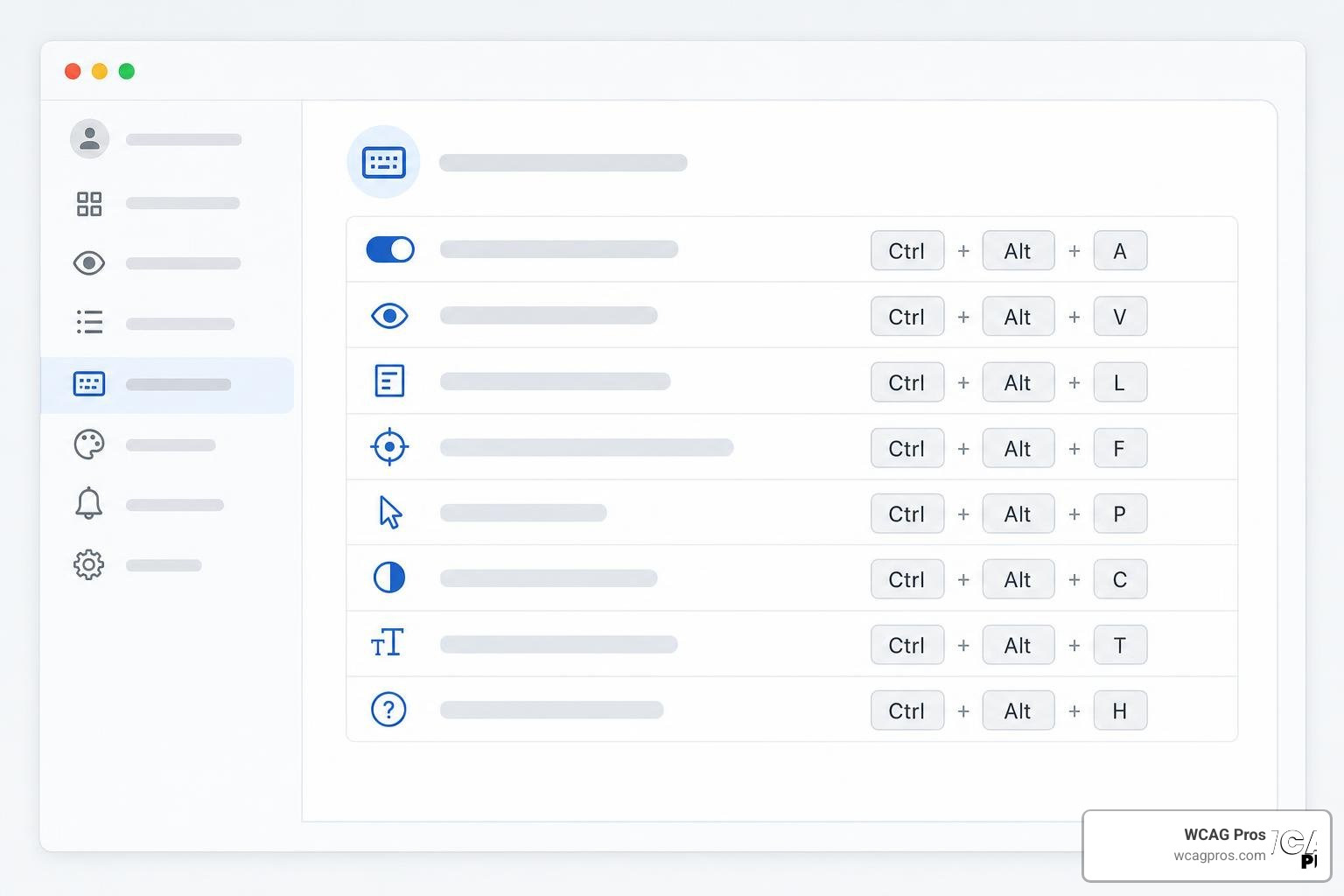
Developer productivity relies heavily on keyboard navigation and shortcuts. The team at Microsoft designed the extension with several features to help you work faster:
- Launch Shortcut: The default keyboard shortcut to open the extension on any page is Ctrl+Shift+K (or Cmd+Shift+K on macOS).
- Backup Launch Method: If another extension or system setting conflicts with the default shortcut, you can use standard browser navigation. Press Shift+Alt+T to move focus to the browser address bar, use the Left arrow key to navigate to the extension icon, and press Space to launch it.
- Focus Management: The extension is fully accessible via keyboard. When you open the Details View, your keyboard focus is automatically managed so you can navigate through test results, toggle visual helpers, and expand rule descriptions without ever needing to touch your mouse.
These productivity features make it incredibly easy to quickly audit a page, make a code fix in your editor, refresh the browser, and rerun the scan in a matter of seconds. For a deeper look at modern tools, check out the Web Accessibility Testing Tools Guide 2026.
Privacy Telemetry and Data Collection Settings
In modern software development, privacy and security are critical, especially when working on internal staging environments, password protected client portals, or applications containing sensitive user data.
By default, the extension collects anonymized usage data, also known as telemetry. This data is used by Microsoft to understand how the tool is used, identify which features are most popular, and help prioritize future updates. It is important to note that this telemetry is completely anonymized and does not contain personal information or the content of the websites you are testing.
However, if your organization has strict data policies or if you simply prefer not to share usage data, you can opt out at any time:
- Open the extension by clicking its icon or pressing Ctrl+Shift+K.
- Click on the Settings gear icon in the top right corner of the extension window.
- Navigate to the Privacy tab.
- Toggle the telemetry setting to Off.
Once disabled, the extension will run entirely locally, transmitting no usage data back to Microsoft. This makes it safe to use even in highly secure corporate environments.
Open Source Community and Technical Architecture
One of the greatest strengths of the accessibility insights for web edge extension is its open source nature. The entire project is developed transparently on GitHub under the highly permissive MIT License. This means that anyone can inspect the code, fork the repository, or build custom features on top of it.
The repository is highly active and supported by a vibrant community of accessibility advocates and developers:
- GitHub Repository: microsoft/accessibility insights web
- Stars: 903 stars on GitHub
- Forks: 171 forks
- Open Issues: Approximately 65 open issues, showing active maintenance and community engagement
Under the hood, the extension is built using TypeScript, HTML, and SCSS. It utilizes a robust, multi context architecture that allows different parts of the extension to communicate seamlessly. The extension operates across several contexts, including the Details View, the Target Page, the Popup, and a Background Service Worker. These contexts communicate using a Flux style data flow pattern to ensure that state changes are predictable and reliable.
To prevent the extension from losing your progress during a service worker restart, store data is persisted locally using IndexedDB. When you run an automated scan or a manual test, content scripts are injected into every frame of the target page to run the axe core engine and render the beautiful visual overlays. Developers interested in the deep technical details can review the official docs/architecture.md at main · microsoft/accessibility insights web file in the repository.
How to Contribute to the Accessibility Insights for Web Edge Extension
Because the project is open source, the development team actively welcomes contributions from the community. Whether you are a seasoned software engineer, a technical writer, or an accessibility specialist, there are many ways to get involved:
- Filing Bug Reports: If you find a bug or an inconsistent test result, you can file an issue on the GitHub repository.
- Suggesting Features: Have an idea to make the tool more productive? You can submit feature requests for open discussion.
- Submitting Code: You can contribute directly by writing code, fixing open bugs, or improving performance.
- Improving Documentation: Helping to clarify test instructions or writing tutorials is a massive help to new users.
The open source accessibility ecosystem also benefits from other creative projects that explore browser accessibility. For instance, the NordmanLive/site sense project explores using native messaging to expose browser accessibility trees to local AI coding tools.
Similarly, the Riri0410/AccessAI Universal Accessibility Browser Extension project experiments with using multi agent AI systems to assist users with disabilities in real time. This active cross pollination of open source projects helps drive the entire digital accessibility industry forward.
Frequently Asked Questions
How does the extension support WCAG 2.2 Level AA compliance testing
The extension supports WCAG 2.2 Level AA compliance by breaking down complex guidelines into actionable, easy to understand tests. The automated portion of the tool checks your page against roughly 50 rules that have a high rate of accuracy. These automated checks run instantly and identify clear cut violations like missing text alternatives or contrast ratios that fall below the required 4.5:1 threshold.
For requirements that require human judgment, the Assessment mode provides structured manual tests. It guides you through evaluating keyboard access, focus order, resizing text, and form interactions. By combining automated speed with guided manual verification, the extension helps you systematically cover the success criteria required for WCAG 2.2 Level AA compliance.
To learn more about choosing the right tools for your compliance journey, you can read our guide on Your Shortcut to the Best WCAG Checker Tool.
What are the system requirements and supported platforms
Because the extension is built for Chromium based browsers, it has very light system requirements. It is fully supported on:
- Operating Systems: Windows, MacOS, and Linux.
- Browsers: Microsoft Edge and Google Chrome.
- System Resources: It requires minimal memory and CPU, with a total package size of just 3.64 MiB.
As long as your computer can run a modern version of Edge or Chrome, you can use the extension without any performance issues.
Where can users find documentation and support resources
Microsoft provides extensive documentation and support resources for the extension. Within the tool itself, every test rule includes links to detailed explanations, code examples, and the specific WCAG success criteria it references.
For additional help, users can access the official FAQ page, review guided video tutorials on the main website, or participate in discussions on the GitHub repository. If you are looking for a curated list of alternative free checkers to supplement your testing workflow, you can check out The Ultimate List of Free Online Accessibility Checkers.
Conclusion
The accessibility insights for web edge extension is an outstanding, free resource that empowers developers to take control of their web accessibility testing. By offering fast automated scans alongside structured manual assessments, it provides a highly practical path toward WCAG 2.2 Level AA compliance.
However, while browser extensions are excellent for daily development, they cannot replace a comprehensive, professional audit. Automated tools and self guided extensions are prone to missing complex context dependent issues, such as whether a screen reader description actually makes sense to a blind user or if a custom interactive widget is truly intuitive.
That is where we can help. At WCAG Pros, based in Norco CA, we provide expert ADA website compliance consulting. We specialize in comprehensive, page by page audits of all 54 WCAG A/AAA points. Our audits do not just hand you a list of errors, we provide actual code fixes and offer free reaudits to help you earn your compliance badges with confidence.
Ready to ensure your website is fully accessible and legally compliant? Contact us today to Get a Professional WCAG Audit and let our expert team handle the heavy lifting for you.
Read more website accessibility articles
Get Help With Your Website
We'll follow up with info about:
- The process
- Cost
- Timeline
We promise to respect your privacy, and never abuse the information you provide. We will not sell or rent your information to any third party.
By submitting this form, you consent to receive SMS messages and/or emails from SEM Dynamics LLC, dba WCAG Pros. To unsubscribe, follow the instructions provided in our communications. Msg & data rates may apply for SMS. Your information is secure and will not be sold to third parties.