
Website Accessibility Tools Survival Guide
Website Accessibility Tools Survival Guide
The State of Website Accessibility Tools in 2026
Website accessibility tools help you find and fix barriers that prevent people with disabilities from using your site. Here is a quick look at the most widely used options:
| Tool | Type | Best For |
|---|---|---|
| WAVE | Free browser extension | Quick page audits |
| axe DevTools | Free and paid extension | Developer testing |
| Silktide | Free browser extension | Beginners and content teams |
| Siteimprove | Enterprise platform | Full site monitoring |
| Level Access | Enterprise platform | End to end compliance |
| Sienna / AccessWay | Overlay widgets | User experience adjustments |
| NVDA / VoiceOver | Screen readers | Manual assistive tech testing |
The numbers are hard to ignore. 96.3% of homepages fail basic accessibility checks. Over 4,000 digital accessibility lawsuits were filed in the US in 2024 alone. And roughly 1 in 5 internet users lives with a disability that an inaccessible website actively locks out.
That is not just a compliance problem. It is a revenue problem. Every barrier on your site is a user you are turning away.
The good news is that the right combination of tools can dramatically cut the time it takes to find and fix issues. The challenge is knowing which tools to use, when to use them, and what their limits are. Automated scanners catch a lot, but they cannot catch everything. Overlays and widgets help users adapt, but they do not fix your underlying code. Manual testing fills the gaps that automation misses.
This guide breaks it all down so you can make smart choices for your team and your budget.
I’m Matthew Post, cofounder of WCAG Pros and a web developer with over 20 years of experience auditing and remediating sites using website accessibility tools across dozens of industries. I’ll walk you through what actually works based on hands on experience, not just feature lists.
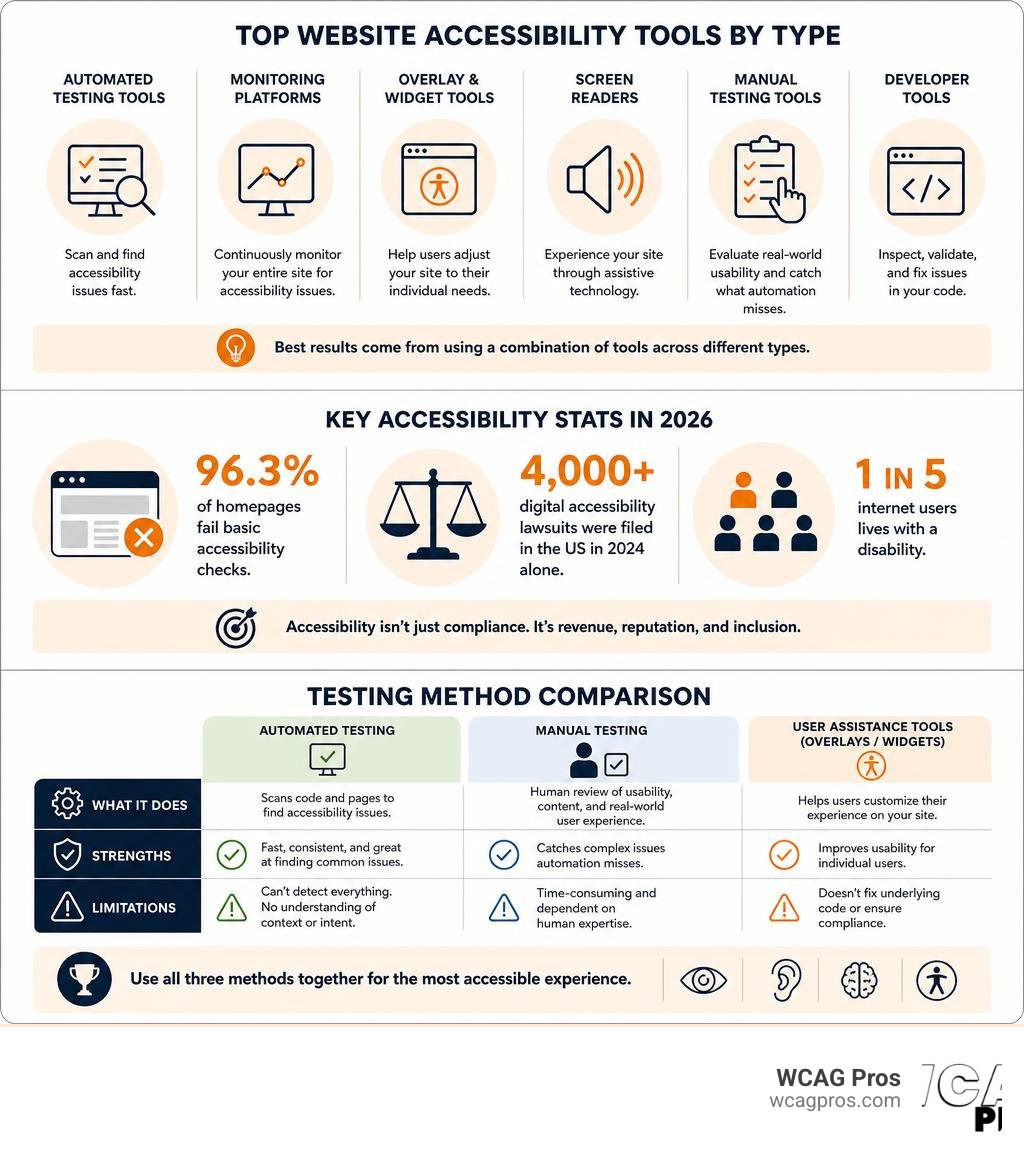
Website accessibility tools definitions:
Understanding the Landscape of Website Accessibility Tools
Navigating web accessibility can feel like stepping into a massive library where all the books are sorted by a system you have never seen before. To build an inclusive digital presence you need to understand the different types of website accessibility tools at your disposal. These tools generally fall into four main categories which are automated scanners, browser extensions, assistive technology simulators, and manual testing methodologies.
When we look at the Web Accessibility Overview we see that digital inclusion requires addressing multiple types of barriers. To tackle these barriers effectively we must use a structured approach. If you want a deep dive into how these tools fit together you can read our comprehensive Web Accessibility Testing Tools Guide 2026 to map out your team’s strategy.
Automated testing tools act as your first line of defense. They are software programs that crawl your website and check the underlying code against established guidelines like WCAG 2.2. They are incredibly fast and can scan thousands of pages in minutes.
Browser extensions are lightweight versions of these scanners that live directly in your browser. They are perfect for developers and designers who want to check their work on a single page before pushing it live.
Screen readers and other assistive technologies are the actual tools used by individuals with visual or cognitive impairments. Testing your site with these tools gives you a true sense of the user experience.
Finally, manual testing is the human element. It involves physically navigating your site using only a keyboard or listening to how a screen reader pronounces your navigation menu.
A hybrid testing approach is the gold standard for modern web development. Relying entirely on automated tools leaves you vulnerable because software cannot understand human context. Conversely, relying entirely on manual testing is incredibly slow and expensive. By combining the speed of automation with the nuance of manual review we get the best of both worlds.
Automated Website Accessibility Tools and How They Work
Automated website accessibility tools like WAVE, axe DevTools, and Lighthouse work by parsing your website’s HTML, CSS, and JavaScript. They compare your code against a database of rules derived from WCAG 2.2 standards. For instance, the tool will look at your image tags to see if they contain an alt attribute. It will check your form fields to ensure they have associated labels. It will also calculate the contrast ratio between your text color and your background color.
For a detailed look at how to get started with these systems you can read our guide on Automated Web Accessibility Testing Made Easy. These tools excel at catching objective errors. If an image is missing alt text, the software knows instantly. If a form input lacks a label, it flags it.
However, automated tools have significant limitations. They are excellent at identifying presence but terrible at evaluating quality. An automated tool can tell you if an image has alt text, but it cannot tell you if that alt text makes sense. If you have a picture of a golden retriever and your alt text reads “image123” the automated scanner will mark that as a pass because the attribute exists. A human user relying on a screen reader will find that description completely useless.
Similarly, automated tools often struggle with complex interactive elements, dynamic content loaded via JavaScript, and logical heading hierarchies. They cannot determine if your page structure flows in a way that makes sense to a reader. They are a starting point, not a finish line.
Manual Testing and Assistive Technology Simulations
Because automation only catches a portion of accessibility barriers, manual testing is non-negotiable. One of the simplest and most eye opening manual tests you can perform is keyboard navigation. Put your mouse aside and try to use your website using only the Tab key, the Enter key, and the arrow keys. Can you access every link? Can you close pop up modals? Do you always know where your keyboard focus is? If your focus indicator is hidden, a keyboard only user is essentially navigating in the dark.
Screen reader simulations are another vital part of the testing process. Screen readers like NVDA for Windows, VoiceOver for macOS and iOS, and TalkBack for Android read the content of a screen aloud to the user. Learning to use these tools takes some practice, but they reveal issues that no automated scanner can detect. For example, a screen reader might read your multi column layout out of order, or it might skip over critical decorative elements that actually carry meaning.
Disability simulations can also help build empathy within your team. Some advanced browser extensions allow you to simulate visual impairments like cataracts, color blindness, or dyslexia. These simulations let designers see how difficult it is to read low contrast text or navigate a cluttered layout.
Speaking of contrast, verifying your color choices is one of the easiest ways to improve readability. You can learn how to verify your designs by reading our guide on How to Use a Color Contrast Checker to Save Your Design.
Top Free and Paid Solutions for Teams
When selecting the right website accessibility tools for your organization, you must consider the roles of the people who will use them. Developers need detailed code-level insights and integration with their existing workflows. Content creators need simple, plain-language explanations that tell them how to fix a blog post or upload an image correctly. QA testers need robust reporting features to track issues over time.

Enterprise monitoring platforms are designed for large organizations with hundreds or thousands of pages to manage. These platforms run continuous scans, track compliance scores, and automatically assign remediation tasks to specific team members. Many of these enterprise tools also offer API access and integrate directly into continuous integration and continuous deployment pipelines. This means you can automatically test your code for accessibility issues before it is ever deployed to production.
To help you choose the right fit for your budget and workflow, we have compiled a list of the top free and paid options available today. If you are looking for a comprehensive directory of options, check out The Ultimate List of Free Online Accessibility Checkers.
| Tool Name | Cost Structure | Best Feature | Ideal User |
|---|---|---|---|
| WAVE Extension | Free | Visual on page icons | Content editors & designers |
| axe DevTools | Free / Paid | Developer console integration | Software engineers |
| Silktide | Free / Paid | Disability simulations | QA teams & marketers |
| Siteimprove | Paid | Enterprise dashboard & SEO integration | Marketing managers |
| Level Access | Paid | End to end governance | Compliance officers |
Best Free Website Accessibility Tools for Quick Audits
If you are just starting your accessibility journey, you do not need to invest in expensive software right away. There are several powerful free tools that can help you identify major issues instantly.
The WAVE browser extension is a favorite among content creators and designers. When you run WAVE on a page, it injects visual icons directly onto the screen. Red icons indicate clear WCAG errors, yellow icons warn of potential issues, and green icons show where accessibility features are correctly implemented. It is incredibly visual and makes it easy to see exactly where your design is falling short.
For developers, the free version of axe DevTools is the gold standard. It integrates directly into your browser’s developer console, allowing you to inspect elements and run scans on specific components. It is built on the axe core engine, which is widely recognized for its accuracy and low rate of false positives.
The Silktide browser extension is another fantastic free option, especially for teams wanting to build empathy. It includes a built-in screen reader simulator and various disability simulations that let you experience your site through the eyes of users with visual or cognitive challenges.
If you want to quickly evaluate your options, you can read our resource on Your Shortcut to the Best WCAG Checker Tool to find the perfect starting point.
Enterprise Platforms for Continuous Compliance
For larger organizations, managing accessibility on a page by page basis is impossible. That is where enterprise platforms come in. These tools offer site wide scanning, automated monitoring, and detailed compliance reporting that are essential for meeting legal requirements.
Enterprise platforms like Siteimprove and Level Access do not just scan your code. They help you manage your entire accessibility program. They crawl your entire site on a regular schedule, identifying issues across thousands of pages. They then prioritize these issues based on their severity and their impact on the user experience.
These platforms also provide robust governance and reporting features. You can track your compliance score over time, which is incredibly useful for presenting progress to stakeholders or legal teams. They also offer detailed remediation guidance, showing your developers exactly which lines of code need to be changed and providing examples of compliant code.
If you are trying to decide which enterprise system fits your organizational structure, we recommend reading our guide to Pick the Best Web Accessibility Evaluation Tool for Your Team.
The Role of Accessibility Widgets and Overlays
In recent years, accessibility widgets and overlays have become incredibly popular. These are third party scripts that you install on your website with a single line of code. They typically display a small icon in the corner of your screen, which opens a menu of accessibility options when clicked.
These widgets, such as the Sienna Open Source and Free Forever Accessibility Widget or the AccessiYes Free Accessibility Widget for Websites from CookieYes, allow visitors to customize their browsing experience. Users can increase text size, change color contrast, pause animations, or switch to a dyslexia friendly font.
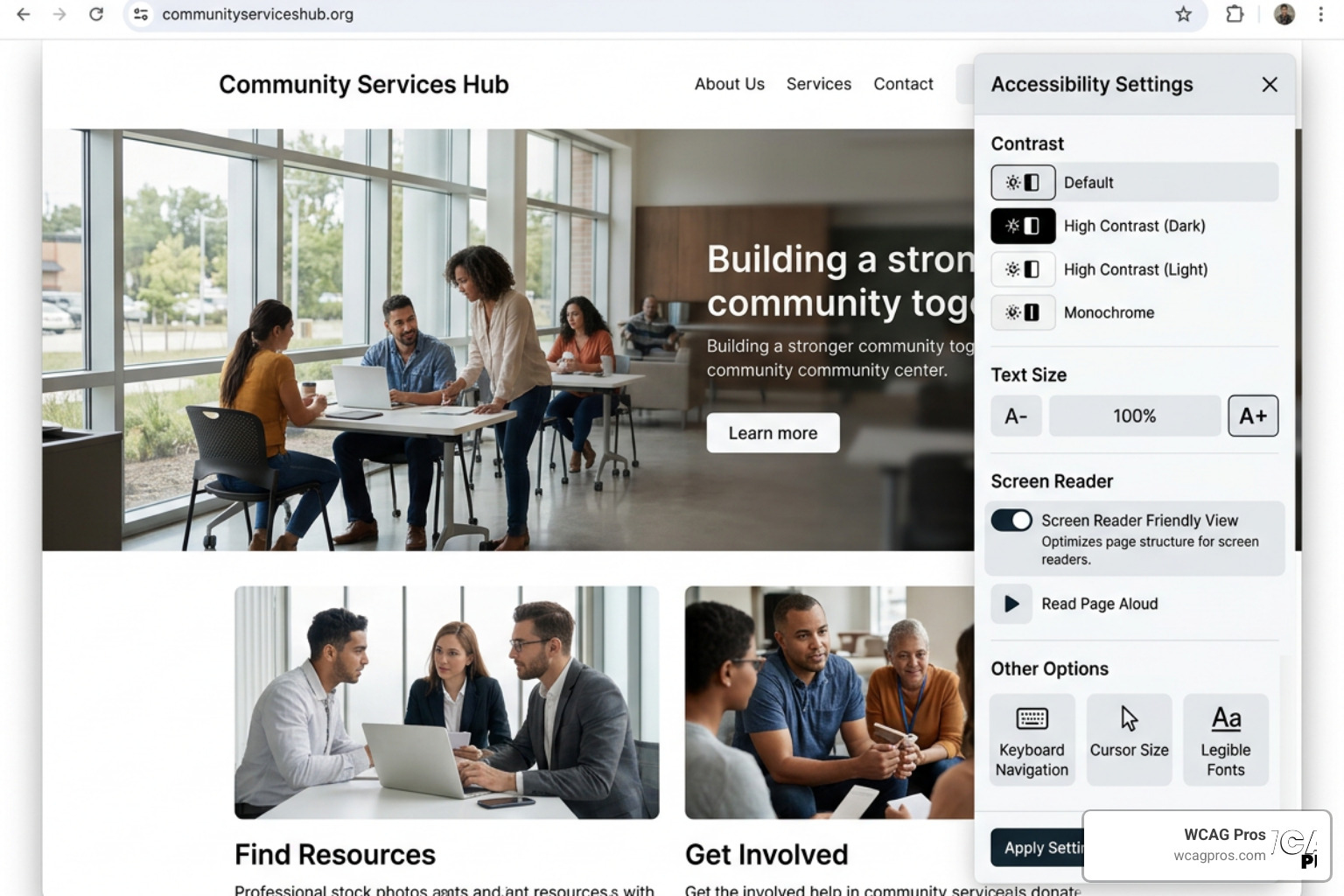
While these tools are excellent for giving users control over their visual experience, it is critical to understand their limitations. An accessibility widget is an assistive UI layer, and it does not rewrite or fix your underlying source code. If your website’s navigation menu is completely broken for keyboard users, a widget cannot fix that structural issue.
Many organizations mistakenly believe that installing a widget makes them instantly compliant with the ADA or WCAG 2.2. This is a dangerous misconception. In fact, relying solely on an overlay can sometimes increase your legal risk, as these widgets do not address the core structural barriers that screen readers encounter.
For a complete breakdown of how to balance widgets with actual code fixes, explore The Ultimate Guide to Online Accessibility Testing as well as our advice on how to Pick the Best Web Accessibility Evaluation Tool for Your Team.
Best Practices for Reporting and Remediating Issues
Finding accessibility issues is only half the battle. The real work begins when you start fixing them. To do this successfully, you need a structured workflow for tracking, prioritizing, and resolving the issues your tools identify.
First, you must track your findings in a centralized system. Whether you use Jira, Trello, or a simple spreadsheet, every accessibility issue should be documented with a clear description, a screenshot or code snippet, and the specific WCAG 2.2 success criteria it violates.
Next, prioritize your remediation efforts. We recommend focusing on critical barriers first. A critical barrier is anything that completely prevents a user from completing a task, such as an inaccessible checkout form or a broken navigation menu. Once these blockers are resolved, you can move on to high priority issues like low contrast text, and finally medium priority issues like missing ARIA landmarks.
When working on compliance, it is helpful to look at how public institutions handle their digital presence. For example, you can review the Website Accessibility Information for the City of Norco to see how local municipalities structure their accessibility commitments and public documentation.
To ensure your team does not miss any critical steps during this process, we recommend keeping The Ultimate Website Accessibility Testing Checklist for 2026 handy as your step-by-step roadmap.
Frequently Asked Questions about Accessibility Testing
Can automated tools guarantee full ADA and WCAG 2.2 compliance?
No, automated tools cannot guarantee full compliance. While automated scanners are incredibly useful for catching low hanging fruit, they can only detect about 30% to 40% of all potential accessibility barriers.
Automated tools cannot evaluate the context of your content. They cannot tell you if your alt text is actually descriptive, if your form labels make logical sense, or if your page layout is easy to navigate for someone with a cognitive disability. To achieve true compliance and protect your business from legal risk, automated scans must always be paired with manual testing and expert review.
For a deeper look into what automated scans miss, you can read our detailed Automated Tools Audit analysis.
How often should we run accessibility scans on our website?
You should think of accessibility as an ongoing process rather than a one time project. Every time you publish a new blog post, upload an image, update a product description, or deploy a code change, you run the risk of introducing new accessibility barriers.
At a minimum, we recommend running automated scans once a week for active websites. If you have a large enterprise site with multiple content contributors, daily scans or continuous monitoring integrated into your deployment pipeline is highly recommended. Manual audits should be conducted at least once or twice a year, or whenever you undergo a major design overhaul.
To learn how to establish a sustainable testing schedule, check out our guide on how to Test Site for Accessibility Without Breaking a Sweat.
What is the difference between an accessibility widget and a structural audit?
An accessibility widget is a temporary visual layer that sits on top of your website. It allows individual users to make cosmetic adjustments to your site, such as increasing font size or changing colors. It does not alter your website’s underlying code.
A structural audit, on the other hand, is a comprehensive evaluation of your website’s source code and content. It identifies fundamental barriers in your site’s architecture, such as poor keyboard navigation, missing form labels, and incorrect heading hierarchies. Resolving the issues identified in a structural audit involves rewriting your code to ensure that your site is natively accessible to all users, including those using assistive technologies like screen readers.
To understand why structural audits are the foundation of legal compliance, read The Ultimate Guide to Online Accessibility Testing.
Conclusion
Building an accessible website is not just about avoiding lawsuits, but it is about creating a digital space where everyone is welcome. By combining the speed of automated tools with the depth of manual testing, you can build a highly effective accessibility program that works for your team and your users.
At WCAG Pros, we specialize in helping businesses navigate this journey. Based in Norco, California, we provide expert ADA website compliance consulting, including comprehensive WCAG audits, manual remediation, and compliance certification.
Unlike automated only platforms, we perform detailed page by page audits of all 54 WCAG A/AAA points. We do not just hand you a list of errors. We provide actual code fixes and offer free re audits to help you earn your compliance badges with confidence.
Ready to make your website inclusive for everyone? Visit WCAG Pros today to schedule your comprehensive audit and take the first step toward true digital accessibility.
Read more website accessibility articles
Get Help With Your Website
We'll follow up with info about:
- The process
- Cost
- Timeline
We promise to respect your privacy, and never abuse the information you provide. We will not sell or rent your information to any third party.
By submitting this form, you consent to receive SMS messages and/or emails from SEM Dynamics LLC, dba WCAG Pros. To unsubscribe, follow the instructions provided in our communications. Msg & data rates may apply for SMS. Your information is secure and will not be sold to third parties.