
Beginner’s Guide to Checking Website Disability Access
Beginner’s Guide to Checking Website Disability Access
Is Your Website Accessible to People With Disabilities?
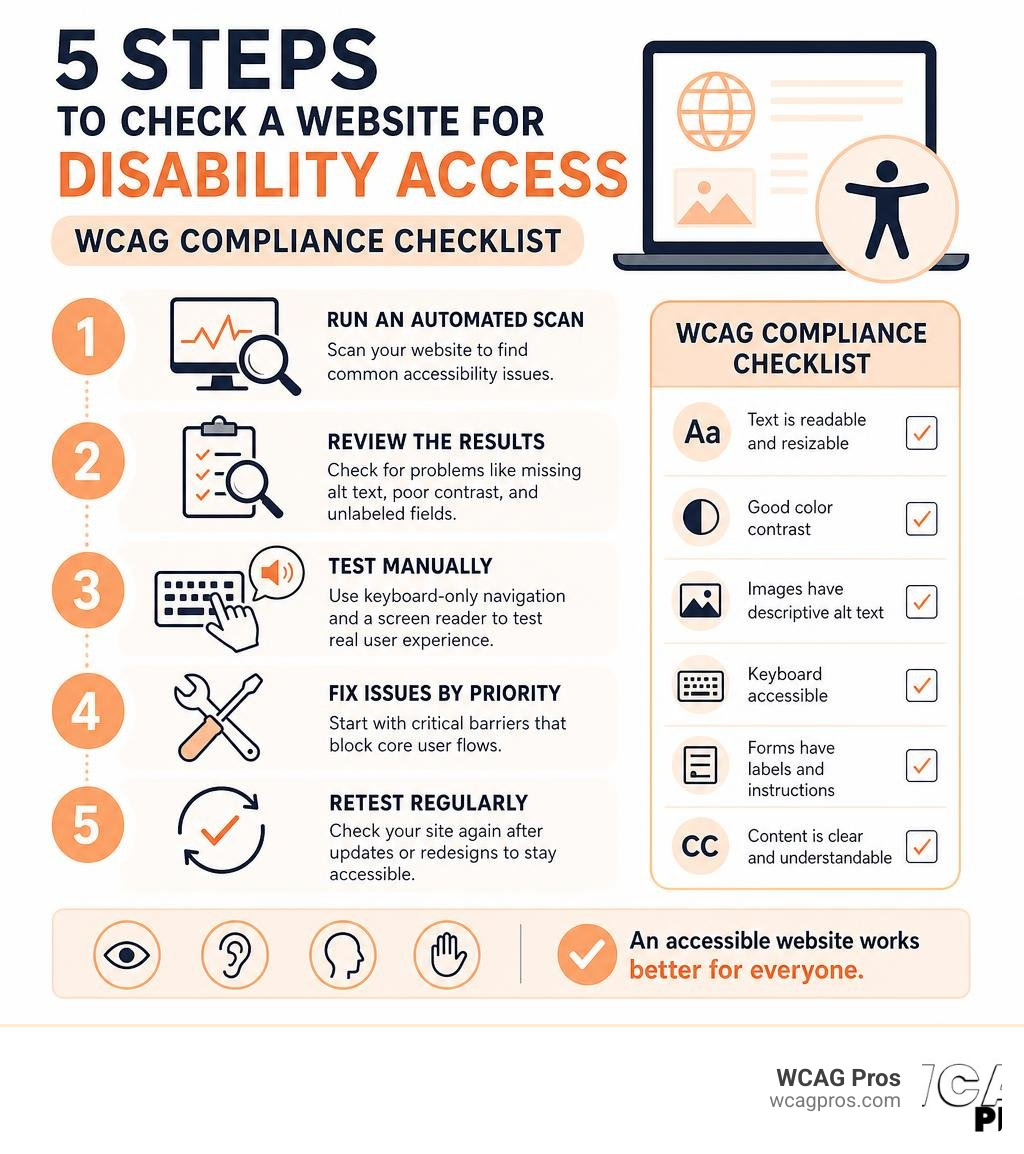
To check a website for disability access, follow these key steps:
- Run an automated scan using a free tool like WAVE or accessScan to catch common WCAG violations
- Review the results for issues like missing alt text, poor color contrast, and unlabeled form fields
- Test manually using keyboard only navigation and a screen reader
- Fix issues by priority starting with critical barriers that block core user flows
- Retest regularly after any content updates or redesigns
If you own or manage a commercial website, the need to check your website for disability access has never been more urgent. Over 5,000 ADA website lawsuits were filed in 2025 alone, with average settlements ranging from $5,000 to $25,000. Yet 96% of websites still fail basic accessibility standards, meaning the vast majority of businesses are exposed to real legal and financial risk.
The stakes go beyond lawsuits. Critical accessibility issues make your site completely unusable to roughly 20% of the world’s population living with a disability. That is a significant portion of potential customers you may be turning away without realizing it.
I’m Matthew Post, co founder of WCAG Pros and a web developer with over 20 years of experience helping businesses check their websites for disability access and resolve WCAG compliance issues. In this guide, I’ll walk you through exactly how to test your site, what to look for, and how to fix what you find.
Check website for disability access vocab explained:
Why You Must Check Website for Disability Access
When we talk about web accessibility, we are talking about removing digital barriers. Imagine a physical storefront with steep concrete steps and no ramp. A wheelchair user cannot enter that store. In the digital world, a website without keyboard navigation or screen reader compatibility is the exact same thing. It is a locked door.
Inaccessible web content means that people with disabilities are denied equal access to information and services, just as physical steps exclude them from physical locations.

From a legal standpoint, the landscape is clear. In the United States, ADA Title III covers public accommodations. The Department of Justice has long held that websites are places of public accommodation. This means your private business website must be accessible to everyone. If your business is based in California, or if you serve California residents, you also fall under state level regulations. You can find helpful state compliance guides via the California Commission on Disability Access Resources.
For government entities and organizations receiving federal funding, Section 508 of the Rehabilitation Act enforces strict web accessibility requirements. If you do business globally, you must also consider the European Accessibility Act, which requires private sector websites operating in the European Union to meet strict standards.
The financial risks of ignoring these laws are steep. Beyond the average lawsuit settlement of $5,000 to $25,000, businesses often have to pay tens of thousands more in plaintiff attorney fees and remediation costs.
Fortunately, there is some financial relief for proactive business owners. Small businesses can claim up to $5,000 in ADA tax credits under IRC Section 44 to offset accessibility compliance costs. This means the government will literally help pay for your accessibility audits and remediation work.
By choosing to check website for disability access issues early, you protect your brand, open your doors to millions of underserved consumers, and keep your hard earned money in your bank account. For an overview of the testing process, you can read The Ultimate Guide to Online Accessibility Testing.
Core Standards and Common Accessibility Barriers
To build a truly inclusive website, we rely on the Web Content Accessibility Guidelines, which are globally recognized as the gold standard for digital accessibility. The latest stable release is WCAG 2.2.
WCAG 2.2 is built on four core principles, often called the POUR principles.
- Perceivable: Users must be able to see or hear the information. It cannot be invisible to all of their senses.
- Operable: Users must be able to navigate the site. This means the interface cannot require interactions that a disabled person cannot perform, such as mouse only actions.
- Understandable: The content and user interface must be easy to comprehend. Users should not be left guessing how to use a menu or what an error message means.
- Robust: The website must work reliably across a wide variety of browsers, devices, and assistive technologies like screen readers.
When we audit websites, we consistently find the same handful of common accessibility barriers.
First is poor color contrast. If your text color is too close to your background color, users with low vision or color blindness cannot read your content.
Second is missing alt text. Images need descriptive text in the HTML code so screen readers can explain the image to blind users.
Third is keyboard navigation failures. Many websites are built with interactive elements that can only be clicked with a mouse, leaving keyboard only users completely stranded.
Fourth is unlabeled form fields. If a form input field does not have a proper label, a screen reader user will not know if they are supposed to type their first name, email address, or credit card number.
To help you understand how these issues are caught, here is a comparison of how automated tools and manual testing perform across different barrier categories.
| Accessibility Barrier | Automated Detection Rate | Manual Testing Success | Primary Testing Method |
|---|---|---|---|
| Color Contrast Issues | 98% | 100% | Automated and Manual |
| Missing Image Alt Text | 100% (identifies missing tags) | 100% (evaluates text quality) | Hybrid Review |
| Keyboard Traps and Navigation | 20% | 100% | Keyboard Only Testing |
| Form Label Context | 40% | 100% | Screen Reader Review |
| Dynamic Content Updates | 15% | 100% | Interactive Manual Test |
How to Test Your Website for Compliance
To get an accurate picture of your compliance status, you must use a hybrid testing methodology. We recommend a combination of automated scanners, expert manual audits, and user testing with real people.

Automated tools are incredible for scanning hundreds of pages in seconds. They are great at flagging obvious code errors, like missing alt tags or broken HTML structure. However, they lack human context. An automated tool can tell you if an image has alt text, but it cannot tell you if that text actually describes the image accurately.
This is why expert manual testing is irreplaceable. A certified specialist can navigate your checkout flow using only a keyboard and a screen reader to verify that the experience is smooth and logical. If you want to dive deeper into this methodology, check out our In Depth Guide to Test Web Accessibility.
How to Check Website for Disability Access Using Automated Tools
Automated testing is the best place to start. These tools act like search engine crawlers, scanning your website code and instantly flagging violations of WCAG 2.2 standards.
Several excellent free and paid tools are widely used in the industry.
- WAVE: Developed by WebAIM, WAVE is a fantastic suite of evaluation tools. You can enter your URL on their website or install their browser extension to see a visual overlay of accessibility errors directly on your web pages. It is highly educational and explains why each error matters.
- Siteimprove: This tool is excellent for larger organizations. It crawls your entire site, scores your accessibility, and helps you track your progress over time.
- accessScan: This free tool performs a rapid scan of your site and provides a clean, easy to read report on your compliance status in under a minute.
While these tools are fast and cost effective, they are not a silver bullet. Automated scanners can only detect about 30% to 40% of all potential WCAG 2.2 violations. They cannot tell if your interactive menus are intuitive, if your video captions are accurate, or if your keyboard focus order makes logical sense.
To learn more about choosing and using these scanners, you can read our A Z Guide to ADA Compliance Checkers.
Step by Step Guide to Check Website for Disability Access Manually
Once you have cleared the obvious errors flagged by automated scanners, it is time to roll up your sleeves and perform manual testing.
First, put your mouse aside and try to navigate your website using only your keyboard. Use the Tab key to move forward through links and form fields, and Shift Tab to move backward. Press Enter or Spacebar to activate buttons and open links.
As you navigate, look for a clear visual outline around the active element. If you cannot tell where your cursor is on the screen, your site has a missing focus indicator. Watch out for keyboard traps, which occur when you tab into an element, like a pop up window, but cannot tab back out of it.
Next, test your site with a screen reader. If you are on a Mac, you have VoiceOver built right into your operating system. If you are on an iPhone, you can turn on VoiceOver in your accessibility settings. Android users can use TalkBack.
Turn on the screen reader, close your eyes, and try to navigate your homepage. Does the screen reader read the menu links in a logical order? Does it announce the purpose of buttons clearly? If your screen reader reads out “Button, button, link, image 452 dot jpeg,” your users are going to have a terrible experience.
Finally, consider testing your site with real users who have disabilities. Native users of assistive technologies can find subtle usability issues that developers often miss. To learn how to set up these tests, take a look at our guide on How to Test Your Websites Accessibility Using Real Users.
Frequently Asked Questions About Website Accessibility
We hear many of the same questions from business owners who are trying to navigate the complex world of digital accessibility.
What is the difference between ADA Title III and Section 508?
ADA Title III is a federal civil rights law that applies to the private sector. It requires all businesses open to the public, including e commerce stores, restaurants, hotels, and service providers, to make their websites accessible.
Section 508 is part of the Rehabilitation Act. It specifically applies to federal government agencies, public universities, and any organization or contractor that receives federal funding. Section 508 has explicit technical standards that websites must meet, whereas ADA Title III is enforced through civil litigation based on general non discrimination principles.
Are websites legally required to follow WCAG 2.2?
In many parts of the world, yes. For example, the European Accessibility Act and Canada’s AODA explicitly reference WCAG standards. In the United States, while the text of ADA Title III does not explicitly name WCAG 2.2, the Department of Justice and federal courts consistently use WCAG 2.2 Level AA as the standard to measure web accessibility.
Adhering to WCAG 2.2 Level AA is widely considered the safest way to establish a legal safe harbor and protect your business from lawsuits. Educational institutions, such as Norco College, actively promote these standards to ensure equal access for all students. You can read more about their efforts through the Disability Resource Center at Norco College.
Can automated checkers guarantee 100 percent ADA compliance?
No automated tool can guarantee compliance. Automated checkers are prone to both false positives and false negatives because they cannot evaluate context.
For example, an automated scanner might pass an image with the alt text “logo” because the alt attribute is present. However, if the image is actually a complex chart showing quarterly sales data, “logo” is completely useless alt text. Only human evaluation can determine if your content is truly accessible and intuitive. For a deeper look at the pros and cons of these tools, we recommend checking out the Website Accessibility Tools Survival Guide.
Conclusion
Running an initial check on your website is a vital first step, but real accessibility is an ongoing journey. Websites are dynamic. Every time you upload a new blog post, add a product to your e commerce store, or update your theme, you run the risk of introducing new accessibility barriers.
Once you identify the issues on your site, you need a clear remediation plan to write clean code fixes. After that, you must establish an ongoing monitoring strategy to ensure your site stays compliant.
At WCAG Pros, we specialize in helping businesses navigate this process without the stress. Based in Norco, California, our expert team provides comprehensive, page by page manual audits covering all 54 WCAG A/AAA points. We do not just hand you a confusing list of errors. We provide exact code fixes and offer free re audits to help you earn your compliance badges.
If you are ready to secure your website, protect your business from legal risks, and welcome all users to your digital storefront, we are here to help. Schedule a Professional WCAG Audit with us today.
Read more website accessibility articles
Get Help With Your Website
We'll follow up with info about:
- The process
- Cost
- Timeline
We promise to respect your privacy, and never abuse the information you provide. We will not sell or rent your information to any third party.
By submitting this form, you consent to receive SMS messages and/or emails from SEM Dynamics LLC, dba WCAG Pros. To unsubscribe, follow the instructions provided in our communications. Msg & data rates may apply for SMS. Your information is secure and will not be sold to third parties.