
How to Use the Wave Tool in 5 Simple Steps
How to Use the Wave Tool in 5 Simple Steps
Start Your WAVE Tool Accessibility Check in Minutes
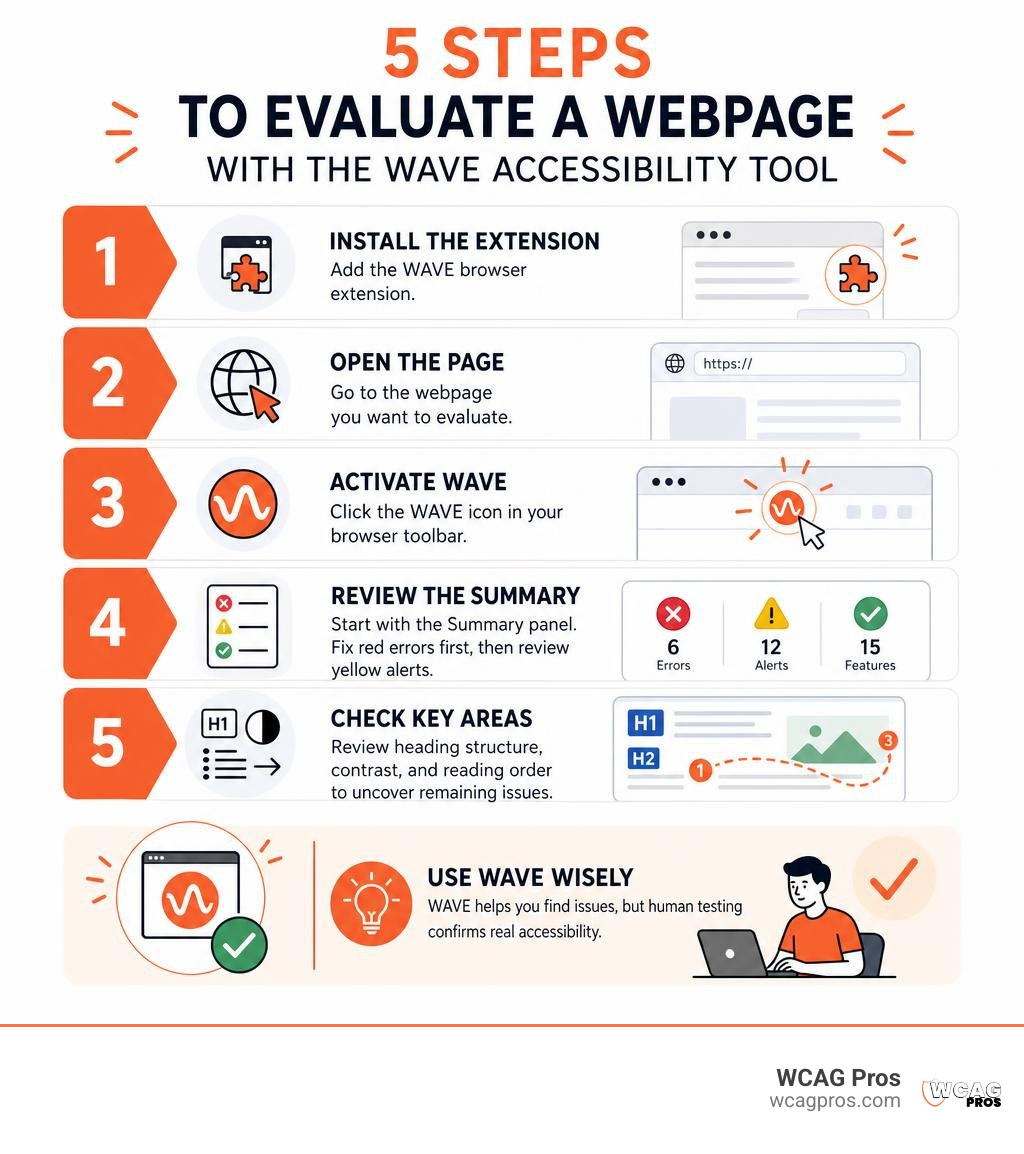
To evaluate a webpage with WAVE, install the browser extension, open the page you want to test, and activate WAVE from your browser toolbar. Start with the Summary panel, fix clear red errors first, then review yellow alerts, heading structure, contrast, and reading order. This WAVE tool accessibility check is a fast way to spot common WCAG 2.2 barriers before they reach customers.
WAVE, created by WebAIM, adds visual indicators directly to the page so you can see where an issue occurs, not just read a list of code warnings. It can help uncover missing image text, unlabeled form fields, weak color contrast, skipped heading levels, and problematic ARIA markup. The browser extension also works on pages behind a login, on intranets, and in local development environments.
That said, treat WAVE as a diagnostic tool, not a compliance certificate. It cannot decide whether alt text is meaningful, whether a checkout flow works with a keyboard, or whether a screen reader user can complete a task. Use its results alongside manual testing and a broader web page compliance testing process.
I am Matthew Post, co-founder of WCAG Pros and a programmer with more than 20 years of web development experience. I have led accessibility audits and remediation work involving wave tool accessibility findings, WCAG testing, and real-world barriers that automated scans alone cannot confirm.
Understanding the WebAIM WAVE Ecosystem
WebAIM built the suite of WAVE Web Accessibility Evaluation Tools to give developers, designers, and content editors instant visual feedback. Rather than dumping raw code snippets into an isolated console, the tool injects intuitive icons straight into your rendered layout. This makes automated web accessibility testing straightforward for cross-functional teams.
The ecosystem extends beyond basic single-page audits. It features standalone engines that integrate into continuous integration workflows, running headless Chrome instances to analyze dynamic states before code ever reaches production. For organizations evaluating site-wide trends, WebAIM provides Accessibility IMpact (AIM) reports. These reports combine automated scan data with an impact score benchmarked against typical web pages, pairing machine analysis with human expertise.
Key Capabilities Across Extensions, APIs, and Enterprise Reports
The browser extensions serve as the most popular entry point for daily evaluations. Over 700,000 users rely on the Chrome extension, which carries a 4.1-star rating across more than 5,100 reviews. Firefox users rate their add-on at an impressive 4.7 stars.
Because the browser extension evaluates the live Document Object Model (DOM) directly inside your browser session, it excels at testing password-protected staging servers, internal intranets, and local development environments without sending confidential data across the web. For larger enterprise environments requiring automated pipeline integration, WebAIM provides scalable standalone API engines. These engines run scripted user journeys, capture responsive viewports, and deliver structured JSON reports.
How WAVE Tool Accessibility Audits Support WCAG 2.2
WAVE maps its automated checks directly against WCAG 2.2 success criteria and Section 508 requirements. When the engine flags an issue, it links the finding to the corresponding digital standard, acting as an educational diagnostic aid.
Teams looking to compare WCAG 2.2 options will find that WAVE excels at exposing structural markup gaps, broken form controls, and color contrast failures. However, it is explicitly built with a human-in-the-loop philosophy. The visual badges show you what elements exist on the page, encouraging your team to verify whether those elements actually make sense to a person using assistive technology.
Mastering WAVE Tool Accessibility in 5 Simple Steps

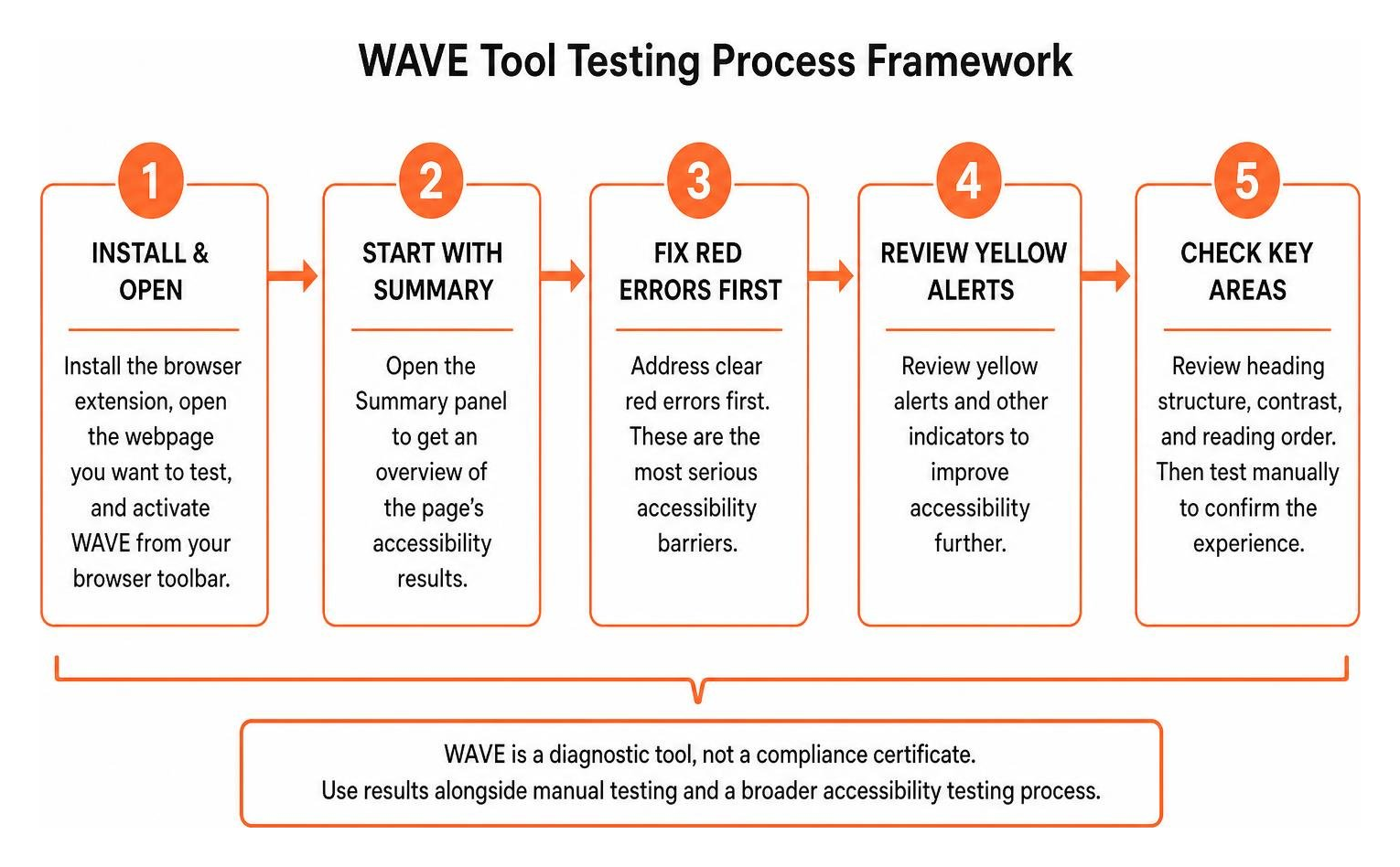
Following a structured evaluation workflow helps you avoid getting overwhelmed by visual icons. Let us walk through the five core steps to evaluate any page efficiently.
Step 1: Install and Launch the Extension
Begin by installing the extension from the WAVE Evaluation Tool Chrome Web Store listing or the Firefox add-ons repository.
Once added to your browser, navigate to your target URL. Launch the tool by clicking the WAVE icon in your browser toolbar, selecting “WAVE this page” from your right-click context menu, or using the keyboard shortcut:
- Windows:
Control + Shift + U - Mac:
Command + Shift + U
Because the engine executes locally within your browser tab, you can freely audit secure dashboards, authenticated shopping carts, and staging builds without security concerns.
Step 2: Review the Summary and Icon Categories
When WAVE activates, it opens a sidebar on the left side of your screen and overlays colored icons across your webpage. Familiarizing yourself with these visual markers according to the UC Berkeley WAVE guide makes triage fast:
- Red Errors: High-certainty accessibility barriers that violate WCAG 2.2 standards, such as missing alternative text, empty buttons, or missing form labels.
- Yellow Alerts: Elements that may cause accessibility issues and require manual verification, such as redundant links, suspicious alternative text, or skipped heading levels.
- Green Features: Correctly implemented accessibility enhancements, such as valid alternative text or form label bindings.
- Blue Structural Elements: Semantic layout markers, including headings, unordered lists, and landmark regions.
- Purple ARIA Badges: Indicators of ARIA roles, states, and properties applied across the markup.
Step 3: Analyze Page Hierarchy and Contrast
Click the Structure tab in the sidebar to review the semantic outline of your document. This view strips away visual distractions to present your heading levels (H1 through H6) and landmark regions (main, navigation, header, footer) in a clear tree. Check that your page contains a single, logical H1, that heading levels do not skip arbitrarily, and that all content lives within proper landmarks.
Next, open the Contrast tab. WAVE identifies text elements that fail WCAG 2.2 Level AA and AAA minimum contrast ratios against their background. If your design utilizes alpha channel transparency or subtle gradients, you can adjust the color picker inside the sidebar to calculate exact foreground-background ratios. For deeper design adjustments, explore our guide on how to test color contrast compliance.
Step 4: Verify Tab Order and Assistive Logic
Open the Order tab to inspect the visual reading sequence of interactive controls. The tool places sequential numbered badges across links, form inputs, and buttons, reflecting the programmatic DOM order that assistive technologies follow.
Verify that the numbered badges follow a predictable, logical reading flow from top to bottom and left to right. If a visual modal appears on screen but its numbered indicators place it at the very bottom of the document flow, keyboard users will struggle to interact with it properly.
Step 5: Inspect Underlying Code and Isolate Issues
Click on any error icon either in the sidebar or directly on the page, then select the Code tab at the bottom of the screen. WAVE will open an inline DOM inspector highlighting the exact line of HTML responsible for the alert.
If layout styles make the page difficult to read with icons enabled, toggle the Styles switch in the sidebar. This strips external CSS, revealing the raw, unstyled HTML document. Reviewing the unstyled markup allows you to confirm that content flows logically even without visual formatting. Check your findings against the website accessibility testing checklist to ensure no hidden states or dynamic triggers were missed during triage.
Resolving Alerts and Nuances in WAVE Audits

Automated scanners often flag alerts that require thoughtful human interpretation rather than quick code removals. Knowing how WAVE parses modern web architectures prevents both false panic and accidental code regressions.
Hidden DOM Elements and Dynamic Single-Page Applications
Single-page applications often contain dropdown menus, slide-out navigation drawers, and modal dialogs hidden via CSS properties such as display: none, visibility: hidden, or aria-hidden="true".
WAVE evaluates the rendered state of the DOM at the exact moment you trigger the scan. When elements are tucked away off-screen, WAVE may flag them in the sidebar using dimmed icons. To properly evaluate these dynamic widgets:
- Interact with the page to trigger the open state (such as opening the mobile menu).
- Re-run the WAVE evaluation on the active state.
- Confirm that
aria-expandedattributes toggle accurately and focus lands inside the active component.
Resolving Alerts and False Positives in WAVE Tool Accessibility Reviews
Yellow alerts highlight potential problems, not definitive compliance failures. For instance, WAVE flags “redundant title text” whenever an element’s title attribute matches its visible text label. While this is rarely a fatal error, it clutters screen reader announcements.
Similarly, background images, absolute positioning, and dynamic canvas elements can confuse automated contrast calculators, generating false contrast warnings. In these scenarios, use the manual color eyedropper in the Contrast panel to confirm the true perceived ratio. Never delete necessary structural elements just to make an alert badge disappear.
Comparing WAVE with Other Modern Testing Engines
No single automated engine catches every accessibility defect. Different tools apply distinct rule libraries, AST parsing rules, and visual heuristics. The table below illustrates how WAVE compares to other automated testing engines.
| Testing Tool | Primary Architecture | Chrome Web Store Installs | Key Strength | Ideal Use Case |
|---|---|---|---|---|
| WAVE (WebAIM) | Visual DOM In-Page Overlay | 700,000+ | Clear visual context and intuitive icons | Content reviews, designer audits, and developer triage |
| axe DevTools | Rules Engine Console | 1,000,000+ | Zero false-positive rule philosophy | Developer console debugging and CI unit tests |
| Google Lighthouse | Built-in DevTools Audit Engine | Native Chrome Feature | High-level site performance and audit scoring | Quick executive overviews and initial baseline checks |
| Evinced | AI-Vision & Layout Analysis | Enterprise Tooling | Deep visual layout parsing across complex SPAs | Large enterprise regression tracking and dynamic workflows |
Automated engines vary significantly in raw defect detection. In a comprehensive 2026 study evaluating automated checkers against manual audits, the AI-vision platform Evinced detected 62.8% of real-world barriers, whereas axe-core alone caught 22.6%.
Independent benchmark studies by the UK Government Digital Service evaluated 13 automated accessibility checkers against a controlled test page containing 142 known accessibility barriers. In that study, SortSite caught 40% of the issues, WAVE identified 30%, and axe identified 29%. These benchmarks demonstrate that while WAVE is reliable for visual triage, no automated tool catches everything on its own.
Automated Scan Limitations and Legal Realities
Relying solely on an automated scan report creates a dangerous false sense of security. Roughly half of the 87 success criteria in WCAG 2.2 require human judgment and contextual understanding. An automated script cannot determine whether an image’s alt text accurately conveys emotional nuance, whether complex data tables are explained coherently, or whether custom JavaScript widgets behave predictably under real assistive technologies.
Under ADA Title III case law and Department of Justice Title II enforcement, automated scan scores hold no legal weight if a person with a disability cannot navigate your site. Real users do not browse your website through an automated scanner. They navigate using screen readers like NVDA, JAWS, and VoiceOver, or through keyboard-only input.
Furthermore, third-party accessibility overlay widgets cannot fix deep architectural flaws. In fact, predatory overlay widgets often introduce new keyboard traps, leading to significant legal scrutiny and regulatory fines. Ensuring genuine compliance requires manual verification by experienced human auditors who test assistive logic, build comprehensive Voluntary Product Accessibility Templates (VPAT), and write production-ready code fixes.
Frequently Asked Questions About WAVE
What is the difference between a WAVE Error and a WAVE Alert?
A WAVE Error (represented by a red icon) indicates a definitive failure of an automated WCAG 2.2 rule. Examples include missing form labels, broken image alternative text, or completely empty links. These issues must be fixed in your codebase.
A WAVE Alert (represented by a yellow icon) indicates a potential issue that an automated engine cannot definitively confirm. Examples include skipped heading levels, very long alternative text, or suspicious link text like “click here.” Alerts require human evaluation to determine whether an actual barrier exists.
Can running the WAVE tool guarantee full ADA compliance?
No automated scanner can guarantee ADA or WCAG compliance. Automated testing tools reliably evaluate only 20% to 40% of all WCAG success criteria.
While achieving zero red errors in WAVE is an excellent milestone for basic digital hygiene, it does not confirm that your website is fully accessible to people who rely on screen readers, keyboard navigation, voice commands, or custom assistive settings.
Does the WAVE extension send private website data to external servers?
The official WAVE browser extensions for Chrome and Firefox execute entirely within your local browser runtime. They do not transmit your page content, DOM trees, user credentials, or intranet URLs to WebAIM or any third-party server.
This makes the browser extension safe for evaluating private staging builds, authenticated portals, and sensitive internal business applications.
Conclusion
The WAVE accessibility tool is one of the most effective visual testing utilities available today. By providing immediate on-page visual feedback, it helps designers, developers, and content creators identify fundamental markup errors and contrast problems within minutes. Integrating WAVE into your everyday sprint reviews will significantly elevate your digital quality baseline.
However, automated testing is only the first step in a complete accessibility strategy. True compliance requires combining automated scans with rigorous manual testing by experienced professionals.
At WCAG Pros, we specialize in comprehensive page-by-page manual audits covering all 54 WCAG A/AAA success points. Our team of senior engineers delivers exact code fixes, full assistive technology verification across NVDA, JAWS, and VoiceOver, and free re-audits to award your business a verified compliance badge.
Take the next step in protecting your business and welcoming all users by learning how to pick the best web accessibility evaluation tool for your team today.
Read more website accessibility articles
Get Help With Your Website
We'll follow up with info about:
- The process
- Cost
- Timeline
We promise to respect your privacy, and never abuse the information you provide. We will not sell or rent your information to any third party.
By submitting this form, you consent to receive SMS messages and/or emails from SEM Dynamics LLC, dba WCAG Pros. To unsubscribe, follow the instructions provided in our communications. Msg & data rates may apply for SMS. Your information is secure and will not be sold to third parties.