
How to Succeed at Drag and Drop WCAG, Even if You’ve Failed
How to Succeed at Drag and Drop WCAG, Even if You’ve Failed
Why Drag and Drop WCAG Compliance Is Harder Than You Think
drag and drop WCAG compliance trips up more websites than almost any other interactive feature. Here is what you need to know right away:
| Requirement | What It Means |
|---|---|
| WCAG 2.2 SC 2.5.7 (Level AA) | Every drag action must have a single pointer (click/tap) alternative |
| WCAG 2.2 SC 2.1.1 (Level A) | All drag functions must also work with a keyboard |
| Essential dragging exception | Only exempt if the drag movement *itself* is the function (e.g. freeform drawing) |
| Browser scrollbars | Exempt because native user agent controls are not covered |
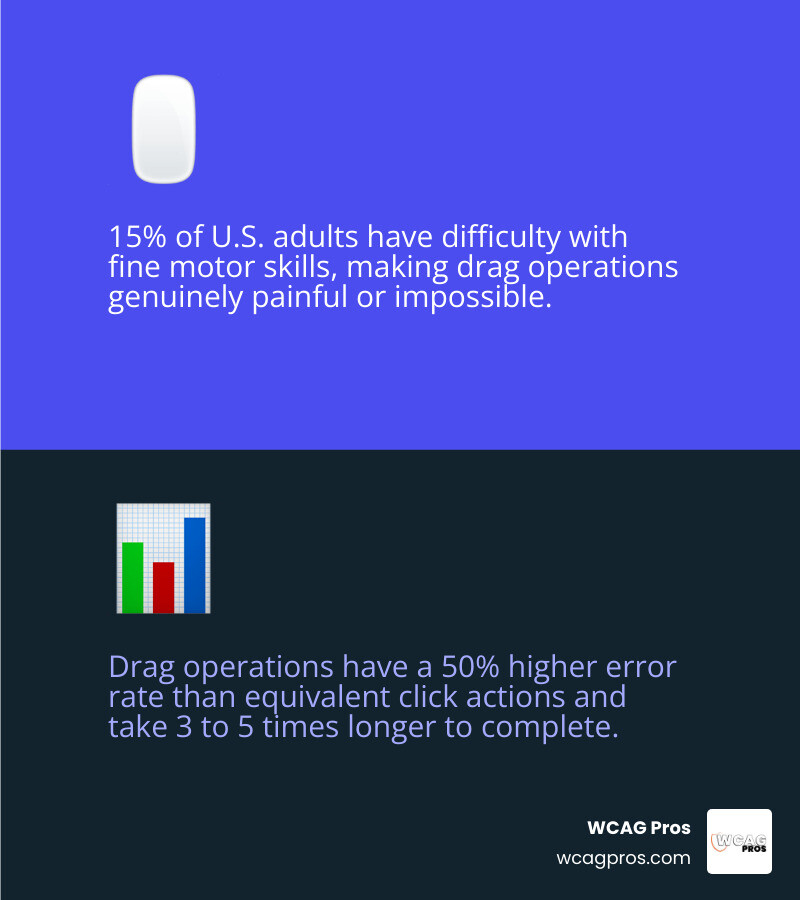
Drag and drop sounds simple. But for roughly 15% of U.S. adults who have difficulty with fine motor skills, a click and hold drag operation is genuinely painful or impossible. Research shows drag operations have a 50% higher error rate than equivalent click actions and take 3 to 5 times longer to complete. That is not a minor inconvenience. For many users, it is a hard wall.
Before WCAG 2.2 arrived in October 2023, there was no success criterion dedicated specifically to dragging. Developers relied on general keyboard guidance. WCAG 2.2 changed that with Success Criterion 2.5.7 (Dragging Movements), a Level AA requirement that directly targets this gap.
I’m Matthew Post, co founder of WCAG Pros and a web developer with over 20 years of experience auditing and remediating sites for drag and drop WCAG compliance. In my work, I have seen drag only interfaces block real users and expose businesses to serious ADA legal risk.
Demystifying Drag and Drop WCAG Requirements
The introduction of WCAG 2.2 marked a massive shift in how we evaluate interactive web elements. Under the older WCAG 2.0 framework, developers often assumed that if an element worked with a keyboard, their accessibility job was complete. While keyboard support remains a vital foundation, it is no longer the only benchmark for complex pointer interactions.
WCAG 2.2 Success Criterion 2.5.7, which is a Level AA requirement, specifically addresses dragging movements. The guideline states that any functionality that requires a dragging movement must also be operable by a single pointer without dragging, unless dragging is essential.
To understand this requirement, we must first look at how the W3C defines a dragging movement. A dragging movement is an interaction where the user performs a specific sequence of physical actions. First, they make contact with a starting point, such as clicking a mouse button or tapping a touchscreen. Second, they hold down that contact. Third, they move the pointer to a new position. Finally, they release the contact at the ending point.
This four stage interaction is incredibly difficult for many individuals. By requiring a single pointer alternative, WCAG 2.2 ensures that users can complete the exact same task using simple clicks or taps. For a deep dive into how this fits into the broader compliance landscape, you can read The Ultimate Guide to WCAG AA Compliance Requirements.
Implementing this criterion means you must provide an alternative interaction on the same page. This alternative cannot require the user to hold down a button while moving their mouse or finger. Instead, it must allow them to activate a control, select a destination, and execute the movement through sequential, individual clicks or taps.
Are Drag and Drop WCAG Functions Allowed
A common misconception among web designers is that drag and drop interfaces are completely banned under modern accessibility guidelines. This is simply not true. You do not need to strip away your beautiful Kanban boards, interactive sliders, or visual file uploaders.
To answer this question directly, drag and drop functions are absolutely allowed by WCAG. The core rule is that drag and drop cannot be the only way to complete a task. You can keep your highly interactive dragging controls for users who prefer them, provided you build a compliant, non dragging alternative alongside them.
When you offer a single pointer alternative, you are creating a multimodal interface. This design philosophy embraces the idea that different users interact with web content in different ways. A mouse user with high dexterity might choose to drag a card across a board, while a user with a hand tremor can click a button on the card to open a menu and select a destination. Both paths must achieve the exact same functional outcome, protecting user choice and ensuring that everyone can interact with your content on their own terms.
The Relationship Between Keyboard Access and Dragging Movements
Many developers ask us why they need to build a single pointer alternative if they already have a fully functioning keyboard alternative. It is a logical question. After all, if a user can tab to a list item and use the arrow keys to reorder it, have we not solved the accessibility barrier?
The answer is no, because pointer users and keyboard users are two distinct groups. While some users with motor disabilities rely entirely on physical keyboards, many others use pointers but cannot perform dragging movements.
Consider a user operating a mobile tablet or a touchscreen smartphone. These devices do not have physical keyboards attached by default. If a touchscreen user has a temporary injury or a permanent motor impairment that prevents them from executing a steady drag and drop gesture, they cannot use keyboard shortcuts either. They rely entirely on their fingers or a stylus to tap the screen. If the interface only provides a drag and drop option and a desktop keyboard fallback, the touchscreen user is completely locked out.
This is why WCAG 2.2 treats Success Criterion 2.1.1 (Keyboard) and Success Criterion 2.5.7 (Dragging Movements) as independent requirements. To achieve compliance, your interface must satisfy both.
| Success Criterion | Level | Primary Target User | Input Device | Requirement |
|---|---|---|---|---|
| SC 2.1.1 Keyboard | Level A | Keyboard only users, screen reader users | Physical keyboard, switch control | All functions must be operable using a keyboard interface without requiring specific timing. |
| SC 2.5.7 Dragging Movements | Level AA | Users with motor limitations, touchscreen users | Mouse, trackball, stylus, finger | Any dragging functionality must have a single pointer, non dragging alternative on the same page. |
By separating these criteria, the W3C ensures that assistive technologies and alternative input devices can interact with web elements seamlessly. For a technical breakdown of this relationship, you can review the official documentation at Understanding Success Criterion 2.5.7: Dragging Movements | WAI | W3C.
Who Benefits From Accessible Dragging Alternatives
Designing accessible alternatives for dragging movements is not just about avoiding legal risk. It is about creating a web that works for real people. A wide range of users benefit when you replace or supplement drag and drop requirements with simple tap and click options.
First, individuals with permanent motor impairments gain immediate access to your site. This includes people living with Parkinson’s disease, cerebral palsy, severe arthritis, or muscular dystrophy. These conditions often cause hand tremors or limit fine motor control, making it extremely difficult to maintain steady pressure on a mouse button or screen while moving a pointer.
Second, users who rely on specialized input devices benefit immensely. People who are paralyzed or have limited mobility below the neck often use eye gaze tracking systems, head pointers, or speech controlled mouse emulators. These devices are excellent for targeting and clicking specific areas of a screen, but they are incredibly error prone when forced to simulate a continuous drag and hold action.
Third, people with temporary injuries find these alternatives essential. If you have ever tried to navigate the web with a broken wrist, a sprained finger, or while holding a sleeping baby, you know how frustrating complex gestures can be. Single pointer alternatives allow these users to complete tasks with minimal physical strain.
Finally, everyday mobile users on small screens benefit. Trying to drag a tiny slider thumb or move a card across a crowded mobile viewport often results in accidental drops, misaligned elements, or page scrolling conflicts. Providing a simple tap to select alternative makes your mobile experience significantly cleaner and more reliable for everyone.
Common Failure Patterns and Essential Dragging Exceptions
When we conduct audits at WCAG Pros, we regularly see the same patterns of failure. Many development teams attempt to build custom drag and drop features from scratch, only to introduce major accessibility blocks.

One of the most common issues is ignoring pointer cancellation, which is covered under Success Criterion 2.5.2. When a user drags an item, they must have a clear, intuitive way to abort the action. If releasing the mouse button anywhere on the screen immediately executes a move or deletes a file, users with tremors will accidentally trigger destructive actions. A compliant interface should revert the dragged item to its original position if it is dropped outside of a valid target, or offer an immediate undo function.
Three Major Dragging Failure Patterns
To help your team avoid these costly mistakes, let’s examine the three most common dragging failure patterns we encounter in the field.
- Sortable Lists Without Alternatives: Many modern web applications feature lists that users can reorder, such as a task manager or a navigation menu builder. The classic failure here is providing a visual drag handle next to each list item, but offering no other way to change the order. If a user cannot drag, they are stuck with the default list order forever.
- File Upload Zones with Drag Only Targets: We often see document upload pages that display a large dashed box with the text, “Drag and drop files here to upload.” If the developer fails to provide a standard, highly visible browse button that opens the system file dialog, this interface completely fails WCAG 2.2. A screen reader user or a switch control user cannot drag a file from their operating system finder into the browser window.
- Custom Range Sliders Requiring Dragging: Custom built price sliders or volume controls frequently require the user to grab a small circular handle and drag it left or right. If clicking on the slider track does not move the handle, or if there is no text input field next to the slider to type a precise value, the slider is non compliant.
When Dragging Is Considered Essential
Like many accessibility guidelines, Success Criterion 2.5.7 includes an exception for cases where dragging is considered essential to the function of the application. However, this exception is much narrower than most developers realize.
According to the W3C, dragging is only essential if the physical act of dragging is inherent to the meaning and success of the activity.
A classic example of an essential dragging movement is a freeform drawing application or a digital signature pad. In these cases, the exact path of the pointer as it moves across the screen is what creates the drawing or the signature. You cannot easily replace this with sequential clicks without fundamentally changing what the application does.
On the other hand, many developers assume that map panning is an exempt, essential dragging function. This is a highly debated topic in the accessibility community. While dragging is the default way to pan a map, providing simple directional buttons (up, down, left, right) allows users to pan the map without dragging. Because these buttons are easy to implement and do not change the core function of the map, dragging is not strictly essential.
When designing your interfaces, always assume that dragging is not essential. If you can think of any logical way to complete the task using clicks or taps, you must provide that alternative.
Step by Step Guide to Implementing Single Pointer Alternatives
Now that we understand the rules, let’s look at how to build compliant interfaces. Making your site accessible does not require rewriting your entire codebase. By applying smart, progressive enhancement, you can add single pointer controls that fit seamlessly into your existing designs.
When you begin updating your JavaScript interactions, it is easy to get overwhelmed by event listeners and state management. If you want to keep your sanity during this process, we recommend reading How to Audit JavaScript for WCAG Without Losing Your Mind.
Solution 1: Sortable Lists with Up and Down Buttons
For a list of items that users need to reorder, the most robust single pointer alternative is adding a set of up and down buttons to each item.
To implement this solution, place two standard button elements inside each list item. One button should feature an upward pointing arrow, and the other should feature a downward pointing arrow. These buttons must have clear, descriptive accessible names for screen readers, such as “Move item up” and “Move item down.”
When a user clicks the “Move item up” button, your JavaScript should swap the selected item with the item directly above it in the DOM. To make this interaction fully accessible, you must manage keyboard focus and screen reader announcements.
When the items swap, ensure that the focus remains on the button the user just clicked. This prevents the user from losing their place in the list. Additionally, you should use an aria live region set to polite to dynamically announce the change to screen reader users, saying something like, “Item moved to position 2 of 5.”
Solution 2: Kanban Boards with Dropdown Menus
Kanban boards are fantastic for visual project management, but they are notoriously difficult for users with motor and visual impairments. To make a Kanban board compliant, you should add an action menu to each card.
Place a small menu button, often represented by a three dot icon, on every card. This button must have an accessible label like “Card actions for Task A.” Clicking this button should open a dropdown or context menu.
Inside this menu, provide a list of options that represent the destination columns on your board. For example, if your columns are “To Do,” “In Progress,” and “Done,” your menu should contain buttons that say “Move to In Progress” and “Move to Done.”
When a user selects an option from this menu, your script should instantly move the card to the target column. This approach completely bypasses the need for dragging. It is fast, highly reliable, and works beautifully on both desktop mouse clicks and mobile touch taps.
Solution 3: File Uploaders with Standard File Pickers
Making a file uploader accessible is incredibly straightforward, yet it is one of the most common failures we see during our auditing processes.
To build a compliant file uploader, always start with a native HTML file input element. This input naturally provides a “Choose File” or “Browse” button that is fully accessible to keyboards, screen readers, and single pointer devices by default.
You can style this input to match your design, or visually hide it and trigger its click event when a user clicks a styled button on your page. The critical step is ensuring that this button is highly visible and placed directly next to or inside your drag and drop drop zone.
When a user clicks the button, the browser opens the native operating system file picker. The user can then select their file and click open, completing the upload process without ever needing to perform a dragging movement.
How to Test Your Drag and Drop WCAG Interfaces
Testing is the only way to guarantee that your drag and drop alternatives actually work in the real world. A feature that looks perfect on a designer’s screen can easily break when operated by a keyboard only user or a screen reader.
To build a comprehensive testing strategy for your entire site, you can refer to The Ultimate Website Accessibility Testing Checklist for 2026.
Manual Testing Procedures
Manual testing is your most powerful tool for verifying compliance with Success Criterion 2.5.7. Because automated tools struggle to understand the visual context of dragging, human review is essential.
Follow these simple steps to manually test your interactive elements:
- Put Away Your Mouse: Attempt to navigate your entire interface using only your keyboard. Use the Tab key to move focus to your interactive elements, and verify that you can reorder lists, move cards, or adjust sliders using only the Enter, Space, and Arrow keys.
- Test on a Touchscreen Device: Open your website on a mobile phone or tablet. Try to complete every drag and drop task using only individual taps. If you find a task that can only be completed by pressing, holding, and sliding your finger, your interface is non compliant.
- Verify Pointer Cancellation: Grab a draggable element, drag it halfway across the screen, and release your mouse button outside of any valid drop zone. Verify that the element safely snaps back to its starting position without triggering any changes or errors.
Automated Testing and Code Audits
While manual testing is crucial, automated audits can help you find potential dragging issues across large websites quickly.
You can use browser developer tools to inspect your interactive elements for common red flags. Look for elements that have custom pointerdown, touchstart, or mousedown event listeners attached to them, but lack corresponding click or keydown listeners. If an element only listens for drag events, it is highly likely to be inaccessible.
Additionally, run automated accessibility scanners to check for basic HTML issues, such as missing form labels, incorrect ARIA attributes, or low color contrast on your drag and drop handles. Combining automated scans with thorough manual testing gives you the best defense against compliance failures.
Frequently Asked Questions About Dragging Movements
Does a keyboard alternative satisfy WCAG 2.2 Success Criterion 2.5.7
No, a keyboard alternative alone does not satisfy Success Criterion 2.5.7. While keyboard accessibility is required under Success Criterion 2.1.1, Success Criterion 2.5.7 specifically protects pointer users who cannot drag.
Touchscreen users on mobile devices often do not have a physical keyboard connected. If they have a motor impairment that prevents them from dragging, they cannot use your keyboard shortcuts either. They must have a single pointer alternative, such as a button or a menu, that they can operate with simple taps.
Are native browser scrollbars subject to Success Criterion 2.5.7
No, native browser scrollbars are not subject to Success Criterion 2.5.7. The guidelines state that any scrolling mechanisms provided natively by the user agent, which is the browser, are exempt from this requirement.
However, this exception only applies if you are using native browser scrolling. If you write custom JavaScript to suppress native scrolling and implement your own custom scrollbars that require dragging a visual thumb, your custom scrollbars must comply with Success Criterion 2.5.7.
What is the difference between dragging and path based gestures
The key difference lies in whether the path of the movement matters to the outcome of the action.
Under WCAG 2.2, a dragging movement only cares about the starting point and the ending point. It does not matter how the user moves their pointer between those two points, as long as they get there. Examples include moving a file into a folder or sliding a range control.
A path based gesture, which is covered under Success Criterion 2.5.1, requires the user to follow a highly specific path to trigger the action. Examples include swiping to unlock a device or drawing a circle to select an item. Both types of movements require accessible alternatives, but they are evaluated under different success criteria.
Conclusion
Achieving drag and drop WCAG compliance does not mean sacrificing modern, interactive design. By providing clear, intuitive single pointer alternatives, you create a digital experience that is welcoming, robust, and usable for everyone, including individuals with motor and visual impairments.
At WCAG Pros, we believe that web accessibility should be simple and stress free. Based in Norco CA, we provide expert ADA website compliance consulting to help businesses navigate the complexities of WCAG 2.2. Our unique approach features comprehensive page by page audits of all 54 WCAG A and AA points, complete with direct code fixes and free reaudits to help you earn your compliance badges.
If you want to ensure your interactive elements are fully compliant and protected against legal risk, explore our In Depth Guide to Test Web Accessibility or contact our team of specialists today for a professional review!
Read more website accessibility articles
Get Help With Your Website
We'll follow up with info about:
- The process
- Cost
- Timeline
We promise to respect your privacy, and never abuse the information you provide. We will not sell or rent your information to any third party.
By submitting this form, you consent to receive SMS messages and/or emails from SEM Dynamics LLC, dba WCAG Pros. To unsubscribe, follow the instructions provided in our communications. Msg & data rates may apply for SMS. Your information is secure and will not be sold to third parties.