
Ultimate Checklist for Best Accessibility Plugins in WordPress
Ultimate Checklist for Best Accessibility Plugins in WordPress
The Best Accessibility Plugins for WordPress in 2026
The best accessibility plugins WordPress site owners can use in 2026 fall into three categories:
| Plugin | Type | Best For | Rating |
|---|---|---|---|
| Accessibility Toolkit by WebYes | Overlay + Enhancer + Checker | All-in-one solution | 4.8/5 |
| Equalize Digital Accessibility Checker | Checker | Admin scanning and WCAG 2.2 audits | 4.6/5 |
| AccessiYes by CookieYes | Overlay | Lightweight visitor-facing widget | 4.7/5 |
| WP Accessibility by Joe Dolson | Enhancer | Code-level fixes for legacy themes | 4.8/5 |
| Accessibility by UserWay | Overlay | Quick front-end widget deployment | N/A |
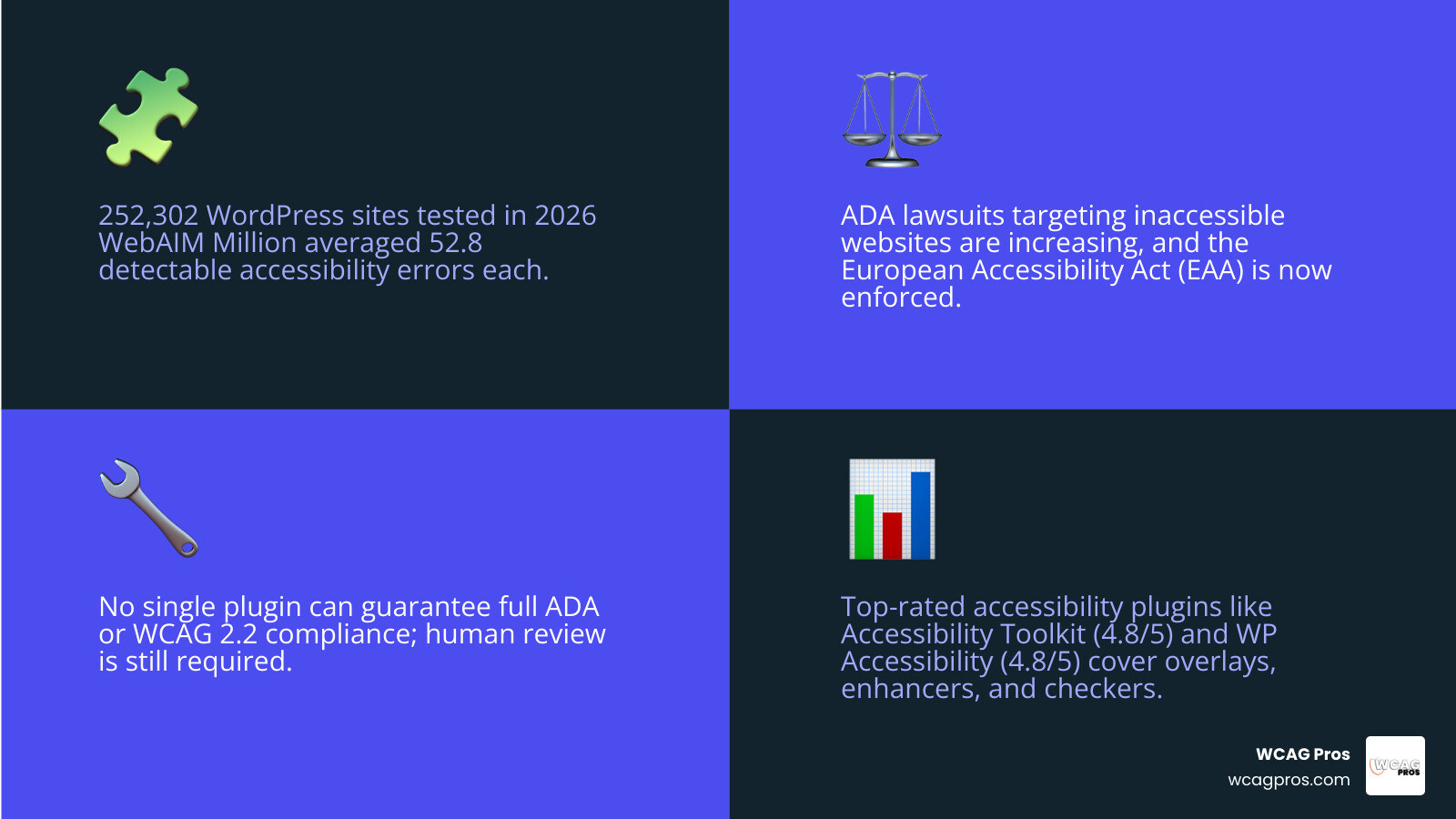
No plugin can make your site fully ADA or WCAG 2.2 compliant on its own. But the right combination of tools can fix many common issues and reduce your legal risk significantly.
Here is why this matters right now. The 2026 WebAIM Million report tested one million homepages and found that 252,302 of them were WordPress sites. Those WordPress sites averaged 52.8 detectable accessibility errors each. That is not a small problem.
ADA lawsuits targeting inaccessible websites are increasing. The European Accessibility Act (EAA) is now enforced. If your site is not accessible, you are exposed.
The good news is that the right plugins can get you a long way toward fixing the most common issues quickly.
I’m Matthew Post, co-founder of WCAG Pros and a web developer with over 20 years of experience auditing and remediating sites for accessibility plugins WordPress compliance and full WCAG 2.2 conformance. In this guide, I’ll walk you through every major plugin type, what each one actually fixes, and where you will still need human review.
Common accessibility plugins wordpress vocab:
The Three Main Types of Accessibility Plugins WordPress Site Owners Use
When you start searching for an accessibility plugins wordpress solution in the official repository, you will quickly notice that not all plugins do the same job. Some add a floating button on your website. Others scan your posts from the inside. A few silently rewrite your theme code to make it more friendly to screen readers.
To make an educated choice for your website, you must understand the three primary types of accessibility tools.
Accessibility Overlays and Widgets
Overlays are visitor-facing tools that display a floating widget on the front end of your website. When a user clicks this icon, a menu opens up with options to change font sizes, invert colors, highlight links, or stop animations.
While these visual toolbars can be incredibly helpful for certain users who need quick dynamic adjustments, they have faced criticism in the web development community. Many overlay scripts do not fix the underlying source code. Instead, they try to patch problems on the fly using JavaScript. If a visitor uses their own assistive hardware, some complex overlays can actually interfere with their native screen readers.
If you decide to use a widget, you must ensure it does not block keyboard navigation. You can learn more about this in our guide on making a Widget ADA Compliant.
Accessibility Enhancers and Code Level Fixes
Enhancers are behind-the-scenes helpers. They do not usually display a flashy menu to your visitors. Instead, they modify the HTML markup of your pages as they load to fix common theme errors.
For example, an enhancer can automatically inject a skip-to-content link so keyboard users can bypass a massive header menu. It can also force visible focus outlines around interactive buttons or remove redundant title attributes that confuse screen readers. These plugins are highly respected by professionals because they focus on clean, semantic HTML rather than temporary visual patches. You can explore one of the most trusted enhancers in the community by visiting the WP Accessibility WordPress plugin on WordPress.org.
Accessibility Checkers and Scanners
Checkers are admin-facing tools designed for content creators and web developers. Instead of modifying the front end of your site for visitors, checkers scan your content from the WordPress dashboard.
These plugins act like real-time editors. As you write a new blog post or build a landing page, the checker runs automated tests against WCAG 2.2 success criteria. It will flag if you missed an image alt tag, skipped a heading level, or used a color combination with poor contrast. Using a checker is a proactive way to build clean habits. You can read more about how to set up these workflows in our article on Automated Web Accessibility Testing Made Easy.” ,).
Best WordPress Accessibility Plugins in 2026
To help you find the absolute best options for your website, we tested and compared the top-performing accessibility plugins wordpress users trust in 2026. Here is a detailed breakdown of their features, ratings, and unique benefits.
Equalize Digital Accessibility Checker
Equalize Digital Accessibility Checker is one of the most comprehensive admin-facing scanning tools available. With over 10,000 active installations and a stellar 4.6 out of 5 rating, it runs more than 40 automated checks based on the latest WCAG 2.2 standards.
What makes this plugin unique is how it integrates directly into the WordPress block editor and classic editor. When you write content, it displays a clear list of errors and warnings right next to your text. It also features a readability analysis tool to help you keep your text understandable. This local scanner runs entirely on your own server, meaning it does not send your data to third-party APIs. For a deeper look at how to evaluate these scanning tools, check out The Definitive Guide to Web Page Compliance Testing Tools.
Accessibility Toolkit by WebYes
If you want a tool that does a little bit of everything, the Accessibility Toolkit by WebYes is a powerful option. Boasting a 4.8 out of 5 rating, it functions as a three-in-one plugin by combining an overlay, an enhancer, and an admin checker into a single package.
With this toolkit, you can display a beautiful visitor-facing widget, apply automatic behind-the-scenes code fixes, and run basic scans on your pages. It is an excellent starting point for business owners who want to cover multiple bases without installing three separate plugins.
AccessiYes by CookieYes
Created by the team behind the popular cookie consent banner, AccessiYes by CookieYes is a highly rated visitor-facing widget. It currently holds a 4.7 out of 5 rating on WordPress.org.
AccessiYes focuses on providing a lightweight, fast-loading visual toolbar. It allows your visitors to make instant adjustments across three core areas: Content, Colour, and Navigation. Visitors can easily scale up text, switch to high-contrast mode, or highlight clickable links, all without slowing down your website load times.
WP Accessibility by Joe Dolson
For site owners who want to avoid overlays entirely and focus on fixing their theme code, WP Accessibility by Joe Dolson is the industry standard. It has over 60,000 active installations and a 4.8 out of 5 rating.
This plugin is a pure enhancer. It solves common theme defects by adding skip navigation links, inserting language attributes, and removing target attributes that force links to open in new windows without warning. It is a set-and-forget tool that works quietly in the background to make your underlying theme much more accessible.
Royal Access Accessibility Toolbar
Royal Access is a fantastic, lightweight frontend toolbar and WCAG tool that runs entirely locally with zero external dependencies. It has over 14 distinct frontend controls, allowing users to adjust line spacing, letter spacing, and contrast.
It also includes the OpenDyslexic font to assist visitors with reading. Because it stores user preferences in local browser storage rather than cookies, it is fully GDPR-friendly and works beautifully with caching plugins. You can download it directly from the Royal Access Accessibility Toolbar & WCAG Tools WordPress plugin | WordPress.org page.
RayWP Accessibility
RayWP Accessibility takes a highly technical approach to remediation. Instead of using heavy client-side JavaScript, it uses server-side output buffer processing to apply ARIA landmarks and attributes based on your custom CSS selectors.
This plugin is perfect for developers who want to inject proper accessibility tags into a complex third-party theme without manually editing the template files. You can find more details on the RayWP Accessibility WordPress plugin | WordPress.org directory page.
EaseAccess and AllAccessible
For those looking for advanced automated assistance, EaseAccess and AllAccessible offer cutting-edge AI-driven features.
EaseAccess is a self-hosted scanning and remediation suite that supports major page builders like Elementor and Divi. It helps you identify WCAG errors and use guided AI suggestions to fix them at the source level.
AllAccessible combines a free visual widget with an agentic AI remediation workflow. The AI scans your site and drafts fixes like image alt text and ARIA labels. However, instead of applying them blindly, it presents them in your WordPress dashboard for your team to review and approve. This helps you maintain control over your website code and content while still using automation as part of a broader accessibility workflow.
How to Choose and Configure Your WordPress Accessibility Tools
Choosing the right accessibility plugins wordpress configuration depends entirely on your specific website goals and administrative workflow. If you manage a content-heavy blog with multiple guest writers, an admin-facing checker like Equalize Digital is essential to catch editorial mistakes before they go live. If you are running an e-commerce store, a lightweight enhancer that ensures your checkout forms are keyboard-navigable is a top priority.
How to Install and Configure Accessibility Plugins WordPress Options
Setting up a plugin is simple, but you must follow best practices to avoid breaking your website layout.
For standard plugins, search for the tool in your WordPress dashboard under Plugins, click Install Now, and then Activate. If you are using a premium widget like UserWay, the setup process often involves registering an account to get a unique code snippet.
While many plugins handle integration automatically, advanced developers can manually insert the integration scripts. You can do this by using the Theme File Editor in your WordPress admin panel. Open your theme footer.php file and paste the script tag directly above the closing body tag. Always perform these changes on a staging site first, and make sure you do not delete any existing theme code. For more tips on keeping your WordPress setup safe, read our guide on making WordPress ADA Compliant.
Do Accessibility Plugins WordPress Tools Slow Down Your Site
A common worry for website owners is whether adding an accessibility plugin will hurt their search engine rankings and page speed. The answer depends on how the plugin is built.
Many third-party overlay widgets load massive JavaScript files from external servers, which can delay your page load times. On the other hand, self-hosted enhancers and server-side plugins like Royal Access have a minimal performance footprint because their core assets are incredibly small.
We recommend running a Google PageSpeed Insights test before and after activating any new plugin. This allows you to measure the exact impact on your site and ensure your visitor experience remains fast and smooth. You can find more performance tips in our ADA Compliance WordPress 101 guide.
Why Plugins Alone Cannot Guarantee Full ADA and WCAG 2.2 Compliance
It is a hard truth in the web development world: no single plugin can make your website completely accessible or legally bulletproof.
While automated tools are excellent at catching low-hanging fruit like missing image alt text or basic contrast issues, they cannot understand context. For example, an automated scanner can check if an image has an alt tag, but it cannot tell you if that alt text actually describes the image accurately or if it is just stuffed with useless keywords.
If your website is legally required to meet the strict standards of the European Accessibility Act or the Americans with Disabilities Act, relying solely on a plugin leaves you open to serious legal risks. True digital inclusion requires a combination of accessible code, thoughtful design, and human testing. You can read our comprehensive WordPress Accessibility Guide 2026 to understand the full scope of manual compliance.
The Limitations of Automated Accessibility Checkers
Even the most advanced automated scanners can only detect about 30% to 40% of all potential WCAG 2.2 errors.
Automated tools struggle with complex interactive elements like custom popup modals, multi-step checkout flows, and video transcripts. They cannot verify if your keyboard focus order is logical or if a screen reader user can easily navigate your main menu without getting trapped.
To ensure your site is truly usable, you must conduct manual testing. This involves navigating your site using only your keyboard tab keys and testing your pages with real screen readers. Learn how to perform these checks in our step-by-step guide to The Ultimate Manual for Screen Reader WordPress Testing.
Generating an Accessibility Statement to Document Your Efforts
One of the most practical steps you can take today is to generate and publish an accessibility statement on your website. This public-facing document outlines your commitment to digital inclusion, lists the standards you are working to meet, and provides a clear way for users to contact you if they encounter a barrier.
Many modern accessibility plugins include built-in statement generators. While these templates are a great starting point, you should customize them to reflect your actual testing efforts. Having a clear accessibility statement shows good faith and can protect your business from immediate legal complaints. If you need help drafting this documentation or managing compliance, you can read our guide on How to Hire a WordPress ADA Compliance Consultant Without Losing Your Mind.
Frequently Asked Questions About WordPress Accessibility
Can a WordPress plugin make my site fully ADA compliant
No, a plugin cannot guarantee full compliance. While plugins are valuable tools for fixing common errors and adding helper toolbars, complete ADA and WCAG 2.2 compliance requires manual theme development, proper content structuring, and ongoing human audits. To see the full list of requirements, you can download The Ultimate WCAG Checklist PDF, Excel, and Print-Ready Versions.
What is the difference between an overlay and an enhancer
An overlay is a front-end visual widget that lets users adjust font sizes and colors on the fly without changing your underlying website code. An enhancer works behind the scenes to modify your theme HTML, permanently fixing issues like missing skip links and focus outlines so that native screen readers can navigate your site easily.
How do I test the performance impact of an accessibility plugin
You can test the performance impact by running your website through Google PageSpeed Insights before and after activating the plugin. Pay close attention to your mobile performance scores, total blocking time, and the size of the external JavaScript files being loaded.
Conclusion
Using the right accessibility plugins wordpress tools is a fantastic way to begin your journey toward digital inclusion, but it is only the first step. Automated tools are great for catching quick errors, but they cannot replace the accuracy of professional human auditing and remediation.
At WCAG Pros, we specialize in helping businesses achieve true compliance. We offer comprehensive, page-by-page manual audits covering all 54 WCAG A/AAA points. Our expert team provides actual code-level fixes and free re-audits to help you earn your official compliance badges with complete peace of mind.
If you are ready to make your WordPress website fully accessible to everyone, visit our WCAG Remediation Services page today to get started!
Read more website accessibility articles
Get Help With Your Website
We'll follow up with info about:
- The process
- Cost
- Timeline
We promise to respect your privacy, and never abuse the information you provide. We will not sell or rent your information to any third party.
By submitting this form, you consent to receive SMS messages and/or emails from SEM Dynamics LLC, dba WCAG Pros. To unsubscribe, follow the instructions provided in our communications. Msg & data rates may apply for SMS. Your information is secure and will not be sold to third parties.