
Master Mobile Accessibility Testing to Build Frictionless User Experiences
Master Mobile Accessibility Testing to Build Frictionless User Experiences
Legal Standards and Technical Foundations for Mobile Apps
Mobile accessibility testing verifies that native iOS and Android apps work with assistive technologies like VoiceOver and TalkBack. Start by auditing touch target sizes, accessible labels, focus order, and gesture alternatives against WCAG 2.2. Then test with screen readers, external keyboards, and switch controls to confirm every user can complete core tasks.
Building native mobile experiences requires understanding both technical architecture and legal benchmarks. In the United States, ADA Title II governs public entities and state agencies, while ADA Title III applies to places of public accommodation, which courts consistently extend to digital products and mobile applications. In Europe, the European Accessibility Act sets strict digital accessibility mandates across mobile software, banking systems, and ecommerce channels. Federal agencies in the US adhere to Section 508.
The global benchmark underpinning these regulations is WCAG 2.2. While originally authored for web browsers, the W3C published formal guidance known as WCAG2ICT to explain how WCAG success criteria apply to non-web information and communications technologies, including iOS and Android native apps.
Achieving compliance involves understanding the bridge between web standards and mobile operating systems. When teams design responsive web assets, they lean on principles of responsive web accessibility design to maintain legibility. However, native mobile apps translate these concepts through proprietary UI components rather than HTML elements.
Core WCAG 2.2 Success Criteria for Touchscreens
Mobile devices introduce physical interaction constraints that desktop screens never encounter. WCAG 2.2 introduces and refines several critical criteria specifically focused on touchscreens:
- Target Size Minimum (Success Criterion 2.5.8): Interactive controls must provide a target area of at least 24 by 24 CSS pixels, though native operating system guidelines strongly advocate for a minimum of 44 by 44 points on iOS and 48 by 48 density-independent pixels on Android to prevent accidental activation.
- Pointer Gestures (Success Criterion 2.5.1): Any functionality operated through multipoint or path-based gestures, such as pinching to zoom or multi-finger swiping, must also allow operation through a single-point activation without path-based movement.
- Dragging Movements (Success Criterion 2.5.7): Features requiring dragging, such as draggable sliders or sorting lists, must provide an alternative single-tap interface, such as up and down directional buttons.
- Device Orientation (Success Criterion 1.3.4): Content must not restrict view and operation to a single display orientation unless a specific orientation is essential.
- Color Contrast (Success Criterion 1.4.3): Text must meet a minimum contrast ratio of 4.5 to 1 against its background for regular text and 3 to 1 for large text.
Native Accessibility Tree Architecture vs Web DOM
In a web application, the browser renders a Document Object Model, which translates into an accessibility tree exposed to screen readers. In native mobile development, the operating system creates an accessibility tree directly from native UI elements.
On Apple platforms, UIKit and SwiftUI expose UIAccessibility elements. On Android, the system builds an AccessibilityNodeInfo hierarchy. These native nodes convey essential semantic metadata:
- Role or Trait: Identifies what the component is, such as a button, header, link, or text field.
- Name or Label: Communicates the accessible text describing the control.
- Value: Indicates current state quantities, such as slider percentages or text input contents.
- State: Announces properties like selected, disabled, expanded, or checked.
When developers build custom views out of generic containers without native semantics, the operating system fails to populate the native accessibility tree. Screen readers then skip the element entirely or read it as unlabelled static content.
Comprehensive Methodologies for Mobile Accessibility Testing
Thorough accessibility evaluations combine automated scanning, manual expert validation, and assistive technology testing. Understanding how to structure these assessments is explored in our guide to usability and accessibility testing, which outlines how compliance checks intersect with real-world user efficiency.
Researchers have explored innovative ways to measure app compliance at scale. A notable approach is the crowdsourcing framework VisioAux, which evaluates real-world accessibility issues dynamically on end-user devices (Barboza & Eler, 2025).
Automated vs Manual Mobile Accessibility Testing
Automated tools serve as an initial filter. Static rule engines parse code repositories and running layouts to catch missing accessible names, undersized touch targets, and basic contrast failures. Dynamic crawlers like the Groundhog automated accessibility crawler explore app view hierarchies to flag locatability and actionability failures automatically.
However, automated tools catch only about 40% of accessibility bugs. They cannot determine whether an accessible name makes logical sense, whether reading order reflects visual layout, or whether complex modal sheets trap screen reader focus. Combining automated scans with thorough manual testing protocols is necessary to achieve true compliance.
| Testing Dimension | Automated Mobile Scans | Manual Mobile Auditing |
|---|---|---|
| Defect Coverage | Catches approximately 30% to 40% of issues | Identifies 100% of detectable WCAG 2.2 violations |
| Best Used For | Catching regressions, color contrast, missing labels | Complex interactions, focus order, gesture fallbacks |
| False Positive Rate | Low to moderate depending on rule engine | Very low when conducted by experienced auditors |
| Execution Speed | Seconds to minutes per screen | Thorough review takes hours per user journey |
| Context Awareness | None. Verifies presence of attributes only | High. Judges relevance and cognitive clarity |
Native Auditing Tools for Android and iOS
Both major mobile operating systems provide built-in tools for auditing layouts.
On Android, Google provides the Accessibility Scanner app. Testers install the scanner directly onto a physical device, grant it accessibility service permissions, and capture snapshots or record screen flows. The scanner flags small touch targets, missing labels, and low contrast items directly on the device.
On macOS, Xcode includes the Accessibility Inspector. By tethering an iPhone or running an iOS simulator, developers can inspect the UI hierarchy, trigger automated audits, and view element traits in real time. You can learn how to configure this tool in our iOS Accessibility Inspector guide.
Academic tools like the Latte testing framework push automation further by running use-case tests with active assistive services like TalkBack. For broader coverage across your tech stack, review our curated index of accessibility testing tools.
Platform-Specific Audits: iOS vs Android Ecosystems
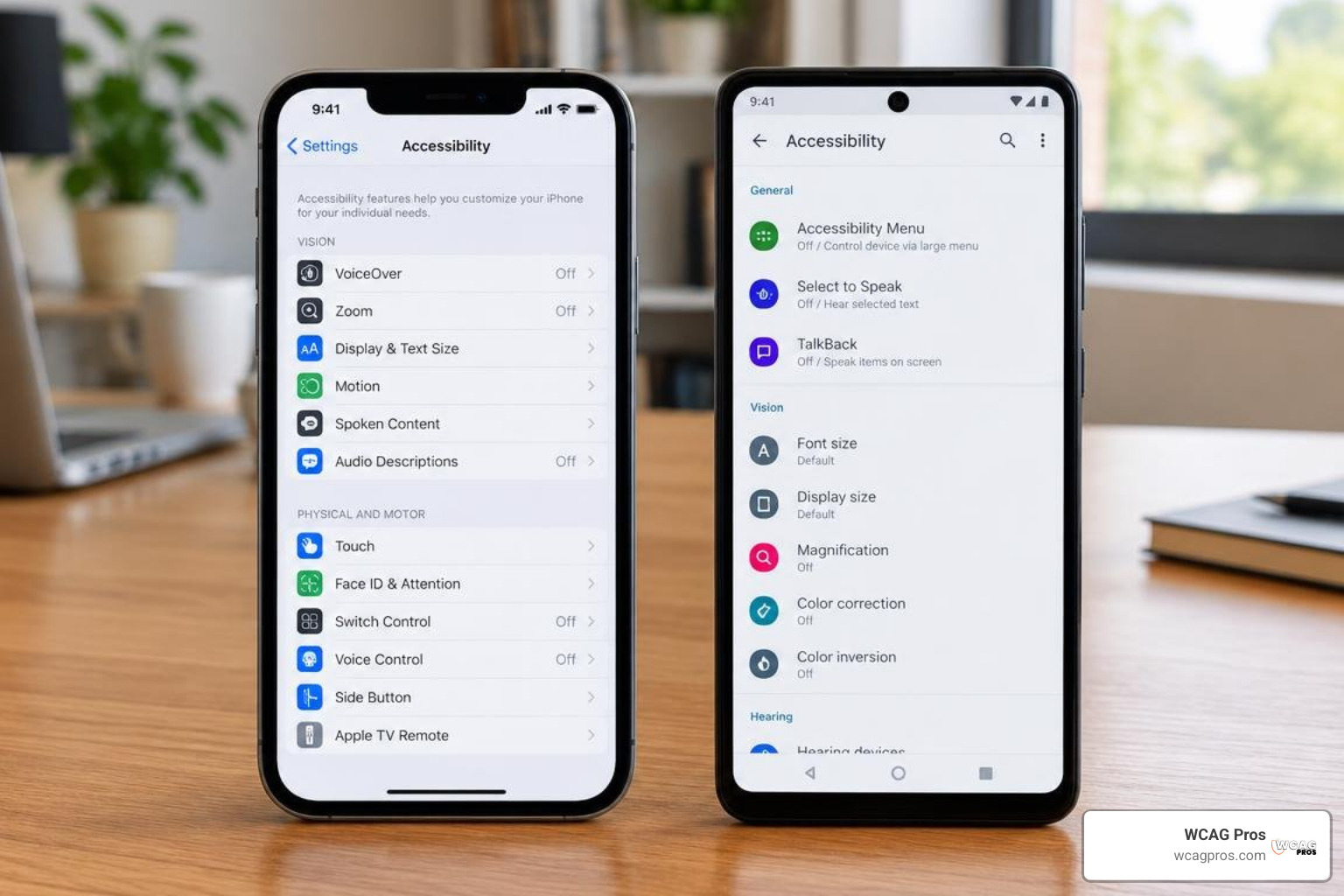
Accessibility features differ significantly between iOS and Android. While the underlying WCAG 2.2 principles remain consistent, the gestures, system settings, and developer APIs require distinct auditing workflows.
Auditing iOS Native and SwiftUI Interfaces
Apple provides a robust suite of assistive features built directly into iOS:
- VoiceOver: The native gesture-based screen reader. Users navigate by swiping right or left to move focus, double-tapping to activate, and using the two-finger rotor to change navigation modes between headings, links, and form controls.
- Dynamic Type: A system setting allowing users to scale text across the OS. In SwiftUI, text views scale automatically if custom font sizing respects the Dynamic Type environment.
- Switch Control and Voice Control: Hands-free navigation systems for individuals with motor impairments.
- Reduce Motion: An accessibility setting that signals apps to replace sliding animations with subtle crossfades.
When auditing SwiftUI apps, inspect whether interactive views use .accessibilityLabel, .accessibilityHint, and .accessibilityValue. Ensure grouped components use .accessibilityElement(children:.combine) to prevent VoiceOver from reading fragmented labels across multiple swipes.
Auditing Android XML and Jetpack Compose Interfaces
Android provides its own comprehensive accessibility ecosystem:
- TalkBack: Android’s primary screen reader. Users navigate through linear swiping or explore-by-touch mode, where dragging a finger across the screen announces elements under the touch point.
- Display Size and Font Size: Independent system sliders that scale both typographic elements and UI bounding boxes.
- Switch Access: Navigation using physical external switches or camera-based facial gestures.
In modern Jetpack Compose codebases, accessibility relies on the Modifier.semantics block. Common Compose properties include contentDescription for accessible text and heading to denote structural headers. Testers must verify that custom composables properly set Role.Button or Role.Checkbox so TalkBack announces both the label and the expected interaction model.
Step-by-Step Execution and Remediation Framework
Executing a structured mobile accessibility audit requires a systematic approach. Follow this testing sequence across every major release:
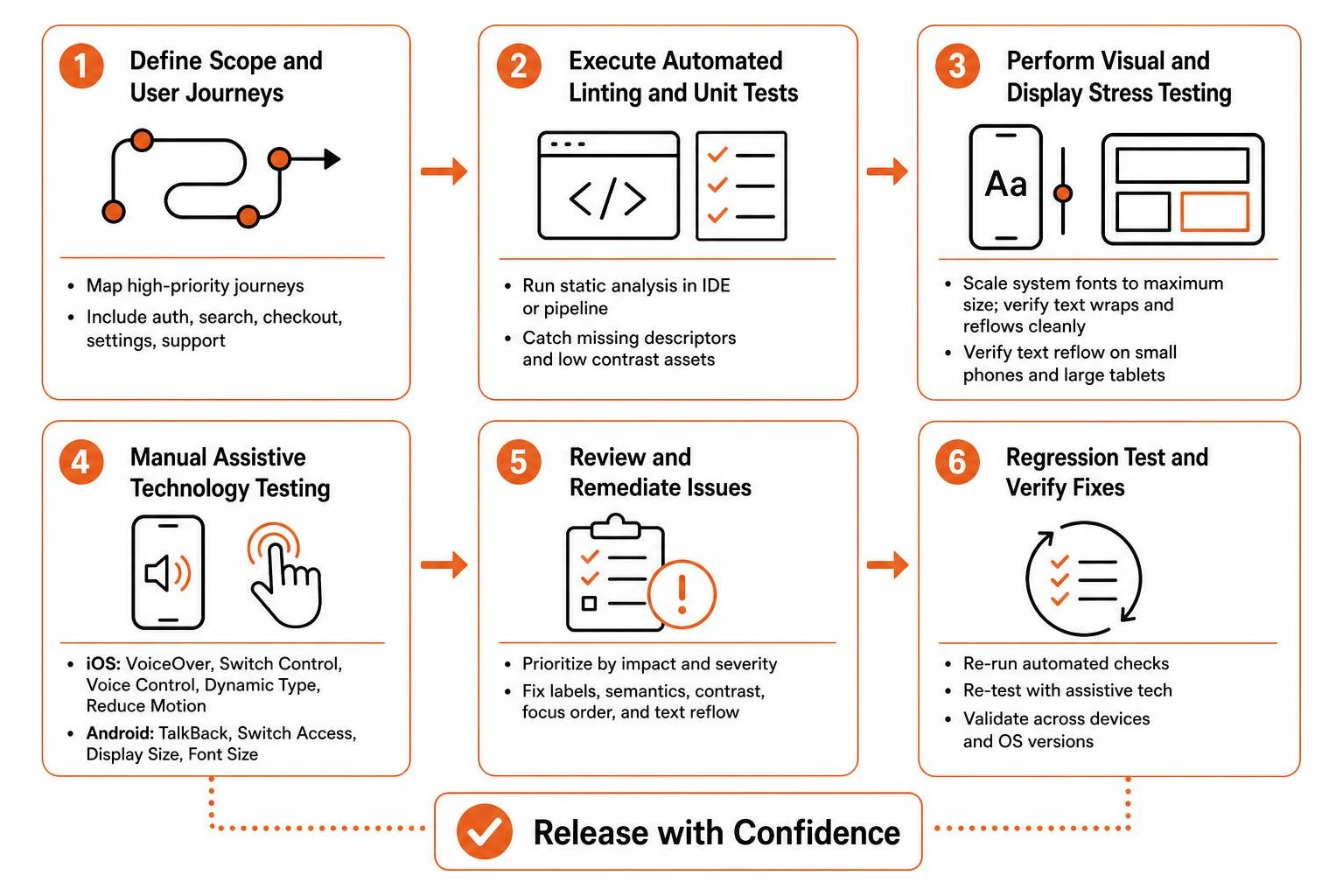
- Define Scope and User Journeys: Map out high-priority user journeys, including authentication, search, checkout, settings configuration, and customer support.
- Execute Automated Linting and Unit Tests: Run static analysis tools within your IDE or build pipeline to catch missing descriptors and low contrast assets before compiling.
- Perform Visual and Display Stress Testing:
- Scale system fonts to maximum size to ensure text wraps and reflows cleanly without truncation.
- Verify text reflow without breaking layout across small phone screens and large tablets.
- Toggle system dark mode and high contrast themes to inspect visual readability.
- Execute Assistive Technology Screen Reader Audits:
- Turn on VoiceOver on iOS and TalkBack on Android.
- Navigate every screen sequentially, verifying logical focus order.
- Confirm all buttons, tabs, input fields, and custom icons have meaningful labels.
- Validate Physical Keyboard and Switch Navigation: Connect an external Bluetooth keyboard. Confirm that focus indicators remain clearly visible and that users can trigger all actions without touching the glass.
- Verify Non-Standard Input Controls: Confirm that drag-and-drop actions, shake-to-undo features, and multi-finger gestures provide single-tap button alternatives.
Common Mobile Accessibility Deficiencies and Code Fixes
1. Unlabelled Interactive Icons
A common defect is an image button containing only an icon without an accessible name. A screen reader announces this simply as “Button” or reads an obscure asset filename.
- iOS SwiftUI Fix:
Attach an accessibility label directly to the icon button:
Button(action: openSettings) { Image(systemName: "gear") }.accessibilityLabel("Settings") - Android Jetpack Compose Fix:
Supply the
contentDescriptionargument:IconButton(onClick = { openSettings }) { Icon(Icons.Default.Settings, contentDescription = "Settings") }
2. Trapped Focus Loops and Modal Overlay Issues
When displaying bottom sheets, dialogs, or popups, screen reader focus often slips beneath the modal layer, reading background controls that the user cannot visually interact with.
- Remediation: Ensure modal presentation containers set their accessibility view to modal. On iOS UIKit, set
accessibilityViewIsModal = trueon the container view. In Jetpack Compose, use standardDialogcomponents or applyModifier.semantics { invisibleToUser }to the underlying background hierarchy while the modal is visible.
3. Silent Dynamic Content Updates
When an asynchronous network call completes, such as updating an account balance or showing a validation error, screen reader users receive no feedback unless a live region announcement triggers.
- iOS Fix: Post an accessibility announcement notification using
UIAccessibility.post(notification:.announcement, argument: "Address verified successfully"). - Android Fix: Apply
Modifier.semantics { liveRegion = LiveRegionMode.Polite }or useViewCompat.setAccessibilityLiveRegionon the text field displaying dynamic status messages.
Integrating Mobile Accessibility Testing into CI/CD Pipelines
Fixing accessibility defects late in the release cycle increases development overhead. Adopting a shift-left strategy ensures that accessibility checks occur alongside functional unit testing.
Teams can integrate accessibility assertions into native automated UI test suites:
- Android Espresso: Enable
AccessibilityChecks.enablein your test runner setup. Espresso automatically validates contrast ratios, touch target sizes, and label availability whenever your test interacts with a view. - iOS XCUITest: Run the accessibility audit API within test methods using
XCUIApplication.performAccessibilityAudit, configuring issue types to fail pull requests on critical violations. - Cross-Platform Automation: Use Appium with integrated scanning rule engines to evaluate compiled builds across physical device test farms.
Frequently Asked Questions About Mobile Accessibility
What assistive technologies should be tested on mobile devices?
Teams should test their apps using primary built-in mobile screen readers, specifically VoiceOver on iOS and TalkBack on Android. In addition, test with Full Keyboard Access or Bluetooth external keyboards to verify focus management. Test with Switch Access and Voice Control to ensure single-point interaction support, and verify screens using system Display Zoom and maximum Dynamic Type font scaling.
How often should teams conduct mobile app accessibility evaluations?
Automated linting and UI accessibility checks should run continuously on every pull request within your continuous integration pipeline. Development teams should complete manual screen reader checks for newly built features during each sprint. Finally, conduct a formal manual audit across complete user flows prior to major app store releases and following major annual iOS and Android operating system updates.
How does mobile accessibility testing differ from responsive web testing?
While responsive web testing evaluates HTML and CSS rendering inside a browser viewport, mobile app accessibility testing examines native operating system accessibility trees. Mobile testing also accounts for device-specific hardware factors, including touch screen gestures, camera and biometric authentication flows, dynamic orientation changes, haptic feedback, and system-level screen readers that interact directly with compiled native views.
Conclusion
Mobile accessibility testing is a fundamental component of software quality and regulatory compliance. With over one billion people worldwide living with some form of disability, ensuring your iOS and Android apps provide smooth, accessible interactions expands your market reach and protects your organization from legal challenges under ADA Title III and the European Accessibility Act.
Automated tools catch baseline oversights, but genuine digital equality requires methodical manual audits using VoiceOver, TalkBack, and physical switch navigation. Treating accessibility defects as functional bugs rather than cosmetic improvements builds a culture of quality across engineering and design teams.
If your team is preparing for a major mobile release or needs to ensure compliance with WCAG 2.2 standards, our specialists are here to help. We conduct comprehensive page-by-page evaluations across all 54 WCAG success criteria, delivering clear code remediation guidance to help you build frictionless mobile experiences. Schedule a comprehensive WCAG audit with our team to validate your mobile applications today.
Reference List
Alex Frederico Ramos Barboza, Marcelo Medeiros Eler. “VisioAux: a crowdsource approach for accessibility evaluation in mobile devices.” Anais do XXIV Simpósio Brasileiro sobre Fatores Humanos em Sistemas Computacionais (IHC 2025), 2025. DOI 10.5753/ihc.2025.10794.
Read more website accessibility articles
Get Help With Your Website
We'll follow up with info about:
- The process
- Cost
- Timeline
We promise to respect your privacy, and never abuse the information you provide. We will not sell or rent your information to any third party.
By submitting this form, you consent to receive SMS messages and/or emails from SEM Dynamics LLC, dba WCAG Pros. To unsubscribe, follow the instructions provided in our communications. Msg & data rates may apply for SMS. Your information is secure and will not be sold to third parties.