
Demystifying HTML ARIA Roles for Accessibility: A Practical Developer Guide
Use HTML ARIA Roles to Make Custom Interfaces Clear
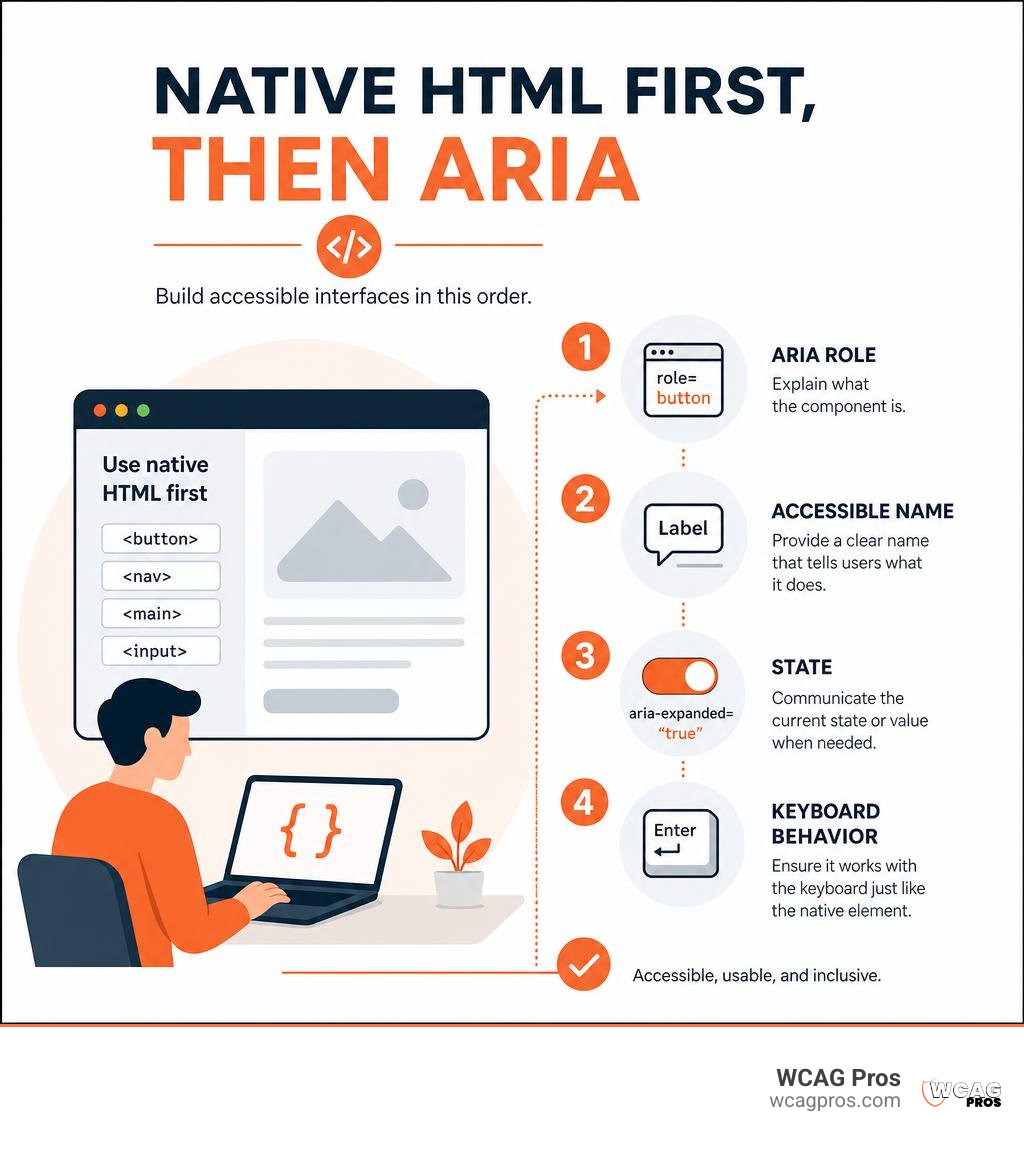
To implement html aria roles for accessibility correctly, start with native HTML. Use elements like , , , and when they fit the job. Add ARIA only when a custom component has no native equivalent or needs extra information.
For every custom control, confirm it provides:
- A role that explains what it is, such as
button,dialog, ortab. - An accessible name that tells users what it does.
- A current state or value when needed, such as
aria-expanded="true"oraria-checked="false". - Matching keyboard behavior so a control announced as a button actually works like one.
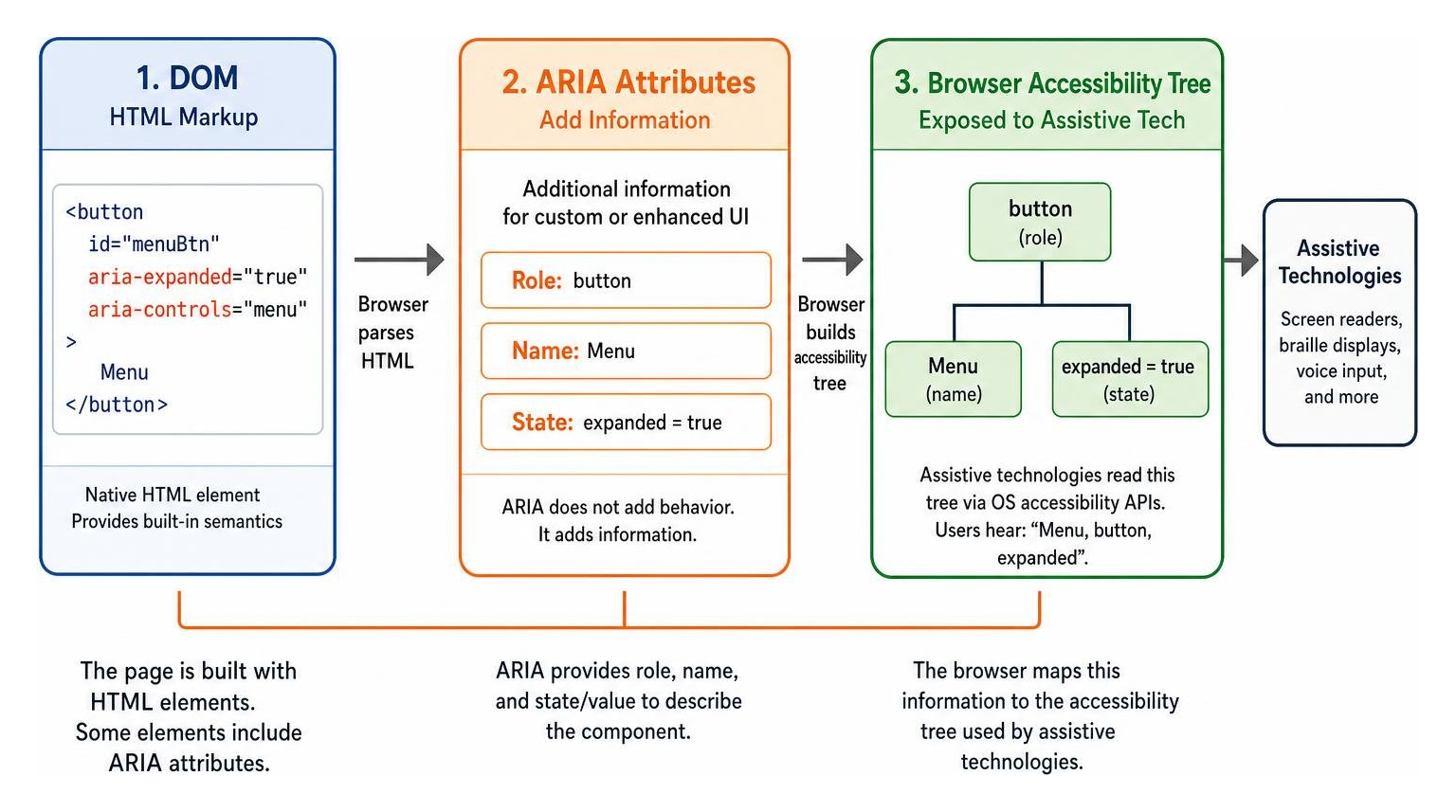
ARIA does not add behavior. It adds information to the browser accessibility tree, which screen readers and other assistive tools use to describe and navigate a page. Used well, ARIA helps meet key WCAG 2.2 requirements, including accurate name, role, and value for interface components. Used poorly, it can give people the wrong instructions.
I am Matthew Post, co-founder of WCAG Pros and a web development professional with more than 20 years of experience. I have audited and remediated commercial websites for WCAG compliance, including complex issues involving html aria roles for accessibility, keyboard access, and screen reader support.
Understanding the Role of ARIA in Web Accessibility
Over 1 billion people worldwide live with some form of disability. That represents about 15 percent of the global population, and many of these individuals rely on assistive technologies every single day to browse the web, purchase goods, and access essential services. When developers construct digital experiences using only visual cues, those who navigate through non-visual means are left stranded.
Web Accessibility Initiative Accessible Rich Internet Applications, commonly known as WAI-ARIA or simply ARIA, bridges the semantic gap in dynamic web development. Early web pages were static documents built from text, hyperlinks, and images. Modern web applications behave more like desktop software, packed with custom sliders, collapsible accordions, dynamic modals, and interactive tabs. Standard HTML alone historically lacked the built-in semantics to explain these complex dynamic controls to assistive technology APIs.
ARIA serves as a specialized translation layer. It allows developers to mark up code so that modern browsers can convert custom elements into understandable objects for screen readers, braille displays, and voice input software. When teams adopt a practical foundation in inclusive web development, ARIA becomes an essential tool to make modern user interfaces universally accessible.
The Accessibility Tree and Role, Name, Value Contract
To understand how ARIA works, we have to look behind the curtain at the browser accessibility tree. When a browser loads HTML markup, it creates the standard Document Object Model (DOM). Simultaneously, it generates a parallel data structure called the accessibility tree. Assistive technologies query this tree through operating system accessibility APIs to understand what exists on the screen and how users can interact with it.
Every interactive UI component in the accessibility tree relies on a fundamental three-part contract:
- Role: Identifies what the component is, such as a checkbox, link, tab, or button.
- Name: The accessible label that tells the user what the specific element represents, such as “Submit Order” or “Close Menu”.
- Value or State: Conveys dynamic properties, such as whether a disclosure widget is expanded or collapsed, or whether a checkbox is checked.
WCAG 2.2 Success Criterion 4.1.2 (Name, Role, Value) mandates that every user interface component must expose its role, state, and name programmatically. If you build a custom toggle button out of a generic The first rule of ARIA is simple and absolute: if a native HTML element or attribute already provides the semantic meaning and behavior you need, use it instead of rewriting it with ARIA. Native HTML elements come with built-in accessibility semantics called implicit roles. A native If you recreate that button with Adding redundant ARIA roles can introduce noise and bugs. For example, writing ARIA roles are grouped into distinct functional categories. Each category serves a specific purpose in structuring content and describing interactions. The official ARIA in HTML specification defines strict conformance rules for how these roles interact with native HTML elements. The table below outlines common structural and landmark roles alongside their native HTML counterparts: Landmark roles define the primary structural areas of a web page. Assistive technology users rely heavily on landmarks to bypass repetitive content and jump directly to sections they want to read. In fact, screen reader users navigate web pages using landmark roles 40 percent more efficiently than without them. The primary landmark roles include: Structuring layouts around these landmarks establishes clear navigational paths for non-visual users, aligning directly with the principles of accessible layout structure. Widget roles describe interactive components that do not exist natively in basic HTML. These roles tell assistive technologies how a user should interact with a custom control. When implementing widget roles, developers must follow standard interaction models: Assigning a widget role is a promise to the user. If you assign Beyond landmarks and widgets, ARIA defines roles for specific structural elements and live updates: Roles define the static identity of an element, but real-world web applications are dynamic. ARIA states and properties provide the context that makes interactive components usable. Implementing these patterns properly helps developers deliver code-level accessibility remediations that resolve real usability barriers. States change frequently based on user interaction, while properties often remain stable or describe relationships between elements. Managing Toggle States: When creating a custom toggle button, pairing the native element with Building Accordion Disclosures: An accordion header button controls an expandable content panel. Use Accessible Relationships and Naming: Use Using these techniques helps teams succeed in meeting WCAG 2.2 AA interactive component requirements across modern web applications. Improper ARIA usage can create severe obstacles. Research shows that 98 percent of home pages have detectable accessibility failures, and incorrect ARIA usage is among the most frequent issues. Misusing roles can degrade accessibility for 25 to 30 percent of screen reader users by generating misleading announcements. Watch out for these frequent mistakes: Building accessible components requires rigorous verification. Because ARIA operates silently in the background without altering visual styling, visual inspection alone cannot reveal whether your implementation works correctly. A combination of automated scanning and hands-on assistive technology evaluation is necessary, as outlined in our guide on comprehensive manual testing techniques. Manual testing with assistive tools is the single most reliable way to evaluate ARIA roles. We recommend incorporating the following testing workflows: Automated checkers and linters integrated into CI/CD pipelines can detect invalid ARIA role names, missing required states, and broken ID references before code reaches production. However, automated scanners can only detect a portion of total accessibility issues. They cannot evaluate whether a chosen role matches user intent or whether keyboard interactions feel natural. When selecting auditing software, consult our resource on selecting automated accessibility validation tools. For true compliance, automated tests must be paired with manual code inspections. At WCAG Pros, we provide comprehensive, page-by-page manual audits covering all 54 WCAG A and AAA success criteria. We deliver direct code fixes and provide free re-audits so organizations can achieve certified compliance with confidence. Landmark roles designate primary navigational regions of a web page, such as Document structure roles, on the other hand, define the internal hierarchy and relationships of content within those sections, such as In most standard web layouts, clean semantic HTML5 is completely sufficient. Elements such as You only need explicit ARIA roles when building custom widgets that have no direct native HTML equivalent (such as tabs, tree views, or complex comboboxes) or when legacy technical constraints prevent you from refactoring non-semantic markup into native elements. Abstract roles, including Browsers do not map abstract roles to operating system accessibility APIs. If a developer uses an abstract role in their HTML markup, assistive technologies will not recognize the element, leading to broken navigation and potential compliance failures. Developers must always choose concrete roles like Mastering ARIA roles requires balancing technical precision with restraint. The most effective accessibility strategy always starts with semantic HTML, leaning on native elements that handle keyboard interactions and accessibility tree mappings automatically. When custom components require ARIA, ensure every control satisfies the foundational contract of communicating an accurate name, role, and value. Building an accessible digital presence protects your organization from legal risk while welcoming every visitor equally. If you are starting your evaluation process, explore our curated directory of free online accessibility checkers to assess your baseline code quality. When you are ready for a thorough, professional assessment, WCAG Pros is here to provide rigorous manual audits, actionable code remediation, and verified compliance certification. Read more website accessibility articlesThe First Rule of ARIA: Native HTML vs. ARIA Markup
element automatically tells the accessibility tree that it is a button. Even more importantly, native HTML handles keyboard interaction out of the box. A native button automatically accepts focus, triggers with both the Enter and Space keys, and disables properly when the disabled attribute is present. is unnecessary because modern browsers already assign the navigation role to the tag. Following foundational guidelines for digital accessibility helps teams prioritize native elements and keep markup clean.Core Categories of HTML ARIA Roles for Accessibility
Role Category
ARIA Role
Native HTML Equivalent
Primary Accessibility Function
Landmark
bannerIdentifies the top-level site header
Landmark
navigationDesignates a group of navigational links
Landmark
mainRepresents the central content of the document
Landmark
complementaryContains supporting information or sidebars
Landmark
contentinfo (scoped to body)Identifies footer information and copyright
Landmark
searchIdentifies search functionality
Structural
articleDenotes a self-contained composition
Structural
heading through Establishes document hierarchy
Structural
listGroups related list items
Structural
region (with accessible name)Outlines a significant thematic section
Landmark Roles and Page Layout Structure
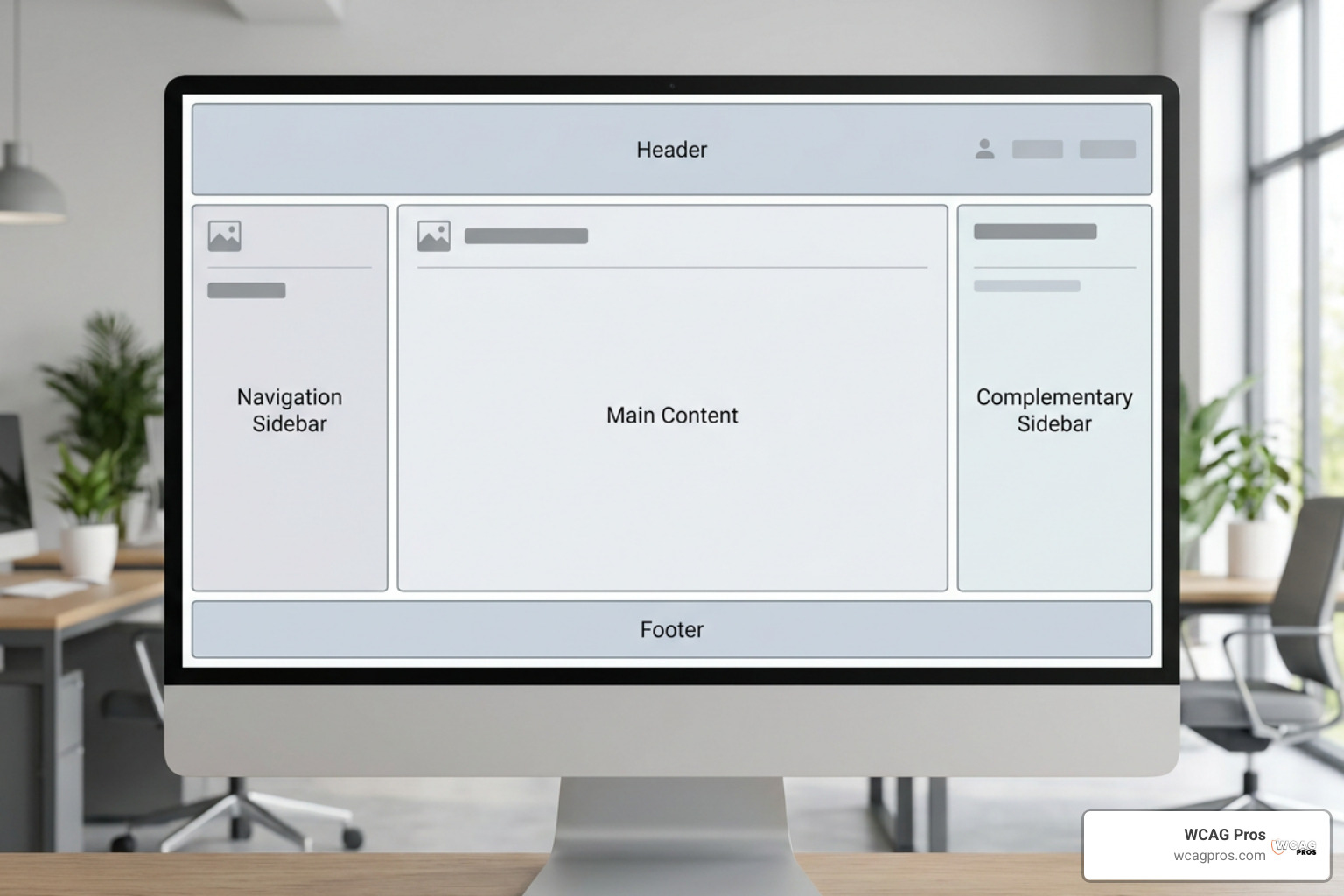
role="banner": Applied to the primary header of a website containing branding and global tools.role="navigation": Designates a collection of navigational links. If your page contains multiple navigation blocks, such as a header menu and a footer menu, distinguish them with unique accessible names using aria-label.role="main": Marks the dominant content area of the document. A page should contain only one visible main landmark.role="complementary": Indicates auxiliary content that supports the main content, such as related articles or sidebars.role="contentinfo": Applied to the site footer containing metadata, privacy policies, and copyright notices.role="search": Encapsulates search bars and search forms.Structuring Dynamic UIs with HTML ARIA Roles for Accessibility
role="tablist", role="tab", and role="tabpanel": Used together to construct accessible tabbed interfaces. The tablist acts as the container, individual tab elements allow selection, and each tabpanel holds the associated content. Tab components require specific arrow key navigation handling.role="dialog": Designates an overlay window or modal that requires user attention. When opened, focus must move into the dialog, and focus must remain trapped within the dialog until it is dismissed.role="combobox": Represents an input that controls an associated popup listbox, enabling autocomplete and filtering patterns.role="slider": Defines an input where a user selects a value from a given range. It requires associated attributes like aria-valuenow, aria-valuemin, and aria-valuemax.role="tab", assistive technology users expect Left and Right arrow keys to switch tabs, the Home key to jump to the first tab, and the End key to reach the last tab. ARIA provides the semantics, but you must write the JavaScript to handle the keyboard interactions.Document Structure, Live Regions, and Abstract Roles to Avoid
role="feed", role="toolbar", and role="tooltip". They convey relationships between nested blocks of information.role="alert" attribute immediately interrupts the user to announce urgent errors or warnings. Roles like role="status" or elements with aria-live="polite" wait until the user pauses before announcing status changes, such as search result updates.command, composite, input, landmark, range, roletype, section, sectionhead, select, structure, widget, and window. These roles exist purely as the architectural taxonomy used by browser developers to build the WAI-ARIA specification. They are not mapped to accessibility APIs. Authors must never use abstract roles in HTML markup because assistive technologies will simply ignore them or fail to interpret the element.Practical Implementation: Roles, States, Properties, and Code Patterns
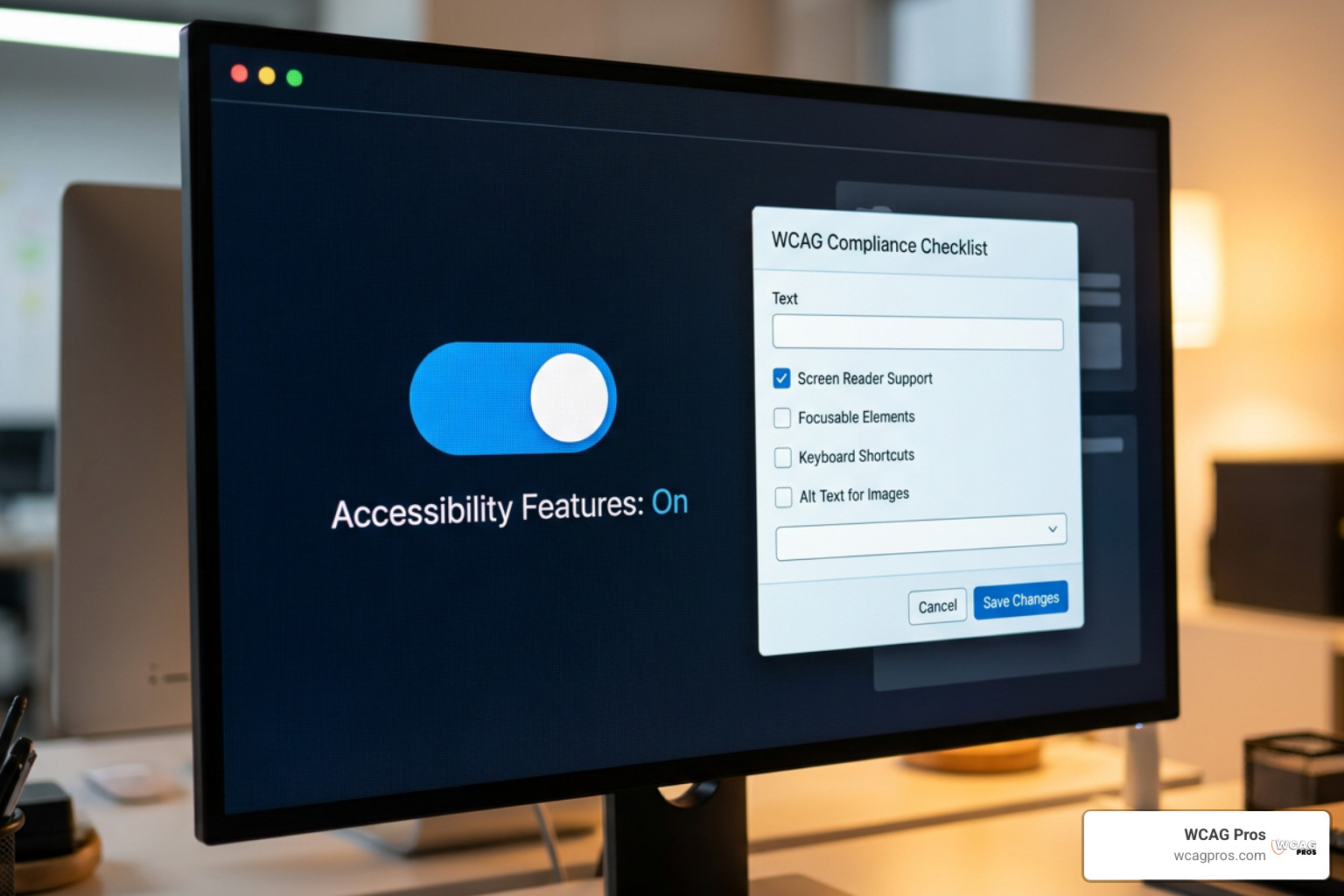
Coordinating Roles with States and Properties
aria-pressed communicates its status clearly:aria-expanded to signal visibility and aria-controls to link the button to the panel ID:aria-labelledby to point to a visible heading or label on the page for an accessible name. Use aria-describedby to associate secondary instructional or error text with a form input.Common Mistakes When Implementing HTML ARIA Roles for Accessibility
. This strips away the control’s button semantics and confuses screen reader users.role="button" to a without adding tabindex="0" and keyboard event listeners for Enter and Space makes the control completely unusable for keyboard-only visitors.aria-hidden="true": Applying aria-hidden="true" to an interactive element or a parent container that holds focused elements hides the content from screen readers while leaving it accessible to keyboard tab order, creating a ghost focus trap., , or prohibit accessible names via aria-label unless an explicit allowed role is assigned.
Testing, Validating, and Auditing ARIA Implementation
Screen Reader and Keyboard Navigation Testing
Automated Validation and Conformance Verification
Frequently Asked Questions About ARIA Roles
What is the difference between landmark roles and document structure roles?
banner, navigation, main, and contentinfo. Screen readers provide dedicated shortcut commands that allow users to jump directly between landmarks across the entire page layout. heading, list, row, or toolbar. They provide contextual meaning but do not serve as global jump destinations.Do I need ARIA roles if I write clean, semantic HTML5?
, , , , and automatically provide implicit ARIA roles to assistive technology. What are abstract ARIA roles and why shouldn't developers use them?
structure, widget, window, command, and range, are internal structural classifications used by the W3C to organize the ARIA specification. button, checkbox, dialog, or slider.Conclusion
Get Help With Your Website
We'll follow up with info about:
- The process
- Cost
- Timeline
We promise to respect your privacy, and never abuse the information you provide. We will not sell or rent your information to any third party.
By submitting this form, you consent to receive SMS messages and/or emails from SEM Dynamics LLC, dba WCAG Pros. To unsubscribe, follow the instructions provided in our communications. Msg & data rates may apply for SMS. Your information is secure and will not be sold to third parties.