
Detailed Website Accessibility Audit Field Manual for Dev Teams
How to Run a Detailed Website Accessibility Audit
To run a detailed website accessibility audit, test the pages and tasks people need most, such as submitting a form or completing a purchase. Check each flow against WCAG 2.2 AA with an automated scanner, then use only a keyboard and a screen reader. Test at mobile widths, too. Record every barrier, who it affects, how to reproduce it, and the fix. Retest the full task after changes.
Start with anything that stops a task. A form that sends keyboard focus into hidden controls matters more than a long list of minor scan results.
I’m Matthew Post, co-founder of WCAG Pros and a developer with more than 20 years of web experience. As an experienced website accessibility remediation company, our team of ADA compliance auditors applies a structured ADA audit checklist to supervise every detailed website accessibility audit and remediation project, focusing on practical fixes teams can test and deploy.
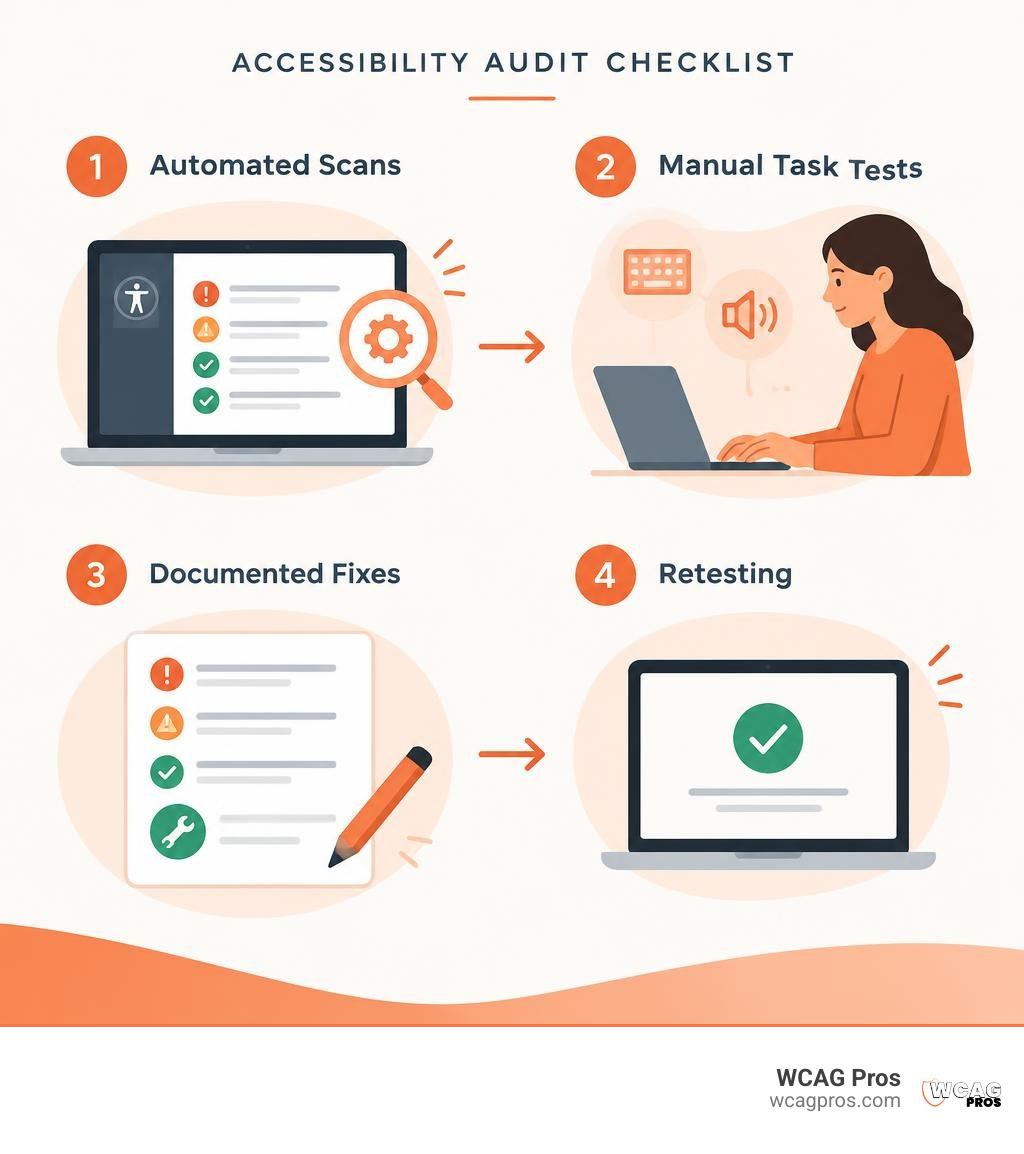
Critical Task-Blockers Exposed by Real-World Audits
When building complex front ends, teams often overlook how visual styling tricks cause major barriers for assistive technology. A standard scan might report dozens of small notices, but real-world testing quickly reveals blockers that halt conversions completely. Conducting a website WCAG full audit helps uncover these high-impact errors before they reach production.

In deep-dive reviews of modern enterprise codebases, such as technical evaluations of high-profile payment funnels, we see that world-class security posture does not prevent severe accessibility oversights. When an interactive journey stops a customer from signing up, submitting a lead, or paying for a subscription, accessibility becomes an immediate revenue issue.
Keyboard Traps and Hidden DOM Controls in Multi-Step Forms
Multi-step forms are common culprits for keyboard traps. Developers frequently hide inactive form steps by setting visual styles like opacity zero or CSS transforms while leaving the elements active in the Document Object Model.
In one audited sales funnel, 43 out of 53 focusable controls on the lead capture page belonged to hidden steps. This meant 81% of the tab stops on that page were completely invisible. A keyboard-only or screen reader user pressing Tab navigated through dozens of phantom inputs and phantom back buttons before reaching active fields.
To eliminate this barrier, inactive DOM nodes must be removed from the tab order. Use the HTML inert attribute on non-active steps or apply visibility: hidden or display: none in CSS. Removing elements from the accessibility tree when they are visually tucked away keeps the tab order clear.
Non-Descriptive Accessible Names and Voice Activation Failures
Assistive technology relies on programmatic names to announce controls. When developers use icon-only elements without accessible text, screen readers announce generic terms like “button” or nothing at all. In one audit, five functional buttons lacked accessible names entirely, including pagination arrows inside interactive calendar widgets.
Furthermore, WCAG 2.2 Criterion 2.5.3 requires that the programmatic accessible name contains the visible text label. In a public accessibility report for a national travel survey, testing revealed that the input label “Case serial number” mutated its accessible name to merely “Enter a text” on viewports below 1024px. This mutation broke speech recognition tools. A user dictating “Click Case serial number” could not activate the input because the underlying ARIA label no longer matched the visual text.
Structural and Semantic Pitfalls That Break Assistive Navigation
Screen reader users rely on semantic landmarks and heading structures to skim pages, build mental maps, and jump directly to relevant sections. When semantic hierarchy breaks down, non-visual navigation becomes tedious. Incorporating WCAG conformance testing strategies helps engineering teams identify semantic defects early.
Heading Hierarchy Collapse and Landmark Omissions
One frequent architectural defect is using visual UI components that hardcode primary heading tags. In one pricing page audit, engineers discovered 153 separate elements. A single pricing feature card component generated 125 of those top-level headings.
When a screen reader user opens their heading rotor to browse key topics, 153 primary headings create unmanageable noise. Best practice dictates a single descriptive representing the main topic, followed by an orderly sequence of and tags. Additionally, critical pages must include a landmark and a visible skip-to-content link so keyboard users can bypass repetitive navigation bars.
Single-Page Application State, Focus, and Title Management
Single-page applications (SPAs) dynamically swap content without triggering a standard browser reload. Without explicit scripts to manage document context, screen readers stay silent during route changes.
In one national travel survey SPA audit, the browser title remained static as “WNTS Main Stage” across every survey milestone. Assistive tech users had no confirmation that a new step had loaded. Understanding how to build an accessibility report for website teams ensures that dynamic routing defects are clearly documented with remediation code. SPAs should update document.title on every view change, reset programmatic focus to the top heading, and fire live region alerts via role="status".
Visual, Performance, and Contrast Bottlenecks on Critical Paths
Visual accessibility ensures that people with low vision or color perception variations can perceive text, icons, and interactive states comfortably. At the same time, front-end speed and DOM efficiency directly shape how smoothly assistive devices parse complex pages.
Color Contrast Failures on CTAs and Disclaimers
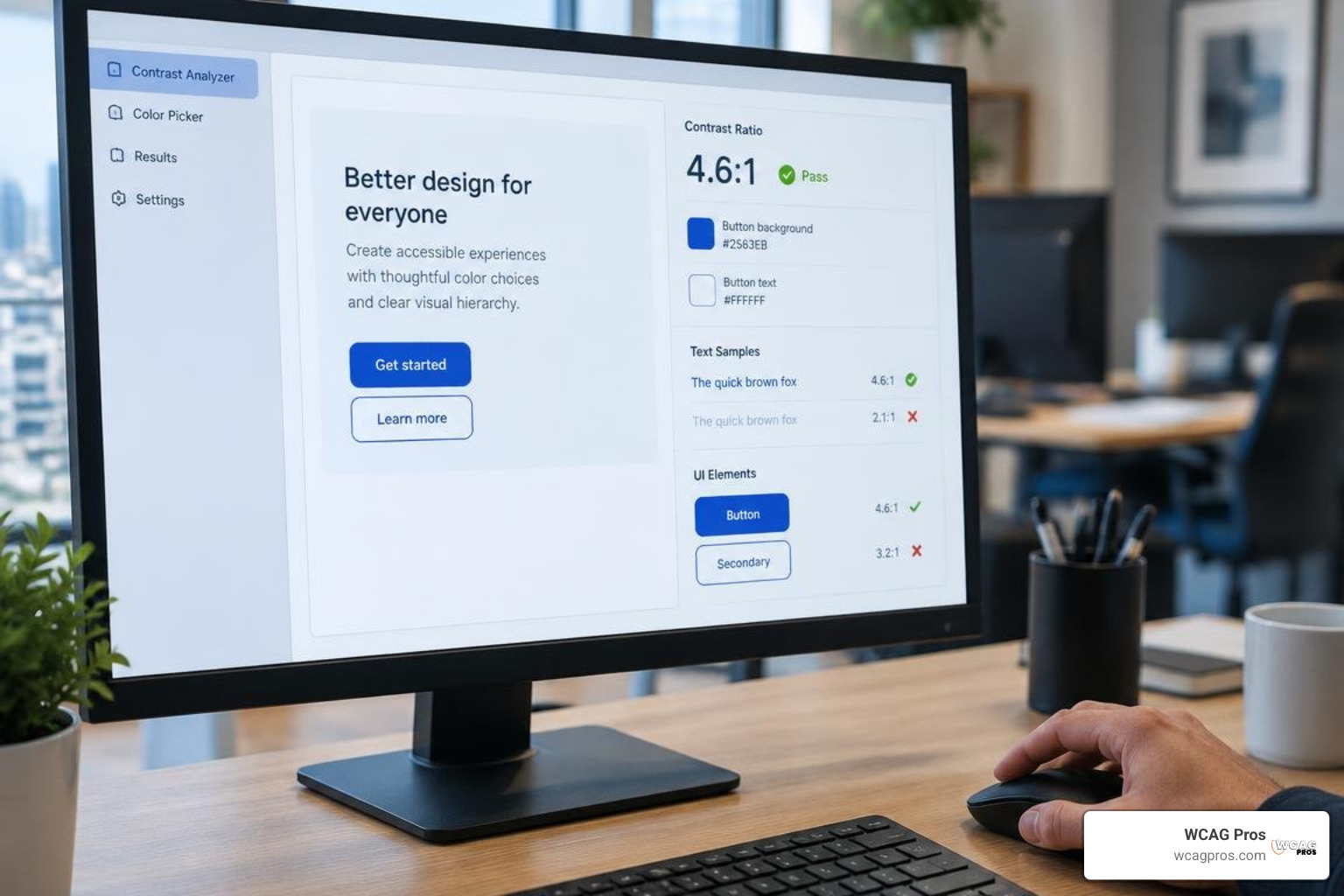
Under WCAG 2.2 Criterion 1.4.3, standard body copy and primary text require a contrast ratio of at least 4.5:1 against their background. Large text requires at least 3:1. Audits regularly uncover brand accent tokens that fall short of these minimums.
On one enterprise interface, the primary brand orange text token (#ff7600) on a white background produced a failing contrast ratio of 2.68:1. Across the wider site, 98 additional contrast failures appeared, including subtle fee qualifiers on pricing cards that measured 3.91:1. These low-contrast disclaimers create legal and usability risks for people reading key pricing conditions. Darkening the token to #C2410C comfortably lifts the ratio to 5.18:1 without losing brand identity.
| Testing Methodology | Detection Rate for WCAG 2.2 Criteria | Common Criteria Discovered |
|---|---|---|
| Automated Scans Only | 30% to 40% | Color contrast, missing alt attributes, missing form labels |
| Manual Keyboard and Assistive Testing | 60% to 70% | Keyboard traps, focus order, SPA route updates, context changes |
| Hybrid Comprehensive Audit | 100% of applicable criteria | Full coverage across all 54 WCAG 2.2 Level A, AA, and AAA checks |
Performance and DOM Bloat as Accessibility Barriers
Front-end performance directly affects accessibility. Heavy script bundles, uncontrolled DOM expansion, and unoptimized layout shifts cause screen readers to stutter, drop focus, or lock up entirely on mobile devices.
Auditing one enterprise site’s primary pages revealed a mobile Lighthouse performance score of 46, with a Largest Contentful Paint (LCP) clocking in at 4,759ms against the recommended 2,500ms target. Over 273 KiB of unused JavaScript contributed to 1,139ms of Total Blocking Time. Furthermore, the pricing layout measured 34,849px tall on a mobile viewport (equal to roughly 43 phone screens), with the first product card appearing 3,724px down the page. Coupled with 8 recurring Cross-Origin Resource Sharing (CORS) prefetch failures across stylesheets, heavy browser execution strains mobile assistive tools.
Step-by-Step Execution of a Detailed Website Accessibility Audit
A reliable audit methodology pairs automated tooling with rigorous manual verification. Automated scripts quickly flag syntax errors, but human testing verifies whether a real person can complete critical tasks. Following established WCAG 2.2 manual testing practices creates a repeatable rhythm for engineering squads.
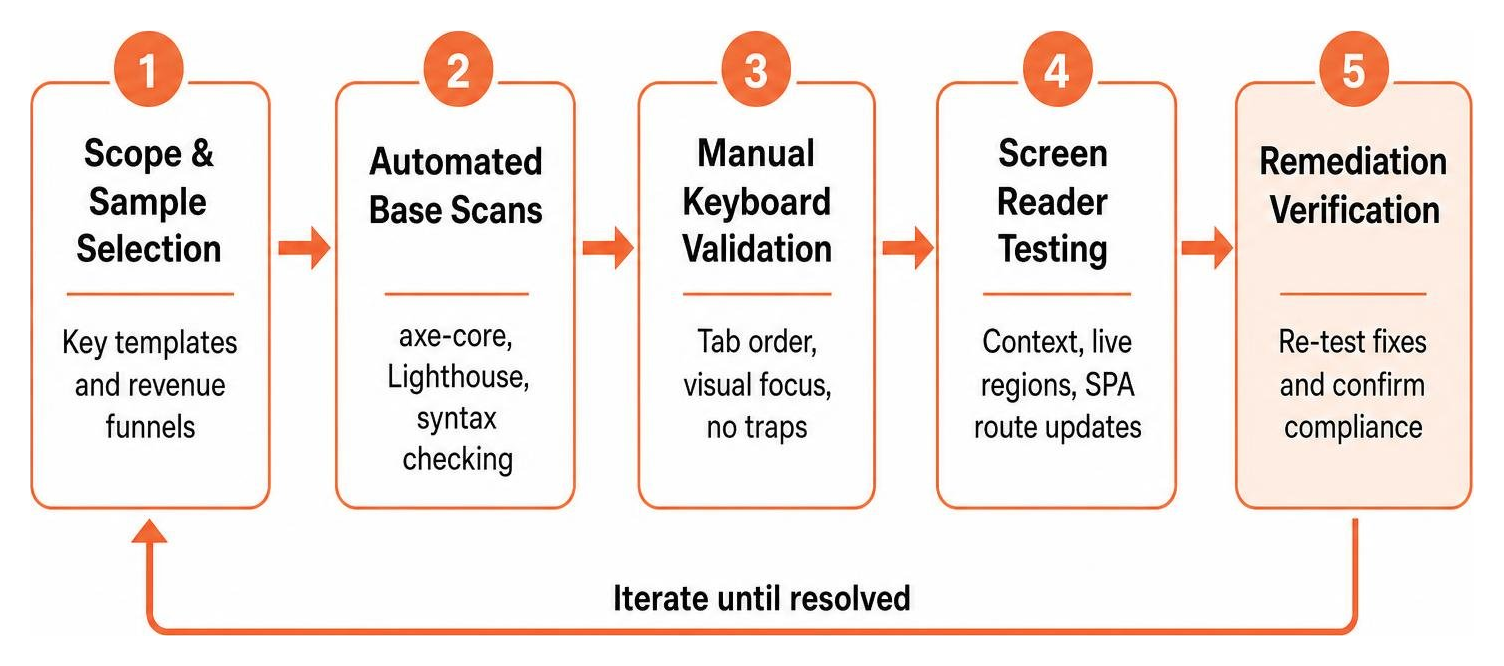
Scoping a Detailed Website Accessibility Audit for Enterprise Architecture
To scope an enterprise audit efficiently, identify unique page templates, high-traffic conversion flows, and stateful application views rather than attempting to test thousands of static URLs manually. Official guidelines, such as those cataloged in state-level Website Accessibility Resources, highlight the importance of testing dynamic paths, authenticated portals, and checkout journeys.
Ensure your testing matrix covers:
- Core public layouts (homepage, pricing, contact, resource centers)
- Interactive conversion funnels (checkout, lead capture, registration)
- Stateful components (modals, accordions, dynamic filtering, flyout menus)
- Cross-platform combinations (NVDA on Firefox, JAWS on Chrome, VoiceOver on Safari)
High-Leverage Fixes Uncovered in a Detailed Website Accessibility Audit
Many high-impact findings require only minor code adjustments. Engineering teams can frequently resolve the most severe barriers in a single afternoon sprint:
- Apply
inertto inactive multi-step containers to eliminate hidden keyboard traps instantly. - Adjust global design tokens in your CSS variables or Tailwind configuration to resolve sitewide contrast failures.
- Add descriptive
aria-labelstrings to icon buttons such as search toggles, close icons, and calendar arrows. - Group related radio buttons or checkboxes inside native
elements equipped with programmatictags. - Insert a skip-to-content anchor as the first focusable child of your body element.
Frequently Asked Questions About Website Accessibility Audits
What is the most critical failure identified in accessibility audits?
The most critical failures are DOM keyboard traps and unlabelled interactive inputs inside primary user flows. If a keyboard user cannot advance past an invisible form step or a screen reader user cannot identify a checkout button, the user is completely blocked from completing the transaction.
How do single-page applications fail WCAG 2.2 title and focus standards?
SPAs often fail WCAG 2.2 Criterion 2.4.2 (Page Titled) and Criterion 2.4.3 (Focus Order) by neglecting to update the browser title tag and failing to redirect keyboard focus to the new main content container following client-side route transitions.
What quick remediations can engineering teams deploy in a single sprint?
Teams can update global CSS color tokens to meet the 4.5:1 ratio, apply the HTML inert attribute to hidden modal and drawer wrappers, add descriptive accessible names to icon-only buttons, and refactor hardcoded tags inside reusable cards into semantic paragraphs or lower-level headings.
Conclusion
A successful website accessibility audit provides more than an automated list of warnings. It delivers a clear, actionable remediation roadmap that unlocks revenue funnels, elevates search visibility, and ensures equal access for every customer.
At WCAG Pros, based in Norco, CA, our team provides comprehensive page-by-page audits evaluating all 54 WCAG A through AAA checkpoints. We provide code-level fixes and deliver complimentary re-audits to ensure your team earns full compliance certification. Ready to remove conversion blockers and protect your business against legal exposure? You can schedule your detailed website accessibility audit with our engineering team today.
Read more website accessibility articles
Get Help With Your Website
We'll follow up with info about:
- The process
- Cost
- Timeline
We promise to respect your privacy, and never abuse the information you provide. We will not sell or rent your information to any third party.
By submitting this form, you consent to receive SMS messages and/or emails from SEM Dynamics LLC, dba WCAG Pros. To unsubscribe, follow the instructions provided in our communications. Msg & data rates may apply for SMS. Your information is secure and will not be sold to third parties.