
Master Keyboard Navigation and WCAG 2.2 Focus Visibility in WordPress
Master Keyboard Navigation and WCAG 2.2 Focus Visibility in WordPress
Build a Visible WCAG Focus Indicator in WordPress
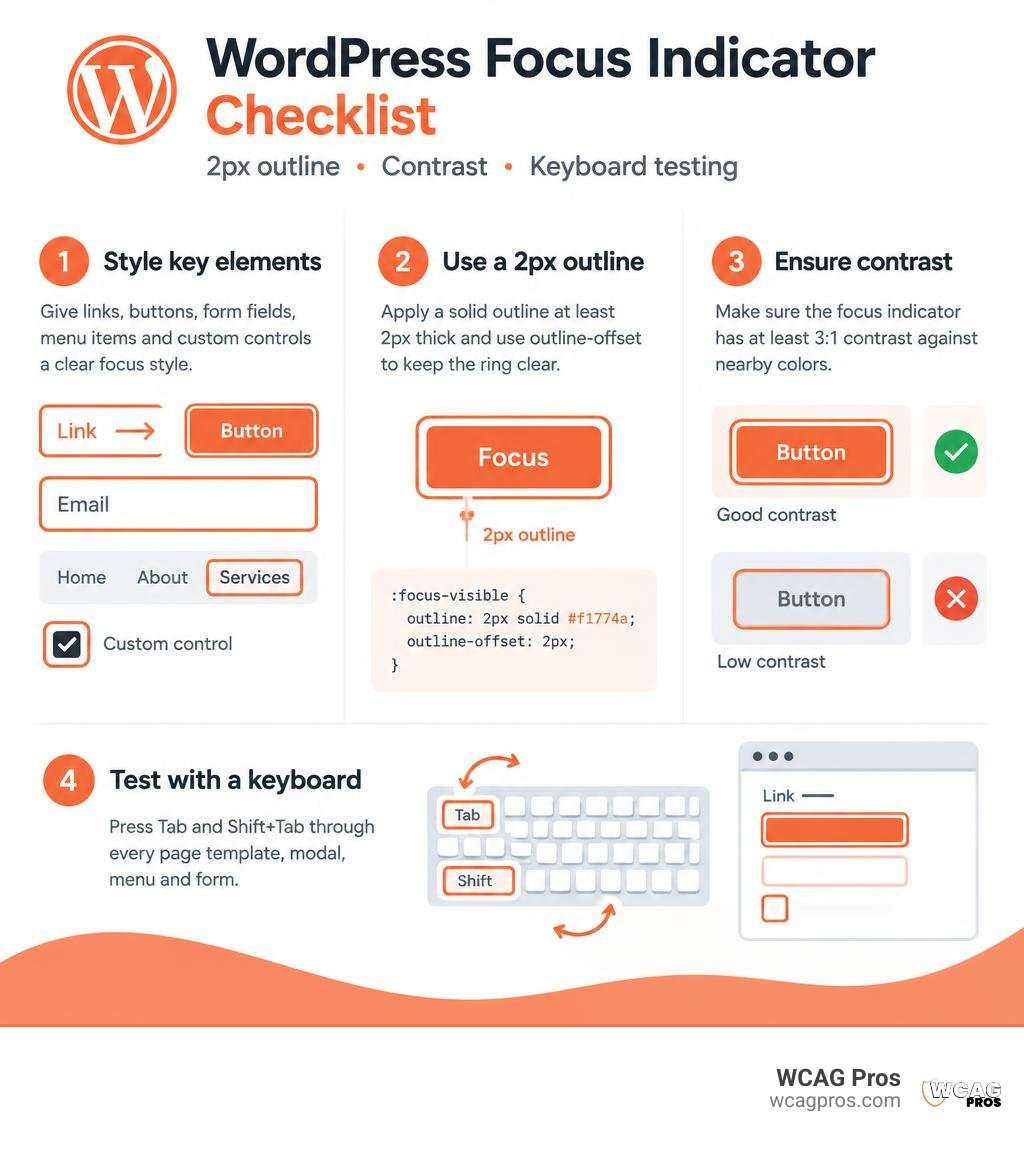
To create a WCAG focus indicator in WordPress, give every keyboard focusable element a clear :focus-visible style. Use a solid outline that is at least 2px thick, make sure it has at least 3:1 contrast against nearby colors, and never remove the browser outline unless you replace it with something equally visible.
- Style links, buttons, form fields, menu items, and custom controls.
- Use
outlineas the reliable base style, withoutline-offsetto keep the ring clear of the element. - Add a second color with
box-shadowwhen pages use both light and dark backgrounds. - Test by pressing Tab and Shift+Tab through every page template, modal, menu, and form.
A visible focus ring is the keyboard user’s cursor. Without it, visitors can land on a button, link, or form field without knowing where they are. That creates a real barrier for people with limited mobility, low vision, cognitive disabilities, screen reader users who also navigate visually, and anyone who chooses a keyboard over a mouse.
WCAG 2.2 requires visible keyboard focus, while newer focus requirements set clearer expectations for contrast, size, and whether focus is obscured. A theme, page builder, or plugin can break this with a broad rule such as outline: none, a low contrast color, or a focus ring hidden behind another layer.
I am Matthew Post, co founder of WCAG Pros and a web development professional with more than 20 years of experience auditing and remediating accessibility issues. My WCAG focus indicator WordPress work helps commercial site owners find keyboard barriers, improve usability, and reduce accessibility risk.
WCAG focus indicator WordPress word guide:
Understanding Focus Indicators and Why They Matter for Keyboard Accessibility
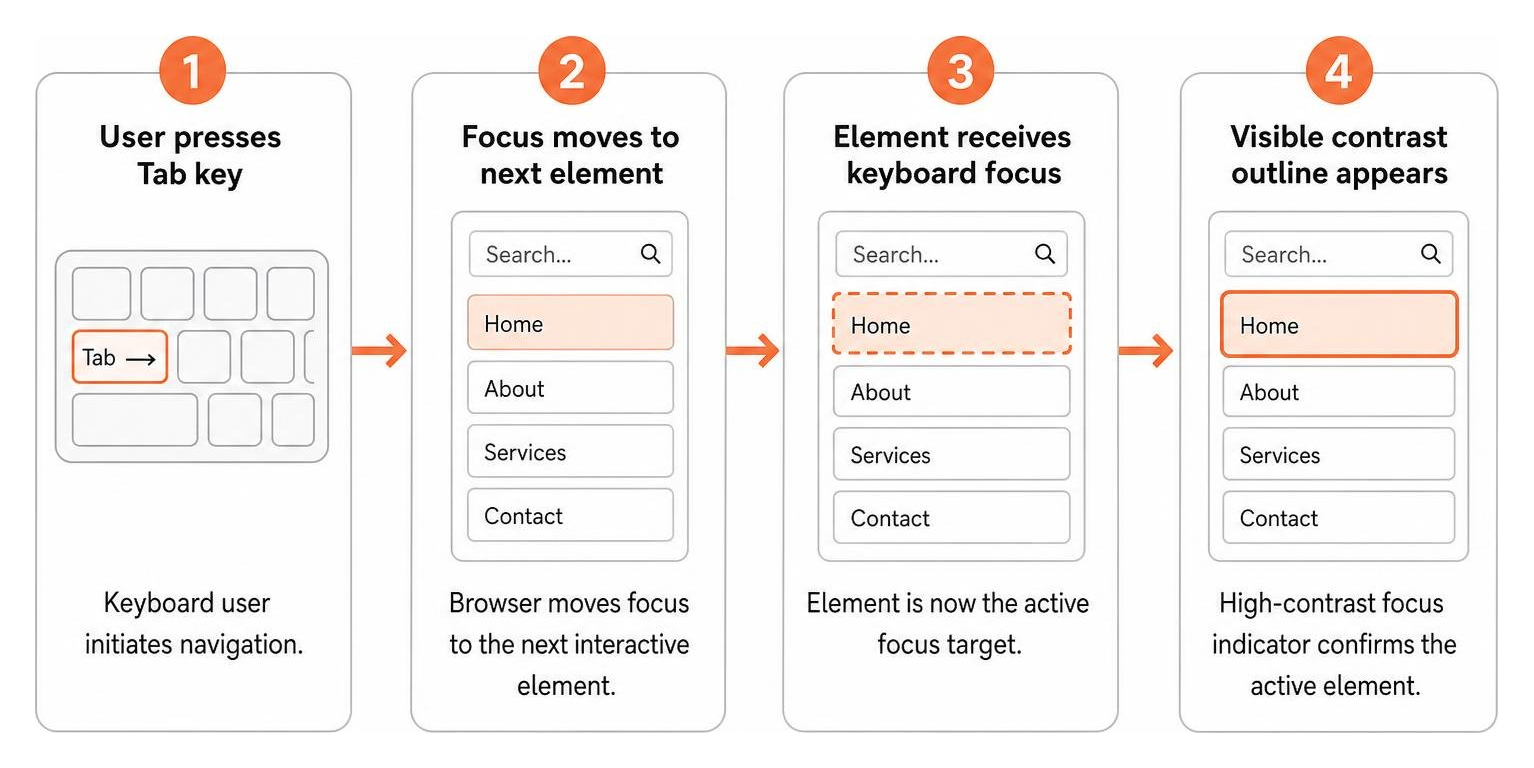
A focus indicator is a visual marker that highlights the specific element currently selected by keyboard navigation. When sighted mouse users browse your site, their pointer provides constant visual feedback. For keyboard users, pressing the Tab key moves them from one interactive element to the next. Without an unmistakable focus ring, browsing becomes completely blind guesswork.
Research indicates that about 27% of web users navigate primarily via keyboard or alternative input hardware. Additionally, roughly 1 in 4 adults in the United States live with some form of disability. When a website features clear, prominent focus indicators, task completion is about 15% faster for keyboard navigators compared to sites with faint or missing rings. Building a solid foundation for keyboard navigation is a core step in the complete guide to make WordPress site ADA compliant.
Who Relies on Visible Focus Indicators?
Focus indicators support a wide range of visitors who navigate digital experiences without a traditional mouse pointer:
- People with motor disabilities: Individuals with tremors, arthritis, cerebral palsy, Parkinson’s disease, or spinal cord injuries often rely on standard keyboards, ergonomic keyboards, mouth sticks, or single-switch access devices.
- Low-vision and aging users: Visitors who need visual clarity require high-contrast outlines that stand out prominently against diverse background colors.
- People with cognitive or attention differences: A distinct outline anchors attention, helping users track their current location on complex, busy web pages without losing context.
- Screen reader users with partial vision: Many screen reader users browse visually while listening to audio announcements, using the visible focus ring to verify the active component.
- Power users: Many experienced users simply prefer keyboard shortcuts and rapid Tab key navigation for high-efficiency browsing.
The Problem: How Themes and Plugins Break Focus Visibility
Why are focus indicators so frequently broken on WordPress sites? In many cases, designers or theme authors consider default browser outlines visually disruptive. To create what they believe is a cleaner look, they add destructive CSS rules like outline: none !important or outline: 0.
When these resets are placed in theme stylesheets or page builder settings without providing an accessible replacement, keyboard navigation fails. Interactive components like search bars, navigation links, sliders, and form submission buttons become completely invisible during keyboard interaction. Users cannot see what they have selected, leading to immediate site abandonment, broken transactions, and heightened legal exposure under ADA Title III regulations.
WCAG Standards Governing WCAG Focus Indicator WordPress Requirements
The Web Content Accessibility Guidelines establish clear criteria to ensure all interactive elements remain operable and visually trackable. Meeting these benchmarks is essential for both user satisfaction and legal protection. For an in-depth look at these standards, explore a comprehensive guide to WCAG 2.2 Level AA standards.
Success Criterion 2.4.7: Focus Visible (Level A)
The baseline rule in the guidelines is Understanding Success Criterion 2.4.7: Focus Visible | WAI. This requirement states that any keyboard-operable user interface must have a mode of operation where the keyboard focus indicator is visible.
At its most fundamental level, whenever an interactive element receives focus, at least some pixels on the screen must change to confirm that the element is active. Completely stripping focus rings with CSS resets without an alternative styling violates this Level A criterion directly.
Success Criterion 2.4.13: Focus Appearance (Level AAA)
While Focus Visible requires that an indicator exist, newer guidelines introduce more precise geometric and contrast expectations under Focus Appearance. As detailed in a guide to designing accessible, WCAG-conformant focus indicators, this criterion requires:
- Minimum Area: The focus indicator must have an area at least as large as a 2px thick solid perimeter around the unfocused component.
- Contrast Ratio: The indicator must achieve a contrast ratio of at least 3:1 between the focused and unfocused states of the element.
- Adjacent Contrast: The indicator must also achieve at least 3:1 contrast against adjacent background colors, or maintain a thickness of at least 2px across its perimeter.
Indicators meeting these enhanced standards are proven to be 2 to 3 times more visible, significantly improving usability for low-vision visitors.
Success Criterion 1.4.11: Non-Text Contrast (Level AA)
Success Criterion 1.4.11 requires that the visual presentation of user interface components and graphical objects achieve a contrast ratio of at least 3:1 against adjacent colors.
For WordPress site owners, this means that if you choose a custom color for your focus indicator, such as a brand blue or a warm gold, that color must maintain a 3:1 contrast ratio against the surrounding background. If you place a light blue focus outline on a white background, it will fail this test even if an outline is technically present.
How to Style an Accessible WCAG Focus Indicator WordPress Theme
Crafting an accessible, aesthetically pleasing focus indicator across a full WordPress theme requires the right CSS properties and selectors. For modern techniques, refer to our WordPress Accessibility Guide 2026.
The 2px Solid Outline and Two-Color Strategy
A standard 1px dotted outline is often difficult to spot, especially on high-resolution displays. A 2px solid outline provides a much stronger visual cue. However, modern websites frequently mix light and dark sections, making a single outline color tricky to maintain.
To solve this challenge without writing dozens of custom context rules, implement a two-color indicator. As highlighted in Designing Custom Focus Indicators, combining a light color with a dark color guarantees contrast on any solid background.
If you select two outline colors that contrast with each other by at least 9:1 (such as pure white #ffffff and deep black #000000), at least one of those colors will mathematically achieve a 3:1 contrast ratio against any solid background. You can create this effect in CSS by pairing a solid outline for the inner band with an outer box-shadow ring, and adding an outline-offset to provide clear separation from the element edge.
Implementing Focus Styles Across Theme.json and Stylesheets
WordPress block themes use theme.json to define global design tokens. However, managing focus rings across both the front-end layout and the Site Editor requires careful specificity management.
During the development of default block themes, developers addressed specific challenges where high-specificity focus selectors unintentionally interfered with Site Editor UI components, as documented in #60535 (Twenty Twenty-Four: Unintended focus outline is applied in the Site Editor) (WordPress Trac).
To apply custom focus indicators cleanly across front-end content without breaking block editing controls in WordPress, use modern CSS selectors such as :where() to keep specificity low:
- Target all interactive elements using
:where(.wp-site-blocks *:focus-visible). - Include all native interactive tags, such as anchor links, button elements, text inputs, textareas, and select menus.
- Ensure any custom elements with a
tabindex="0"attribute automatically inherit these standardized focus properties.
Using :focus-visible instead of :focus ensures that keyboard users see prominent rings when tabbing, while mouse users do not trigger focus outlines on standard clicks.
Supporting Forced Colors and High Contrast Modes
Many low-vision users rely on operating system settings like Windows High Contrast Mode (also known as Forced Colors mode). In forced-colors mode, the operating system overrides author-defined background colors, box shadows, and text colors to enforce high-contrast system palettes.
CSS properties like box-shadow are completely suppressed in forced-colors mode. If your focus indicator relies entirely on box-shadow, it will become completely invisible to high-contrast users.
As discussed in Gutenberg core developments like Components: Consolidate focus style treatment, always use the native outline property as your primary focus indicator. The outline property respects system color mapping and follows border-radius curves in modern browsers, ensuring seamless visibility across assistive viewing modes.
No-Code Methods: Adding Focus Indicators via WordPress Customizers and Custom CSS
If you are managing a WordPress site without direct theme development access, you can still restore and enhance your focus indicators easily.
Restoring Focus Rings with WordPress Custom CSS
If your active theme hides focus rings, you can override those restrictions using the WordPress Additional CSS panel:
- Navigate to Appearance > Customize in your WordPress dashboard.
- Select Additional CSS at the bottom of the sidebar.
- Add a universal focus rule targeting
:focus-visiblewith a 2px solid high-contrast outline and a 2px outline offset. - Publish your changes and clear all caching plugins, server caches, and CDN layers.
- Open an incognito browser window and press Tab to confirm that interactive elements display visible rings.
Evaluating Third-Party WordPress Themes and Addons
Not all commercial themes handle keyboard accessibility properly right out of the box. Even popular default themes have undergone revisions to resolve accessibility gaps. For example, the WordPress accessibility team identified that the original 1px dotted outline in Twenty Twenty-Four was inadequate for low-vision users, leading to official improvements in #60334 (Twenty Twenty-Four: Focus outline is insufficient) (WordPress Trac).
When testing third-party plugins, look out for complex interactive components:
- Modal Popups: Ensure that opening a modal traps keyboard focus inside the dialog and displays a visible ring on the close button.
- Dropdown Menus: Verify that child menu items reveal themselves and show clear focus outlines when tabbed through.
- Image Sliders and Carousels: Check that previous, next, and pagination buttons provide visible focus states.
- Cookie Consent Banners: Ensure banner buttons are early in the tab order and clearly highlighted.
Best Practices and Mistakes to Avoid for WCAG Focus Indicator WordPress Styling
Designing effective focus rings requires balancing visibility with clean UI styling.
| Focus Technique | WCAG Status | Usability Impact |
|---|---|---|
outline: none without replacement | Fails WCAG 2.4.7 (Level A) | Critical barrier. Keyboard users cannot navigate. |
| Faint 1px dotted outline | Fails WCAG 2.4.13 (Level AAA) | Very hard to see on high-resolution displays. |
| Low-contrast color (under 3:1) | Fails WCAG 1.4.11 (Level AA) | Fails contrast checks. Hard to distinguish from background. |
| Color-only background shift | High Risk | Ineffective for color-blind or low-vision users. |
| 2px solid outline with 3:1+ contrast | Passes WCAG 2.2 Level AA | Clear, recognizable, and highly accessible across browsers. |
| Two-color ring (outline + box-shadow) | Passes WCAG 2.2 Level AAA | Visible across all backgrounds, light or dark. |
Styling Links, Buttons, and Custom Form Components
Every type of interactive element requires a thoughtful approach:
- Text Links: Ensure the outline wraps cleanly around the text without clipping descenders. Adding an
outline-offset: 2pxcreates breathing room between the text and the ring. - Buttons: For buttons with rounded corners, modern browsers automatically curve the
outlineto match the element’sborder-radius. - Form Inputs and Textareas: Avoid relying solely on an inner border color change. Combine border highlights with a visible external outline to satisfy both non-text contrast and focus appearance requirements.
- Radio Buttons and Checkboxes: Native controls can be small. Ensure custom replacement checkboxes retain a prominent focus ring around the entire clickable area.
- Skip Links: Provide a skip-to-content link as the first focusable element on the page. Keep it visually hidden off-screen until it receives focus, at which point it should appear prominently at the top of the viewport with a high-contrast background and outline.
Avoiding Common Focus Failures
Watch out for these frequent styling pitfalls during theme development:
- Z-Index and Overflow Clipping: If an interactive element sits inside a container with
overflow: hidden, an external focus outline may get sliced off. Test nested elements to ensure the outline remains fully visible. - Confusing Hover and Focus States: While hover and focus states can share styling, focus indicators should be equal to or more prominent than hover states so keyboard users never lose their position.
- Delayed Animations: Avoid adding slow transition animations to focus indicators. An outline should appear immediately upon focus so rapid tabbing remains responsive.
How to Test and Audit Keyboard Focus on Your WordPress Site
Testing keyboard accessibility is straightforward and should be part of every regular website maintenance routine. To understand the foundational basics of accessibility auditing, review our guide to ADA Compliance WordPress 101.

Manual Keyboard Navigation Auditing
Automated scanners cannot catch every focus issue. A manual keyboard audit is the most reliable way to evaluate focus indicators:
- Unplug or turn off your mouse.
- Open your website in a desktop browser.
- Press the Tab key to move forward through the page, and Shift + Tab to move backward.
- Verify that you can see a crisp, high-contrast indicator on every link, button, input field, and control.
- Check for keyboard traps where focus gets stuck inside a widget and cannot be exited using standard arrow or Tab keys.
- Open mobile navigation menus and dialogs using the Enter or Space key and confirm that focus moves logically inside the opened panel.
Automated Contrast and Accessibility Tools
Supplement your manual audits with automated tooling:
- Browser Developer Tools: Use the element inspector to force the
:focus-visiblestate on components and check their computed contrast ratios against adjacent background colors. - Axe DevTools and Lighthouse: Run automated page scans to detect missing labels, low-contrast components, and basic focus visibility failures.
- WAVE Evaluation Tool: Use the WAVE extension to visually check the tab sequence and identify elements that lack accessible names or focus styles.
While automated tools catch 30% to 40% of common accessibility errors, comprehensive manual verification ensures that custom JavaScript components and dynamic WordPress plugins remain fully accessible.
Frequently Asked Questions about Focus Indicators in WordPress
Can I use box-shadow instead of outline for focus indicators?
While box-shadow can create stylish focus rings, relying on it exclusively is risky. In Windows High Contrast Mode (Forced Colors mode), custom box-shadow declarations are completely removed. Always define a solid outline first, and use box-shadow only as an optional secondary layer for multi-color contrast effects.
How do I stop focus outlines from showing on mouse clicks?
Use the :focus-visible CSS pseudo-class rather than standard :focus. Modern browsers apply :focus-visible when a user navigates via keyboard, switch device, or screen reader, but withhold the outline during standard mouse clicks and touch taps.
Does the default browser focus ring meet WCAG 2.2 standards?
Default browser focus indicators have improved significantly in modern versions of Chrome, Firefox, and Safari. However, depending on your theme’s background colors, image banners, and button designs, default browser rings may still fail the 3:1 contrast requirement under Success Criterion 1.4.11. Implementing custom, high-contrast focus indicators ensures universal compliance across all browsers and devices.
Conclusion
A clear, high-contrast focus indicator is one of the most vital accessibility features on any WordPress website. By styling interactive elements with a solid 2px outline, verifying a 3:1 contrast ratio, and leveraging the :focus-visible pseudo-class, you create an inviting digital experience for all visitors while meeting the rigorous expectations of WCAG 2.2 Level AA and AAA standards.
Whether you run a fast-growing e-commerce store, a corporate portal, or a community blog, building accessibility directly into your theme ensures long-term compliance and superior usability. At WCAG Pros, we specialize in helping organizations achieve and sustain full digital accessibility. If you want expert support to evaluate your site, resolve complex theme issues, or secure an official compliance badge, reach out to our team for comprehensive WCAG Remediation Services.
Read more website accessibility articles
Get Help With Your Website
We'll follow up with info about:
- The process
- Cost
- Timeline
We promise to respect your privacy, and never abuse the information you provide. We will not sell or rent your information to any third party.
By submitting this form, you consent to receive SMS messages and/or emails from SEM Dynamics LLC, dba WCAG Pros. To unsubscribe, follow the instructions provided in our communications. Msg & data rates may apply for SMS. Your information is secure and will not be sold to third parties.