
How to Find an Accessible WordPress Plugin with These 5 Easy Changes
How to Find an Accessible WordPress Plugin with These 5 Easy Changes
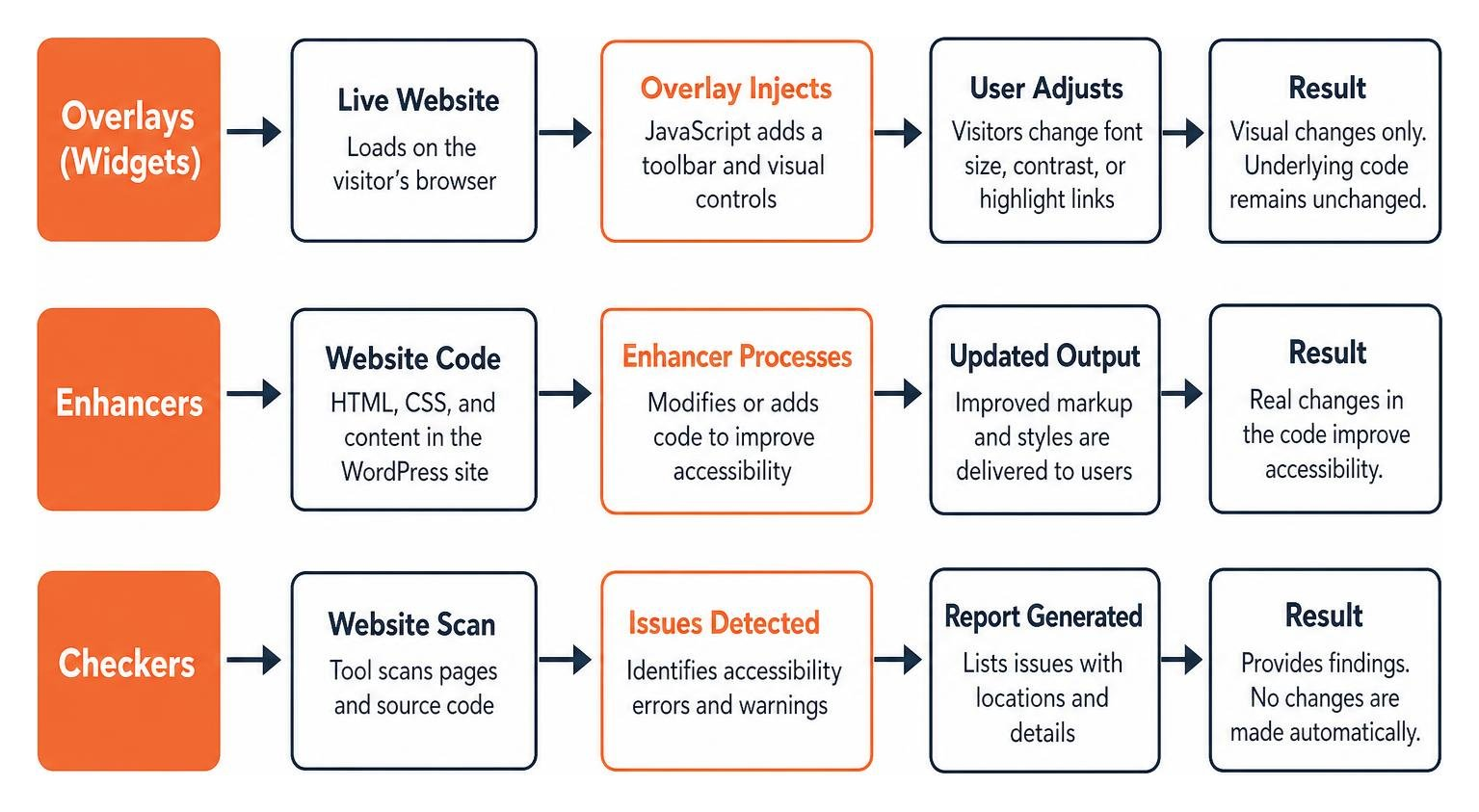
Understanding the 3 Types of WordPress Accessibility Tools
To choose an effective WCAG WordPress plugin, evaluate tools using five essential steps: prioritize code-level markup remediation over visual toolbars, verify in-editor scanning capabilities, confirm compliance checks for WCAG 2.2 standards, test for minimal site performance impact, and ensure compatibility with your page builders. Selecting the right solution requires knowing how different approaches interact with your website code. You can explore The Definitive Guide to the Best Accessibility Plugins for WordPress to see detailed comparisons across multiple categories.
Accessibility Overlays and Widgets
Accessibility overlays and widgets inject a visual JavaScript toolbar onto your live website. Visitors can click buttons to adjust font sizes, alter color contrast, or highlight links.
While these tools offer visual adjustments for some users, they act like cosmetic bandages. They do not fix underlying source code defects, and screen reader users frequently find that third-party toolbars interfere with their assistive devices.
Accessibility Enhancers and Code Fixers
Accessibility enhancers work under the hood. Instead of adding floating interface buttons, they modify the Document Object Model (DOM) directly when the page loads.
These plugins inject necessary structural elements such as skip navigation links, visible keyboard focus outlines, language attributes, and form labels. Because they resolve missing HTML attributes directly in the rendered markup, they provide genuine functional improvements for assistive technologies without disrupting your visual layout.
Accessibility Checkers and Diagnostic Scanners
Accessibility checkers act as diagnostic auditing tools inside your WordPress administrative dashboard. They analyze your pages, theme templates, and content against international guidelines, highlighting detectable errors directly in the editor.
These tools show you where missing image alt text, broken heading hierarchies, and poor color contrast ratios exist, allowing your content creators to resolve issues before hitting publish.
Top 5 WCAG WordPress Plugin Options for 2026
To help you choose the right tool for your site, we evaluated the top WordPress accessibility tools based on active installations, user feedback, technical architecture, and compatibility with modern WordPress versions.
| Plugin Name | Primary Category | Active Installs | WordPress.org Rating | Best For |
|---|---|---|---|---|
| Equalize Digital Accessibility Checker | In-Editor Scanner | 10,000+ | 4.6 / 5 | Real-time content audits |
| WP Accessibility | Code Enhancer | 60,000+ | 4.8 / 5 | Theme code remediation |
| RayWP Accessibility | Server-Side DOM Injector | Active | High | ARIA and landmark injection |
| Accessibility Guard | Source Scanner | Active | Open Source | Page builder checking |
| AccessiYes by CookieYes | Visitor Toolbar | Growing | 4.7 / 5 | Lightweight visitor controls |
1. Equalize Digital Accessibility Checker: Best In-Editor WCAG WordPress Plugin
Equalize Digital Accessibility Checker embeds accessibility auditing directly into the WordPress post and page editor. As content creators write and design pages, the plugin performs over 40 automated checks mapped to WCAG 2.2 Level A and AA standards.
The tool provides inline visual feedback, flagging errors with clear explanations and suggested fixes right next to your content. It also includes an automated readability tool that flags complex text and suggests simplified summaries for advanced reading levels.
Because it operates entirely on your local server without external API dependencies, it protects user privacy while auditing draft pages in real time. For a broader view of maintaining digital compliance, review our WordPress Accessibility Guide 2026.
2. WP Accessibility by Joe Dolson: Best Code-Level Enhancer
Developed by recognized accessibility specialist Joe Dolson, WP Accessibility Plugin on WordPress.org is one of the most trusted helper tools in the WordPress ecosystem. With over 60,000 active installations and a 4.8 out of 5 rating, this lightweight plugin targets common theme deficiencies without adding bloat.
The plugin provides vital code-level enhancements, including:
- Adding configurable skip-to-content navigation links for keyboard users
- Enforcing visible focus outlines on interactive elements
- Adding language and text direction attributes to theme markup
- Stripping redundant title attributes from images and tag clouds
- Identifying images in your media library that lack alternative text
It operates quietly in the background, making it an excellent choice for correcting older or poorly coded themes.
3. RayWP Accessibility: Best Server-Side DOM Injector
RayWP Accessibility Plugin takes a technical, developer-friendly approach to web accessibility by processing the WordPress output buffer before HTML is delivered to the browser. This allows the plugin to remediate code across entire templates without modifying your underlying theme files.
The plugin excels at injecting ARIA landmark roles and navigation labels via custom CSS selectors. It includes a real-time selector testing tool within the administrative dashboard so you can verify targets before deploying rules.
It also scans your site for contrast failures, missing iframe titles, and auto-playing media while processing all data locally on your server.
4. Accessibility Guard: Best Source-Code Scanner
For site owners who rely heavily on visual page builders like Elementor or Divi, Accessibility Guard offers source-code level scanning. Built as a WCAG 2.2 scanner and available as an open-source repository on GitHub, it analyzes rendered HTML output rather than raw database strings.
This approach ensures that complex grid layouts, nested columns, and builder widgets are evaluated accurately. The plugin runs automated scans across your published content, provides auto-fix capabilities for basic markup errors, and helps generate a baseline accessibility statement to document your remediation progress.
5. AccessiYes by CookieYes: Best Free Visitor Toolbar WCAG WordPress Plugin
If your organization wants to provide optional front-end adjustments alongside structural code fixes, AccessiYes by CookieYes offers a well-built visitor toolbar. Holding a 4.7 out of 5 rating on WordPress.org, it delivers essential visual tools at no cost.
The plugin enables visitors to adjust text spacing, toggle high-contrast display modes, and highlight clickable links on demand. Built with lightweight scripts, it minimizes performance overhead while giving your audience helpful visual customization options.
5 Critical Checks Before Choosing a WCAG Plugin
Before installing any accessibility tool on your production site, evaluate it against these five practical criteria to ensure you are truly improving access.
1. Verify Code-Level Fixes Over Superficial Overlays
Look for tools that modify semantic HTML structures rather than purely visual presentation. Ensure your chosen plugin correctly adds ARIA landmark roles, associates form labels with input fields, and implements keyboard skip links. You can follow The Complete Guide to Make WordPress Site ADA Compliant to verify how your site’s structural markup performs during assistive tech reviews.
2. Test for Website Speed and Performance Impact
Heavy JavaScript scripts can drag down page load speeds and negatively impact Core Web Vitals. Run a speed test using Google PageSpeed Insights before and after activating any plugin. Favor tools that execute operations server-side or run scans asynchronously in the WordPress admin panel.
3. Check Compatibility with Page Builders and Dynamic Forms
Many WordPress sites rely on complex form builders like Contact Form 7, Gravity Forms, or WPForms, alongside layout engines like Elementor. Ensure your plugin analyzes rendered HTML output so that interactive dropdowns, modals, and multi-step forms are properly audited. You should also conduct regular screen reader wordpress testing to confirm dynamic elements work as expected.
4. Ensure Alignment with WCAG 2.2 Conformance Criteria
Accessibility standards evolve over time. Ensure the plugin tests against current WCAG 2.2 Level AA success criteria, including focus appearance, dragging movements, and target size minimums. Understanding core requirements outlined in ADA Compliance WordPress 101 will help you evaluate whether a plugin covers the right checkpoints.
5. Confirm Local Data Processing and Privacy Standards
Check whether the plugin processes audit scans directly on your web server or sends data to external cloud APIs. Local processing ensures your administrative operations remain fast and protects sensitive visitor data under global privacy regulations.
Why Plugins Cannot Guarantee 100% ADA or EAA Compliance

A common misconception in web management is that installing a single plugin makes a website instantly and fully compliant with accessibility laws. In reality, automated scanning tools can only detect approximately 40 percent of all WCAG success criteria failures.
Automated software can verify whether an image contains an alt attribute, but it cannot determine if the written description accurately describes the image context. Similarly, software cannot evaluate whether complex custom checkout flows or interactive menus provide an intuitive experience for assistive technology users.
Laws such as Title III of the ADA in the United States and the European Accessibility Act (EAA) expect digital platforms to be accessible by default. While deploying a solid plugin demonstrates proactive, good faith effort toward accessibility, achieving total compliance requires native theme improvements and manual testing. Review our guide on WordPress ADA Compliant websites, or learn How to Hire a WordPress ADA Compliance Consultant Without Losing Your Mind when you need specialized expertise.
Frequently Asked Questions About WordPress WCAG Plugins
Can a WordPress accessibility plugin guarantee full WCAG 2.2 compliance?
No automated plugin can guarantee complete WCAG 2.2 compliance on its own. Automated tools detect roughly 40 percent of accessibility errors. The remaining criteria, such as logical keyboard tab order, clear error instructions, and descriptive media transcripts, require human evaluation and manual code remediation.
Will installing a WCAG plugin slow down my WordPress site?
It depends on the plugin type. Lightweight code enhancers and local diagnostic scanners have minimal impact on page load times because they execute simple PHP operations or run in the dashboard. However, third-party overlay toolbars that load large external JavaScript files can slow down your site and degrade Core Web Vitals scores.
What is the difference between an accessibility overlay and a code enhancer?
An accessibility overlay adds a floating visual toolbar that lets users toggle display settings using client-side JavaScript, without altering the underlying website code. A code enhancer directly modifies the HTML and DOM markup upon page delivery, inserting semantic landmarks, visible keyboard focus outlines, and skip links that assist screen readers and keyboard users natively.
Conclusion
Finding the right WordPress accessibility plugin is an important first step toward creating an inclusive online experience. By focusing on tools that resolve code-level barriers, audit content inside your editorial workflow, and respect site performance, you can eliminate dozens of common accessibility errors quickly.
However, plugins are most effective when combined with a broader accessibility strategy. At WCAG Pros, based in Norco, CA, we help organizations achieve genuine digital compliance through comprehensive page-by-page audits covering all 54 WCAG 2.2 Level A through AAA checkpoints. Our team provides precise code fixes, assistive technology validation, and re-auditing to keep your site accessible.
When you are ready to address underlying theme code and achieve true accessibility, partner with our team for professional WCAG remediation services.
Read more website accessibility articles
Get Help With Your Website
We'll follow up with info about:
- The process
- Cost
- Timeline
We promise to respect your privacy, and never abuse the information you provide. We will not sell or rent your information to any third party.
By submitting this form, you consent to receive SMS messages and/or emails from SEM Dynamics LLC, dba WCAG Pros. To unsubscribe, follow the instructions provided in our communications. Msg & data rates may apply for SMS. Your information is secure and will not be sold to third parties.