
The Complete Guide to Make WordPress Site ADA Compliant
The Complete Guide to Make WordPress Site ADA Compliant
Why Making Your WordPress Site ADA Compliant Is No Longer Optional
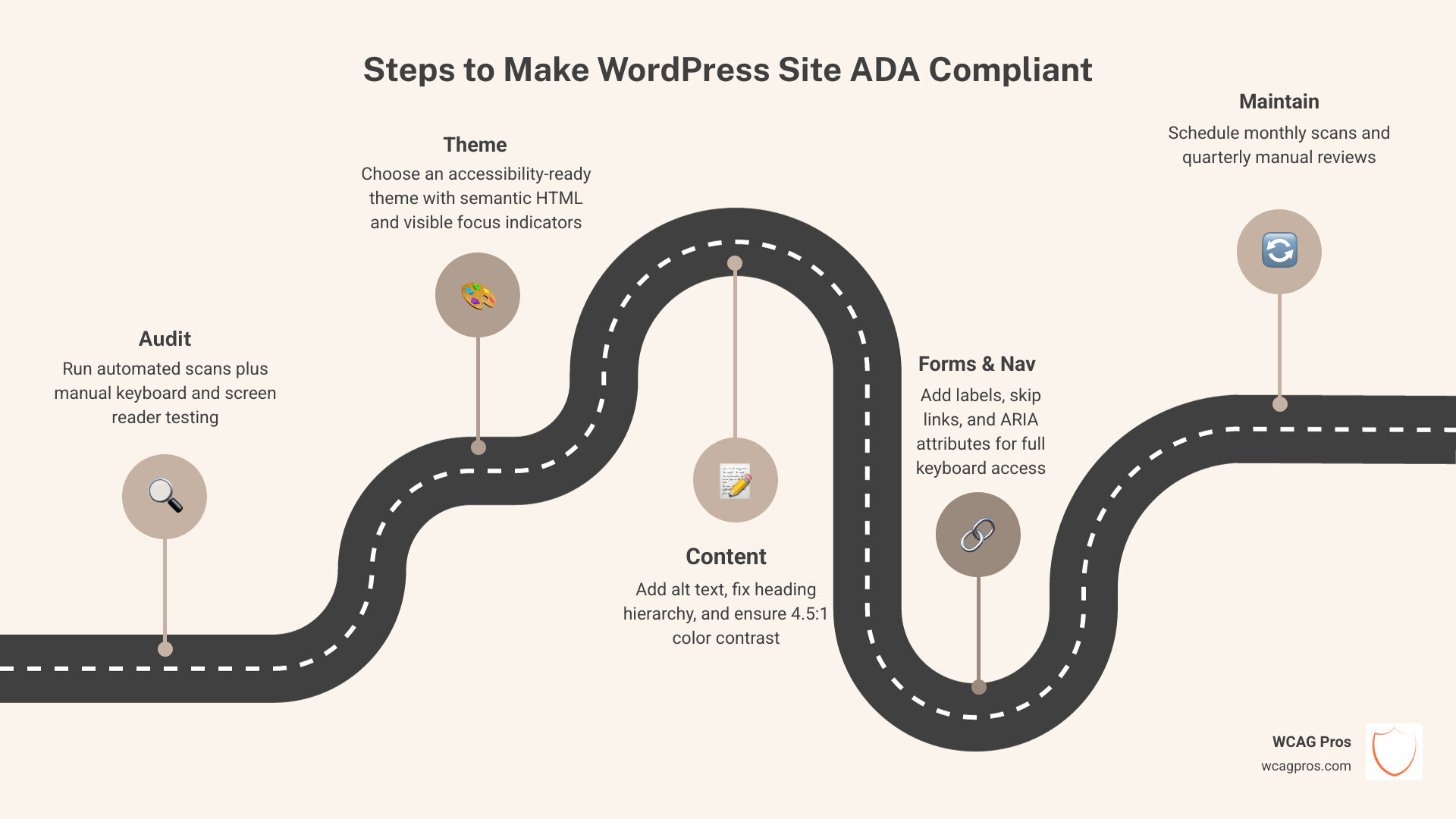
If you need to make your WordPress site ADA compliant, here is the fastest path forward:
- Audit first, run automated scans plus manual keyboard and screen reader testing
- Fix your theme, choose an accessibility-ready theme with semantic HTML and visible focus indicators
- Fix your content, add alt text, fix heading hierarchy, and ensure 4.5:1 color contrast
- Fix forms and navigation, add labels, skip links, and ARIA attributes
- Avoid overlays, they do not fix underlying code and can increase legal risk
- Maintain it, schedule monthly scans and quarterly manual reviews
WordPress powers over 43% of all websites on the internet. That is a massive share of the web, and it means millions of business owners are sitting on potential legal exposure right now.
Here is the hard truth: 94.8% of websites fail basic accessibility standards. Over 4,900 web accessibility lawsuits were filed in the US in 2024 alone. And 1 in 4 US adults lives with a disability.
Courts have confirmed that websites are places of public accommodation under ADA Title III. That means your WordPress site must be accessible, or you risk demand letters, settlements, and real reputational damage.
The average accessibility lawsuit settlement costs $10,000 or more, and that does not include legal fees or the cost of emergency remediation under pressure.
The good news? This is a solvable problem. But it requires more than installing a plugin and hoping for the best.
I am Matthew Post, co-founder of WCAG Pros and a web developer with over 20 years of experience helping businesses make their WordPress sites ADA compliant through expert audits and hands-on remediation. In this guide, I will walk you through everything you need to know, from theme selection to ongoing maintenance, so you can reduce legal risk and build a site that works for every visitor.
Explore more about make wordpress site ada compliant:
Understanding ADA Compliance for WordPress Websites
The Americans with Disabilities Act (ADA) was passed in 1990, long before the modern web existed. However, Title III of the ADA prohibits discrimination on the basis of disability in “places of public accommodation.” For years, the Department of Justice (DOJ) and US courts have consistently affirmed that websites fall under this definition.
If you want to understand the basics, our guide on ADA Compliance WordPress 101 breaks down how these laws apply specifically to the WordPress ecosystem. Essentially, if your business is open to the public, your digital doors must be just as accessible as your physical ones.
The legal landscape has shifted significantly. Web accessibility lawsuits have increased by 300% since 2018. Law firms now use automated tools to crawl thousands of WordPress sites, looking for easy targets with missing alt text or keyboard traps. Being “too small to notice” is no longer a valid defense.
Why You Must Make WordPress Site ADA Compliant in 2026
By May 2026, the stakes are higher than ever. It is not just about avoiding a random demand letter. It is about your brand’s reputation and its ability to serve a massive market. 1 in 4 adults in the US lives with a disability. When you fail to make your WordPress site ADA compliant, you are effectively telling 25% of your potential customers that their business is not wanted.
The financial risks are real. Settlement costs for a single lawsuit often reach $10,000, and some settlements for larger retailers have climbed into the $35,000 to $75,000 range. Beyond the money, the damage to your brand can be permanent. When inclusivity is a core value for consumers, being labeled as “inaccessible” is a major liability. You can read more about the status of being WordPress ADA Compliant to see where the industry stands today.
The Evolution of WCAG 2.2 Standards
While the ADA is the law, it does not provide the technical “how-to.” For that, we turn to the Web Content Accessibility Guidelines (WCAG). As of May 2026, WCAG 2.2 is the gold standard that courts and government agencies use as a benchmark for compliance.
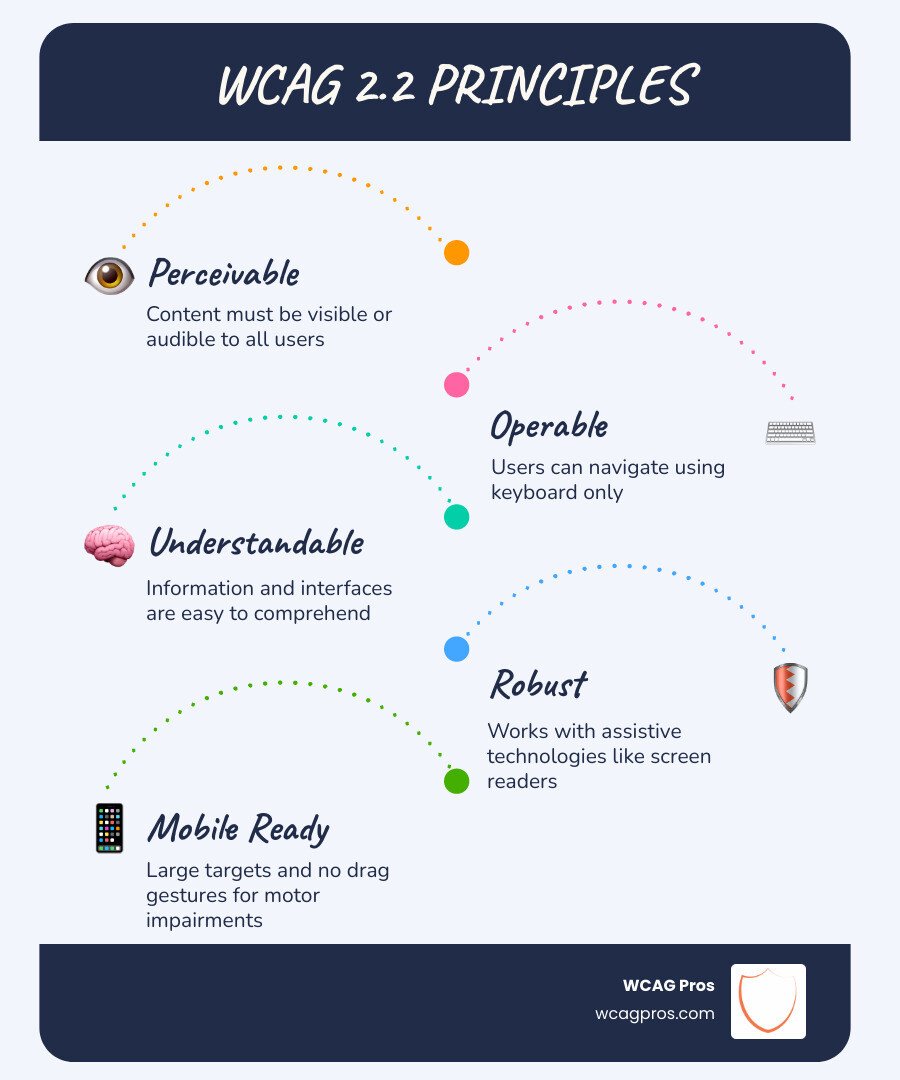
WCAG 2.2 Level AA is the specific tier most businesses aim for. It includes requirements for:
- Perceivability: Can users see or hear the content?
- Operability: Can users navigate the site using only a keyboard?
- Understandability: Is the information and interface easy to comprehend?
- Robustness: Does the site work well with assistive technologies like screen readers?
New criteria in WCAG 2.2 focus on mobile accessibility, such as target size (ensuring buttons are large enough to tap) and avoiding “dragging movements” that might be difficult for users with motor impairments.
Essential Steps to Make WordPress Site ADA Compliant
Making a site accessible starts with the foundation: your theme. Many popular WordPress themes are built for speed or “flashy” looks, often at the expense of accessibility.
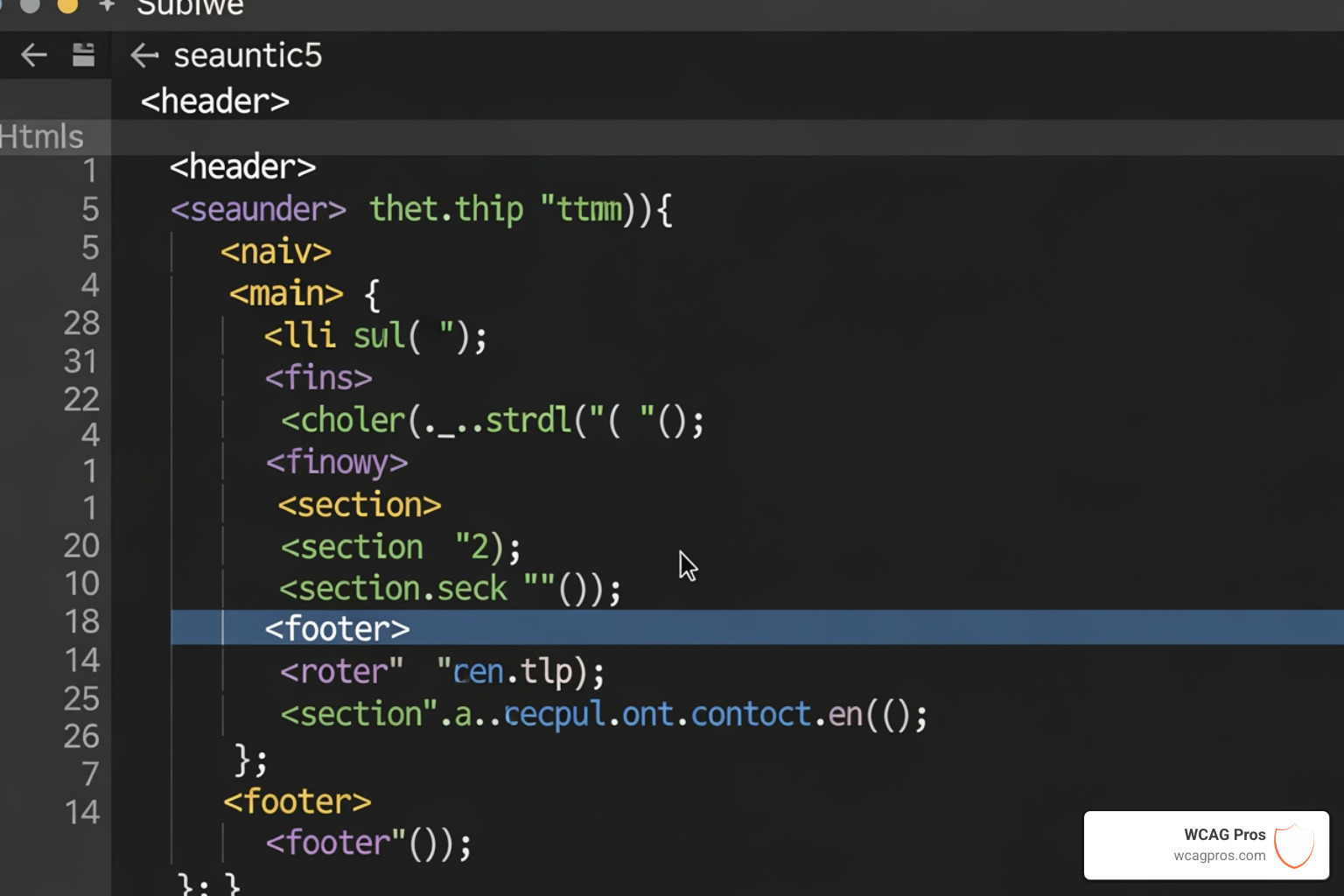
When selecting a theme, look for the “Accessibility Ready” tag in the WordPress repository. This does not guarantee 100% compliance, but it means the theme has passed a basic audit by the WordPress theme review team. A truly accessible theme uses semantic HTML (like for menus and for content) rather than a “div soup” that confuses screen readers.
Fixing Content and Media to Make WordPress Site ADA Compliant
Once your theme is solid, you must address your content. This is where most WordPress sites fail because content is often managed by multiple people who may not be trained in accessibility.
- Alt Text: Every informative image needs descriptive alt text. If an image is purely decorative, it should have an empty alt attribute (
alt="") so screen readers skip it. - Heading Hierarchy: Use headings (H1 through H6) in a logical order. Never skip levels (e.g., jumping from H2 to H4) just because you like the font size.
- Color Contrast: Your text must stand out against the background. WCAG 2.2 requires a contrast ratio of at least 4.5:1 for normal text.
- Video and Audio: Provide synchronized captions for videos and transcripts for audio files. Auto-generated captions are rarely accurate enough for compliance.
For more details on fixing content, check out How to Fix Your Website One Page at a Time. We also have a specific guide on how to Stop Failing Audits with These ADA Form and Status Message Fixes to help you handle those tricky interactive elements.
Technical Remediation for Forms and Navigation
Navigation is the backbone of the user experience. To make your WordPress site ADA compliant, a user must be able to navigate your entire site using only the “Tab” key.
- Focus Indicators: When a user tabs through your site, there must be a visible “outline” around the active element. Many developers hide this for “aesthetic” reasons, which is a major WCAG 2.2 failure.
- Skip Links: This is a hidden link at the very top of the page that allows screen reader users to jump straight to the main content, skipping the repetitive header navigation.
- ARIA Labels: Use Accessible Rich Internet Applications (ARIA) labels to provide context for buttons that only have icons (like a “search” magnifying glass).
- Form Labels: Every input field must have a programmatically associated
.
If your site uses a lot of custom scripts, you might find our guide on How to Audit JavaScript for WCAG Without Losing Your Mind particularly helpful.
The Risks of Accessibility Plugins and Overlays
Many WordPress owners look for a “quick fix” and turn to accessibility overlays or “one-click” compliance plugins. We strongly advise against this.
Overlays are JavaScript snippets that add a “toolbar” to your site, claiming to fix accessibility issues on the fly. However, they often create more problems than they solve. They can interfere with screen readers, fail to fix underlying code issues, and provide a false sense of security.
| Feature | Manual Remediation | Automated Overlays |
|---|---|---|
| Fixes Source Code | Yes | No |
| Legal Protection | High (Shows intent and effort) | Low (Often targeted by lawyers) |
| User Experience | Seamless for assistive tech | Can be intrusive or frustrating |
| WCAG 2.2 Coverage | Up to 100% | Usually only 20-40% |
In fact, the Federal Trade Commission (FTC) has taken action against companies making deceptive claims about automated accessibility. Using an overlay can actually make your site a target for lawsuits because it signals to “troll” law firms that your underlying code is likely broken.
How to Audit and Maintain Your Website Accessibility
You cannot fix what you do not measure. A comprehensive audit is the first step toward true compliance. This involves more than just running a free scanner. While automated tools are great for catching low-hanging fruit, they only catch about 30% to 40% of issues.
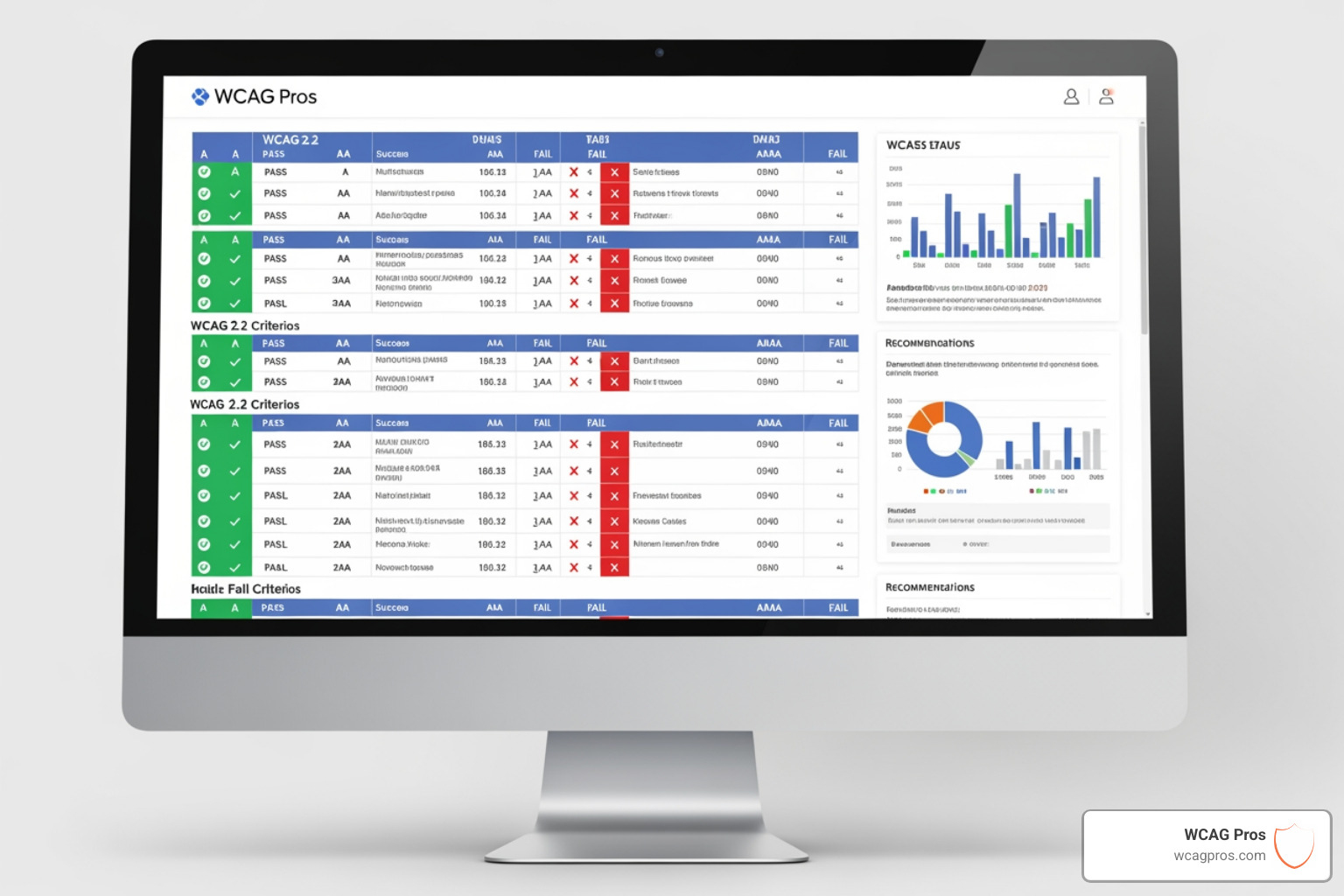
A real audit requires:
- Automated Scanning: Using tools to find broken links and missing alt text.
- Manual Keyboard Testing: Navigating the site without a mouse.
- Screen Reader Verification: Testing with tools like NVDA or VoiceOver to hear how the site is interpreted.
- User Testing: Ideally, testing with real people who have disabilities to ensure the site is actually usable, not just “technically” compliant.
To get started, follow The Ultimate Guide to a WCAG Comprehensive Website Audit. You should also learn How to Test Your Website’s Accessibility Using Real Users to gain insights that no software can provide. For a quick reference, keep The Ultimate Website Accessibility Testing Checklist for 2026 bookmarked.
Frequently Asked Questions about WordPress Accessibility
Can a plugin make my WordPress site fully compliant?
No. While plugins like “Accessibility Checker” or “WP Accessibility” are excellent tools for identifying and fixing specific issues, no plugin can guarantee 100% compliance. Accessibility requires human judgment, for example, a plugin cannot tell if your alt text accurately describes the meaning of an image.
What are the most common WCAG 2.2 failures?
The most frequent “gotchas” we see on WordPress sites are:
- Low color contrast (especially in footers or buttons).
- Missing or unhelpful alt text (like “image123.jpg”).
- Empty links (social media icons with no text labels).
- Keyboard traps (popups or sliders that you can enter but cannot exit with a keyboard).
- Unlabeled form fields.
How often should I audit my WordPress site?
Accessibility is not a one-time project, it is a lifestyle for your website. We recommend:
- Monthly automated scans to catch new content errors.
- Quarterly manual reviews of high-traffic pages (homepage, contact, checkout).
- Testing after every major update to your theme or core plugins.
Conclusion
To make your WordPress site ADA compliant is a journey, not a destination. It requires a combination of the right tools, a solid theme foundation, and a commitment to inclusive content. By following the WCAG 2.2 standards, you are not just checking a legal box, you are opening your business to a wider audience and providing a better experience for everyone.
At WCAG Pros, we specialize in taking the stress out of this process. We provide comprehensive page-by-page audits and the code-level fixes needed to secure your site.
Ready to get started? Download The Ultimate WCAG Checklist PDF Excel and Print Ready Versions to see where you stand. If you are overwhelmed, learn How to Hire a WordPress ADA Compliance Consultant Without Losing Your Mind or simply Start your WCAG remediation journey today with us. Don’t wait for a demand letter to act. Make your site accessible today.
Read more website accessibility articles
Get Help With Your Website
We'll follow up with info about:
- The process
- Cost
- Timeline
We promise to respect your privacy, and never abuse the information you provide. We will not sell or rent your information to any third party.
By submitting this form, you consent to receive SMS messages and/or emails from SEM Dynamics LLC, dba WCAG Pros. To unsubscribe, follow the instructions provided in our communications. Msg & data rates may apply for SMS. Your information is secure and will not be sold to third parties.