
How to Conduct an Accessibility Audit in 5 Easy Steps
How to Conduct an Accessibility Audit in 5 Easy Steps
How to Do an Accessibility Audit (and Why It Matters for Your Business)
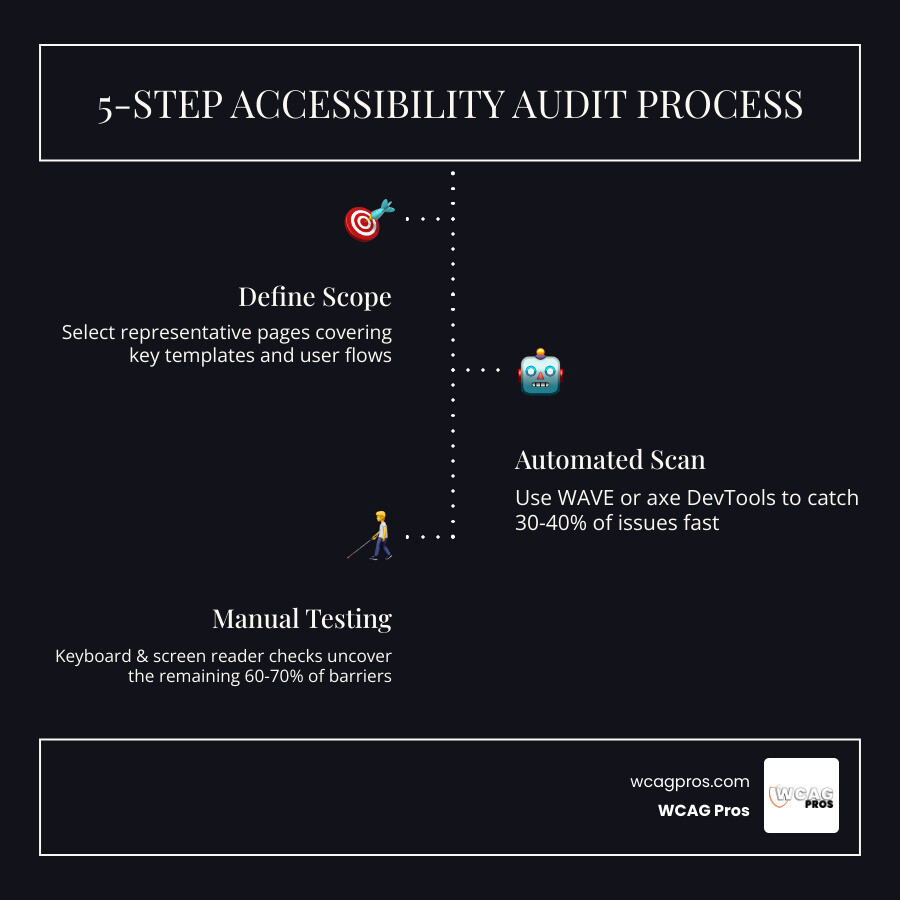
How to do an accessibility audit in 5 steps:
- Define your scope: choose a representative sample of pages covering your key templates and user flows
- Run automated scans: use tools like WAVE or axe DevTools to catch baseline issues fast
- Test manually with keyboard and screen reader: tab through every interactive element and verify screen reader output
- Evaluate visual design and media: check color contrast, alt text, video captions, and text resizing
- Document and prioritize findings: classify issues by severity and build a remediation roadmap
Here is the hard truth: 94.8% of the top one million websites fail basic accessibility checks. And automated scanning tools catch only 30 to 40% of real accessibility barriers. That means the majority of issues on your site will never surface unless someone actually looks for them manually.
For U.S. businesses, the stakes are real. Courts consistently rule that websites are places of public accommodation under ADA Title III. Over 5,100 accessibility lawsuits were filed in 2025 alone. An accessibility audit gives you documented evidence of where you stand and a clear path to fix it before a lawsuit lands in your inbox.
I’m Matthew Post, co-founder of WCAG Pros and a programmer with over 20 years of web development experience, and I’ve personally supervised accessibility audits across hundreds of commercial websites to help businesses understand how to do an accessibility audit the right way. In this guide, I’ll walk you through the exact process our team uses so you can identify barriers, reduce legal risk, and build a more inclusive site.
How to do an accessibility audit word list:
What is a Web Accessibility Audit and Why Does It Matter
A web accessibility audit is a comprehensive technical evaluation of a website, mobile app, or digital asset against established accessibility standards. The gold standard for these evaluations is the Web Content Accessibility Guidelines, which is abbreviated as WCAG. In July 2026, the current and most up-to-date benchmark is WCAG 2.2, which builds upon previous standards to ensure digital content is usable for everyone, including individuals with visual, auditory, motor, or cognitive disabilities.
To understand why this process is so critical, we must look at the real world impact of digital exclusion. Globally, one in six individuals experiences a significant disability. In the United States alone, millions of people rely on assistive technologies like screen readers, alternative keyboards, and screen magnification software to browse the web. When a website is built without accessibility in mind, these users encounter digital barriers that make simple tasks, such as reading an article or buying a product, completely impossible.
Conducting an audit is about much more than avoiding legal hot water. It is a fundamental element of ethical user experience design. When you make your website accessible, you improve the browsing experience for all users. For example, clear heading hierarchies, high color contrast, and intuitive navigation structures help everyone find information faster.
From a commercial perspective, digital accessibility is a massive market opportunity. The disability community, along with their families and friends, controls trillions of dollars in annual disposable income. By removing barriers, you directly expand your market reach. In fact, research shows that e-commerce sites can experience a dramatic drop in shopping cart abandonment, from roughly 69% down to 23%, simply by resolving accessibility barriers in their checkout flows. For a comprehensive introduction to this topic, you can read our Website Compliance Audit 101 guide.
Understanding How to Do an Accessibility Audit for Legal Compliance
In the United States, digital accessibility is not just a best practice, it is a legal mandate. Under Title III of the Americans with Disabilities Act, websites are widely recognized by federal courts as places of public accommodation. This means that private businesses, non-profit organizations, and public entities must ensure their digital storefronts and web portals are fully accessible to individuals with disabilities.
If your organization fails to meet these standards, the consequences can be severe. The average ADA lawsuit settlement is around $25,000, and that does not include the cost of your own legal defense or the eventual cost of rushed website remediation. By learning how to do an accessibility audit, you can proactively identify and fix violations before receiving a costly demand letter.
For educational institutions and public agencies, the legal landscape is even more strictly defined. If you are located in California, for example, you must comply with state-specific regulations. Norco College, situated in Norco, CA, must align its digital assets with federal and state accessibility requirements. These requirements include Section 508 of the Rehabilitation Act, which applies to all federal agencies and institutions receiving federal funding.
Furthermore, the California Commission on Disability Access provides extensive Website Accessibility Resources to help local businesses and agencies navigate these complex state laws. If you operate globally or plan to expand to Europe, you must also prepare for the European Accessibility Act, which enforces strict accessibility standards for products and services entering the European market.
Automated versus Manual Testing for WCAG 2.2 Compliance
One of the most common mistakes organizations make is relying entirely on automated scanning software to assess their website. While automated tools are incredibly fast and helpful for establishing a baseline, they are highly limited. On average, automated scanners only detect 30 to 40% of actual WCAG 2.2 compliance issues.
For example, an automated tool can easily check if an image has an “alt” attribute in the HTML code. However, the tool cannot tell if that alternative text is actually accurate or contextually helpful. If you have an image of a checkout button and the alt text reads “image of a blue circle,” the automated scanner will mark it as a pass, even though a blind user using a screen reader will have no idea that the image is actually a checkout button.
To achieve true WCAG 2.2 AA compliance, you must implement a hybrid testing approach that combines automated scans, manual evaluations, and functional testing. Manual testing involves a human auditor navigating the site using assistive tools to evaluate complex elements. Functional testing takes this a step further by involving real users with disabilities to complete tasks on your site. For a deeper dive into these different testing methodologies, explore our Beginner’s Guide to Website Accessibility Audit.
The table below outlines the key differences between automated and manual testing methodologies:
| Testing Feature | Automated Scanning | Manual Human Testing |
|---|---|---|
| Speed | Instant, completed in seconds or minutes | Thorough, takes hours to days depending on scope |
| Detection Rate | Catches 30 to 40% of common failures | Catches the remaining 60 to 70% of complex barriers |
| Best Used For | Finding missing alt tags, duplicate IDs, low contrast | Evaluating logical tab order, screen reader clarity, ARIA usage |
| Human Context | Completely blind to context and usability | Evaluates the actual human experience and logical flow |
| False Positives | Frequent, requires manual verification | Rare, verified directly by a human tester |
How to Do an Accessibility Audit in 5 Steps
To conduct a successful, defensible digital accessibility audit, you need a structured methodology. At WCAG Pros, we utilize a rigorous process that combines automated efficiency with deep manual expertise.
This systematic approach ensures that your development team receives clear, actionable guidance to remediate every barrier on your website. To help you get started, we have broken down the process into five practical steps. For an overview of this methodology, you can read our guide on How to WCAG Test in 5 Simple Steps.
Step 1 Define Your Scope and Select Sample Pages
The first step in learning how to do an accessibility audit is defining the scope of your evaluation. For large websites with hundreds or thousands of pages, auditing every single page is simply not practical. Instead, the industry standard is to select a representative sample of pages, templates, and user flows.
When selecting your sample, aim for 7 to 15 key pages that represent the full diversity of your website. For larger, more complex applications, you may want to expand this sample to 20 to 40 pages. Your sample should always include:
- Your homepage
- Key text-based landing pages
- Dynamic interactive elements, such as login and registration portals
- High-value transaction flows, like shopping carts and checkout pages
- Contact forms and search results pages
- Pages containing rich media, such as videos, audio players, or interactive maps
- Document downloads, including critical PDFs and user manuals
By focusing on these unique page templates, you can fix systemic issues at the template level. If you fix a heading structure issue in your global header template, that fix will automatically apply to every page across your entire website. For more details on scoping your audit, refer to The Ultimate Guide to a WCAG Comprehensive Website Audit.
Step 2 Run Automated Scans for Baseline Issues
Once you have defined your scope, it is time to run automated scans on your sample pages. These tools are excellent for catching obvious technical errors and establishing an initial accessibility score.
Some of the most popular free automated testing tools include:
- axe DevTools: A browser extension powered by the industry-standard axe-core engine, which is highly accurate and popular among developers.
- WAVE (Web Accessibility Evaluation Tool): Developed by WebAIM, this tool provides a visual overlay on your web page, making it easy to see exactly where errors are located.
- Lighthouse: A built-in tool in Google Chrome Developer Tools that provides a quick accessibility score along with performance and SEO insights.
Run these scans on each page in your sample and record the results. Pay close attention to flagged issues like missing image alternative text, color contrast failures, missing form input labels, and duplicate HTML element IDs. While these automated tools will help you clear out the low-hanging fruit, they are only the starting point.
Step 3 How to Do an Accessibility Audit with Keyboard and Screen Reader Checks
Manual testing is the core of any professional accessibility audit. The single most important manual test you can perform is keyboard-only navigation. Many users with physical disabilities cannot use a mouse and rely entirely on keyboards, switch devices, or mouth sticks to navigate the web.
Unplug your mouse and try to navigate through your website using only the following keys:
- Tab: Move forward to the next interactive element (links, buttons, form inputs).
- Shift + Tab: Move backward to the previous interactive element.
- Enter: Activate links and submit forms.
- Spacebar: Select checkboxes, toggle radio buttons, and activate buttons.
- Arrow Keys: Navigate within menus, dropdowns, and radio button groups.
- Escape: Close modals, dialog boxes, and dropdown menus.
During your keyboard walkthrough, verify that you can see exactly which element has focus at all times. If the default browser focus outline has been removed for aesthetic reasons without being replaced by a highly visible custom focus indicator, this is a critical WCAG 2.2 failure. Also, ensure that the focus moves through the page in a logical, reading-order sequence, and verify that you do not get stuck in any “keyboard traps,” such as a modal window that you cannot close without a mouse.
Next, test your site using a screen reader. If you are on a Mac, you can use the built-in VoiceOver utility. If you are using Windows, you can download NVDA, which is a highly popular, free, open-source screen reader.
When testing with a screen reader, listen for the following:
- Do the headings read out in a logical, nested hierarchy (H1, then H2, then H3)?
- Are form fields announced with their corresponding labels? You can verify this programmatically by clicking on a form label with your mouse. If the cursor automatically focuses inside the input field, the label is correctly associated.
- Do icon-only buttons, such as a trash can icon for deleting an item, have descriptive “aria-label” attributes so the screen reader announces “Delete” instead of just “button”?
Step 4 Evaluate Text Visual Design and Media Content
In this step, you will evaluate how well your visual design and media assets accommodate users with sensory disabilities. First, check your color contrast ratios. Under WCAG 2.2 AA standards, normal body text must have a minimum contrast ratio of 4.5 to 1 against its background. Large text, which is defined as 18pt bold or 24pt regular, and interactive user interface components must meet a minimum ratio of 3 to 1. You can use free tools like the WebAIM Contrast Checker or the Colour Contrast Analyser to measure these ratios.
Next, test your site’s responsive design and text resizing capabilities. Users with low vision often zoom their browsers to read text more easily. Zoom your browser to 200% and ensure that all text remains readable without overlapping or clipping. Then, test the page reflow at 400% zoom with a window width of 1280 pixels, which is equivalent to a mobile screen width of 320 pixels. The content should reflow into a single column without requiring horizontal scrolling to read the text.
Finally, review your media content:
- Images: Ensure all informative images have descriptive alt text. Purely decorative images must have empty alt attributes (alt=””) so screen readers know to skip them.
- Video: All pre-recorded videos with dialogue must include accurate closed captions. For videos that contain critical visual information not conveyed in the dialogue, you must provide an audio description or a descriptive text transcript.
- Audio: Provide complete text transcripts for all podcasts and audio-only content.
Step 5 Document and Prioritize Your Findings
An audit is only as good as the report it produces. Once you have completed your testing, you must document your findings in a structured, actionable format. For each issue identified, record:
- The exact location of the issue (URL and screenshot)
- The specific WCAG 2.2 success criteria that was failed
- The severity of the issue and its impact on the user experience
- Clear, code-level recommendations for how your developers can fix it
To make the remediation process manageable, prioritize the issues into clear severity levels. We recommend using the following classification system:
- Critical: These are complete blockers that prevent a user from completing a core journey, such as a keyboard trap that prevents checking out. These must be resolved immediately.
- Serious: These issues make using the site highly difficult and frustrating for users with disabilities, such as missing form labels or invisible focus indicators.
- Moderate: These are minor barriers that degrade the user experience but do not prevent task completion, such as slightly low contrast on non-essential text.
- Minor: These are technical non-compliance issues that have a low impact on usability, such as minor heading hierarchy deviations.
By grouping issues by severity and developer role, you can streamline the fix process and secure early wins. For a detailed look at how to structure a business-focused audit report, read our Expert Website WCAG Audit Guide for Businesses.
When to Hire a Professional Accessibility Auditor
While a basic self-audit is a fantastic way to identify major usability barriers, it has its limits. If your organization handles sensitive information, operates in a highly regulated industry, or is currently facing a legal threat, relying solely on an in-house self-audit is extremely risky.

You should consider hiring a professional accessibility auditor if:
- You have a complex web application: Sites with authenticated user portals, dynamic shopping carts, and custom interactive widgets require deep technical expertise to test properly.
- You received a legal demand letter: If you are facing legal action, you need a highly thorough, professional audit report that can serve as a legal shield and a defensible remediation roadmap.
- You need a VPAT: If you sell software or digital services to government agencies, educational institutions, or enterprise clients, they will likely require a Voluntary Product Accessibility Template to document your accessibility conformance. Only an expert audit can support a valid VPAT.
At WCAG Pros, we specialize in helping businesses achieve and maintain full digital compliance. Our unique approach features comprehensive page-by-page audits of all 54 WCAG A/AAA points. We do not just hand you a list of problems, we provide exact code fixes for your development team and offer free re-audits to award your site an official accessibility compliance badge.
Frequently Asked Questions about Web Accessibility Audits
Here are some of the most common questions we receive from businesses learning how to do an accessibility audit.
How long does a web accessibility audit take
The duration of an audit depends entirely on the size and complexity of your website. For a small website with 5 to 10 unique pages, an automated scan takes only a few minutes, while a thorough manual and screen reader review takes about half a day. For a medium-sized website with 50 to 100 pages, a comprehensive audit typically takes 2 to 5 days of expert testing. Large enterprise applications with complex user flows and database integrations can take 2 to 3 weeks or more to evaluate fully.
How often should we conduct an accessibility audit
We recommend conducting a comprehensive web accessibility audit at least once per year. However, websites are dynamic assets that change constantly. Every time your team publishes a new blog post, updates a product page, or deploys a code update, new accessibility bugs can easily be introduced. To prevent regressions, you should supplement your annual audit with monthly automated scans and perform manual testing on any major new features before they are launched to production.
Can we perform an accessibility audit entirely in-house
Yes, your in-house team can certainly perform a basic accessibility self-audit using free tools and manual checklists. This is an excellent way to build empathy, train your developers, and catch obvious barriers. However, unless your team includes certified accessibility specialists, an in-house audit is highly likely to miss complex programmatic issues, such as incorrect ARIA roles or subtle screen reader compatibility bugs. A hybrid approach, where you combine in-house maintenance with an annual third-party professional audit, is the most effective way to guarantee compliance.
Conclusion
Achieving web accessibility is an ongoing journey, not a one-time project. By understanding how to do an accessibility audit, you can take proactive control of your digital presence, protect your business from costly lawsuits, and open your doors to millions of users who are currently excluded from your site.
Whether you are just starting out with automated scans or are ready to implement a comprehensive testing program, we are here to support you every step of the way. Our team of certified experts at WCAG Pros provides the technical depth, manual testing rigor, and precise code fixes you need to make your digital assets fully inclusive.
Ready to secure your website and welcome all users? Get a professional WCAG audit from WCAG Pros today, and let us help you achieve a compliant, highly usable digital experience.
Read more website accessibility articles
Get Help With Your Website
We'll follow up with info about:
- The process
- Cost
- Timeline
We promise to respect your privacy, and never abuse the information you provide. We will not sell or rent your information to any third party.
By submitting this form, you consent to receive SMS messages and/or emails from SEM Dynamics LLC, dba WCAG Pros. To unsubscribe, follow the instructions provided in our communications. Msg & data rates may apply for SMS. Your information is secure and will not be sold to third parties.