
Screen Reader Accessibility Testing Demystified for Web Teams
How to Start Screen Reader Accessibility Testing
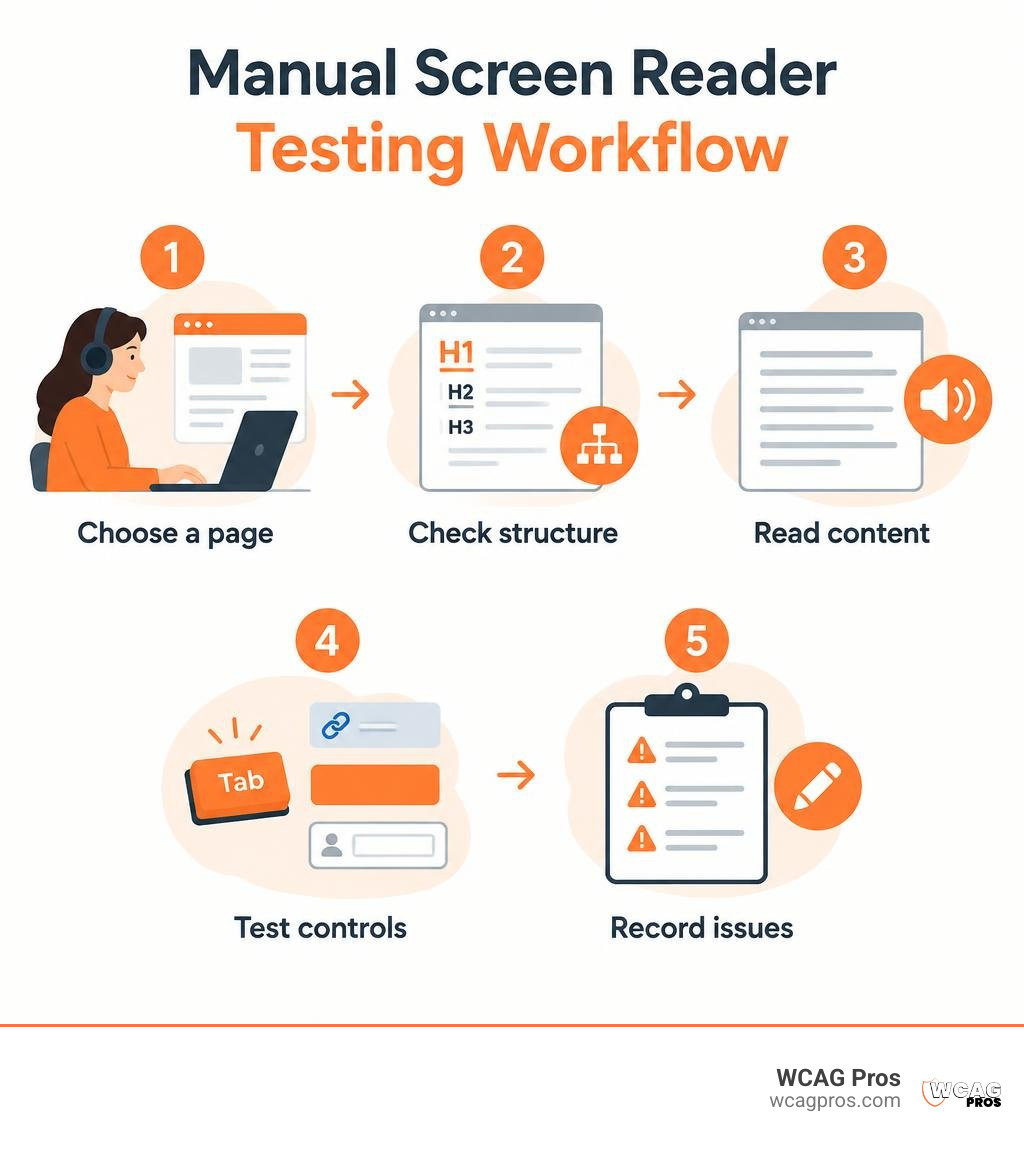
For screen reader accessibility testing, open a key page with NVDA on Windows or VoiceOver on an Apple device. Navigate by headings to check the page structure, then read through the content to check its order. Use Tab to reach links, buttons, and form fields. Complete a task, such as submitting a form, and note anything you cannot find, understand, or use.
A page can look complete while its headings, link names, or error messages are confusing when read aloud. Manual testing helps reveal these barriers and adds an important check alongside automated scans for WCAG 2.2 accessibility.
I’m Matthew Post, co-founder of WCAG Pros and a web developer with more than 20 years of experience. I oversee WCAG audits and remediation, and this guide brings that work to a practical approach to screen reader accessibility testing.
Screen reader accessibility testing terms to remember:
Understanding Screen Readers and Core User Demographics
A screen reader is specialized assistive software that renders digital interfaces through speech synthesizers or refreshable braille displays. By communicating directly with the accessibility API of the underlying operating system, the tool translates visual user interfaces into a linear stream of audio cues and tactile outputs.
Who relies on these tools? According to global surveys, 90% of respondents with a disability use a screen reader to interact with digital content. While individuals with total blindness represent a major user group, people with low vision also use screen readers alongside screen magnification or high-contrast styling. Furthermore, individuals with cognitive, learning, or neurological conditions leverage auditory feedback to maintain focus and process lengthy text.
Digital exclusion carries profound consequences. Demographic studies reveal that almost two million people live with a form of sight loss in the UK alone, with estimates projecting that 2.7 million people will live with some type of visual disability by 2030. When web teams design without assistive technologies in mind, millions of people find themselves locked out of vital public services, online banking, and employment systems.
Learning how to test website accessibility begins with recognizing how non-sighted users navigate. Rather than reading top-to-bottom, screen reader users jump through page landmarks, skim structural headings, and browse lists of interactive links to form a mental model of the interface.
Desktop and Mobile Screen Reader Landscape
The assistive technology ecosystem spans several dominant tools across various operating systems. Web teams must familiarize themselves with both open-source and commercial solutions.
- NonVisual Desktop Access (NVDA): A free, open-source screen reader for Microsoft Windows created by NV Access. In industry surveys, 72% of respondents selected NVDA as their primary desktop screen reader. It offers rapid execution, extensive multi-language support, and lightweight operation.
- Job Access With Speech (JAWS): A feature-rich commercial screen reader developed by Freedom Scientific for Windows environments. It remains an enterprise standard in corporate and government workplaces.
- Apple VoiceOver: A deeply integrated native screen reader built into macOS, iOS, iPadOS, and watchOS. It requires no installation and features intuitive multi-touch rotor gestures.
- Android TalkBack: The default Google screen reader integrated across modern Android devices, designed for gesture-based touchscreen interaction.
- ChromeVox: A built-in screen reader for ChromeOS devices that also serves as an entry-level testing utility for web developers using Google Chrome.
| Screen Reader | Platform | Distribution Model | Primary Navigation Method |
|---|---|---|---|
| NVDA | Windows | Free / Open-Source | Keyboard Shortcuts |
| JAWS | Windows | Commercial License | Keyboard Shortcuts |
| Apple VoiceOver | macOS / iOS | Built-in Native | Keyboard / Touch Gestures |
| Android TalkBack | Android | Built-in Native | Multi-Touch Gestures |
| ChromeVox | ChromeOS | Built-in Native | Keyboard Shortcuts |
Automated Tools Versus Manual Screen Reader Testing
Automated accessibility checkers are an efficient starting point for scanning large codebases, yet they introduce an incomplete sense of security. Automated scanners typically catch only about 33% of accessibility barriers. The remaining two-thirds of WCAG criteria require human judgment, contextual evaluation, and experiential verification.
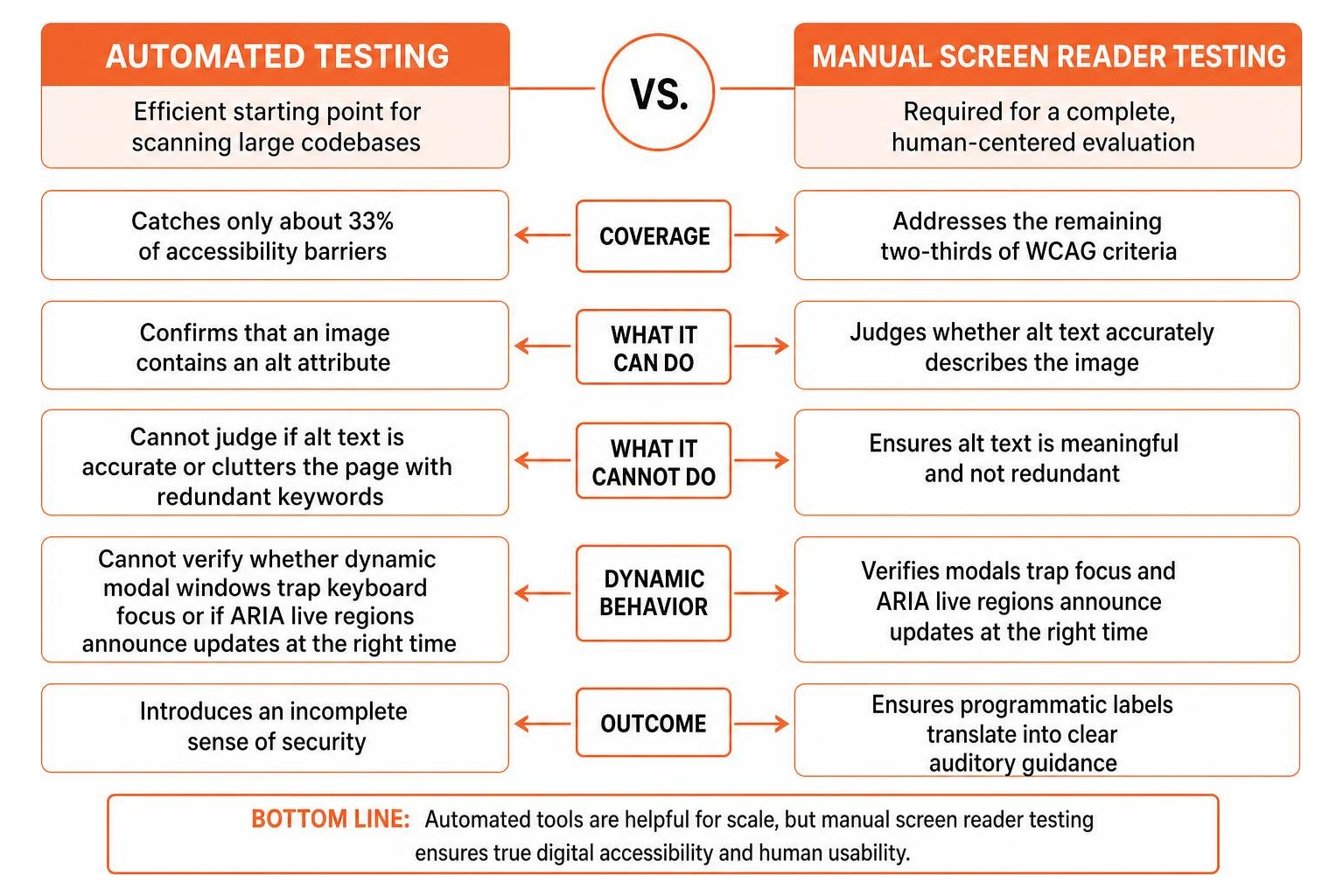
An automated tool can confirm that an image contains an alt attribute, but it cannot judge whether the text accurately describes the image or clutters the page with redundant keywords. Similarly, an automated scan cannot verify whether dynamic modal windows trap keyboard focus or if ARIA live regions announce shopping cart updates at the right time.
Reviewing a guide to WCAG accessibility testing underscores that true digital accessibility is about human usability. Manual testing ensures that programmatic labels translate into clear auditory guidance.
Recommended Operating System and Browser Pairings
Screen readers interpret the Document Object Model (DOM) through specific browser accessibility trees. Because different browsers expose attributes differently, you must test standard combinations to observe real-world performance.
Consulting a guide to screen reader compatibility testing across modern browsers points to five industry-standard combinations:
- Windows + Google Chrome + NVDA: The most widely used desktop testing configuration.
- Windows + Google Chrome + JAWS: The primary configuration for enterprise business applications.
- macOS + Apple Safari + VoiceOver: The core desktop benchmark for Apple environments.
- iOS + Apple Safari + VoiceOver: The dominant mobile configuration globally.
- Android + Google Chrome + TalkBack: The primary standard for mobile Android testing.
How to Conduct Screen Reader Accessibility Testing Step by Step
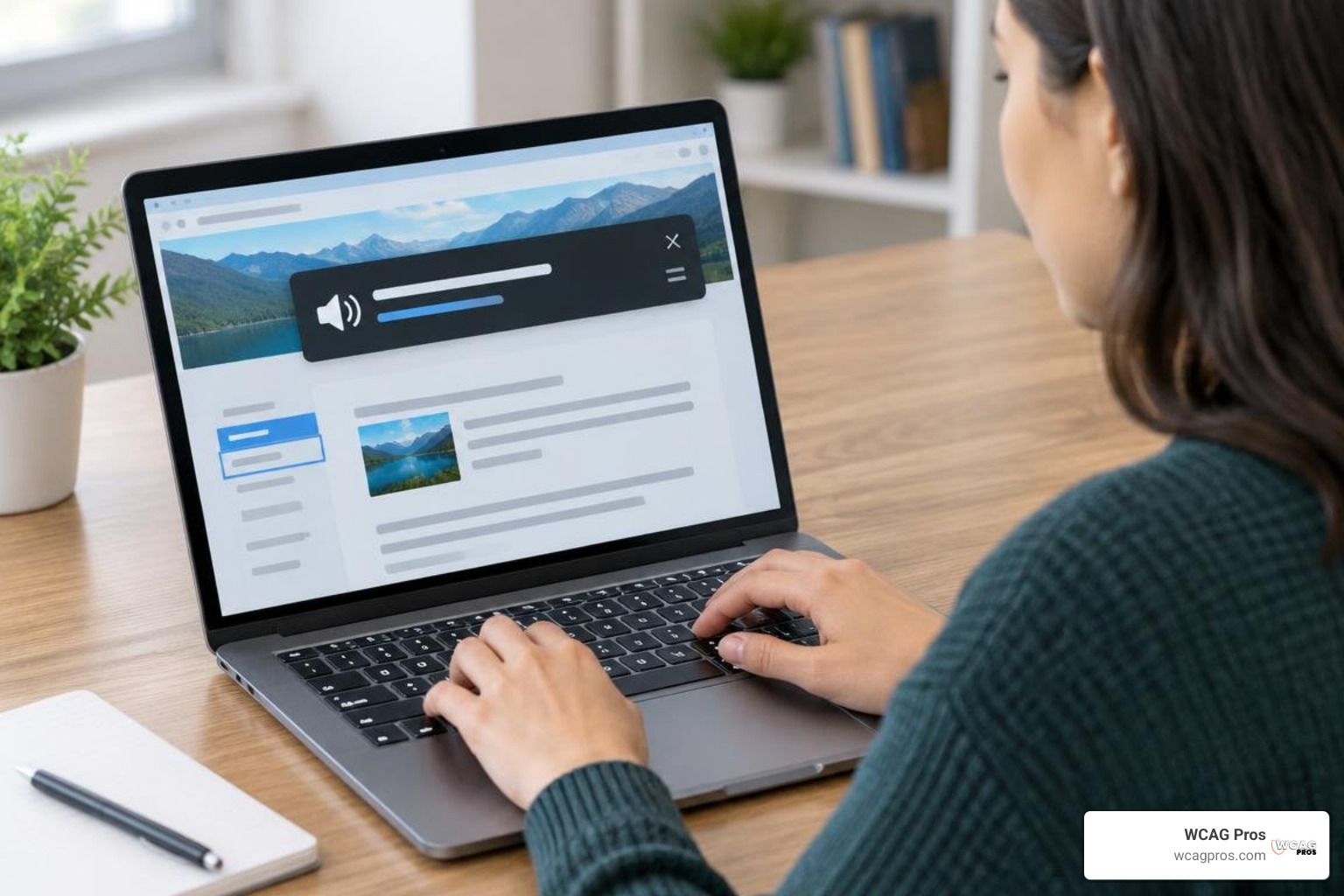
Before beginning a testing session, configure your environment to capture meaningful data. Start by setting your screen reader modifier key, which is usually the Insert key or Caps Lock for NVDA and JAWS, or the Control plus Option keys for VoiceOver.
Standardize your speech synthesizer rate to a moderate speed so you do not miss fast announcements. Enable visual focus highlighting within your screen reader settings so you can visually track where the programmatic focus rests. Open the visual Speech Viewer or Braille Viewer window to read a live transcript of everything announced by the synthesizer.
We recommend a strict two-pass testing methodology as outlined in the University of Helsinki guide to accessibility testing with screen readers.
Content Reading and Structural Markup Verification
The first pass evaluates how content flows in a linear document structure without mouse intervention:
- Verify the Page Title: Press
Ctrl + Hometo move to the top of the DOM. Ensure the screen reader announces a descriptive document title that conveys your current location. - Execute Linear Reading: Use the Down Arrow key to step through every line of text. Verify that the reading order follows a logical hierarchy matching the visual presentation.
- Inspect Heading Semantics: Press the
Hkey to jump between headings, or numbers1through6for specific levels. Confirm there is only oneH1tag per page and that subsections do not skip structural levels. - Audit Landmark Regions: Navigate using landmark shortcuts (
Din NVDA or JAWS) to verify that headers, main sections, navigation bars, and footers are properly declared. - Check Decorative Graphics: Confirm that decorative images with empty
alt=""attributes are skipped entirely, while informative graphics announce concise, descriptive alt text. - Evaluate Data Tables: Navigate into tables and verify that the screen reader announces row and column counts. Use table navigation keys (
Ctrl + Alt + Arrow Keys) to verify that header cells correctly associate with their corresponding data cells. - Inspect Lists: Check that bulleted and numbered items announce the total item count when entering the list container.
Interactive Controls and Form Verification
The second pass switches focus to interactive operability, using the Tab key to move through actionable elements:
- Verify Focus Visibility and Order: Tab through every button, link, and input field. Ensure that the programmatic focus follows the logical visual layout and never gets stuck in an infinite keyboard trap.
- Check Link Purpose: Listen to link announcements. Avoid vague phrases such as “click here” or “learn more” in favor of descriptive text that makes sense when read in isolation.
- Verify Accessible Names on Buttons: Ensure custom icon buttons announce their purpose rather than reading raw file names, icon codes, or unhelpful strings like “button”.
- Validate Form Controls: Confirm that form inputs have explicit programmatic labels. When landing on an input, the screen reader must speak the label, input type, required state, and any instructional text.
- Check Real-Time Validation Errors: Submit an incomplete form and verify that error alerts are immediately announced via ARIA live regions or shift focus directly to an error summary box.
- Cross-Check ARIA Support: Consult the community attribute verification on accessibility support reference to ensure custom ARIA widgets are fully supported across all major screen readers.
Mobile Workflows and Automation in Quality Assurance
Testing web applications on mobile devices requires a shift from physical keyboard shortcuts to multi-touch gestures. Mobile browsers map the accessibility tree to touch events, making it necessary to audit tap targets, swipe sequences, and dynamic viewport transformations.
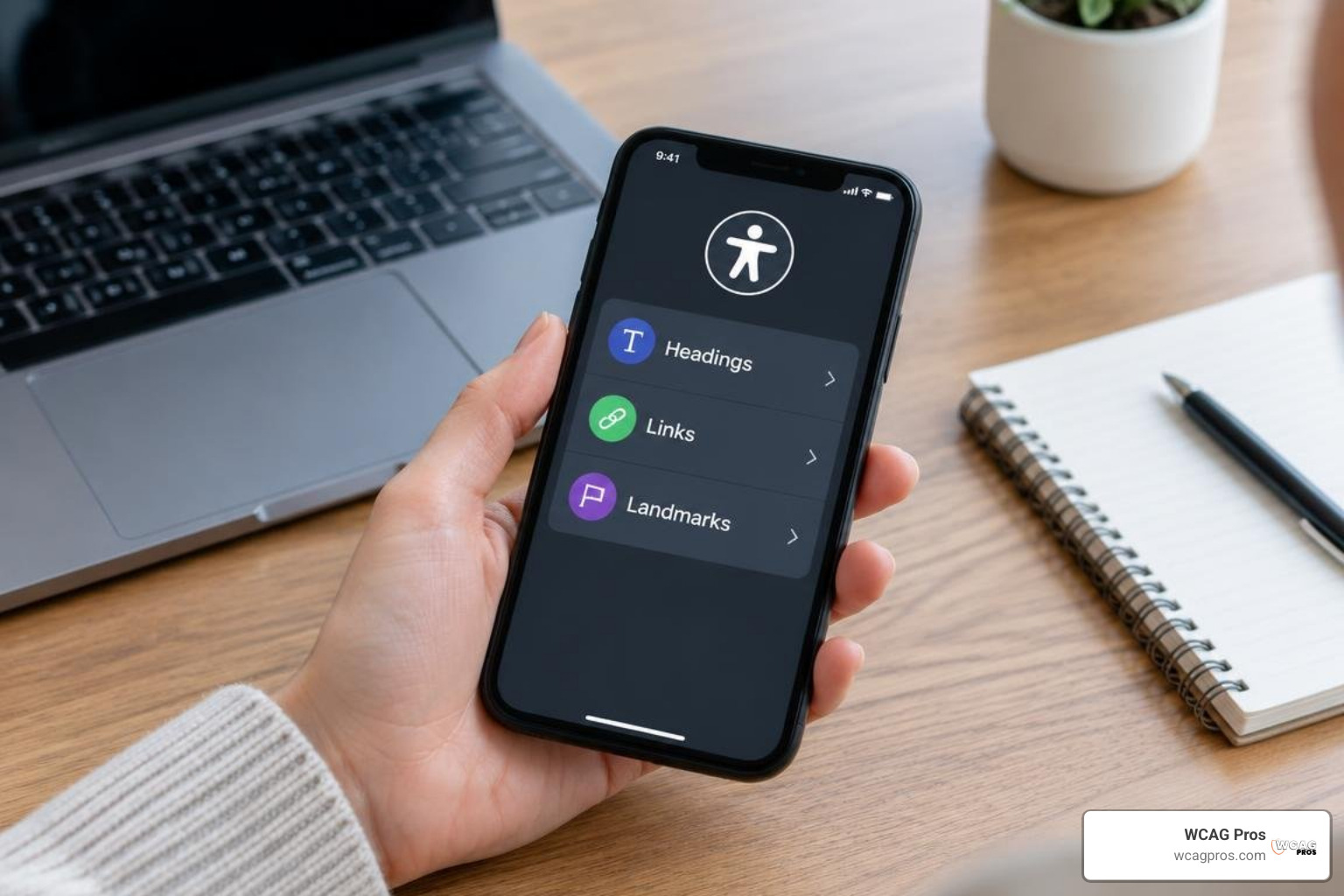
For iOS devices, follow established iPhone VoiceOver testing procedures. Turn on VoiceOver in Settings, then use a two-finger rotation gesture to open the Rotor. The Rotor allows you to filter navigation by Headings, Links, Form Controls, or Landmarks. Swiping right moves to the next element, swiping left moves to the previous element, and a double-tap activates the selected control.
For Android devices, reference the Android TalkBack testing checklist. Enable the TalkBack shortcut in your device accessibility settings so you can quickly toggle speech by holding both volume keys for three seconds. Use linear swiping to audit whether all on-screen content is reachable and announced in a sensible order.
Integrating Mobile Screen Reader Accessibility Testing on iOS and Android
Mobile web interfaces present distinct accessibility challenges that require thorough checks:
- Touch Target Sizing and Announcements: Ensure touch targets provide at least 24 by 24 CSS pixels of space and announce their role clearly when touched.
- Orientation and Reflow: Rotate the device between portrait and landscape modes while the screen reader is active. Ensure the reading focus stays on your current position rather than resetting to the top of the DOM.
- Modal Dialog Handling: Verify that mobile navigation drawers and popups trap the screen reader focus inside the overlay until dismissed.
- Gestural Conflicts: Check that custom JavaScript gestures, such as horizontal carousels, do not conflict with system-level screen reader navigation swipes.
- Defect Documentation: Log defects in an issue tracker template, noting the exact device model, operating system version, browser, and synthesized speech output. Applying structured methods for usability accessibility testing helps bridge technical defects with real user needs.
Leveraging Automation Tools for Screen Reader Accessibility Testing
While human validation remains irreplaceable, modern development teams can integrate automated screen reader utilities into continuous integration pipelines to catch regressions early.
Browser extensions with built-in simulators provide lightweight previews of reading order for content creators. However, developers seeking robust end-to-end testing should explore programmatic engines like the Guidepup automation library.
Guidepup provides a framework-agnostic JavaScript API that directly drives NVDA on Windows and VoiceOver on macOS through scripted keyboard commands. Integrating these programmatic scripts alongside a practical accessibility testing guide allows teams to run headless assertions against synthesized voice output on every build.
Frequently Asked Questions About Screen Reader Testing
How often should teams perform screen reader testing?
Teams should conduct full screen reader testing prior to any major site launch, redesign, platform migration, or substantial architectural release. Running full manual screen reader tests on a weekly basis is unnecessary for most organizations. Instead, incorporate focused checks during sprint reviews whenever new UI components, forms, or interactive widgets are added to your design system.
Can screen reader simulators replace actual manual testing?
No. Simulators and visual overlays can help identify basic issues like missing labels or improper heading levels, but they do not replicate how real screen readers interact with the operating system. Simulators often fail to account for browser-specific accessibility bugs, complex ARIA role processing, and real user keyboard habits. Always validate critical workflows with genuine assistive software like NVDA, JAWS, or VoiceOver.
Is screen reader testing strictly required for WCAG 2.2 compliance?
While the WCAG 2.2 technical standard specifies objective success criteria rather than particular testing tools, manual screen reader evaluation is the most reliable way to prove compliance. Criteria such as Non-text Content (1.1.1), Info and Relationships (1.3.1), Name, Role, Value (4.1.2), and Status Messages (4.1.3) depend entirely on how assistive technologies receive and announce underlying code. Conducting manual screen reader reviews protects organizations from legal risk under the ADA and ensures that compliance translating into true digital usability.
Conclusion
Building an inclusive web presence requires shifting accessibility from an afterthought to an active part of your development lifecycle. Automated code scanners identify low-hanging syntax errors, but manual screen reader testing reveals the real user experience. Navigating your applications through sound and touch helps your team uncover hidden friction points and build intuitive, accessible interfaces for everyone.
If your team is seeking full ADA compliance, WCAG Pros is ready to assist. Based in Norco, California, our specialists deliver comprehensive, page-by-page audits evaluating all 54 WCAG A, AA, and AAA success criteria. Every audit includes practical code fixes, direct remediation guidance, and complimentary re-audits to award your verified compliance badge. Partner with our team for professional WCAG audit services and create accessible digital experiences for all users today.
Read more website accessibility articles
Get Help With Your Website
We'll follow up with info about:
- The process
- Cost
- Timeline
We promise to respect your privacy, and never abuse the information you provide. We will not sell or rent your information to any third party.
By submitting this form, you consent to receive SMS messages and/or emails from SEM Dynamics LLC, dba WCAG Pros. To unsubscribe, follow the instructions provided in our communications. Msg & data rates may apply for SMS. Your information is secure and will not be sold to third parties.