
A Practical Guide to Screen Reader Compatibility Testing Across Modern Browsers
How to Start Screen Reader Compatibility Testing
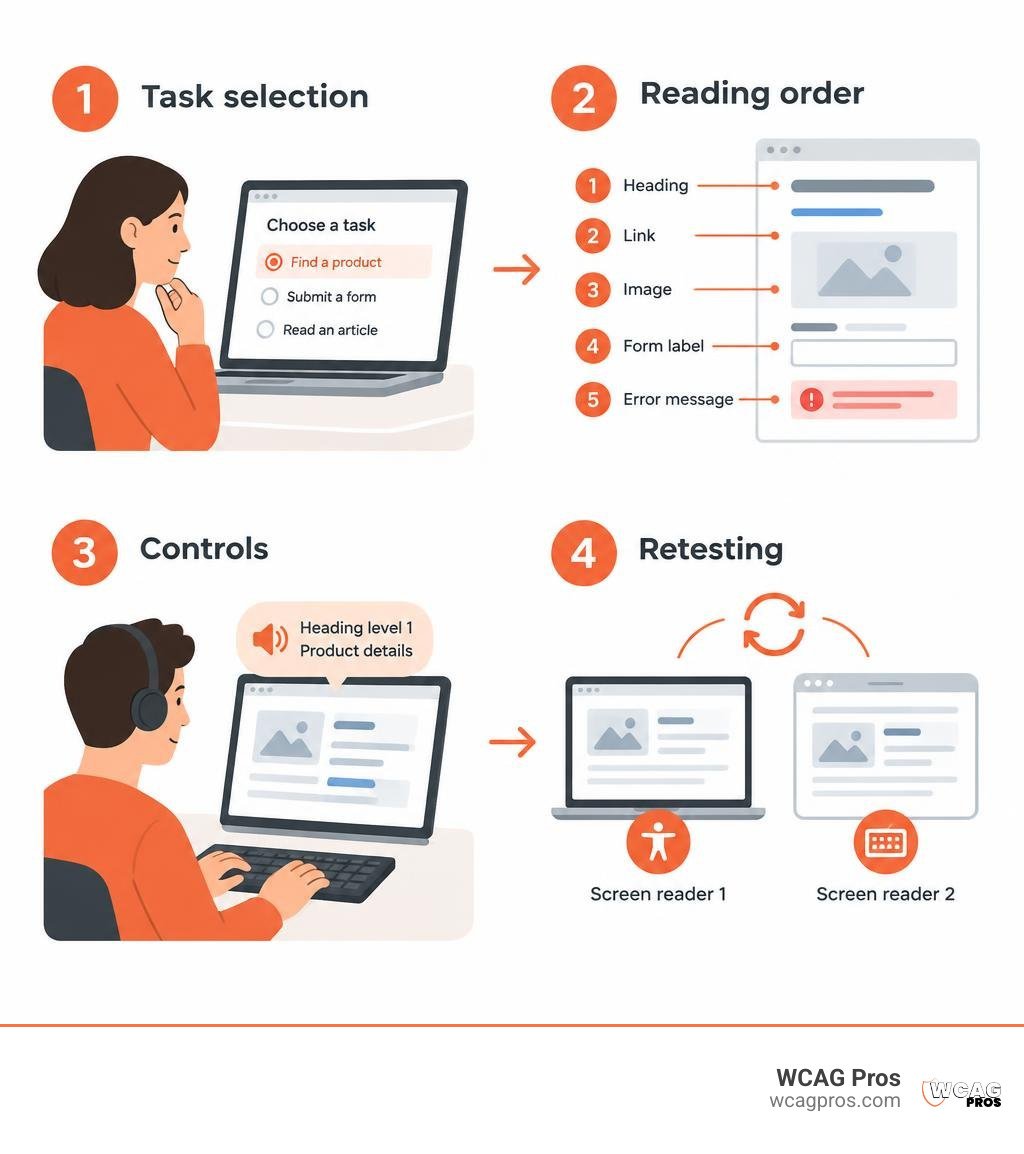
Screen reader compatibility testing means checking whether someone can understand and use your website through spoken output or braille. Start with a key task, such as finding a product or submitting a form. Use a screen reader and keyboard to move through the page. Check that headings, links, images, form labels, and errors make sense in the order they are announced. Then repeat the task with another browser and screen reader.
This matters because a page can pass an automated scan yet still be hard to use. A clear visual layout does not help if a screen reader announces content in a confusing order or misses an update.
I’m Matthew Post, co-founder of WCAG Pros. I have more than 20 years of web development experience and oversee WCAG audits and fixes, including screen reader compatibility testing.
Related content about screen reader compatibility testing:
Introduction
Modern websites are dynamic, interactive, and visually intricate. Over 2 billion people worldwide live with some form of visual impairment, and about 8 percent of Americans face visual challenges. In the UK alone, nearly two million people live with sight loss, a figure projected to climb to 2.7 million by 2030. Many of these individuals rely on assistive software to convert digital text and interface elements into synthesized speech or refreshable braille.
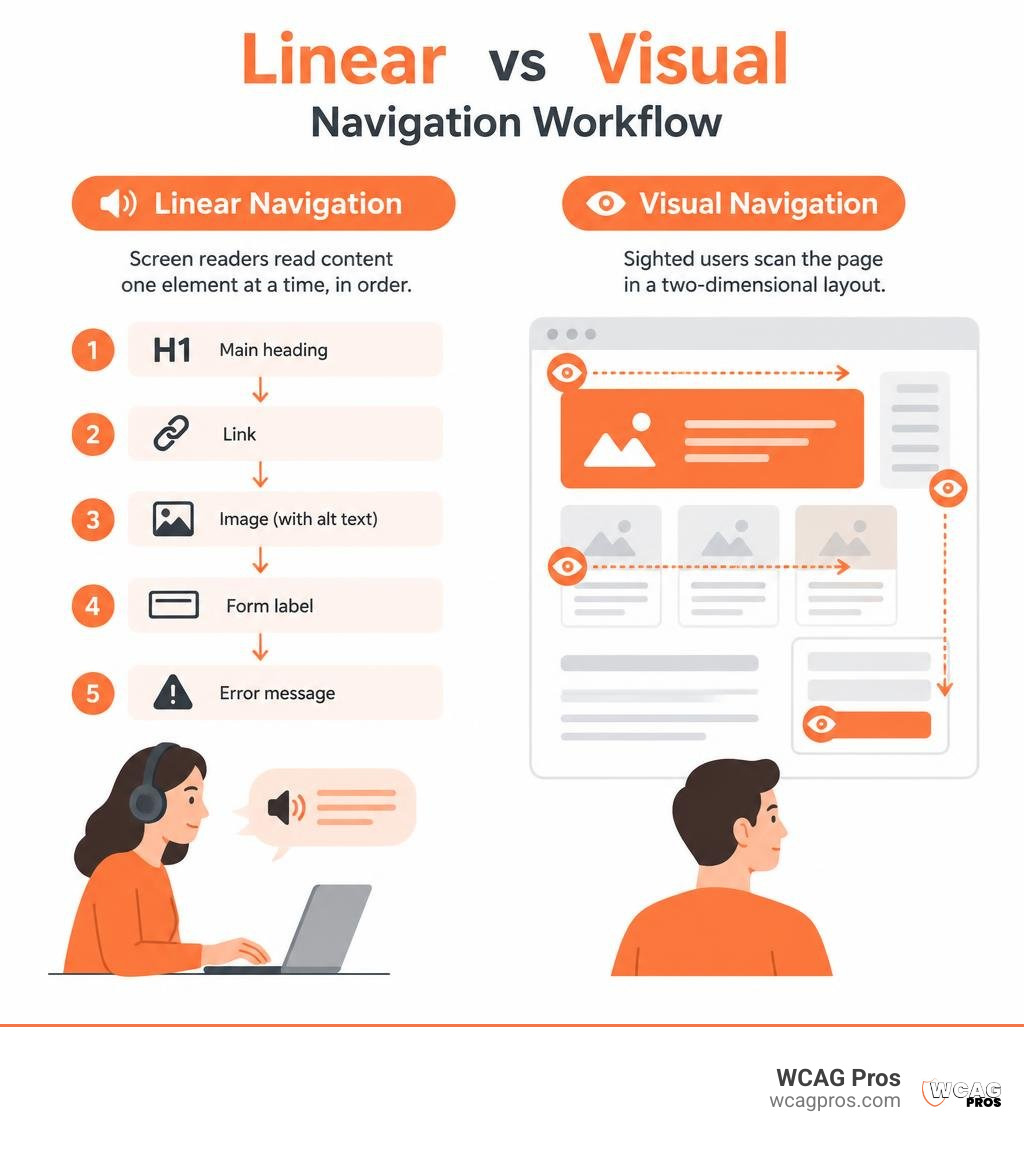
When sighted users look at a web page, they scan two-dimensional layouts, quickly spotting banners, columns, and sidebars. Screen readers, however, operate linearly. They process content sequentially through the underlying Document Object Model (DOM), presenting it one element at a time. If the underlying code does not reflect the visual meaning, the entire user experience falls apart.
Why Screen Reader Compatibility Testing Matters for Digital Inclusion
Building an inclusive website requires more than running a passive scanner. Automated tools catch obvious syntax errors, but they cannot tell you whether a dynamically updating shopping cart makes practical sense to someone who cannot see the screen. Rigorous testing validates the authentic human experience.
Failing to verify your site with assistive technology introduces massive legal risks under the ADA and global standards. Organizations that skip hands-on verification often overlook critical operational barriers. Adopting structured WCAG 2.2 manual testing protocols ensures that you catch interactive bugs early. Incorporating feedback by conducting usability audits with real users helps bridge the gap between technical rules and real-world digital inclusion.
How Screen Reader Users Experience Web Content
Screen readers convert digital code into natural speech or refreshable braille cells. Experienced users often listen at speeds exceeding 300 words per minute. Rather than listening to an entire page from top to bottom, users navigate efficiently by jumping between structural landmarks, headings, interactive links, and form fields using keyboard shortcuts.
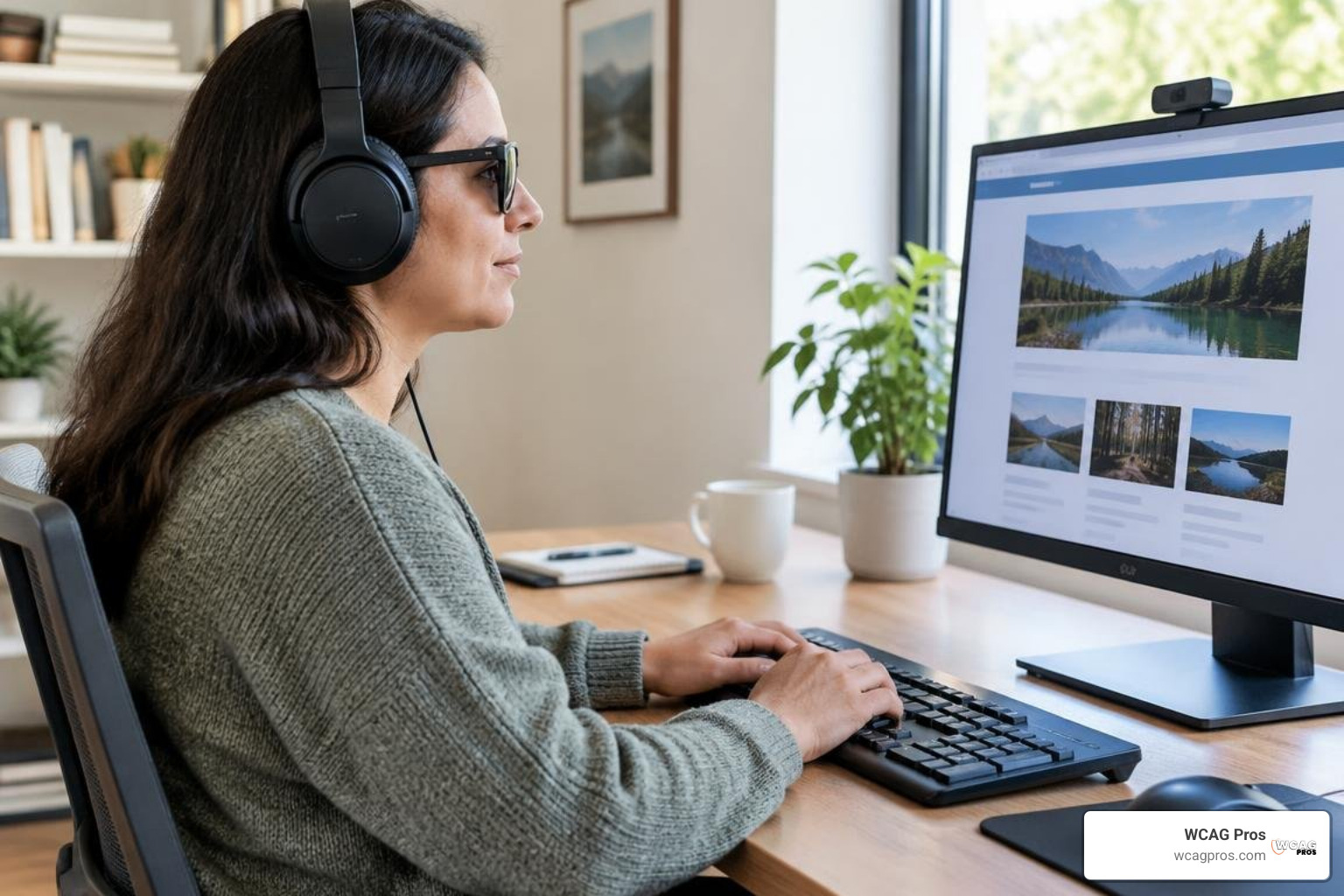
Screen readers generally operate in two distinct modes. In browse mode or virtual buffer mode, standard letter keys act as navigation commands. Pressing H jumps to the next heading, while T moves to the next table. When the user enters an input field, the software shifts into focus mode or forms mode, passing raw keystrokes directly to the browser so the user can type text normally.
Addressing the Limitations of Automated Accessibility Scans
Automated tools miss approximately 71 percent of web accessibility issues. Scanners can verify whether an image has an alt attribute, but they cannot determine if the text accurately describes the image or provides confusing clutter.
Automated scanners also struggle with single-page application routing, contextual link text, dynamic status updates, and custom UI components. Discovering how assistive tech interacts with complex components requires exploring modern assistive technology tools and evaluating live speech output directly.
Essential Screen Reader and Modern Browser Pairings
Screen readers interact with web pages through platform-specific accessibility APIs provided by the operating system and browser engine. Because each combination interprets ARIA and HTML semantics slightly differently, testing requires specific pairings.
| Screen Reader | Primary Operating System | Recommended Modern Browser | Cost / License Type |
|---|---|---|---|
| NVDA | Windows 10 / 11 | Mozilla Firefox, Google Chrome | Free, Open-Source |
| JAWS | Windows 10 / 11 | Google Chrome, Microsoft Edge | Commercial License |
| VoiceOver | macOS | Apple Safari | Built-in Free |
| VoiceOver | iOS / iPadOS | Apple Safari Mobile | Built-in Free |
| TalkBack | Android | Google Chrome Mobile | Built-in Free |
| Narrator | Windows 10 / 11 | Microsoft Edge | Built-in Free |
To test across different operating systems without maintaining physical machines, teams often use cloud platforms that provide remote access to real devices and assistive technology. You can also verify element support through public accessibility support databases maintained by the web standards community.
Desktop Screen Readers: NVDA, JAWS, and VoiceOver
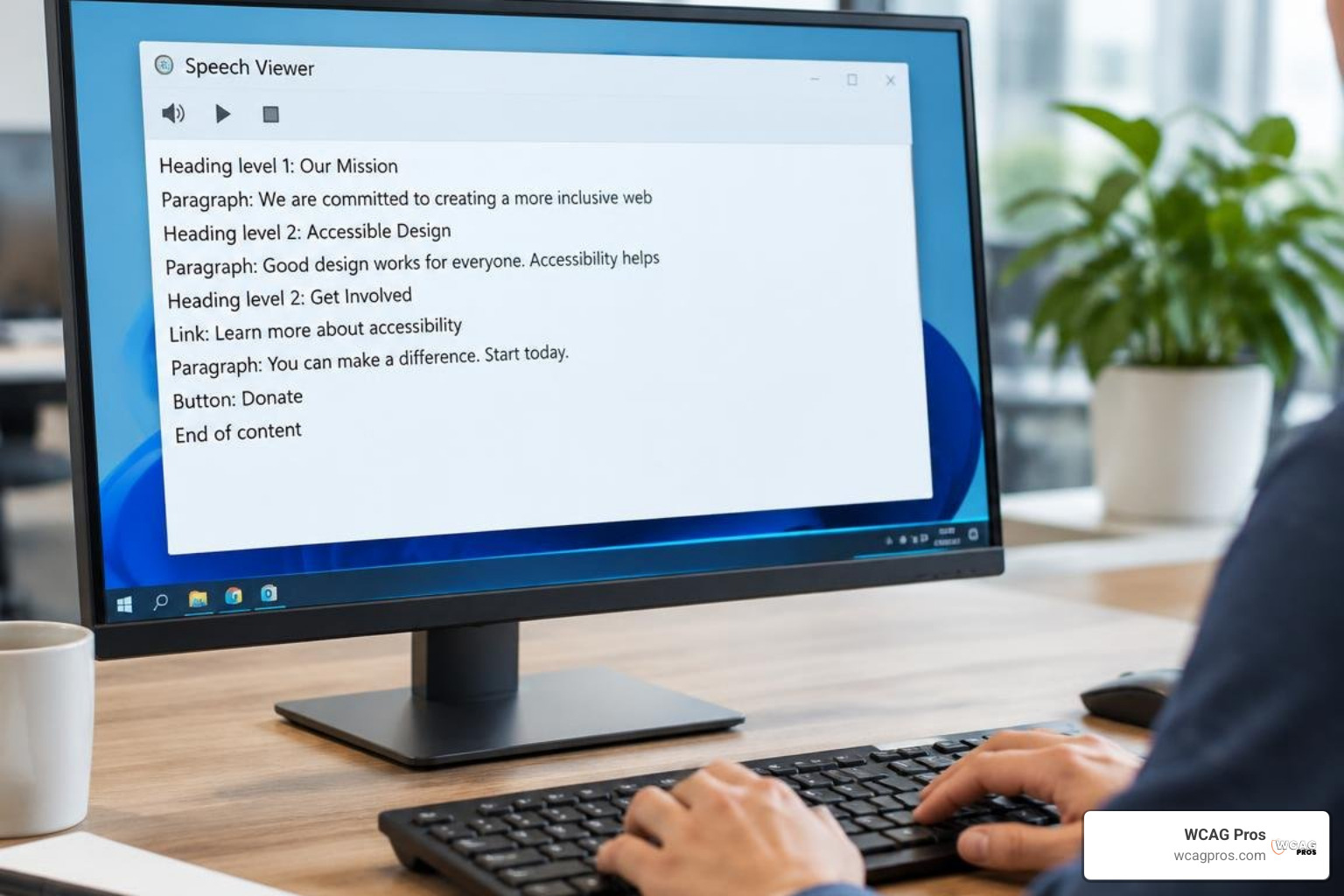
On Windows, JAWS holds a 30-year legacy as a market powerhouse, offering extensive corporate and enterprise support. The open-source NVDA has grown rapidly into an equally capable industry standard, pairing naturally with Firefox and Chrome. Both screen readers include speech viewer windows that print spoken output into a readable text log, making bug logging straightforward for sighted testers.
On macOS, VoiceOver comes integrated with Safari. VoiceOver utilizes a modifier key combination (Control + Option, known as the VO keys) for navigation and displays a built-in visual caption panel.
Mobile Screen Readers: VoiceOver iOS and TalkBack Android
Mobile testing relies on touch gestures rather than physical keyboards. On Apple devices, VoiceOver uses swipe gestures to navigate sequentially and a two-finger rotation gesture called the rotor to adjust navigation filters.
On Android, TalkBack provides equivalent gesture controls, letting users explore by touch or swipe linearly through elements. Mobile audits must verify that touch targets meet WCAG 2.2 spacing rules and that responsive viewport reflow does not hide essential content from the mobile accessibility tree.
How to Perform Screen Reader Compatibility Testing
Performing an effective audit requires discipline. Put your mouse aside completely and rely strictly on your keyboard or touch gestures.
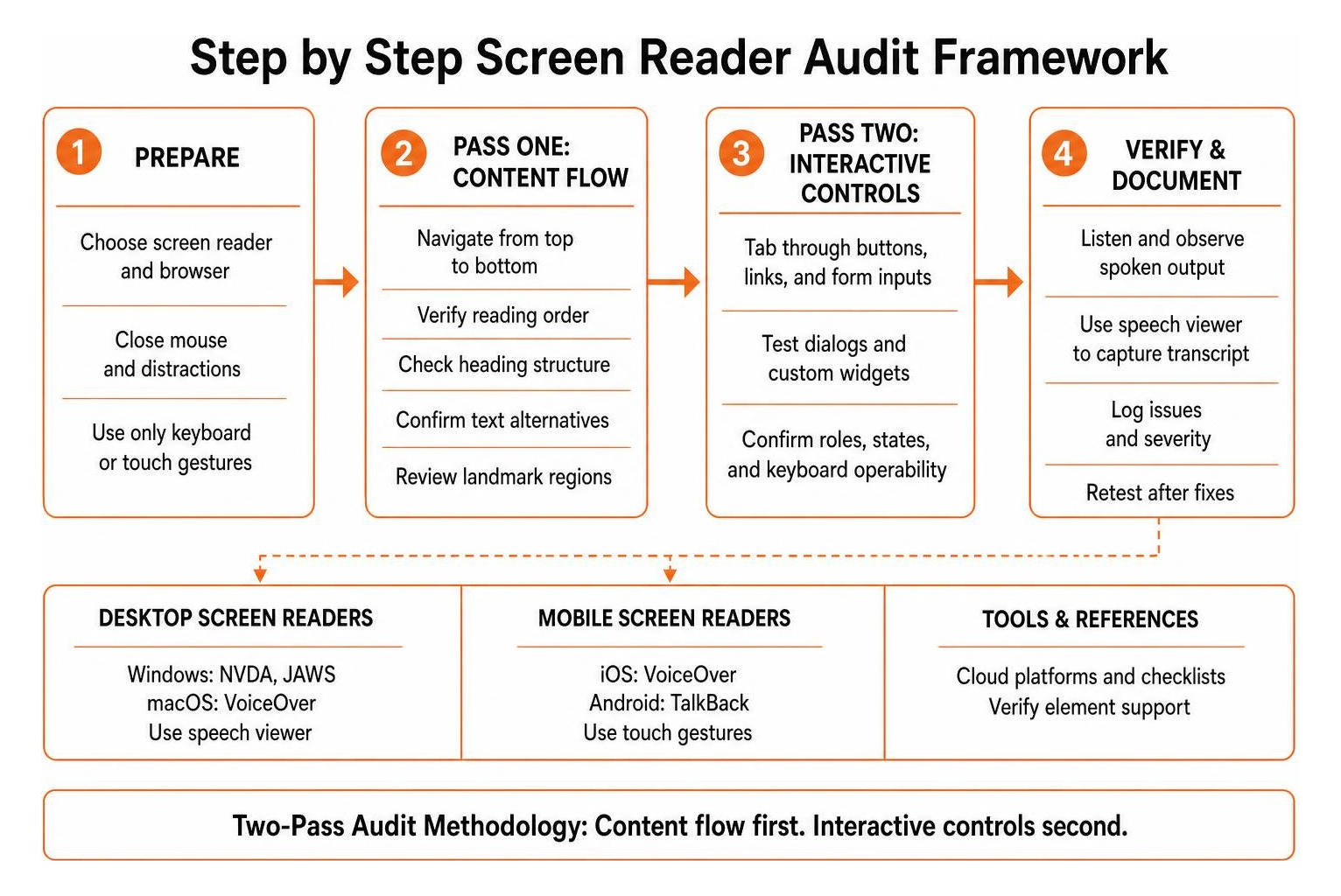
We recommend using a two-pass audit methodology:
- Pass One focuses on content flow. Navigate linearly from the top of the page to the bottom to verify reading order, heading structure, text alternatives, and landmark regions.
- Pass Two focuses on interactive controls. Tab through buttons, links, form inputs, dialogs, and custom widgets to confirm proper roles, states, and keyboard operability.
For additional guidance on baseline testing workflows, consult public accessibility resources from state government digital services teams and educational institutions that publish screen reader testing documentation.
Setting Up Your Environment for Screen Reader Compatibility Testing
Before starting, configure your testing environment with these essential steps:
- Keep speech rate at default or moderate speeds so you can clearly understand announcements.
- Enable the visual speech viewer or caption window to read spoken text transcripts.
- Open a clean browser profile without ad-blockers or styling extensions.
- Avoid third-party accessibility overlays, as they frequently interfere with native screen reader APIs.
- Learn the core keyboard navigation commands:
| Command Action | NVDA (Windows) | JAWS (Windows) | VoiceOver (macOS) |
|---|---|---|---|
| Read Next / Previous Item | Down Arrow / Up Arrow | Down Arrow / Up Arrow | VO + Right / Left Arrow |
| Jump to Next Heading | H | H | VO + Command + H |
| Jump to Next Form Control | F | F | VO + Command + J |
| Jump to Next Table | T | T | VO + Command + T |
| Navigate Table Cells | Ctrl + Alt + Arrows | Ctrl + Alt + Arrows | VO + Arrow Keys |
| Toggle Virtual / Focus Mode | Escape / Enter | Escape / Enter | Automatic |
| Open Elements List | NVDA + F7 | Insert + F3 | VO + U (Rotor) |
Key Elements to Audit During Screen Reader Compatibility Testing
During your evaluation, review these critical elements across your templates:
- Document Language: Ensure the html element has a valid lang attribute so speech synthesizers apply correct pronunciation rules.
- Heading Hierarchy: Confirm that pages have a single logical H1 followed by properly nested H2 through H6 levels without skipped ranks.
- Landmark Regions: Verify header, main, nav, aside, and footer landmarks are present and labeled when duplicate landmarks exist.
- Skip Links: Check that a functional skip-to-content link appears on keyboard focus and moves the virtual cursor past repetitive menus.
- Alternative Text: Confirm images communicate meaningful text, while decorative images use empty alt attributes.
- Form Labels and Validation: Verify every input has an explicit label, instructions are connected via aria-describedby, and errors announce automatically.
- Data Tables: Ensure data tables include row and column headers using th tags with correct scope attributes.
If you are managing sites built on popular platforms, check our guide on Wix screen reader optimization techniques to ensure your platform templates output clean, accessible markup.
Advanced Testing for Dynamic Content and ARIA Widgets
Custom interactive elements require thorough validation. Test modal dialogs to confirm keyboard focus moves inside when opened, remains trapped within the modal while active, and returns to the triggering button when closed with the Escape key. Accordions and disclosure widgets must accurately announce their state using aria-expanded attributes.
Dynamic status messages, such as search result counts or shopping cart updates, must use polite aria-live regions so updates are spoken without interrupting current speech. For complex patterns, review our guide on implementing proper HTML ARIA roles.
You can benchmark custom components against the open-source W3C ARIA-AT test suite or reference our tutorial on WordPress screen reader testing for dynamic theme optimization.
Frequently Asked Questions About Screen Reader Testing
Is screen reader compatibility testing mandatory for WCAG 2.2 compliance?
WCAG 2.2 defines technical success criteria rather than mandating specific testing tools. However, validating criteria such as Non-text Content (1.1.1), Info and Relationships (1.3.1), and Name, Role, Value (4.1.2) cannot be reliably completed without testing how screen readers parse your markup.
How often should development teams conduct screen reader audits?
Conduct thorough screen reader audits during major redesigns, before new platform launches, and whenever releasing significant updates to dynamic interactive components. Incorporating lightweight smoke checks into regular sprint cycles prevents accessibility regressions from accumulating over time.
Can automated tools replace manual screen reader testing?
No. Automated rule scanners check code structure, but they cannot evaluate semantic context, audio pronunciation, dynamic state transitions, or genuine task usability. High-performing digital accessibility programs combine automated scans with manual assistive technology verification.
Conclusion
Creating a fully inclusive digital presence requires testing web experiences through the ears of your users. By establishing structured testing workflows across popular screen reader and browser combinations, development teams can identify barriers early and deliver seamless digital experiences for everyone.
At WCAG Pros, our team in Norco CA provides comprehensive ADA website compliance consulting. We conduct exhaustive manual audits covering all 54 WCAG 2.2 Level A and AA success criteria, complete with direct code remediation and complimentary re-audits for official compliance certification. Explore our expert guide on selecting the right web accessibility evaluation tools to help your team build a resilient, accessible digital product.
Read more website accessibility articles
Get Help With Your Website
We'll follow up with info about:
- The process
- Cost
- Timeline
We promise to respect your privacy, and never abuse the information you provide. We will not sell or rent your information to any third party.
By submitting this form, you consent to receive SMS messages and/or emails from SEM Dynamics LLC, dba WCAG Pros. To unsubscribe, follow the instructions provided in our communications. Msg & data rates may apply for SMS. Your information is secure and will not be sold to third parties.